The shift calendar
Create shift types, schedule employees on weekly or rotating shifts, and move, swap or remove single days on the weekly calendar.
The shift calendar shows who works which shift, week by week. You set up recurring schedules once, then adjust single days by dragging. Open it under Staff > Shifts; this week's calendar also appears on the Overview page.
Owners and Admins can change the calendar. Accountants can view it. The calendar needs at least one employee and one shift type.
1. Create your shift types
A shift type is a named time slot, for example "First shift 08:00-16:00".
- Click Manage shifts (on an empty calendar, click Create a shift).
- Click New shift.
- Enter the Shift name, Starts at and Ends at. If the end time is earlier than or equal to the start time, the shift crosses midnight (for example 22:00-06:00) and is marked overnight.
- Optionally set Break (minutes), Sort order (the row order on the calendar) and a Color.
- Leave Active on and click Save.
Inactive shift types drop off the calendar and cannot receive new assignments, but keep their history. Deleting a shift type also keeps existing assignments and past occurrences.
2. Schedule an employee
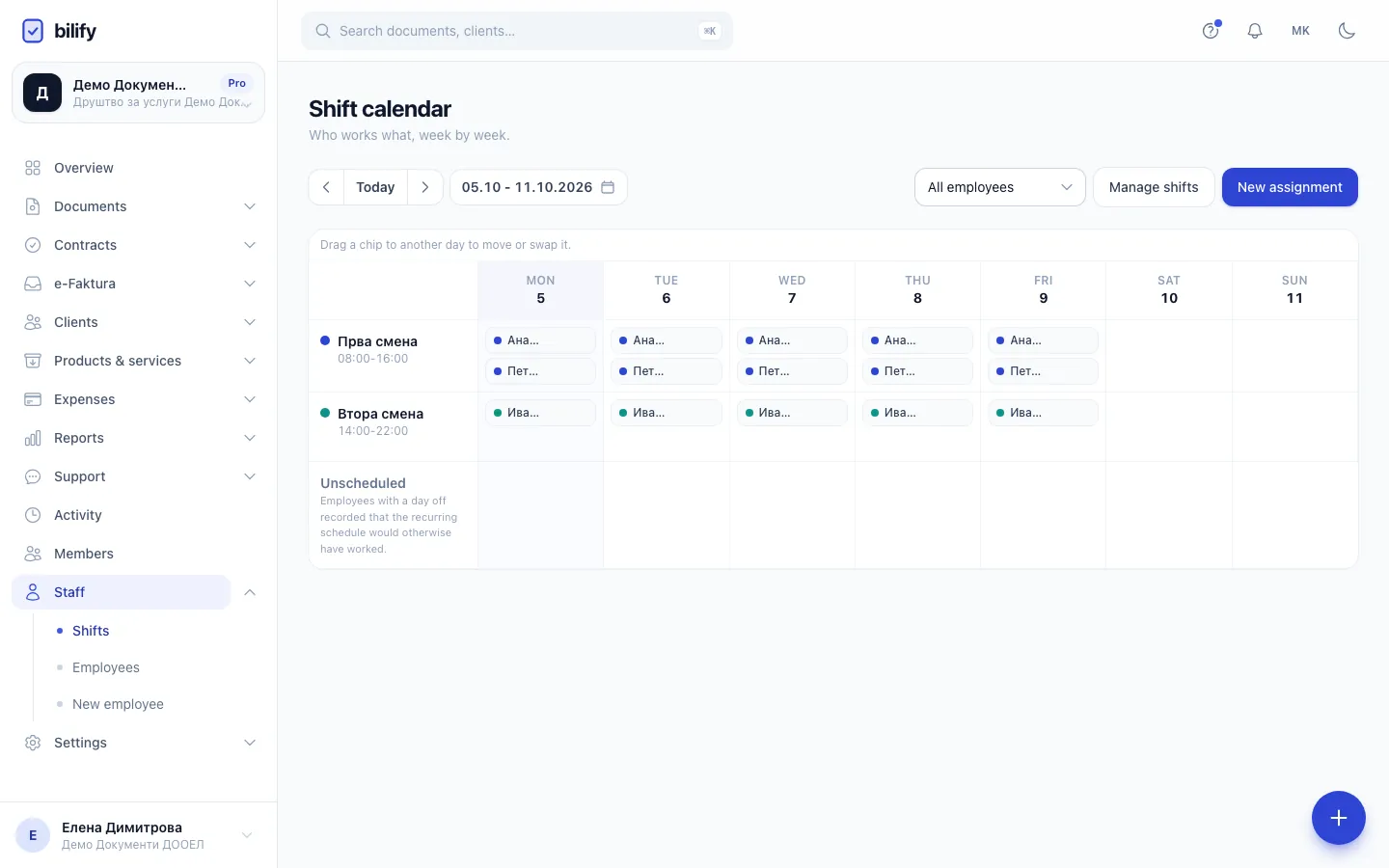
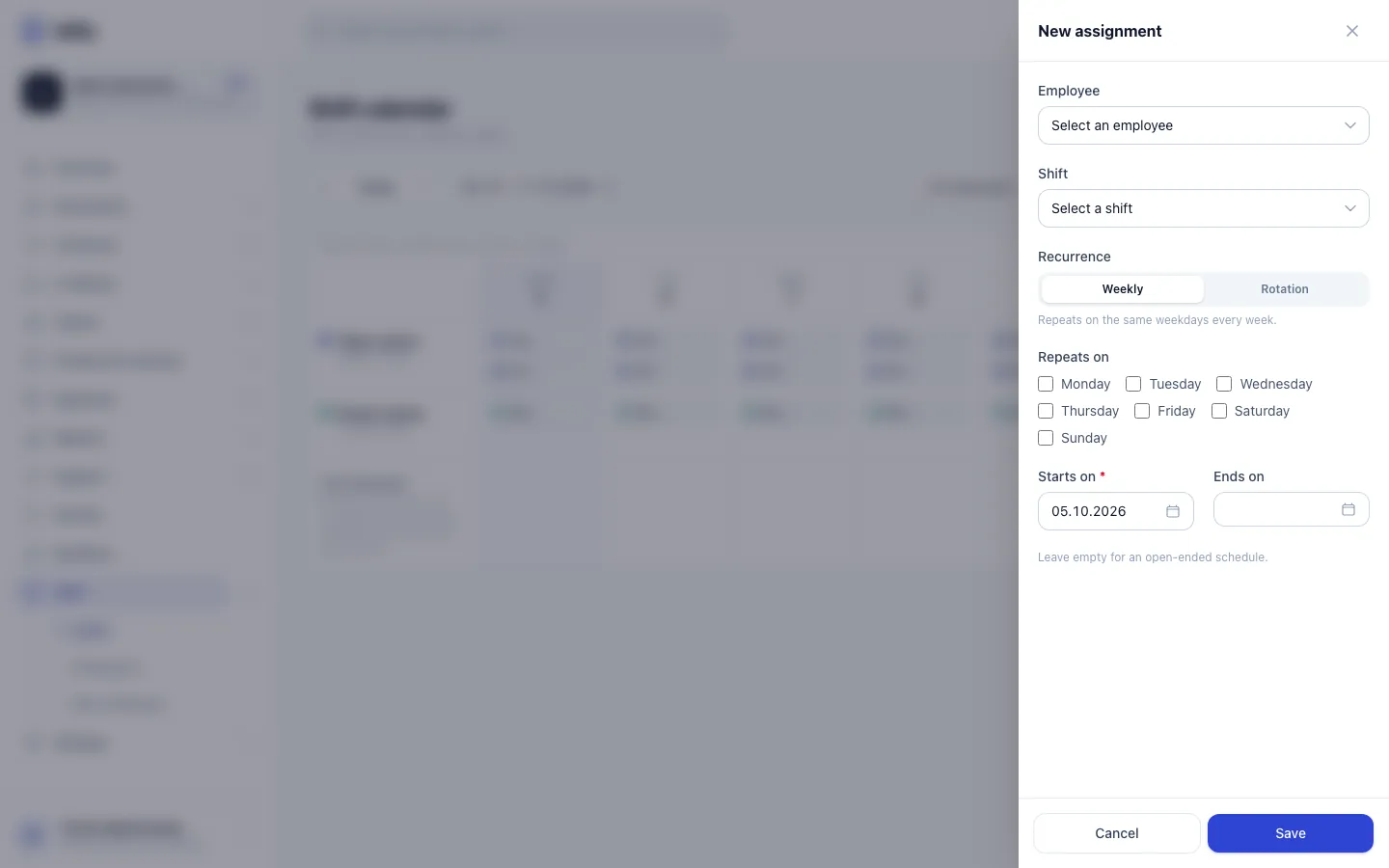
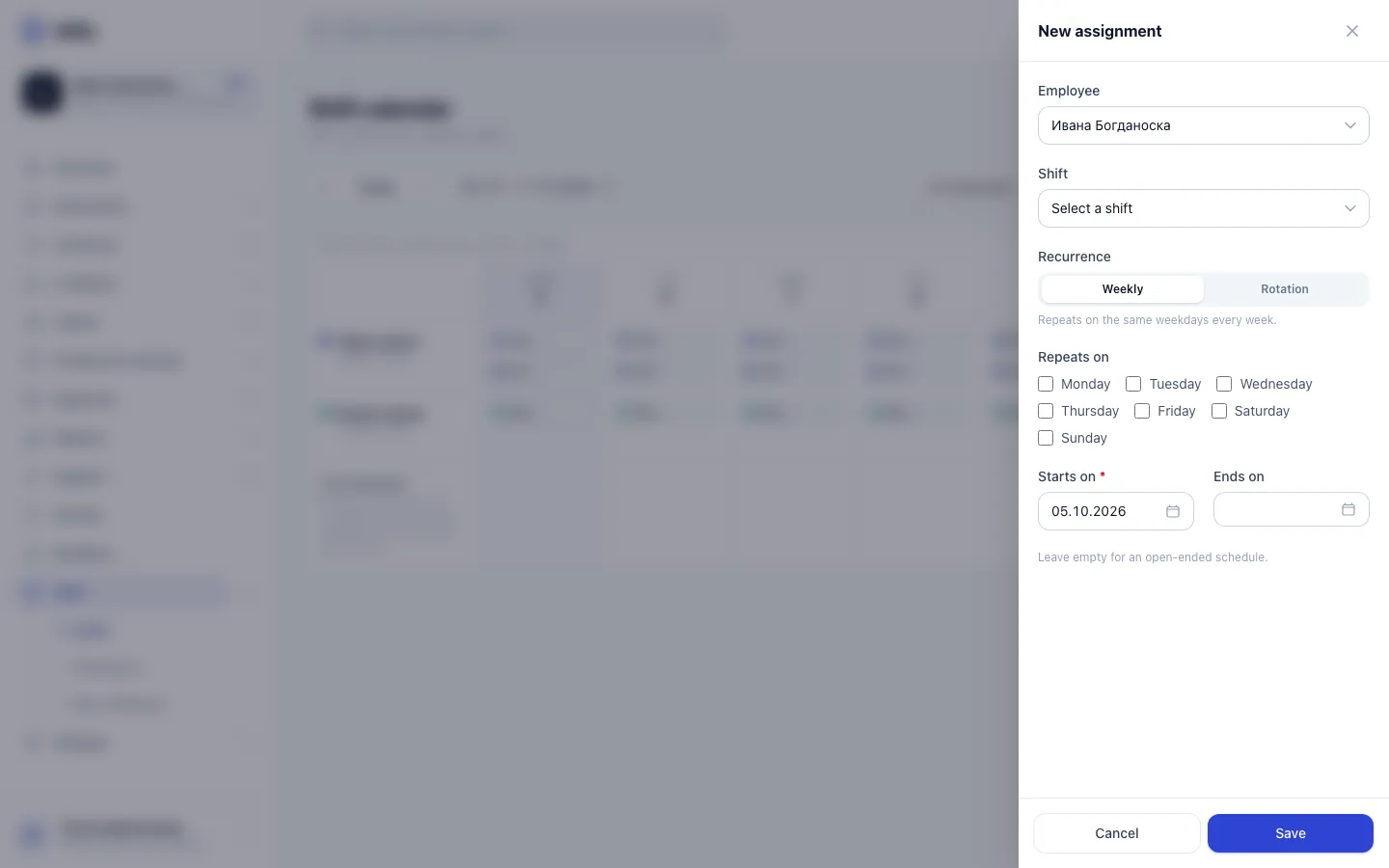
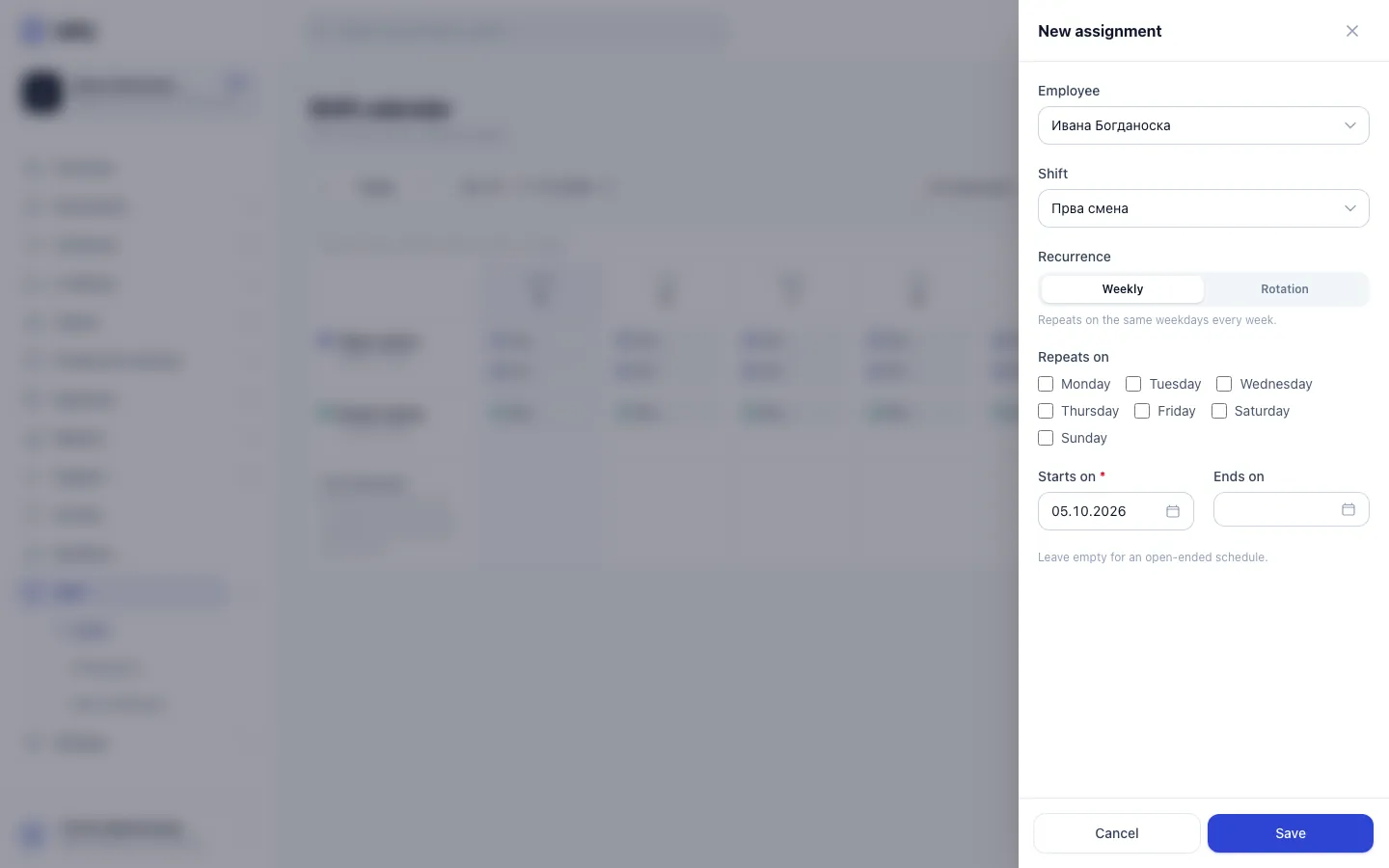
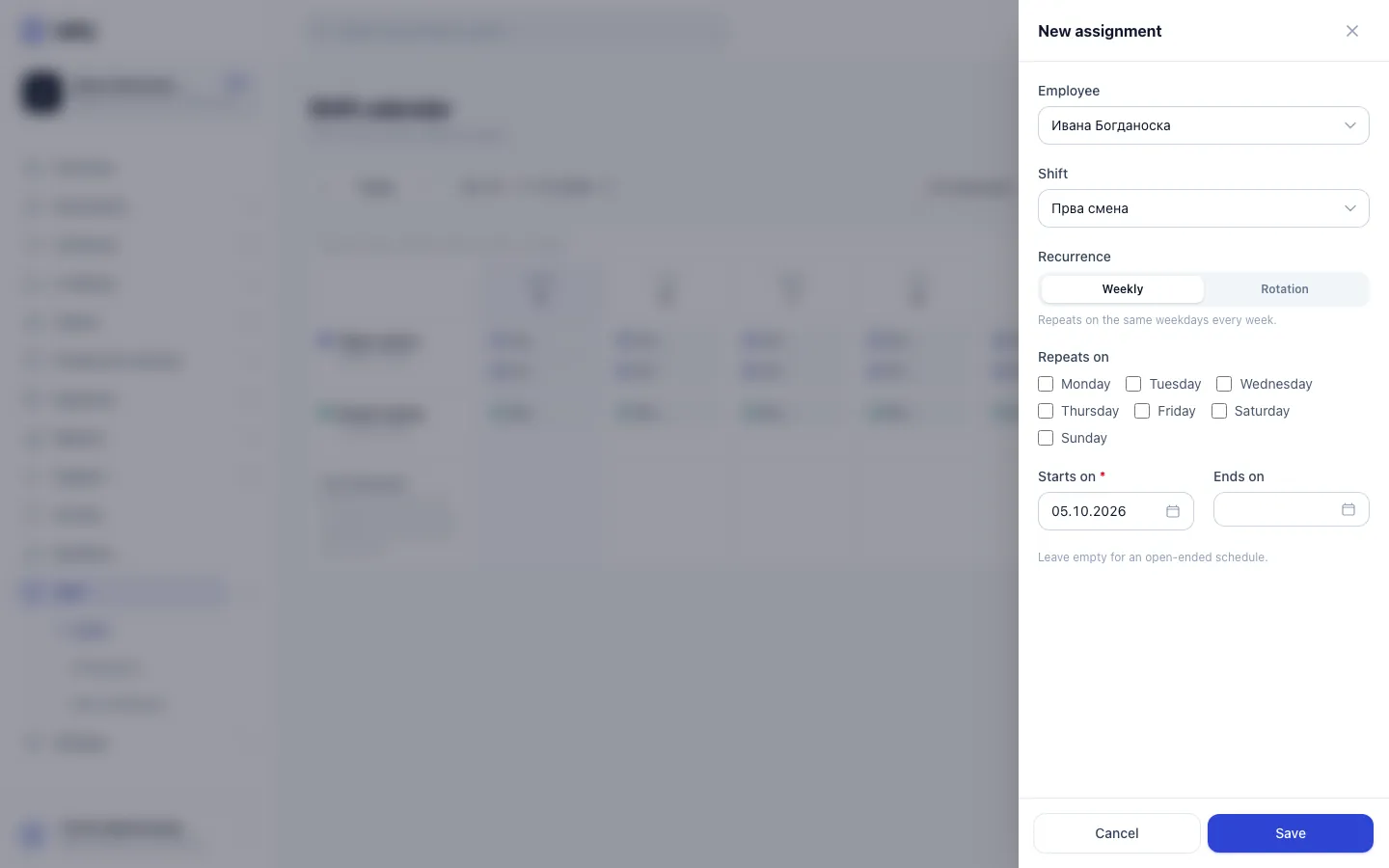
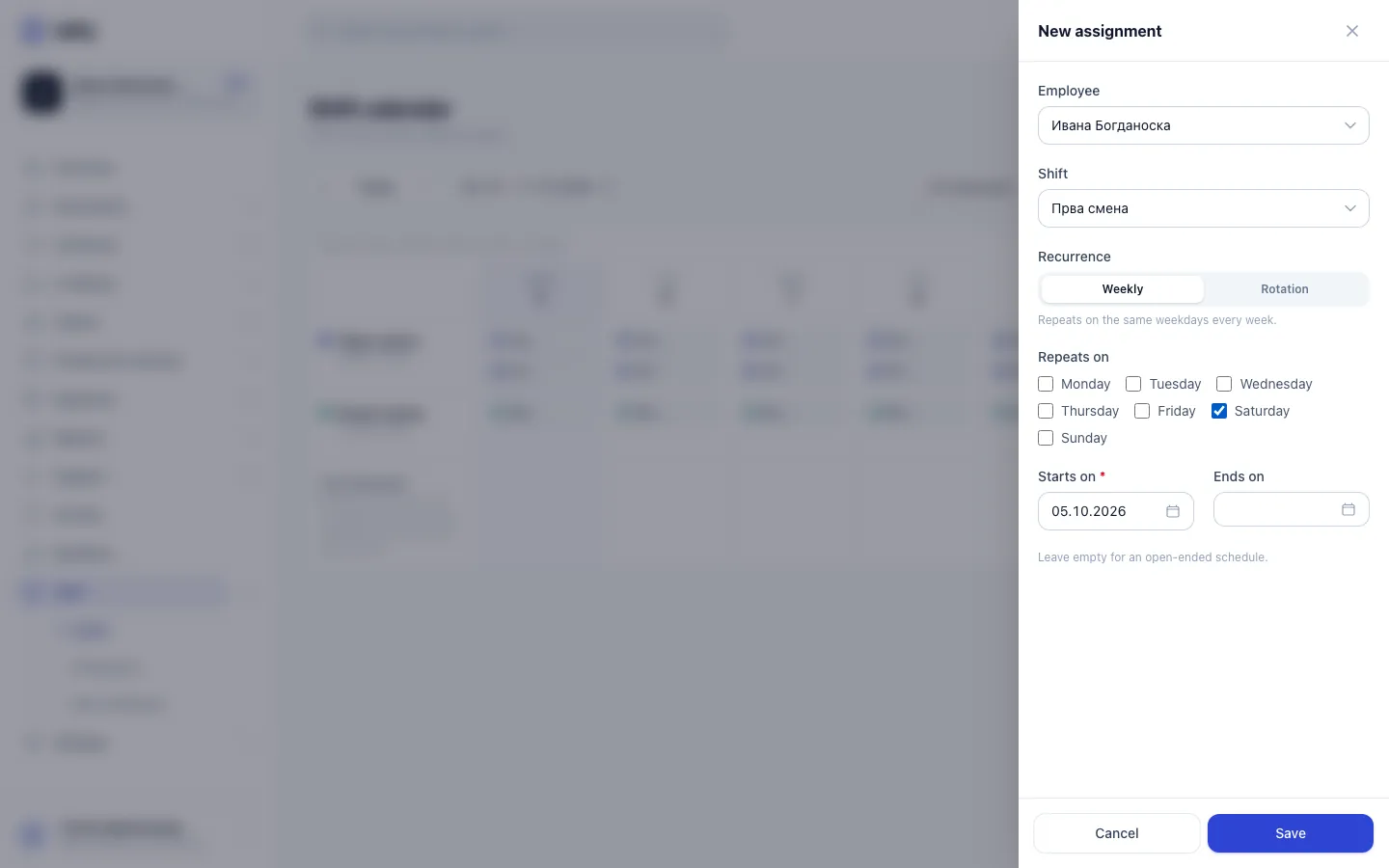
- Step 1: Click New assignment to schedule someone on a recurring shift.
- Step 2: Choose the employee. Only active employees are listed.
- Step 3: Choose the shift type they will work.
- Step 4: Weekly repeats on the same weekdays. Rotation repeats a cycle of days from an anchor date.
- Step 5: Tick the weekdays this shift applies to.
- Step 6: Click Save. Bilify refuses a schedule that overlaps another one for the same employee.
- Click New assignment.
- Choose the Employee and the Shift. Only active employees and active shift types are listed.
- Choose the Recurrence:
- Weekly: tick the days under Repeats on, for example Monday to Friday.
- Rotation: set Cycle length (days), pick the Anchor date (day 0 of the cycle) and tick the Active cycle days. Example: cycle length 2 with only Day 0 ticked means every second day.
- Set Starts on. Leave Ends on empty for an open-ended schedule.
- Click Save.
One employee, one shift per day
Bilify refuses an assignment whose days overlap another active assignment of the same employee and shows "This schedule overlaps with another active assignment for this employee." Change the days or end the other assignment first.
3. Read and navigate the week
- Rows are your active shift types, columns are the seven days. Each employee appears as a chip in the row of their shift.
- Use the arrows and Today to move between weeks, or click the week range to jump to a date.
- The Employee filter (All employees by default) shows one person's schedule.
- The Unscheduled row lists employees who have a day off recorded on a day their schedule would normally work.
- On a phone the calendar shows one day at a time, with previous and next day buttons. Dragging works on larger screens only.
4. Change single days
Hover a chip to see its buttons:
- Edit assignment (pencil, on recurring chips): change the recurring schedule itself, for example to set an Ends on date when someone stops working that shift. Assignments cannot be deleted; ending them keeps the history.
- Remove from this day: marks the employee as not working that one day. The recurring schedule stays as it is. The employee moves to the Unscheduled row, where Put back on this day undoes it.
To move a shift, drag the chip to another day or another shift row. Bilify asks how the change should apply:
| Choice | What happens |
|---|---|
| Move only this day | The shift leaves the old day and goes to the new one, for this date only. |
| Only this day | An extra shift is added on the new date; the old day stays scheduled. |
| This and future | The recurring schedule changes from this date forward, including this week. Past weeks are unaffected. |
To swap, drag one employee's chip onto another employee's chip on the same day and confirm Swap. The two trade shifts for that day only. One-off changes are labelled on the chip, for example Swapped, Extra day or Reassigned.
Not available yet
Clocking in and out, attendance and worked hours are not built yet. The PIN code and QR code on each employee are stored for that future feature.
Was this page helpful?
Related articles
Still stuck?
Write to us and we will get back to you within one working day.