Stock movements
Record deliveries, stocktake differences, corrections, losses and write-offs, and read a product's stock ledger.
Every change to a product's stock is a movement in its stock ledger. Invoices add movements automatically; this article is about the ones you record yourself, for example a delivery from a supplier or a broken item.
Record a movement
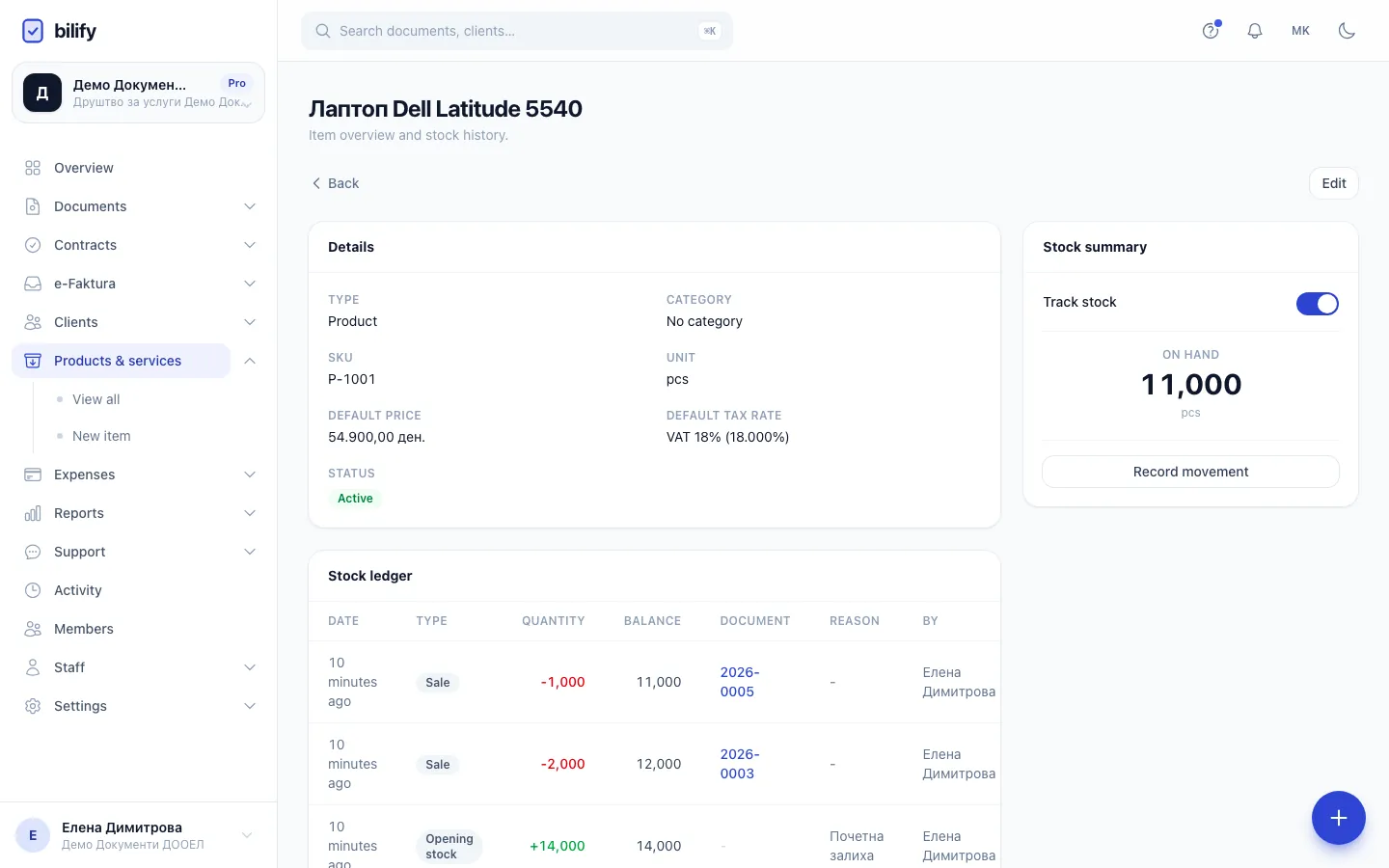
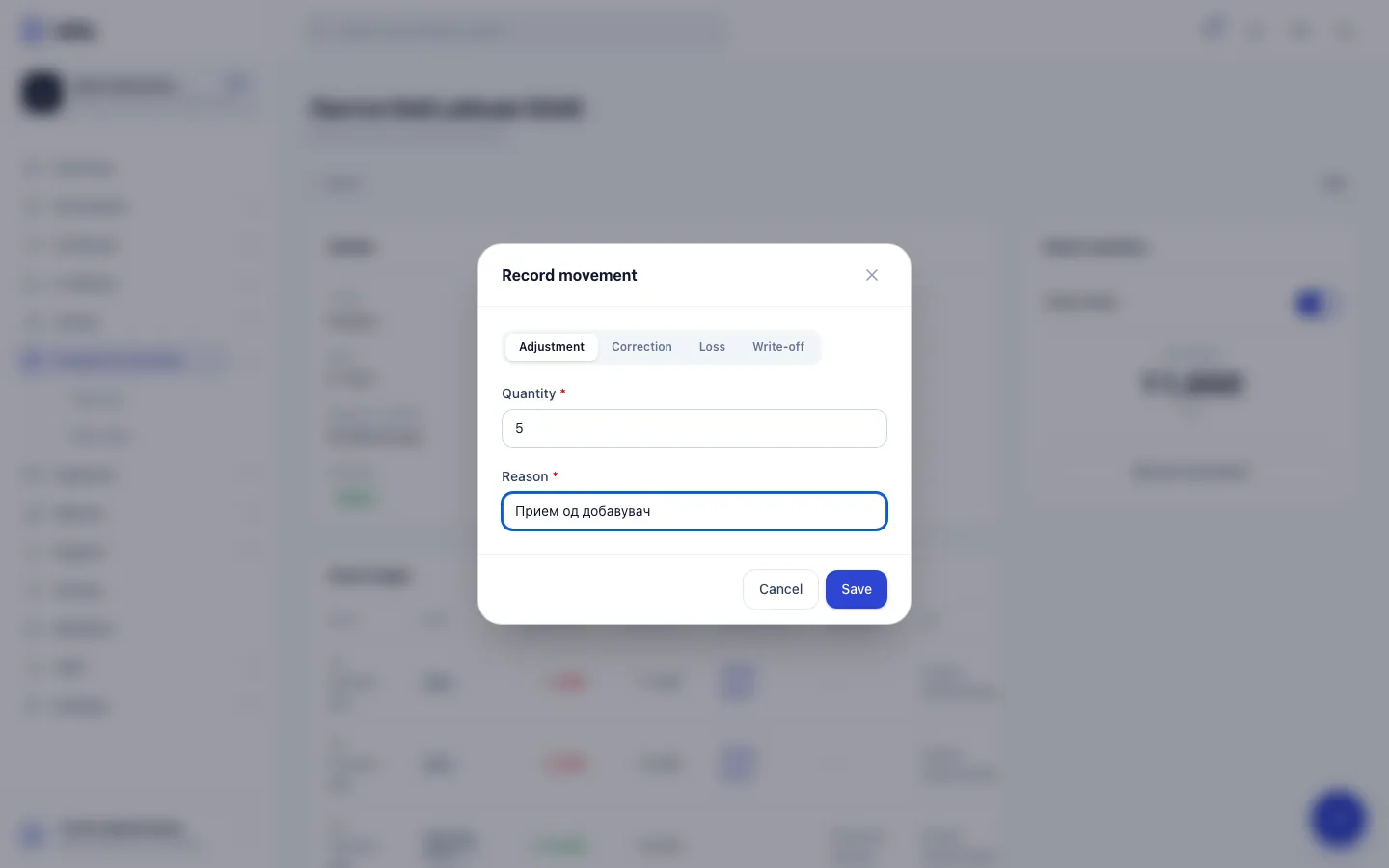
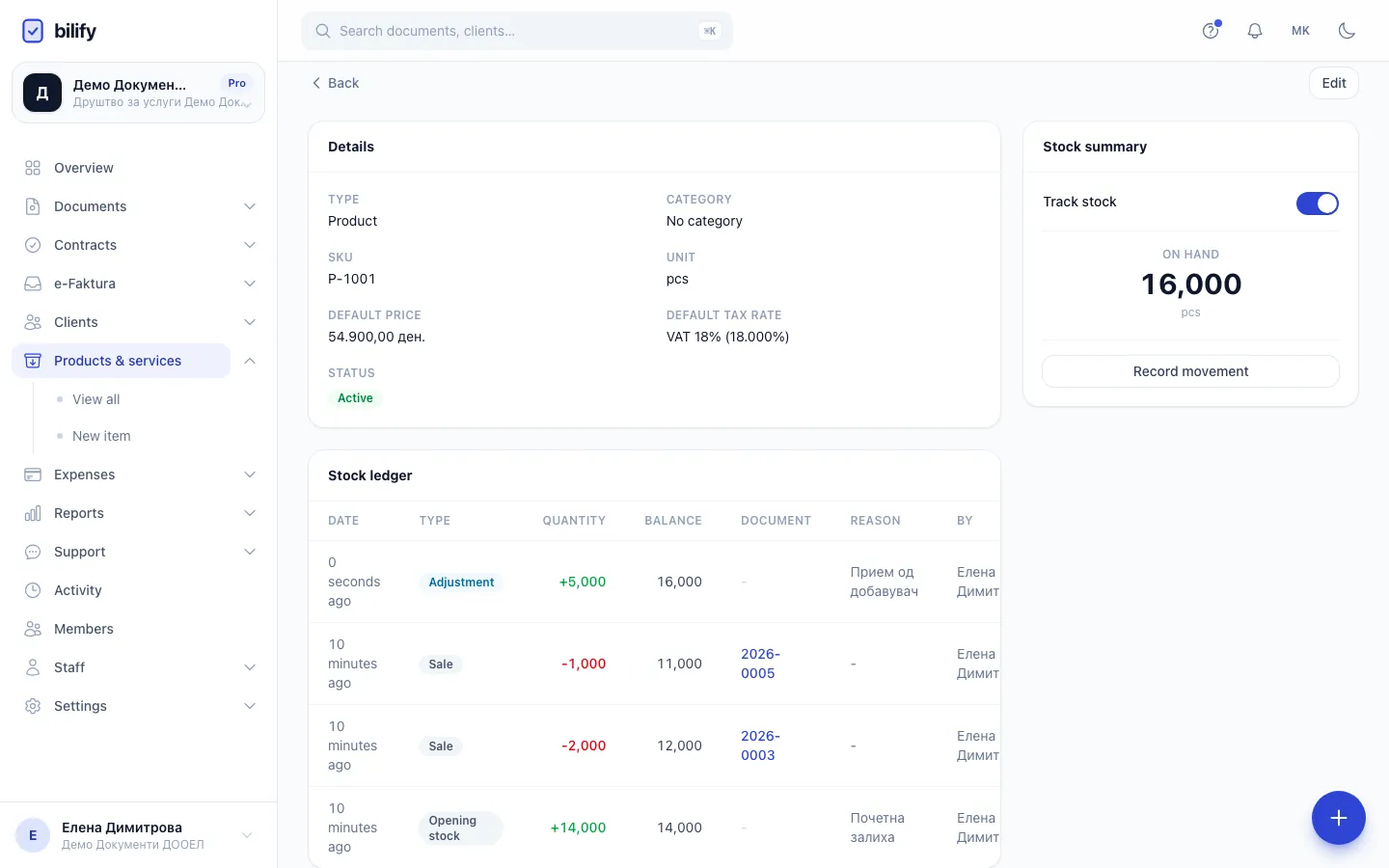
- Step 1: The stock summary shows how many units are on hand right now.
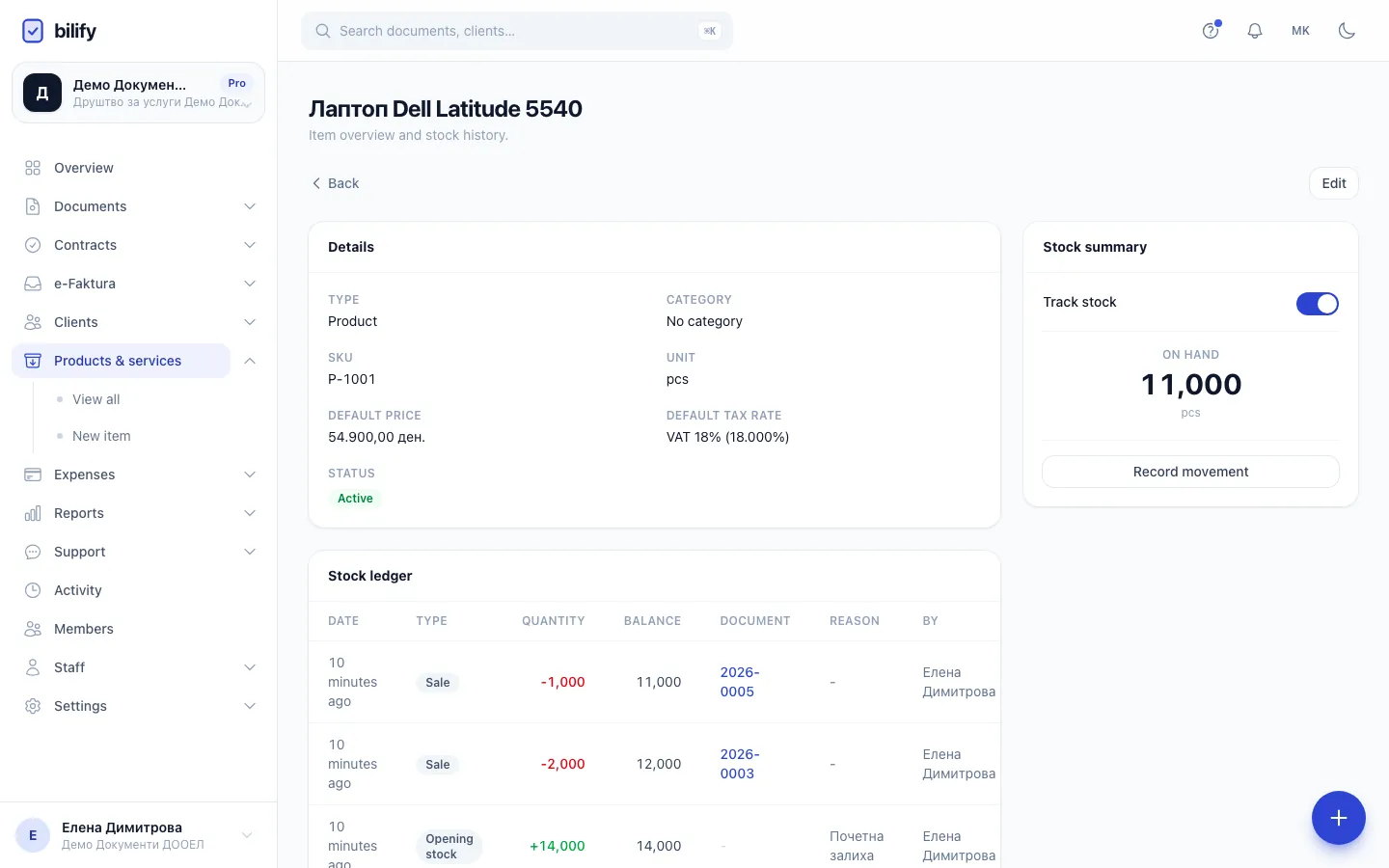
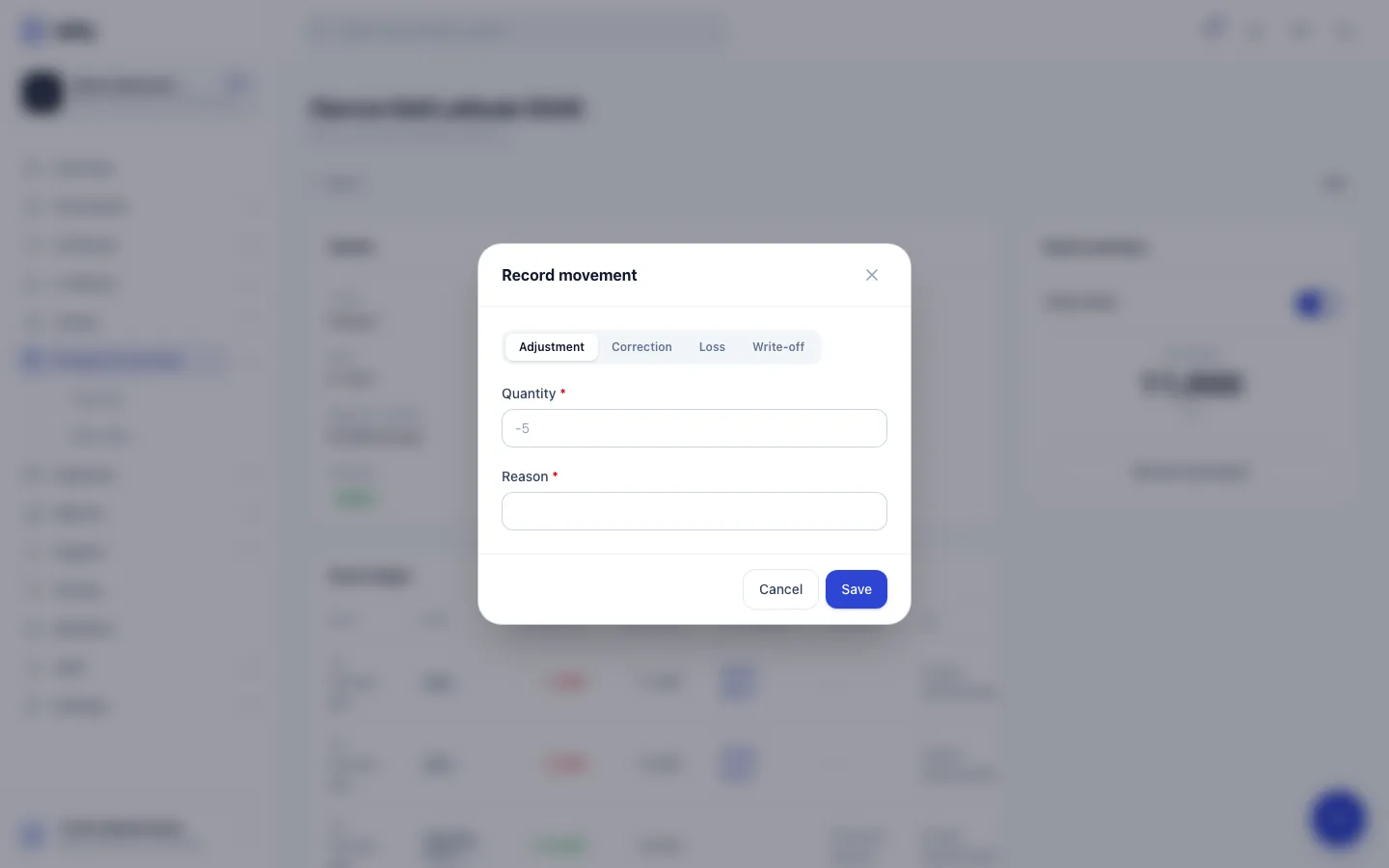
- Step 2: Click Record movement. Adjustment is selected, the usual choice for deliveries and stocktakes.
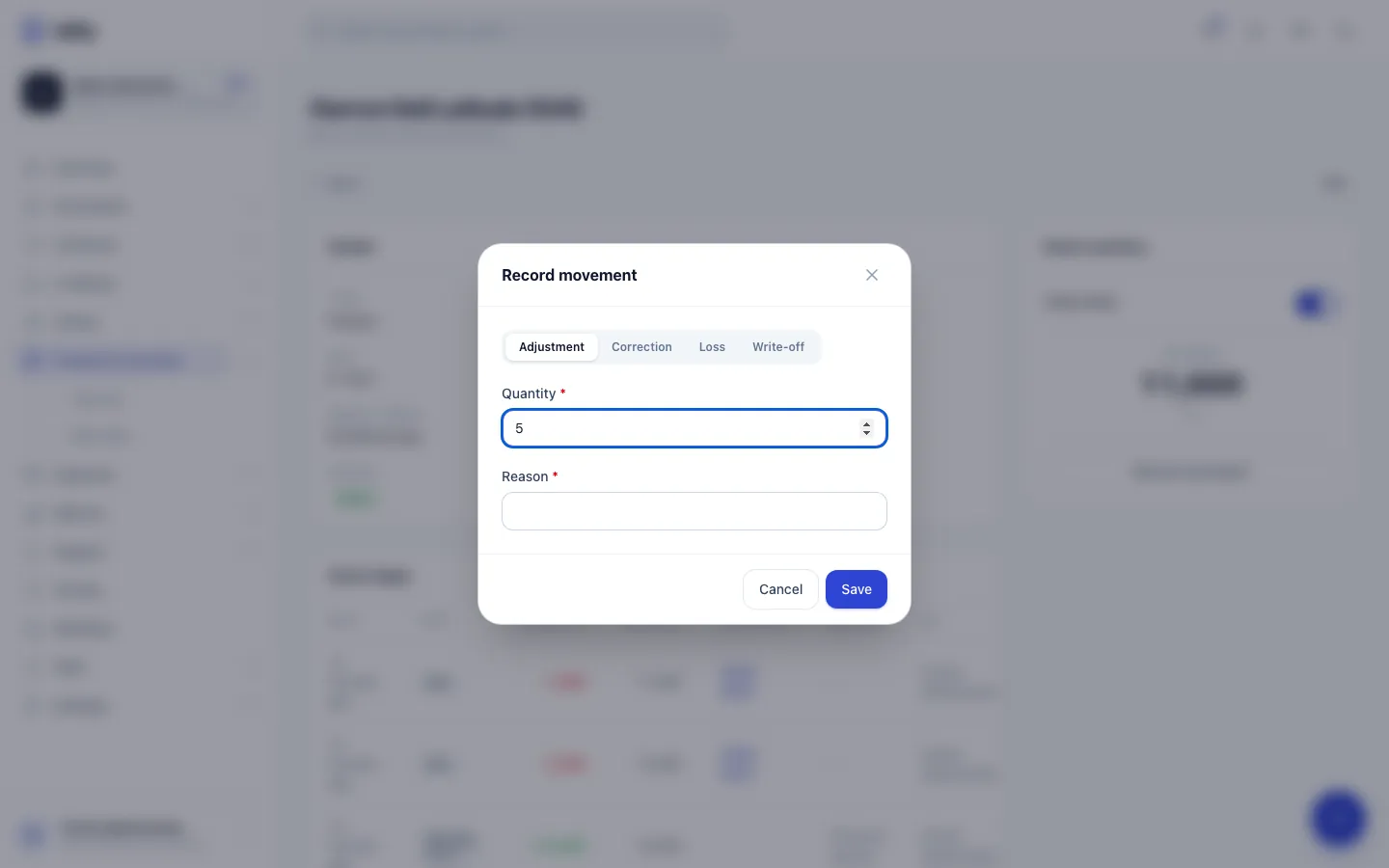
- Step 3: Enter the quantity. Positive adds stock, negative takes it out.
- Step 4: Enter the reason. It is required and stays in the ledger for good.
- Step 5: Click Save. The quantity on hand updates straight away.
- Step 6: The new movement is at the top of the stock ledger with its balance. Movements cannot be edited.
- Open the product from Products & services.
- In Stock summary, click Record movement.
- Choose the kind of movement: Adjustment, Correction, Loss or Write-off.
- Enter the Quantity. Use a positive number for stock coming in and a negative number (for example -5) for stock going out.
- Enter a Reason, for example "Delivery from supplier, invoice 123" or "Stocktake 31 March". The reason is required.
- Click Save. The On hand quantity and the ledger update at once.
You need the stock permission (owners, admins and accountants have it). The button appears only on products that have Track stock on and already have a stock history; for a product with an empty history, use Set opening stock first. See Track stock.
Which kind to choose
| Kind | Use it for | Sign |
|---|---|---|
| Adjustment | Deliveries, returns from clients, stocktake differences | The sign you enter |
| Correction | Fixing an earlier wrong entry | The sign you enter |
| Loss | Damage, spoilage, theft | Always taken out |
| Write-off | Expired or scrapped stock removed on purpose | Always taken out |
Loss and write-off always reduce stock
For Loss and Write-off Bilify always records stock leaving, whatever sign you type. Entering 3 or -3 both remove three units.
The stock ledger
The Stock ledger card on the product page lists every movement, newest first, 20 per page:
| Column | Shows |
|---|---|
| Date | When the movement was recorded |
| Type | Opening stock, Adjustment, Sale, Sale reversal, Correction, Loss or Write-off |
| Quantity | Green for stock in, red for stock out |
| Balance | The quantity on hand right after this movement |
| Document | For sales and sale reversals, a link to the invoice |
| Reason | The reason you typed |
| By | Who recorded it, or System for automatic reversals |
Movements cannot be edited or deleted
The ledger is append-only, like a paper stock card. If you made a mistake, record a Correction with the opposite quantity and a reason that explains it. Both entries stay visible, which keeps an honest audit trail.
Report on movements
To see movements across all products or for a period, use the Stock movements report. It can filter by movement type, by product, and show losses only. See Report types.
Was this page helpful?
Related articles
Still stuck?
Write to us and we will get back to you within one working day.