Change or cancel your plan
Move your company to a bigger or smaller package, switch between monthly and yearly billing, and cancel the subscription.
You can change your company's package at any time from Settings > Billing. Only the Owner can do it; Admins and Accountants see the plans but cannot select them.
Change to another package
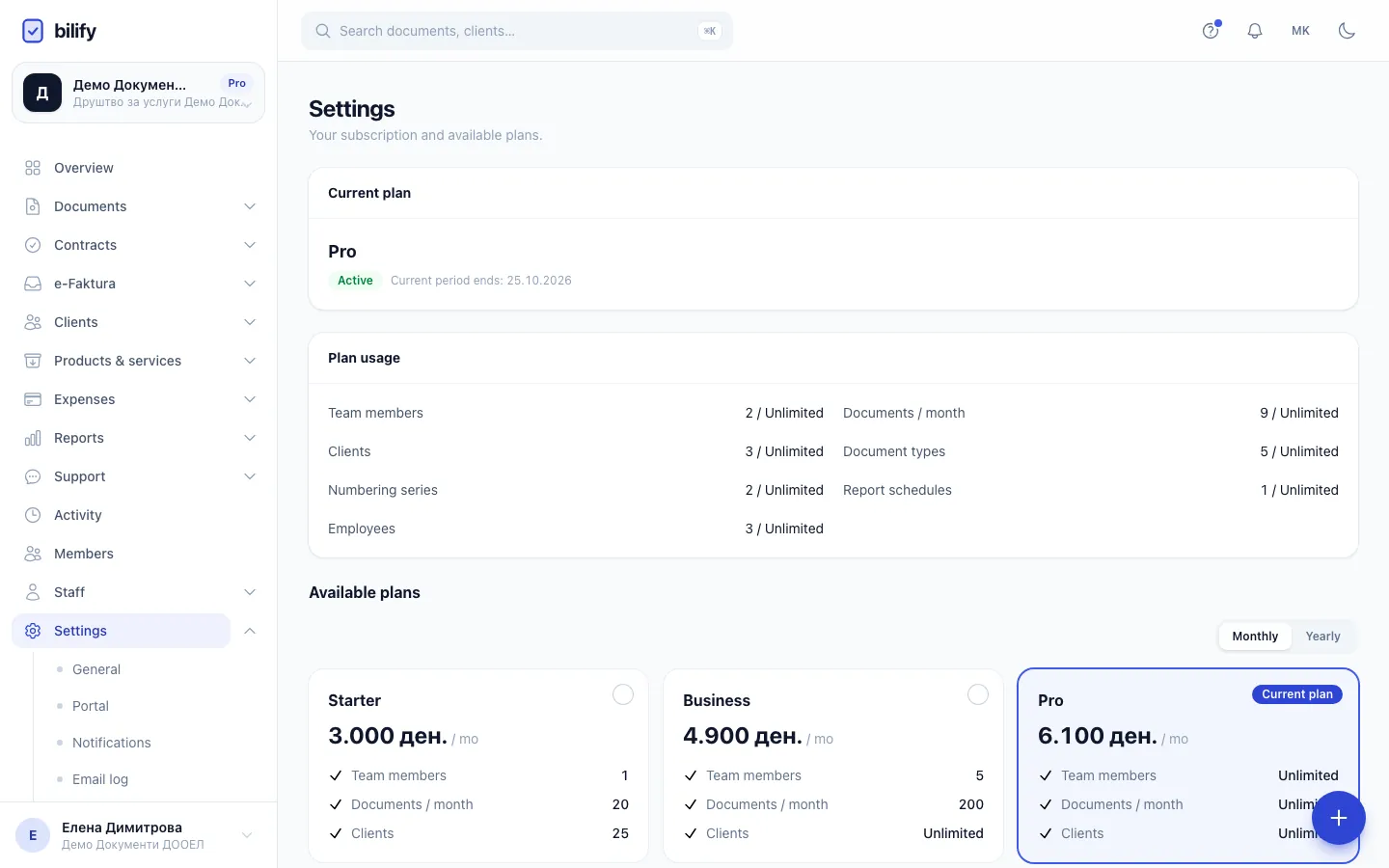
- Step 1: Current plan shows your package, its status and when the current period ends.
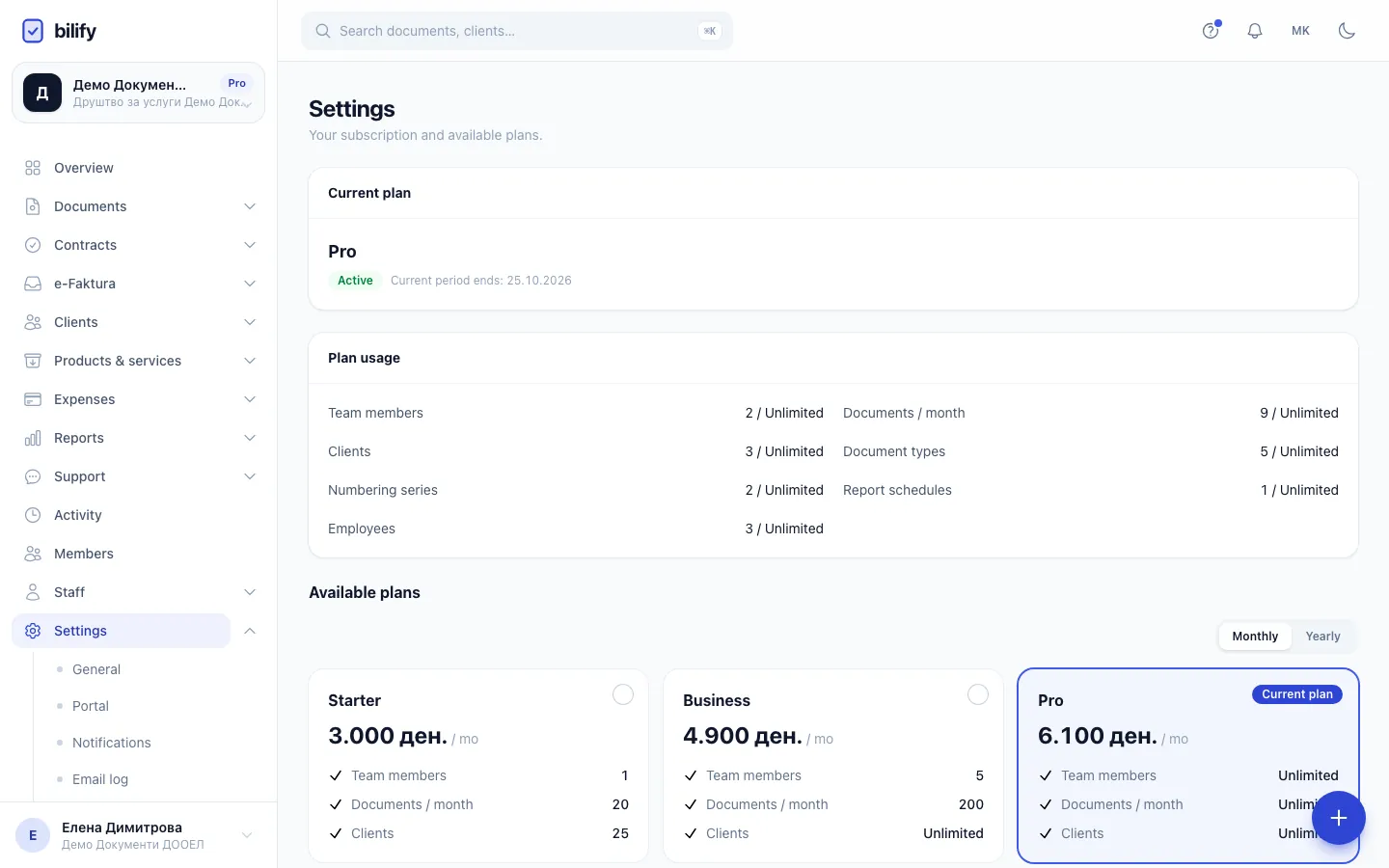
- Step 2: Plan usage shows how much of each limit you use. Check it before moving to a smaller plan.
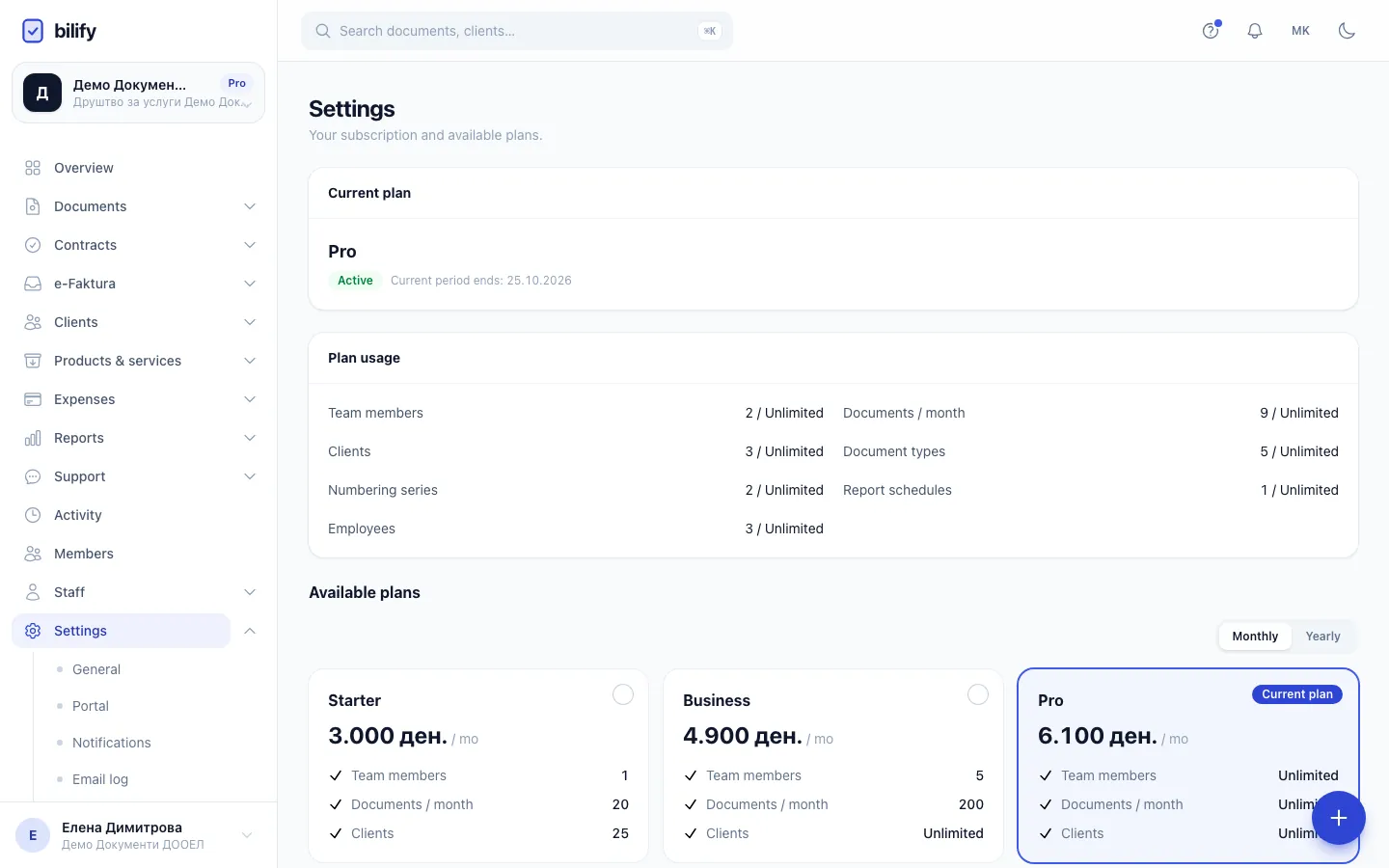
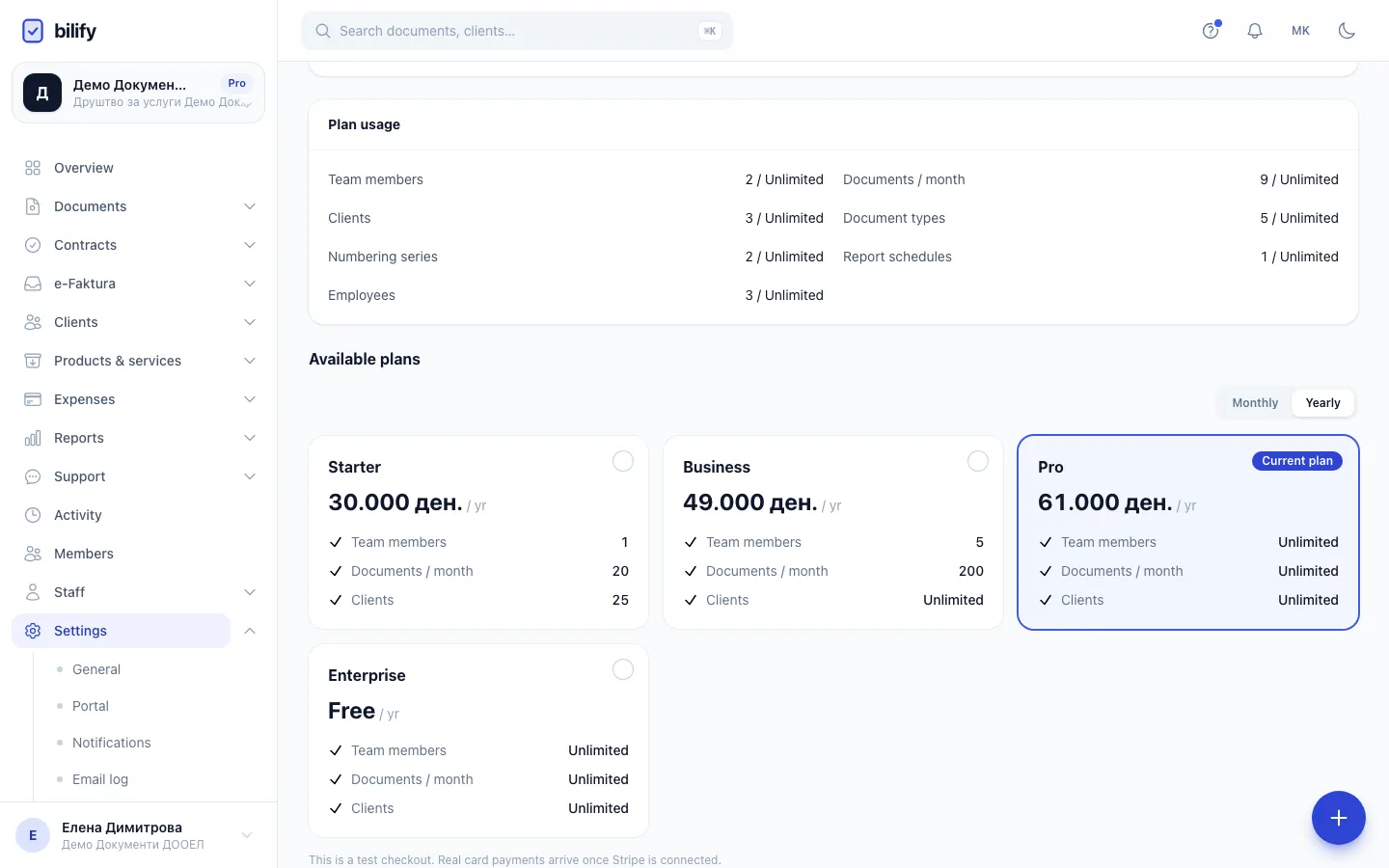
- Step 3: Switch between monthly and yearly prices.
- Step 4: Clicking a plan card starts the change straight away, so choose carefully. Only owners can change plans.
- Go to Settings > Billing.
- Check Plan usage first, especially before moving to a smaller package (see below).
- Under Available plans, choose Monthly or Yearly.
- Click the plan you want. Your current package is marked Current plan and cannot be clicked.
What happens next depends on your subscription:
- You already have a running subscription (status Trial, Active or Past due) paid by card: the change is made immediately, with the card you already have on file. The price difference for the rest of the period is settled on your next bill.
- You have no running subscription: you are taken to the secure card payment page. After paying you come back to Billing. The new plan can take a few seconds to appear while the payment is confirmed; reload the page if it still shows the old one.
- Card payments are not connected for your account: Billing shows "This is a test checkout" under the plans, and a Payment window opens where you confirm the change. No card is charged.
When the change is made inside Bilify, you see Payment successful. Your plan is now active.
Clicking a plan starts the change
There is no separate confirmation step for a company that already pays by card. Read the plan card before you click it.
Moving to a smaller package
New limits and features apply as soon as you change.
- Nothing is deleted. Clients, documents, members and employees you already have stay as they are, even above the new limits.
- You cannot add more of something that is already at or over the new limit until you are below it again. For example, with 3 members on a package that allows 1, you cannot invite anyone.
- Features the smaller package does not include are locked, for example stock or contracts. Their data stays and comes back if you upgrade again.
See Usage limits for how each limit is counted.
Changing during the free trial
Choosing a plan while your trial is running can end the trial and start the paid plan straight away. If you just want to keep testing, wait until the trial ends; the plan you chose at the start then begins billing automatically.
Monthly or yearly
The Monthly and Yearly toggle above the plans only changes which prices you see and which one a new choice uses. Switching your current package from monthly to yearly (or back) is not available from the plan cards, because your current package cannot be selected. To switch the billing period of the same package, open a support ticket.
Update your card or cancel
If your company pays by card, Billing shows a Manage billing button on the Current plan card. It opens the secure billing portal of our payment provider, where you can:
- update the card,
- see past invoices,
- cancel the subscription.
If you cancel, the subscription normally runs until the end of the paid period. When it ends, the company is locked behind Choose a plan until an Owner picks a plan again; your data is kept.
If you do not see Manage billing (for example because your subscription was set up by the Bilify team), open a support ticket to change the card or cancel.
Choosing a plan for a company without one
A company with no plan, such as a new one or one whose subscription ended, shows Choose a plan on every page. The Owner picks Monthly or Yearly, clicks a plan and then Next. See Create your account for the first plan and the free trial.
Was this page helpful?
Related articles
Still stuck?
Write to us and we will get back to you within one working day.