Article 32 reverse-charge invoices
Issue a Фактура Член 32, where VAT is not charged and the required legal note states the tax amount the recipient takes over.
A Invoice (Article 32 reverse charge) is an invoice where the VAT liability passes to the recipient (reverse charge). You do not charge VAT on it, but the amount of VAT the recipient takes over must be calculated and stated on the invoice. Bilify does both for you.
Whether a sale falls under Article 32 is a tax question. Check with your accountant before you use this type.
Issue an Article 32 invoice
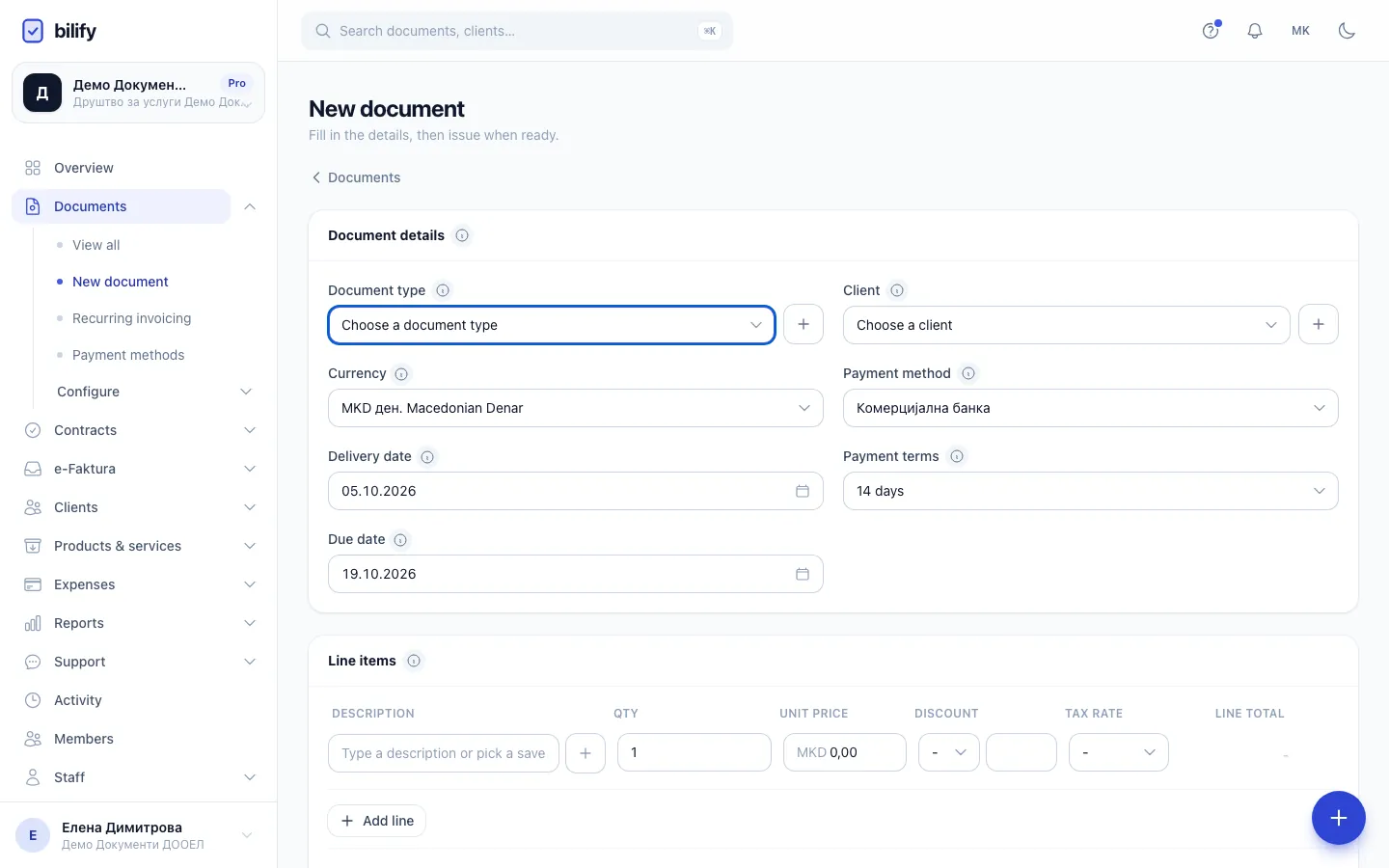
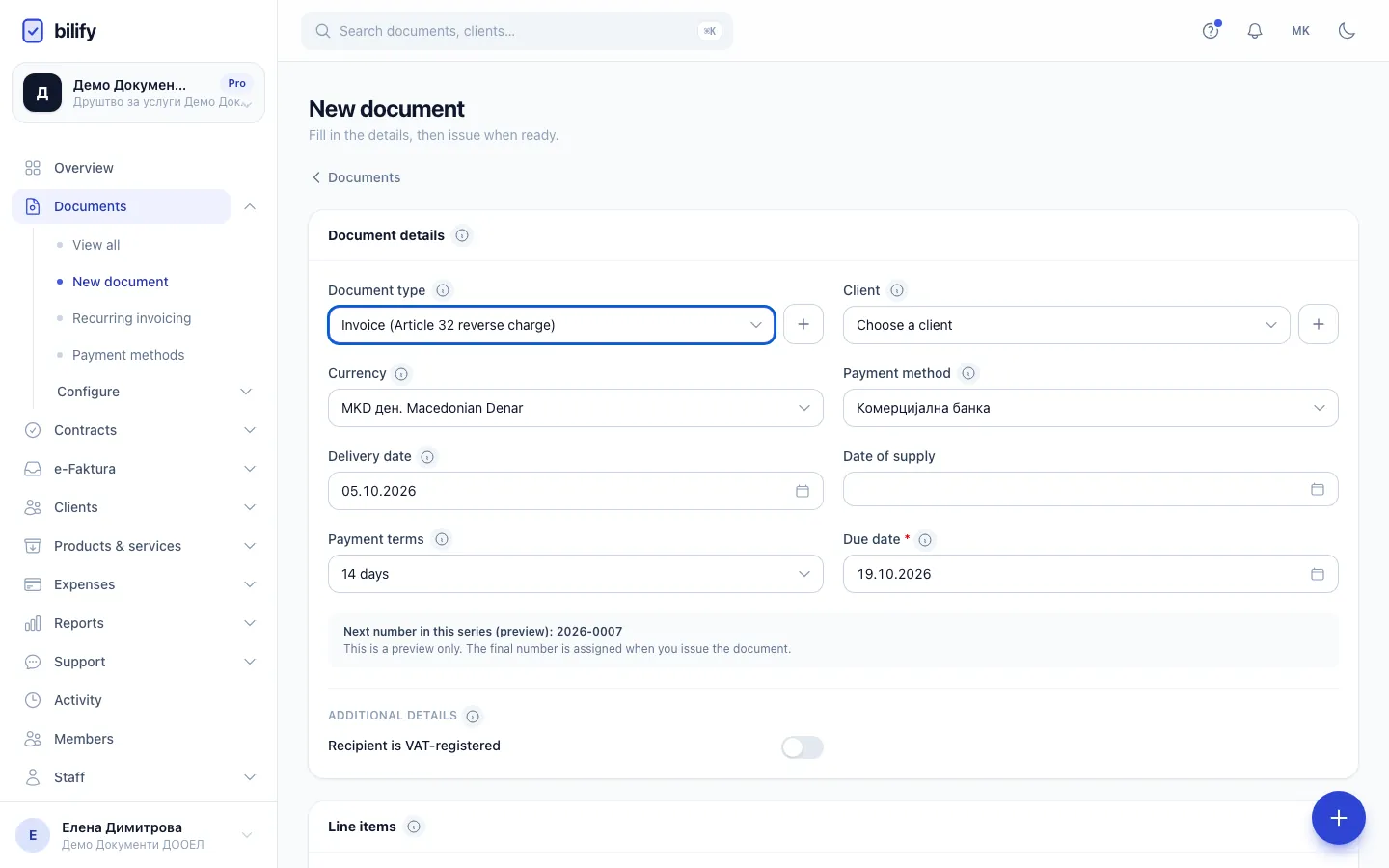
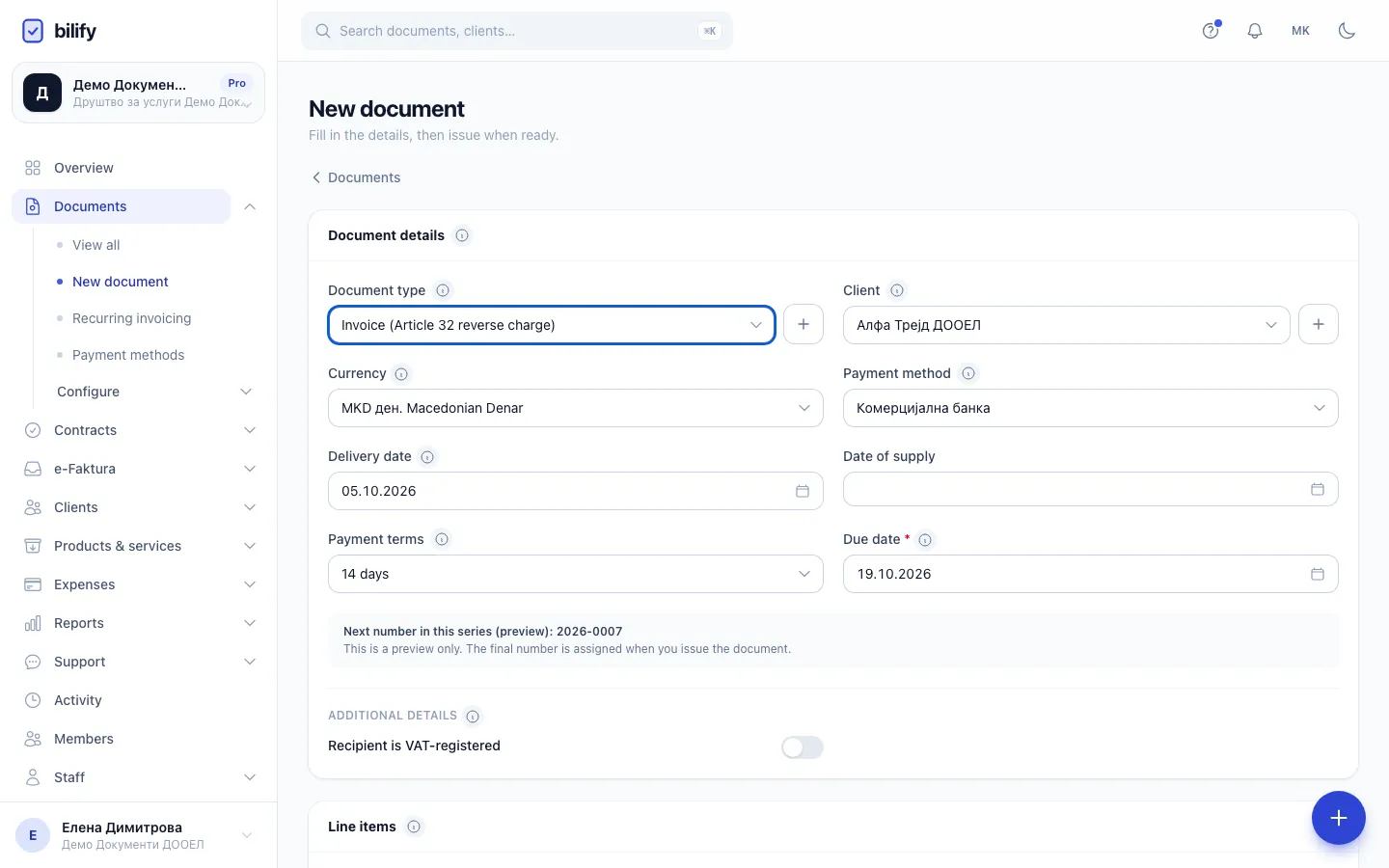
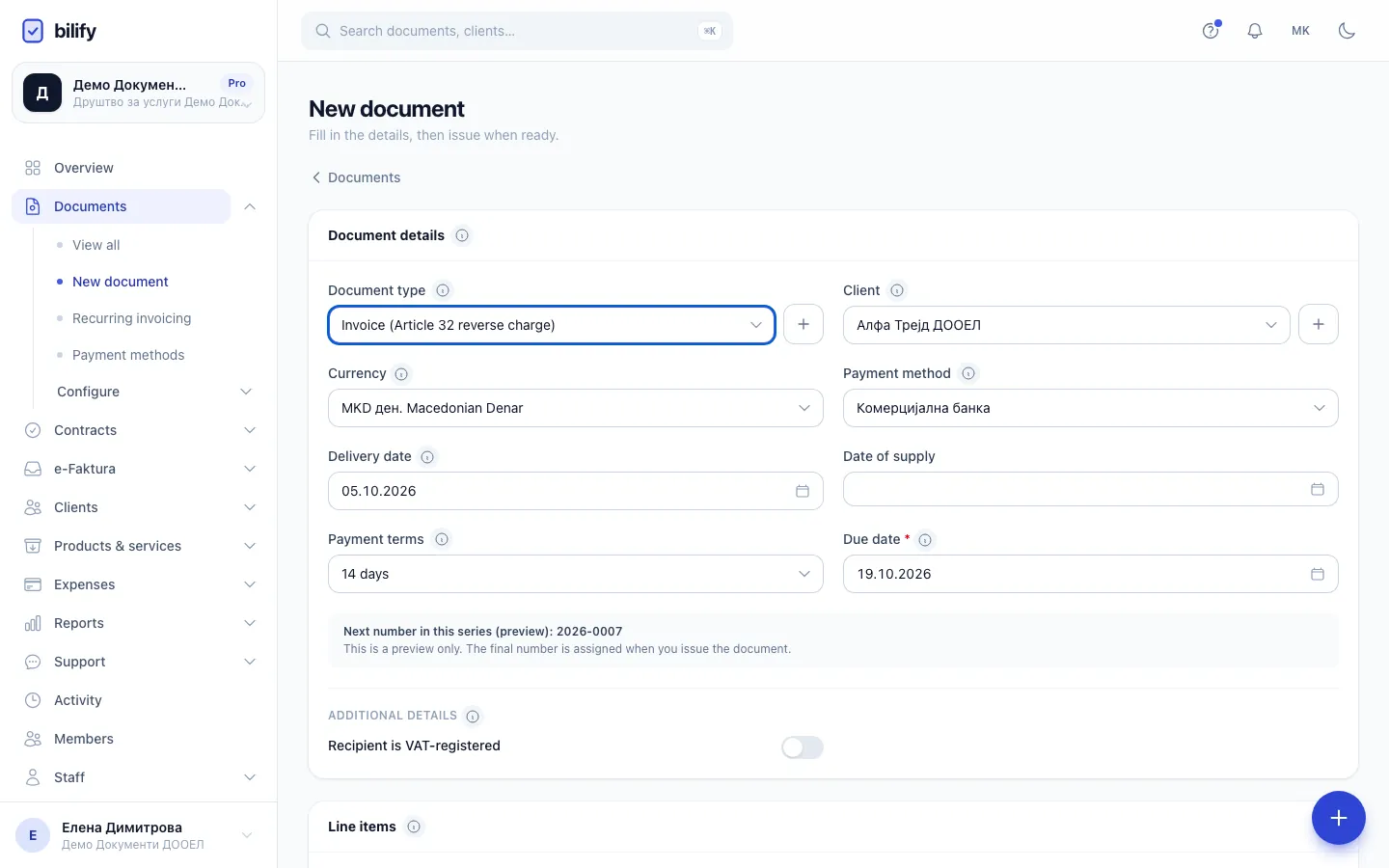
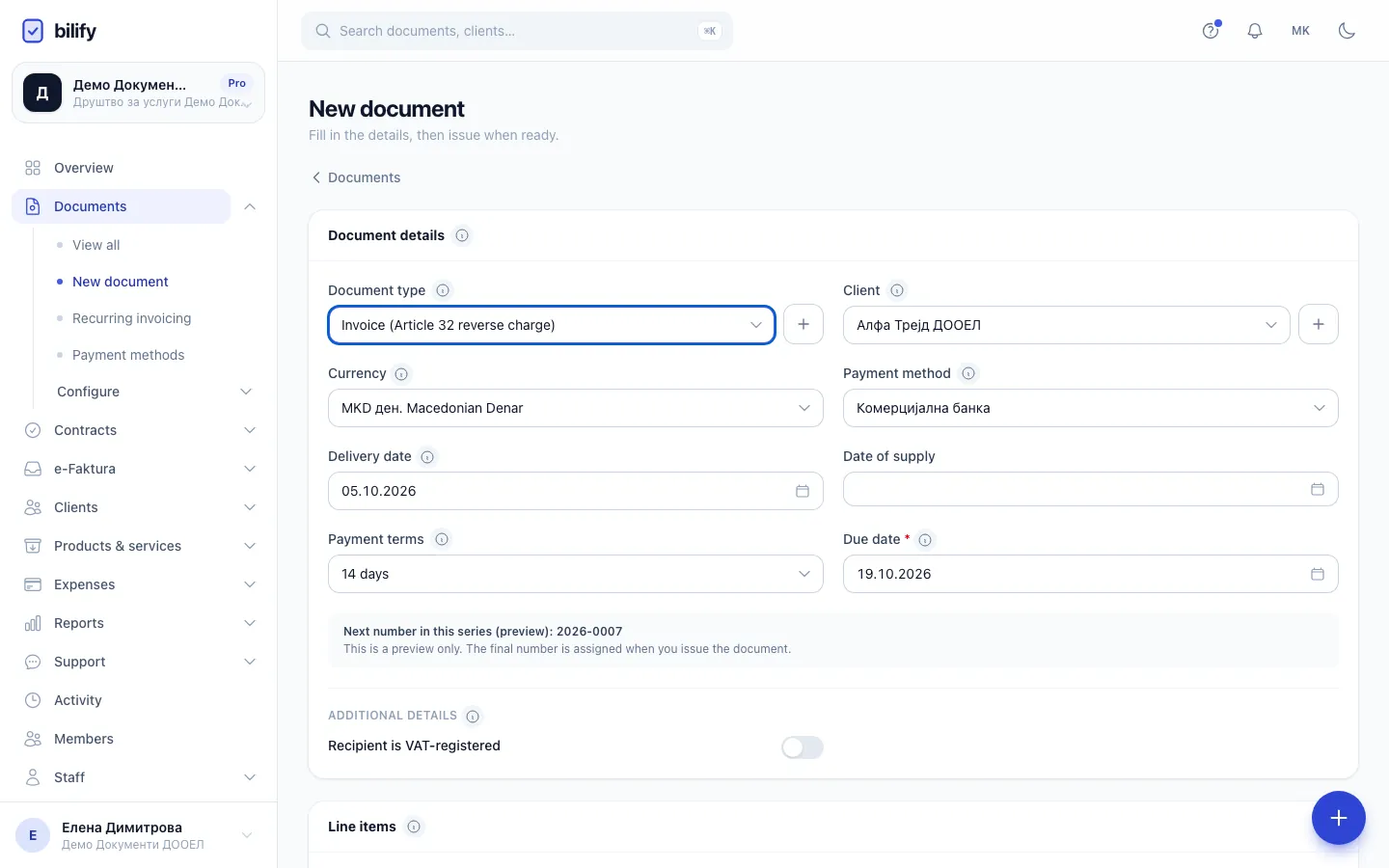
- Step 1: Choose Invoice (Article 32 reverse charge) as the document type.
- Step 2: Choose the client. Their tax and VAT numbers are frozen on the invoice when you issue.
- Step 3: The delivery date is required on this type. It starts at today.
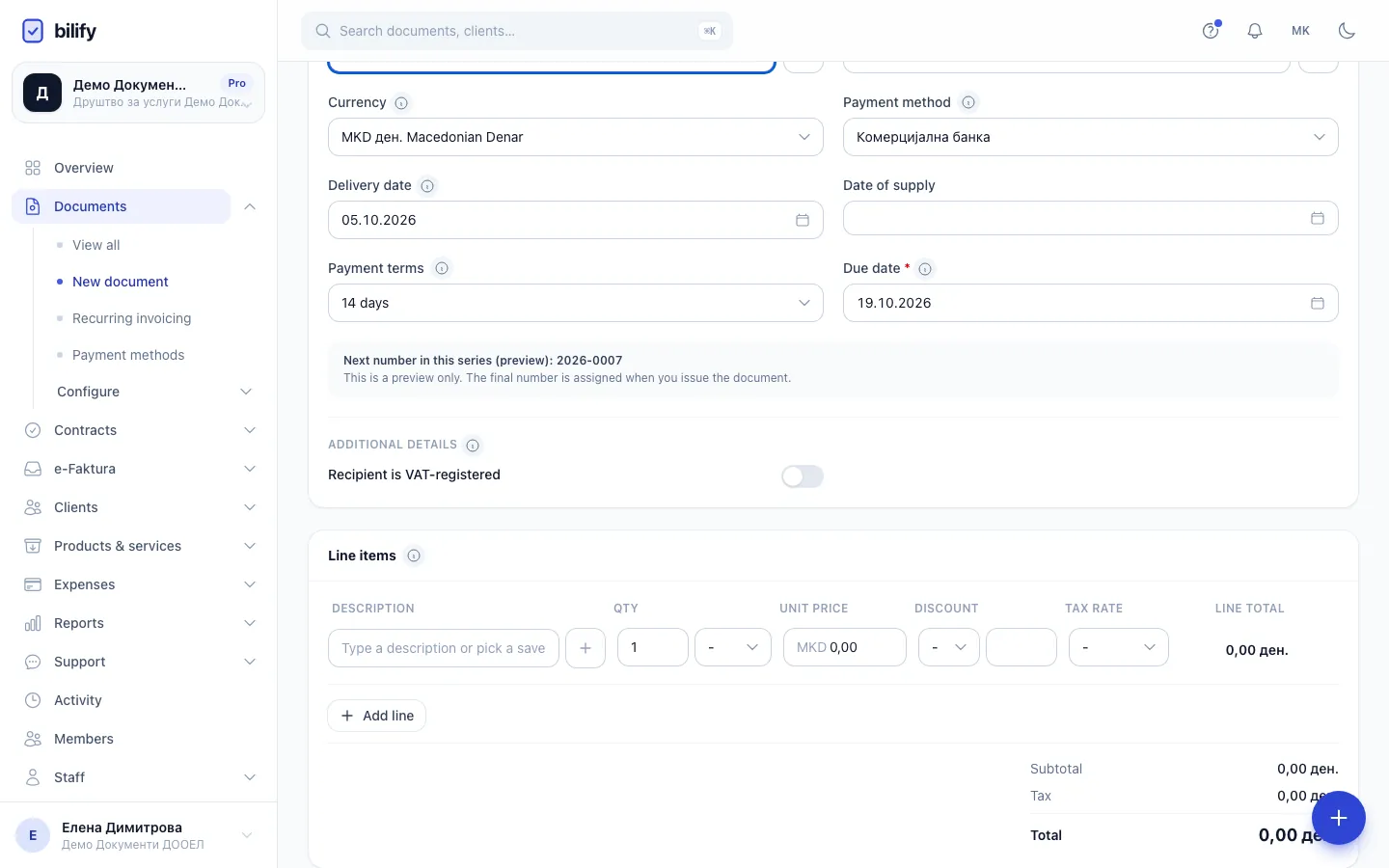
- Step 4: A due date is required too. Set it directly or through the payment terms.
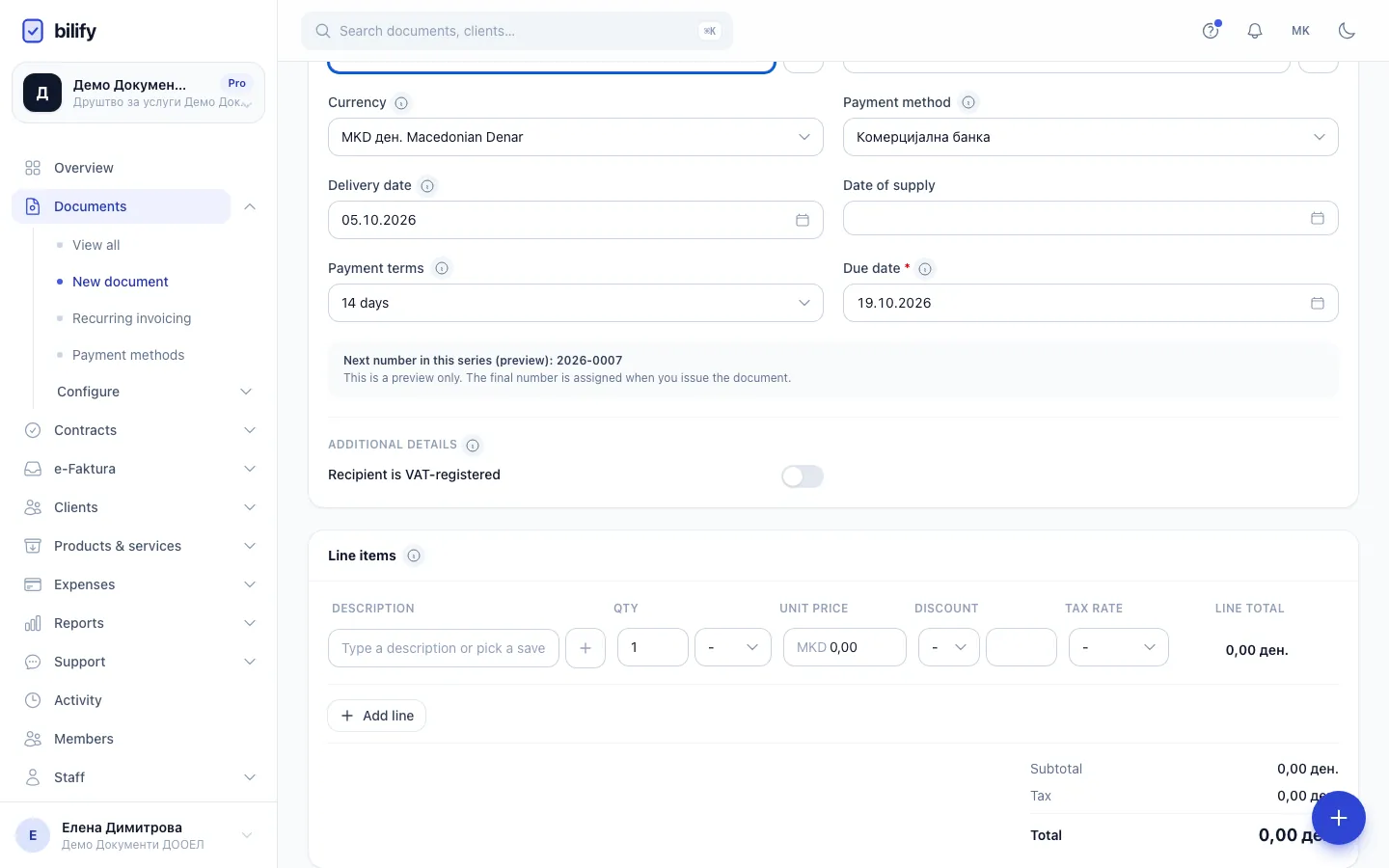
- Step 5: Once the type is chosen, Additional details shows Recipient is VAT-registered. Check it.
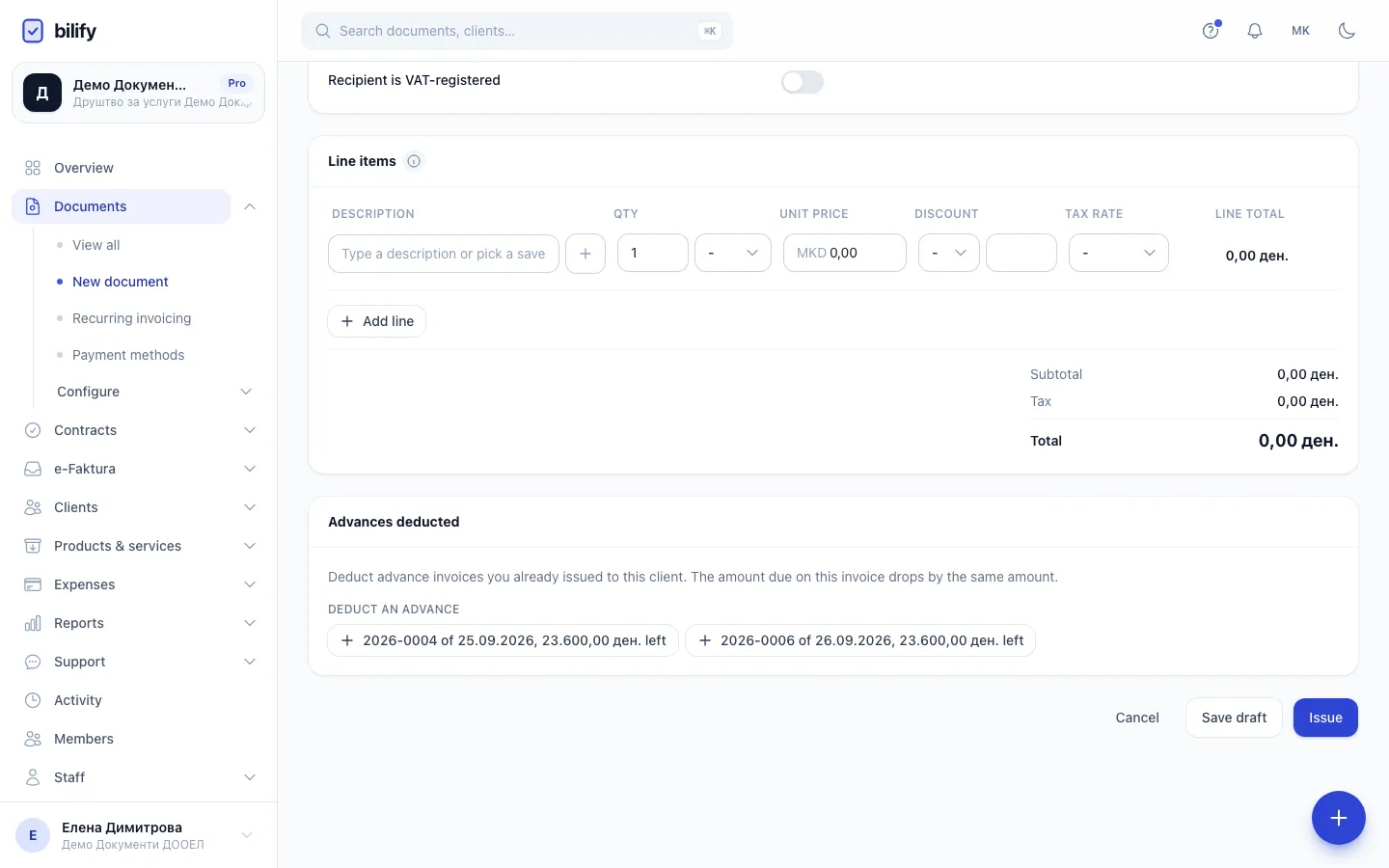
- Step 6: Choose the rate that would normally apply. VAT is shown, not charged.
- Step 7: Tax stays at zero and Transferred tax (reverse charge) shows the amount the recipient takes over.
- Step 8: When you issue, Bilify adds the required Article 32 legal note with the transferred amount.
- Open Documents and click New document.
- Choose Invoice (Article 32 reverse charge) as the Document type (Invoice (Article 32 reverse charge) in English).
- Choose the Client. Make sure their Tax number (EDB) and VAT number are filled in on the client record, because they are frozen onto the invoice at issue.
- Set the Delivery date. It is required on this type (it starts at today).
- Set the Due date or the Payment terms. A due date is required.
- Under Additional details, check Recipient is VAT-registered.
- Add the lines as usual and choose the Tax rate that would normally apply to each line, for example 18%.
- Click Issue.
How the amounts work
Each line's VAT is calculated at the rate you chose, but only for disclosure:
- Tax shows 0.00 and the Total is the net amount. The client pays the net amount.
- Under the tax line, Transferred tax (reverse charge) shows the VAT the recipient takes over.
Example with two lines of 10,000 MKD at 18%: Subtotal 20,000.00, Tax 0.00, Total 20,000.00, Transferred tax (reverse charge) 3,600.00.
The legal note
When you issue, Bilify adds this note to the invoice, with the transferred amount filled in:
Согласно член 32-а од Законот за данокот на додадена вредност, даночниот долг во износ од [amount] го презема примателот на прометот.
The note is required for this type. It cannot be removed or edited, and it appears under Legal notes on the document, in the print view and in the client portal. The English version is used when the document is viewed or printed with the app in English, so print in Macedonian for your records. See Print and download PDFs.
Locked at issue
The note, the transferred amount and the client's tax details are frozen when you issue. If anything is wrong afterwards, cancel the invoice and issue a new one.
Good to know
- This type cannot be created by converting an offer or pro-forma. Create it as a new document.
- It reduces stock when issued, like a Invoice, if you track stock.
- It is a fiscal document: it needs a numbering series and keeps its number if cancelled.
Was this page helpful?
Related articles
Still stuck?
Write to us and we will get back to you within one working day.