Choose a document design
Pick the layout, accent colour and logo your printed documents and client portal use, and request a custom design on Pro.
The document design decides how your invoices and other documents look when printed, saved as PDF and shown to clients in the portal. It is one setting for the whole company.
Change the design
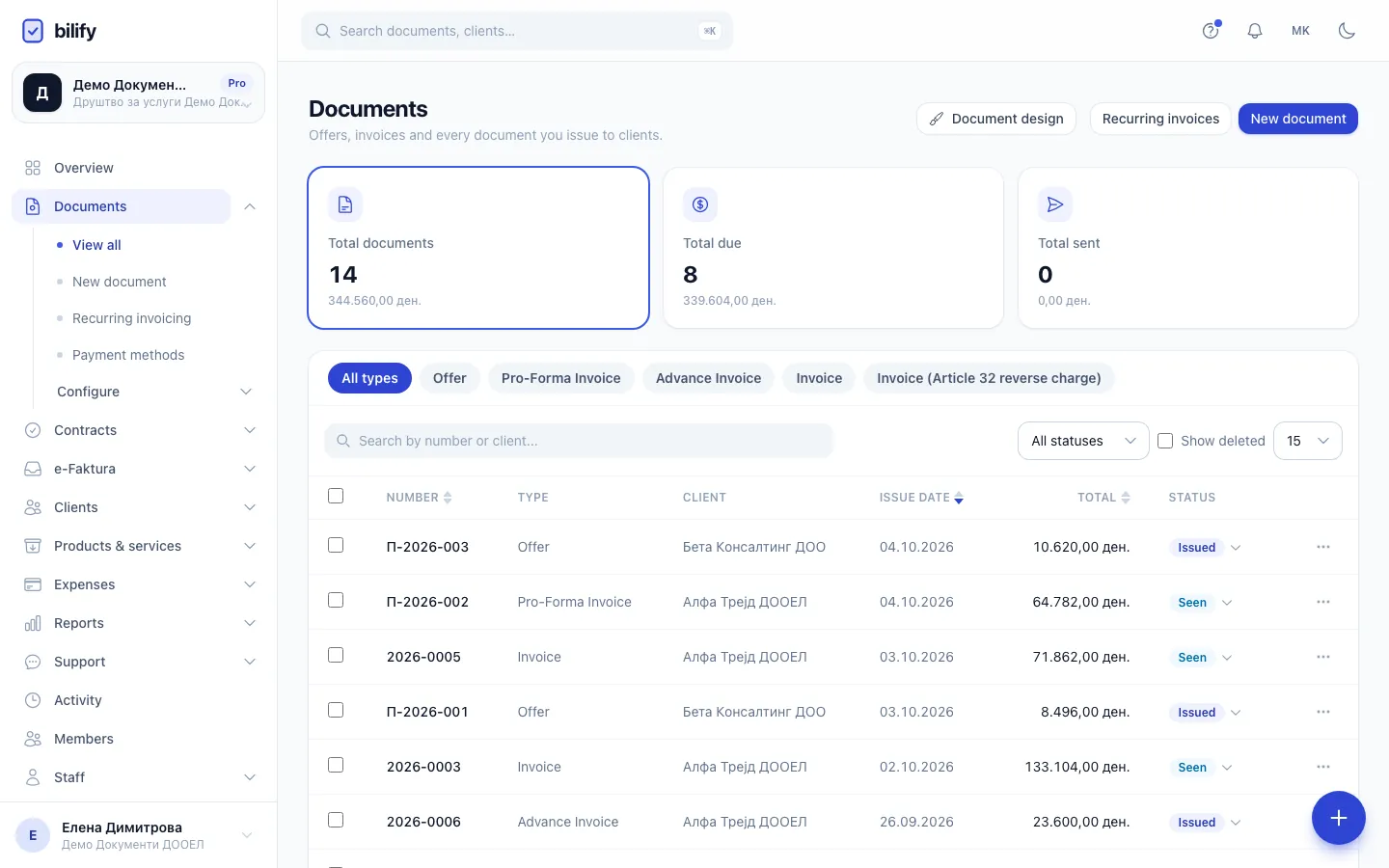
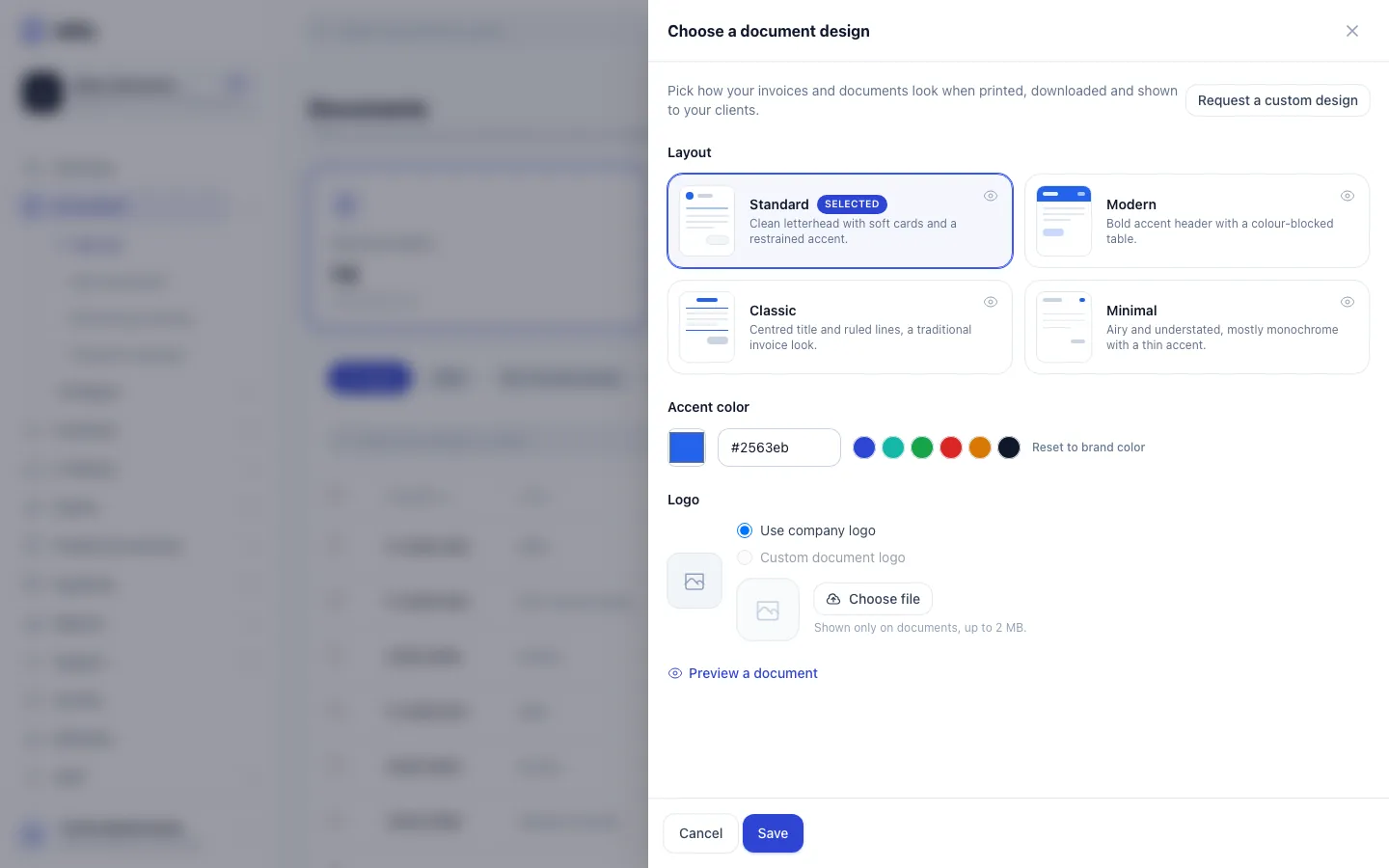
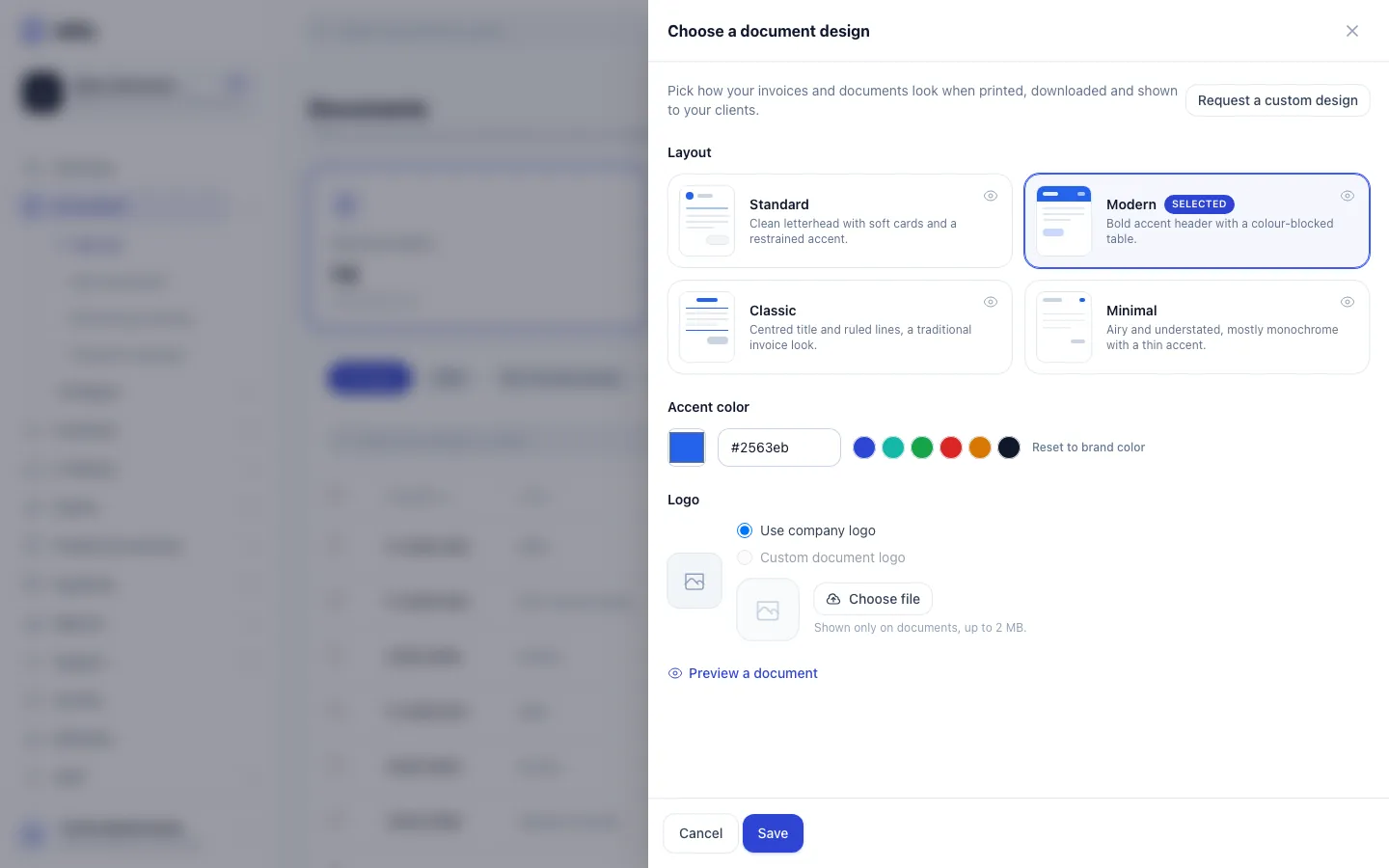
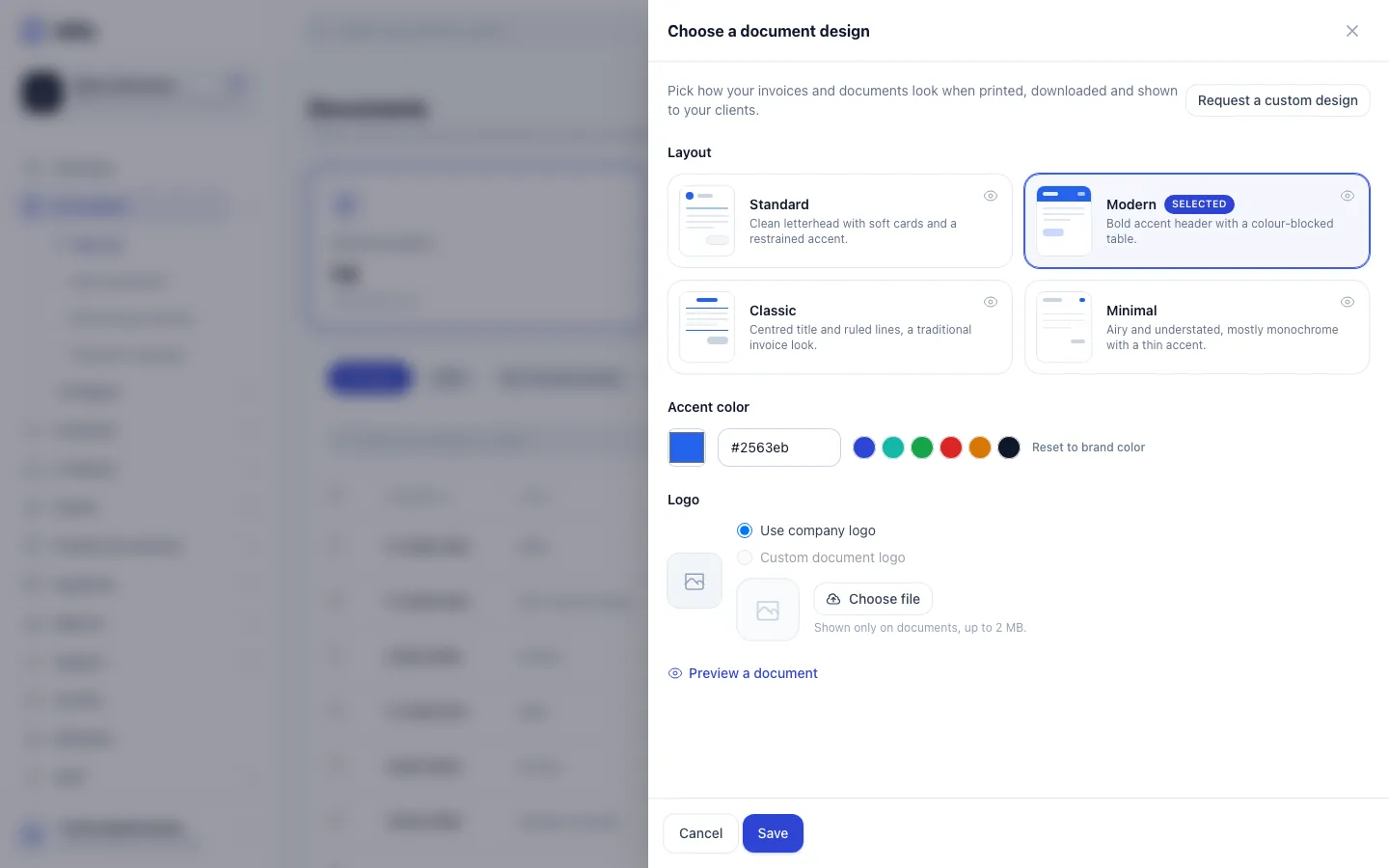
- Step 1: On Documents, click Document design.
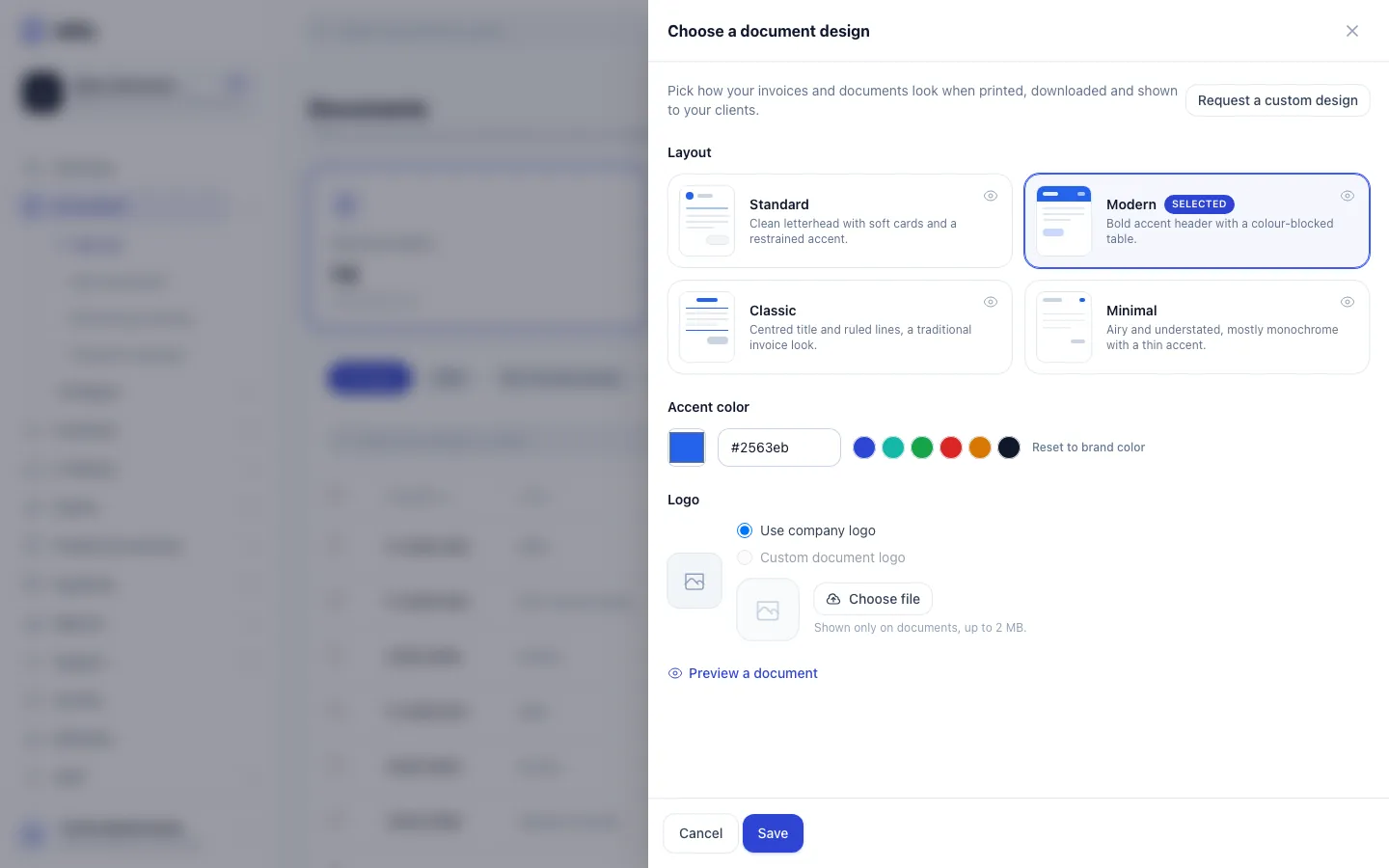
- Step 2: Click a layout to select it. The eye icon on a card previews it with your latest document.
- Step 3: Pick an accent colour, or reset it to your brand colour.
- Step 4: Use your company logo, or upload a separate logo for documents only.
- Step 5: On Pro, Request a custom design asks the Bilify team to recreate your own invoice design.
- Step 6: Save applies the design to drafts and new documents. Issued documents keep their look.
- Open Documents and click Document design at the top.
- Under Layout, click the design you want. There are four: Standard, Modern, Classic and Minimal. The one you use now is marked Selected.
- To see a design with real data, click the eye icon on its card. Bilify shows your most recent document in that design. If you have no documents yet, it uses sample data.
- Under Accent color, pick one of the colour dots or enter your own colour. Reset to brand color goes back to the brand colour from your company settings.
- Under Logo, choose Use company logo or Custom document logo. To use a separate logo on documents only, upload an image (up to 2 MB) first; Remove deletes it again.
- Click Save.
Preview a document at the bottom of the panel opens your latest document in the print view with the highlighted layout, before you save.
You need permission to change the company's general settings (owners and admins have it). Others do not see the Document design button.
Only new documents change
The design, colour and logo are frozen on each document when it is issued. Changing the design affects drafts and documents you issue from now on. Documents already issued keep the look they were issued with, in the print view and in the client portal.
Where the design is used
- the print view and the PDF you save from it (see Print and download PDFs);
- the document page your clients open in the client portal.
The design does not change the content: the same fields, totals and legal notes appear in every layout.
Requires: Bespoke custom document design
Request a custom design
On the Pro and Enterprise packages, the Bilify team can recreate your own invoice design inside Bilify.
- Open Documents > Document design and click Request a custom design.
- Under What would you like?, describe the layout, colours, fonts or the existing document to match (at least 10 characters).
- Under Attachments, add reference files such as an existing invoice or a brand guide, up to 10 MB each. Any file type is accepted.
- Click Send request.
While the request is open, the panel shows its status (for example "awaiting review" or "in review") instead of the button. You can have one open request at a time.
When your custom design is delivered, it appears under Layout with the note that it was made exclusively for your company. While a custom design is active, it replaces the four standard layouts in the list.
On other packages, Request a custom design shows a lock and opens an upgrade prompt. See Change your plan.
Was this page helpful?
Related articles
Still stuck?
Write to us and we will get back to you within one working day.