Use a subdomain for your portal
Move your client portal from a path address to its own subdomain of the Bilify domain, with no DNS work on your side.
In Subdomain mode your portal gets an address of its own: your portal address in front of the Bilify domain (your-address. followed by the domain), instead of the Bilify domain followed by /portal/your-address. It looks cleaner in emails and is easier for clients to remember. Bilify already runs the DNS and HTTPS for these addresses, so there is nothing to set up at a domain provider.
Switch to Subdomain mode
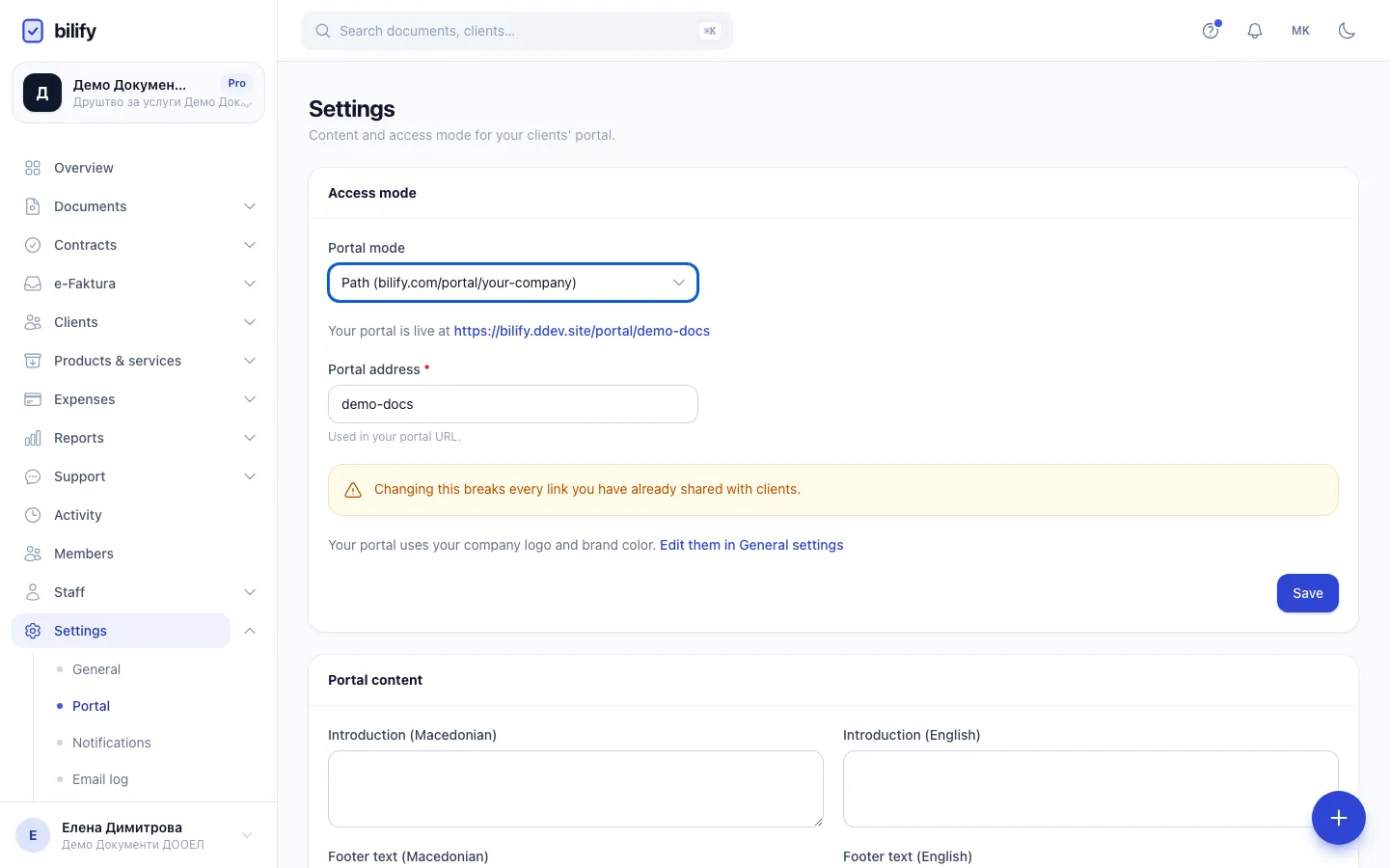
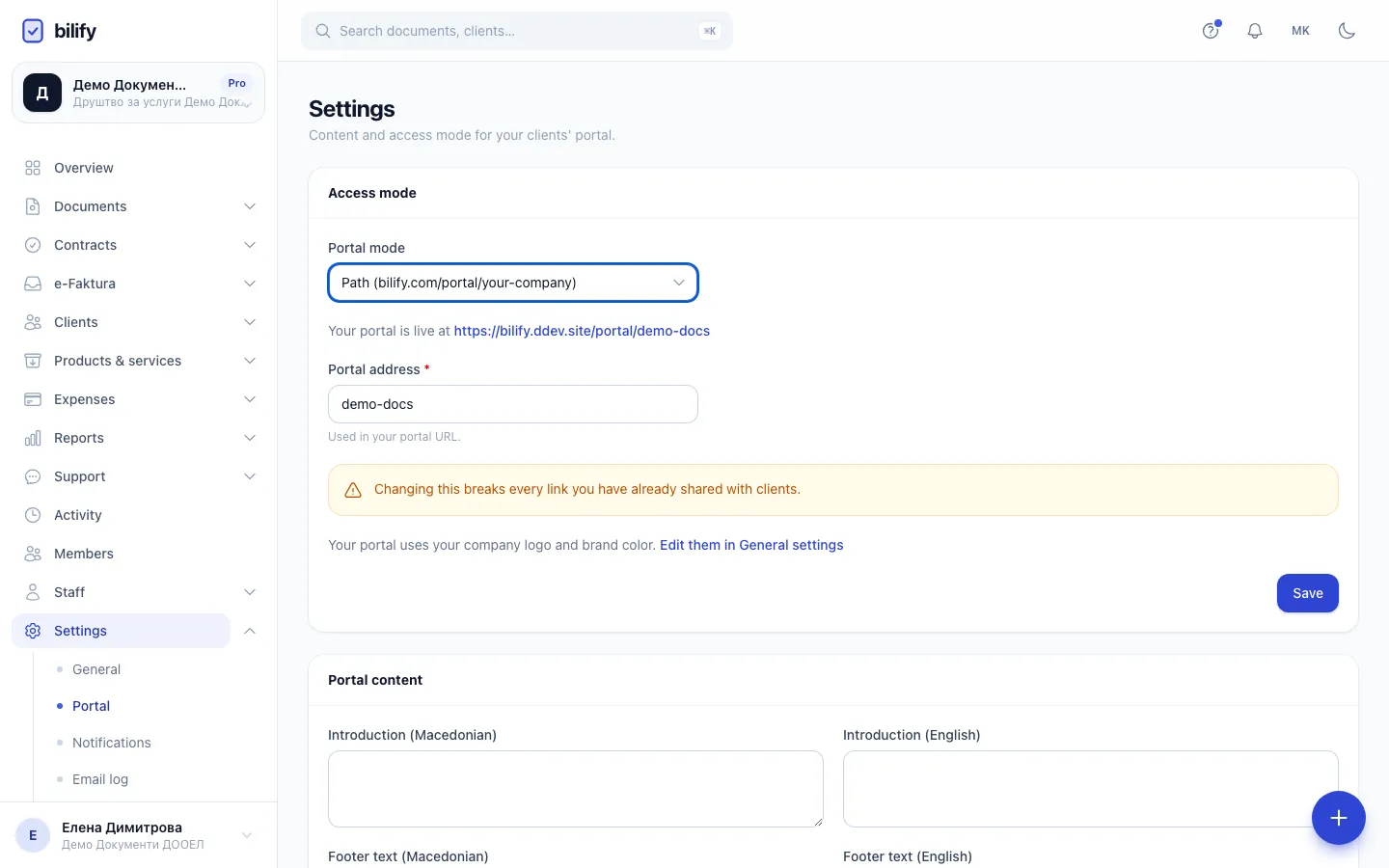
- Step 1: This is the address your portal uses today.
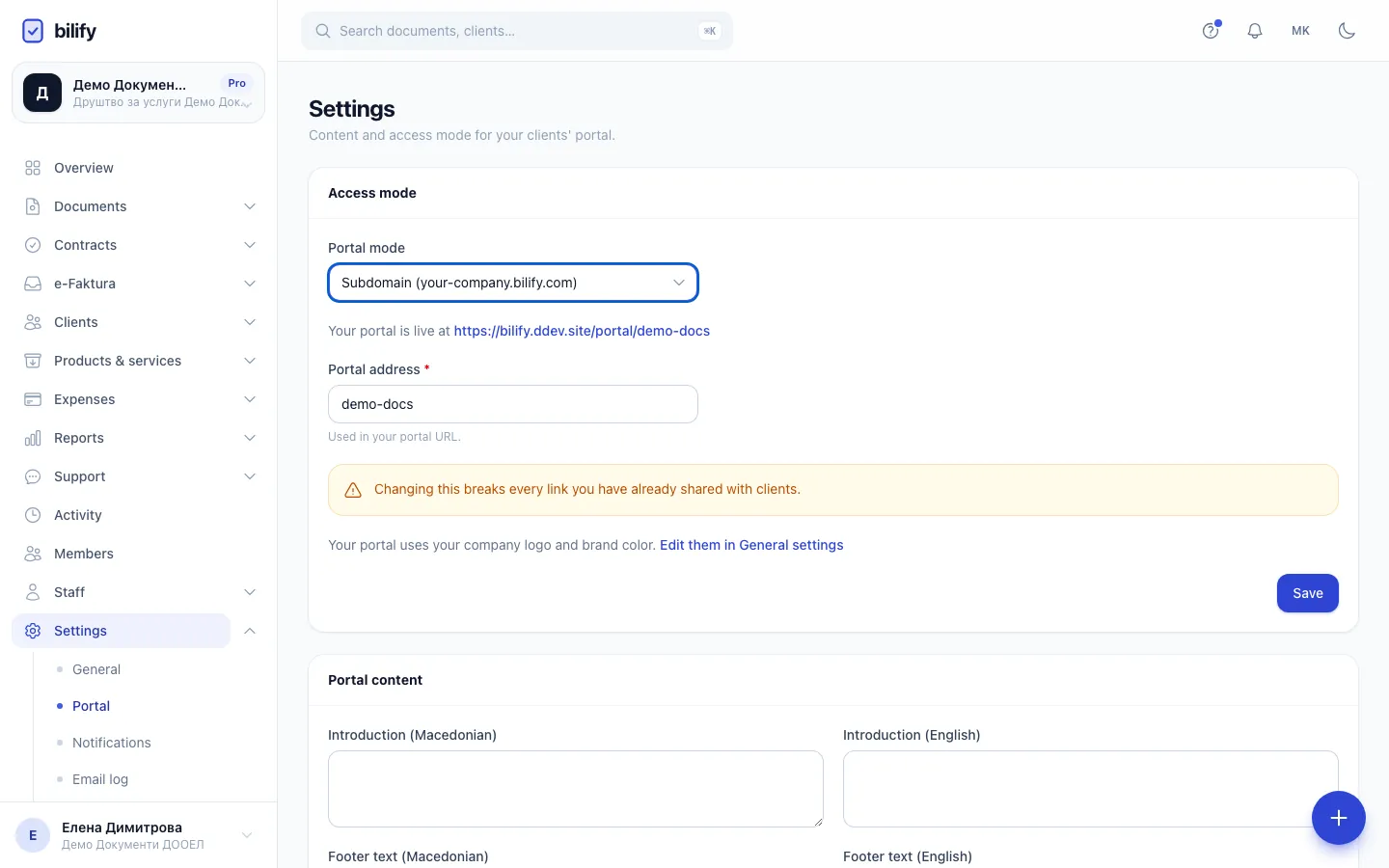
- Step 2: Choose Subdomain. Options your package does not include are greyed out.
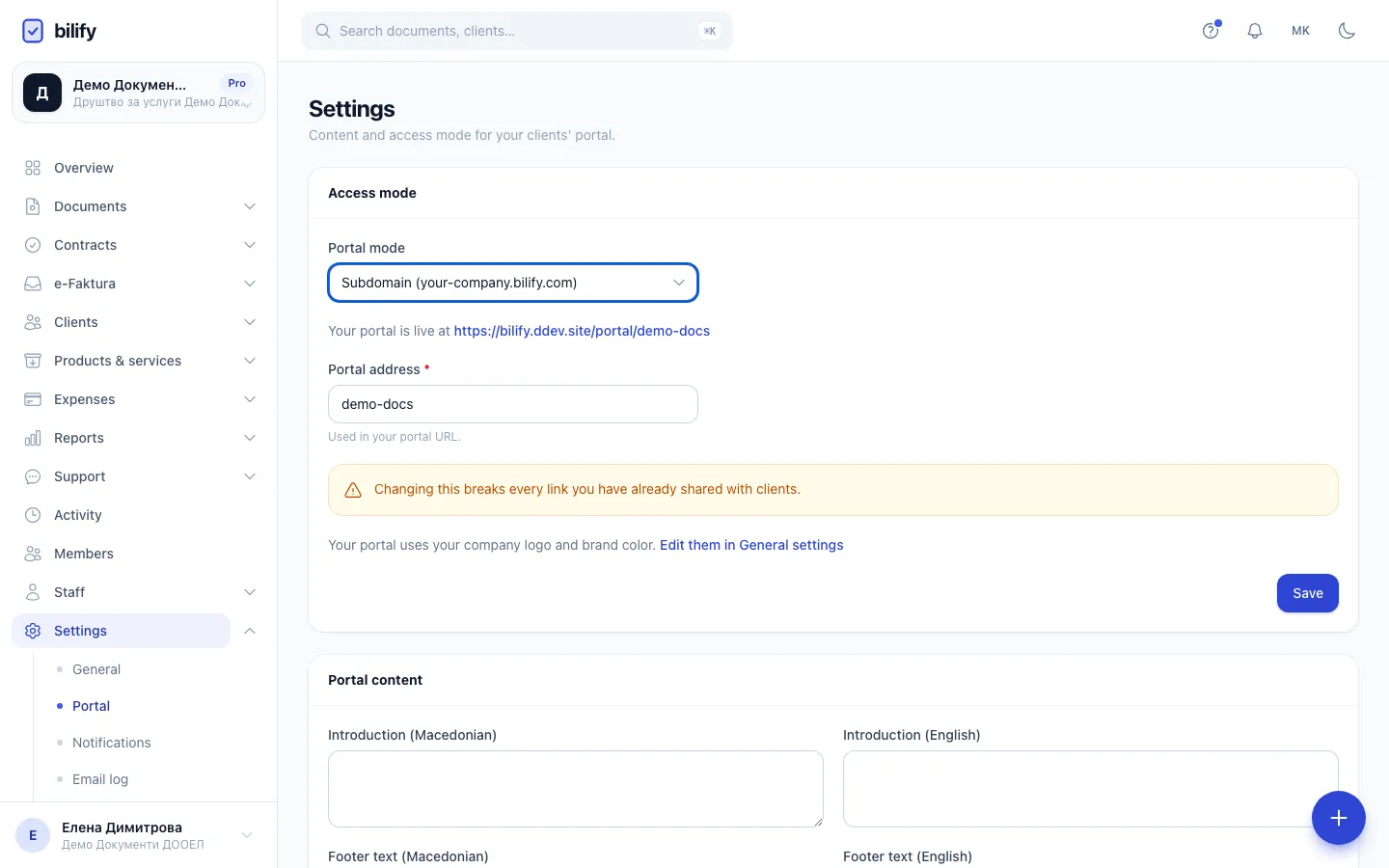
- Step 3: The portal address becomes the subdomain. Use lowercase letters, digits and hyphens only.
- Step 4: Click Save to switch. Old path links stop working at that moment, so tell your clients first.
- Open Settings > Portal.
- Note the address after Your portal is live at. This is the address your clients use today.
- In Portal mode, choose Subdomain (your-company.bilify.com). The example in the label shows the shape of the address; your real address uses your own portal address and the Bilify domain.
- Check Portal address. It becomes the subdomain, so it may contain only lowercase letters, digits and hyphens, and cannot start or end with a hyphen.
- Click Save.
- The new address appears after Your portal is live at. Open it and sign in once with a test contact to confirm it works.
If the address is not accepted, Bilify shows the reason under the field. The usual causes are an underscore or capital letter, a name that another company already uses, or a reserved name such as www, app, admin, api, mail, portal, status or docs.
Old links stop working when you switch
Each mode only answers on its own address. As soon as you save, the old path address returns "not found", including the View invoice links in emails you already sent and any bookmarks your clients have. There is no automatic redirect. Tell your clients about the new address before you switch, and switch before you send a large batch of invoices rather than right after.
What changes and what does not
| Path mode | Subdomain mode | |
|---|---|---|
| Portal address | The Bilify domain followed by /portal/your-address |
your-address. followed by the Bilify domain |
| Sign-in | Email link | Email link (unchanged) |
| Clients already signed in | Signed in on the old address | May need to request a new sign-in link once, because the address changed |
| HTTPS | Automatic | Automatic |
| New emails | Link to the path address | Link to the subdomain address |
Documents, payments, contracts and client access are not affected. Only the address changes.
Go back to Path mode
Choose Path (bilify.com/portal/your-company) in Portal mode and click Save. The same warning applies in reverse: links that point to the subdomain stop working.
On a package without subdomains the option is shown as (upgrade required) and cannot be selected. See Change your plan.
Want your own domain instead?
On the Pro and Enterprise packages you can serve the portal from a domain you own, such as portal.yourcompany.mk. That needs a few DNS records at your domain provider. See Use your own domain.
Was this page helpful?
Related articles
Still stuck?
Write to us and we will get back to you within one working day.