Print and download PDFs
Open the print view of any document, save it as a PDF through your browser, and control the language it prints in.
Every document has a print view: a clean A4 page in your chosen design. You print it or save it as a PDF from there.
Open the print view
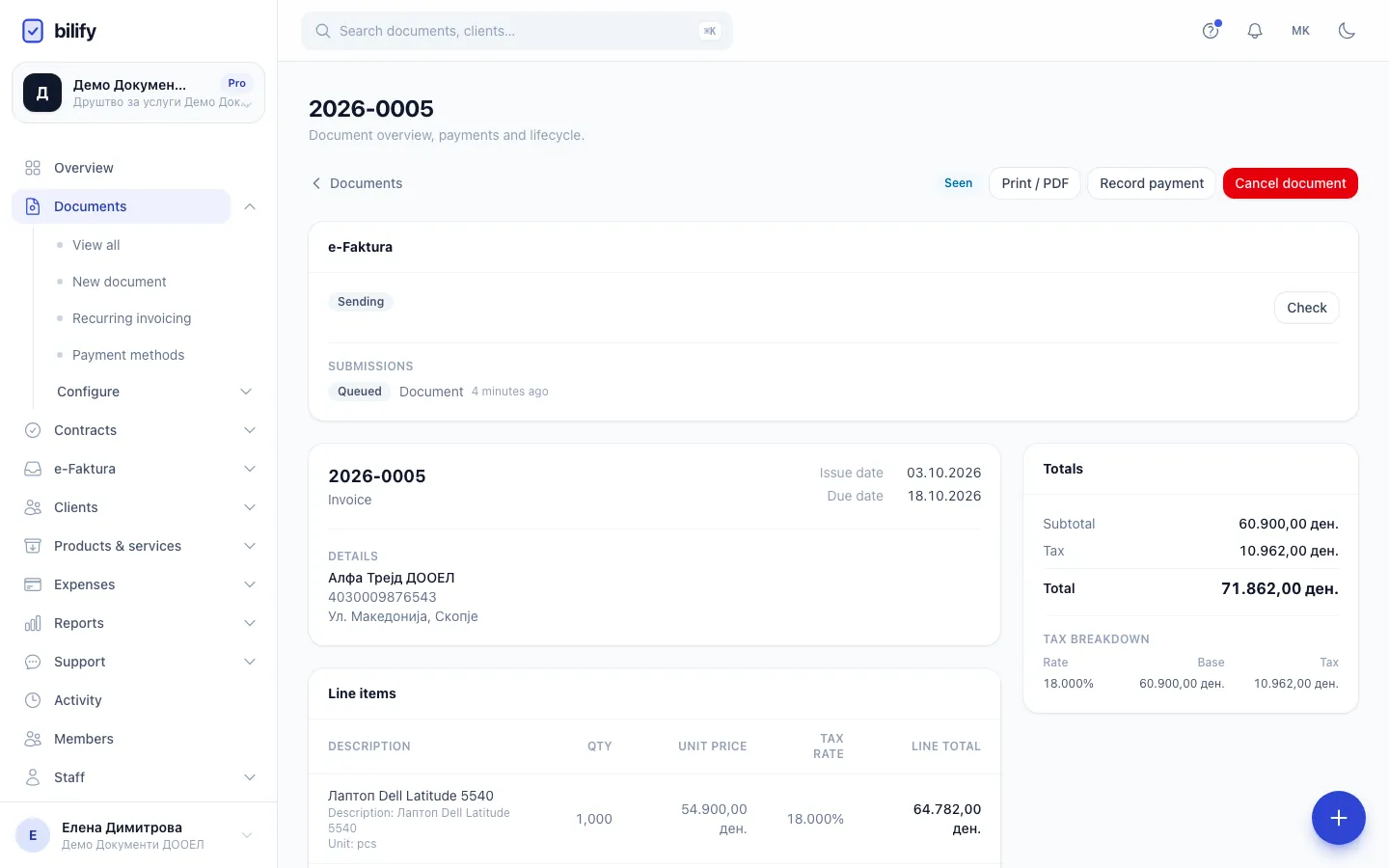
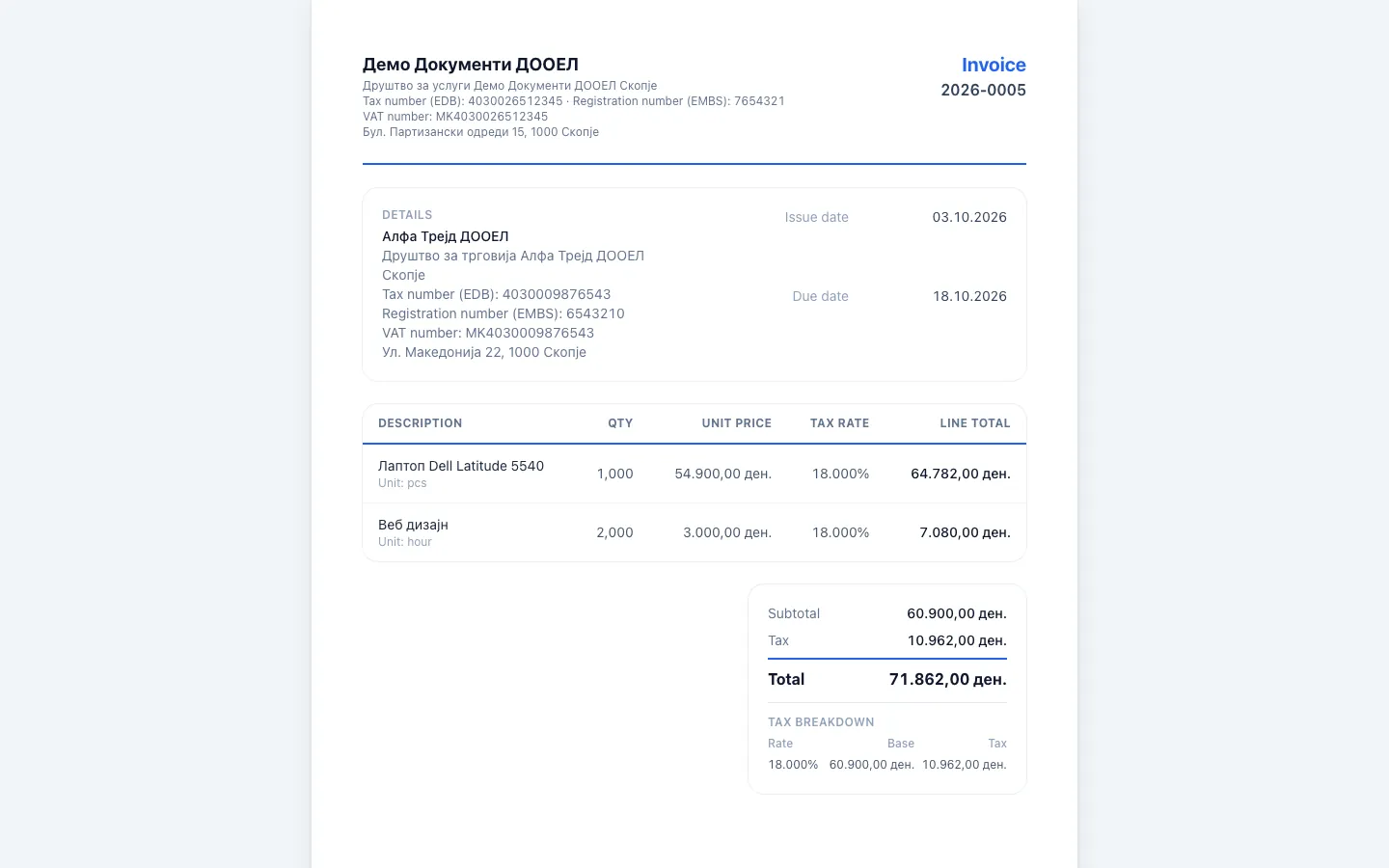
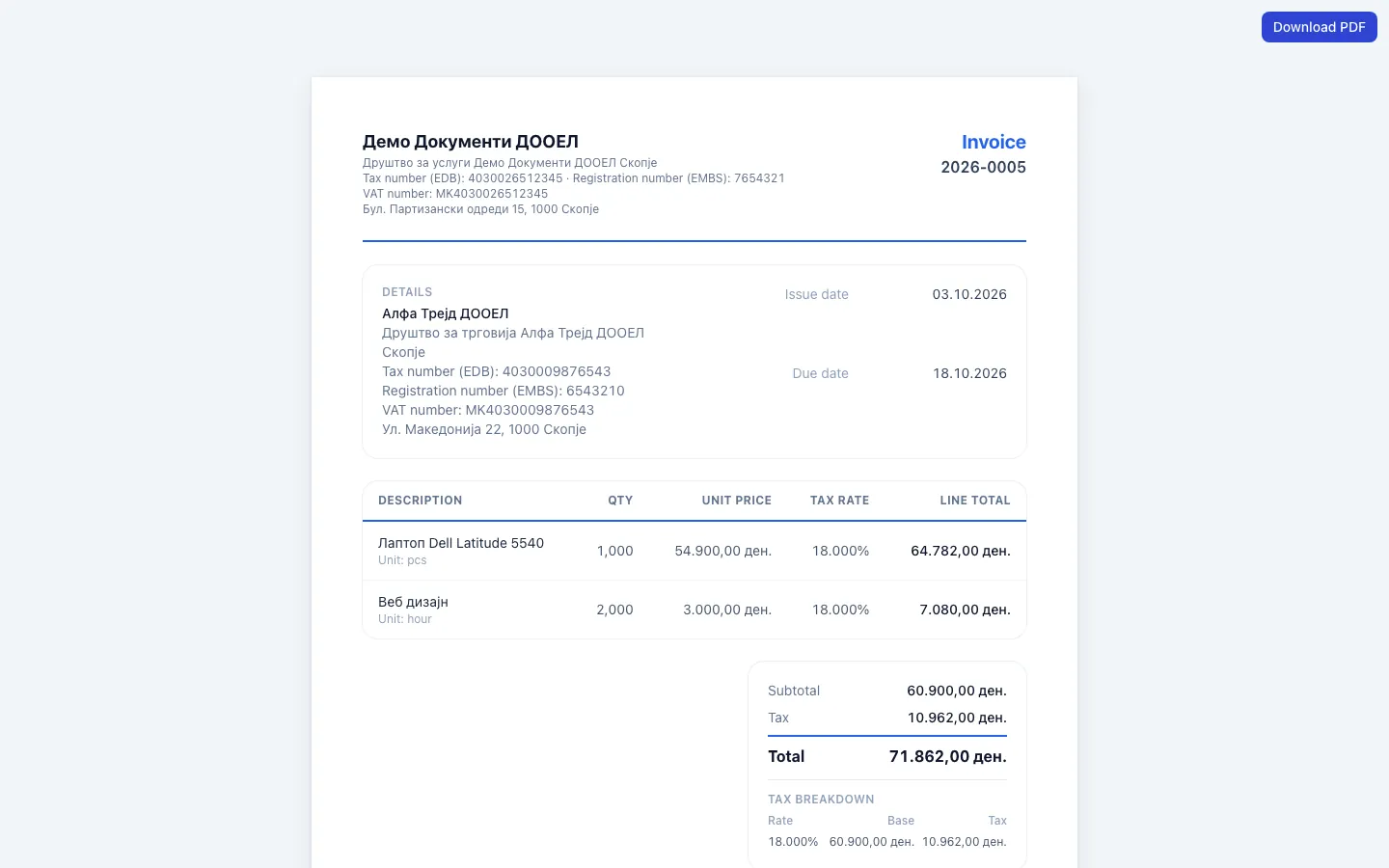
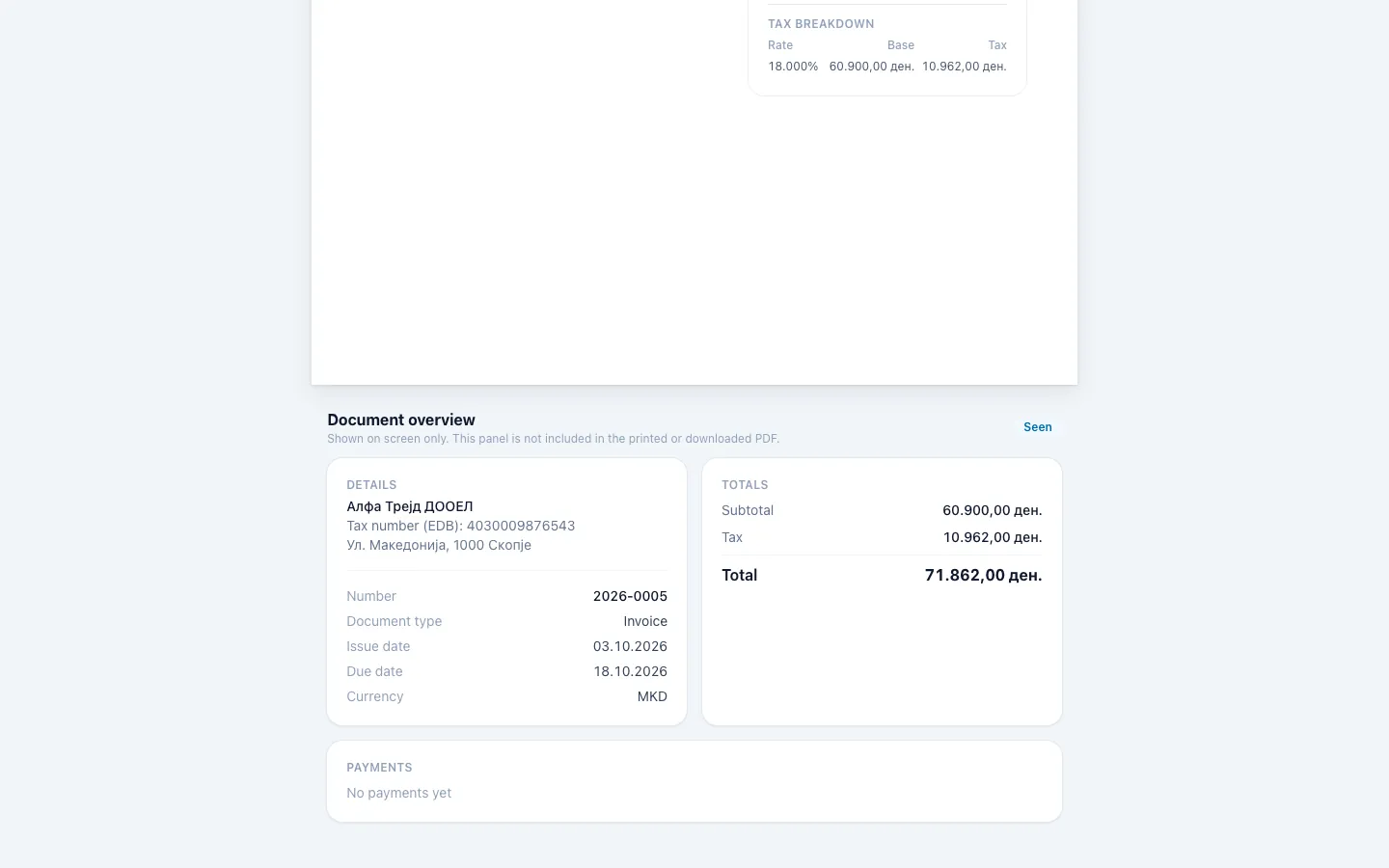
- Step 1: On an issued document, Print / PDF opens the print view in a new tab.
- Step 2: The print view is an A4 page in your document design. What you see is what prints.
- Step 3: Download PDF opens your browser's print dialog. Choose Save as PDF as the destination.
- Step 4: The overview below the page is shown on screen only and is not part of the PDF.
- Open the document and click Print / PDF. You can also use Print / PDF in the row menu on Documents, or Download PDF in the documents list on a client's profile.
- The print view opens in a new tab.
- Click Download PDF at the top right. Your browser's print dialog opens.
- To save a file, choose Save as PDF (the wording depends on your browser) as the destination and save. To print on paper, choose your printer.
The PDF comes from your browser
Bilify does not generate a PDF file on its server yet. Download PDF opens your browser's print dialog, and the browser creates the PDF. The page is laid out as a real A4 sheet with its own margins, so what you see on screen is what you get.
Tips for a clean PDF
- If the browser adds the date, the page title or the web address at the top and bottom of the page, switch off its headers and footers option in the print dialog.
- You do not need to change the margins in the print dialog. The page keeps its own margins even when the dialog's margins are set to none.
- Below the page there is a Document overview panel with the client, dates, totals and payments. It is shown on screen only and is not part of the PDF.
Which language it prints in
The labels on the page (and the legal notes, such as the Article 32 note) follow the language you are using Bilify in at that moment. To print a Macedonian document, make sure the app is set to Macedonian before you open the print view. You can switch language from the language menu.
The data itself (client name, line descriptions, numbers) prints exactly as entered.
Drafts and issued documents
- An issued document always prints with the design, logo and colour frozen at issue, and with the client and company details as they were on that day.
- A draft prints with the label Draft instead of a number and with your current design. Use it to check the layout, not to send to a client.
To change how documents look, see Choose a document design.
What your clients can download
Clients with portal access can open and print their own documents, and print several at once, from the client portal. See Download PDFs.
Was this page helpful?
Related articles
Still stuck?
Write to us and we will get back to you within one working day.