Open a support ticket
Ask the Bilify team for help from inside the app, attach screenshots, follow the replies and mark the ticket resolved.
A support ticket is a conversation with the Bilify team inside the app. Use it when something does not work as described in the help centre, when you see an error, or when you need something only the Bilify team can do.
Owners, Admins and Employees can open tickets. Accountants can read the company's tickets but cannot open or answer them.
Open a ticket
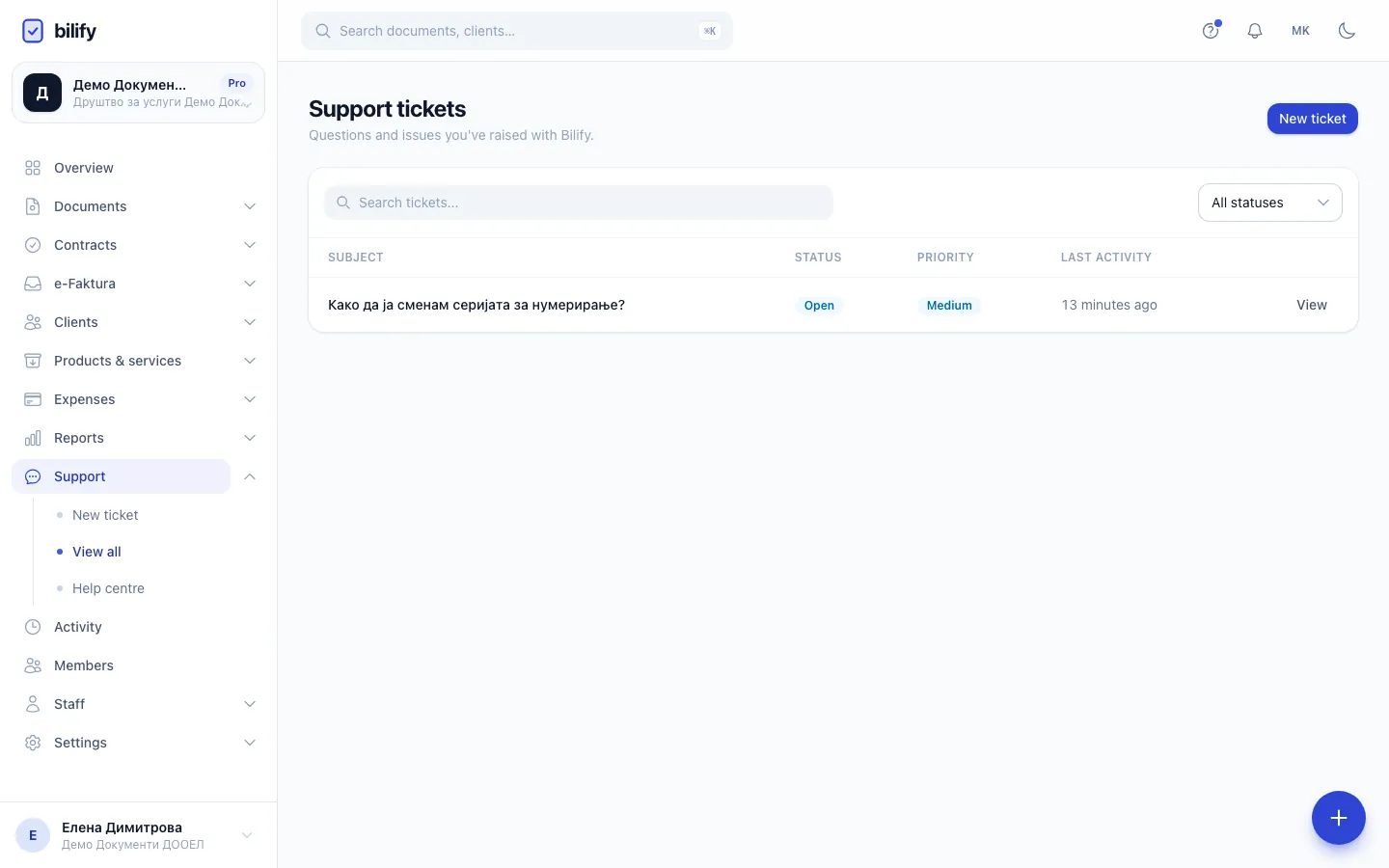
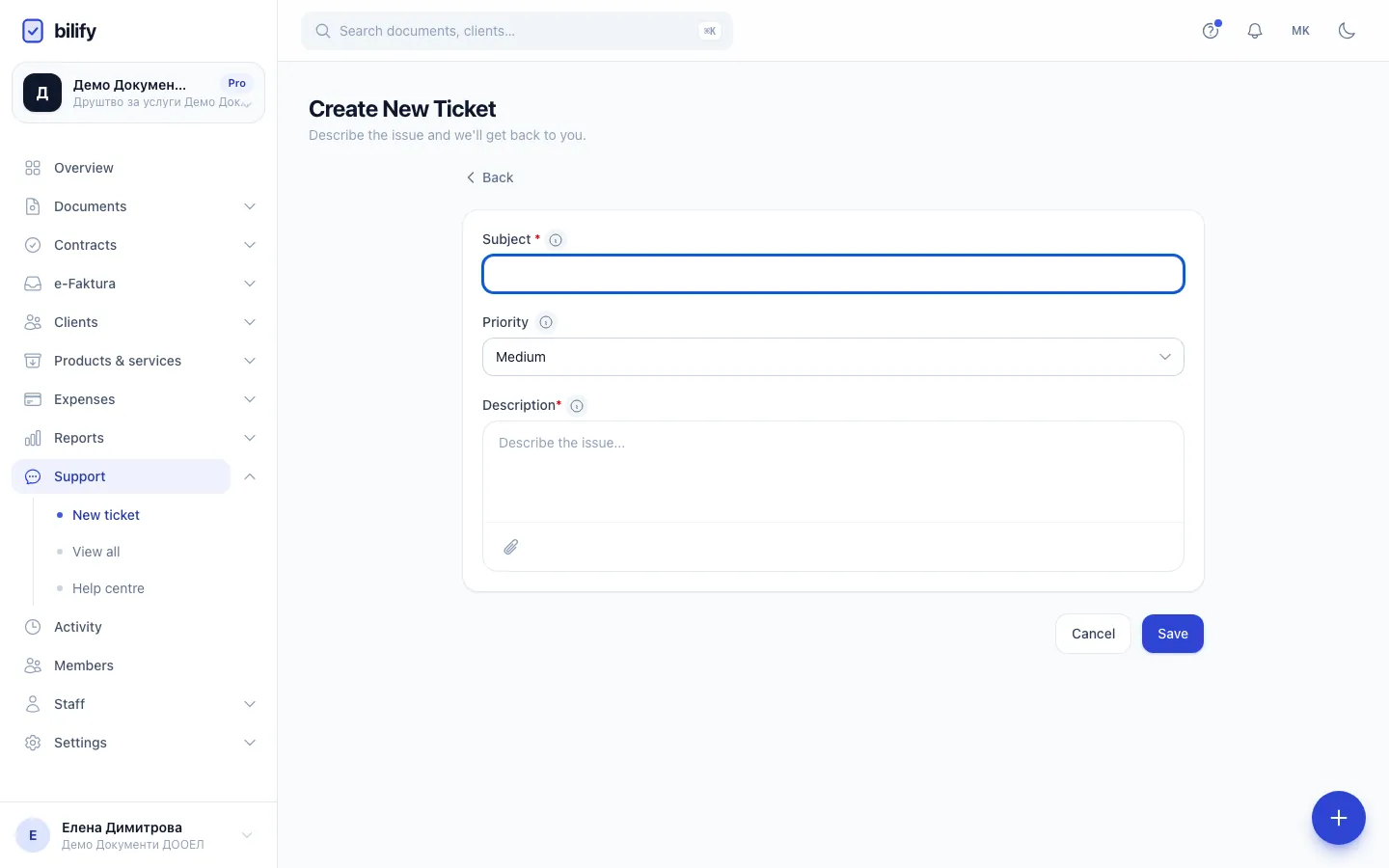
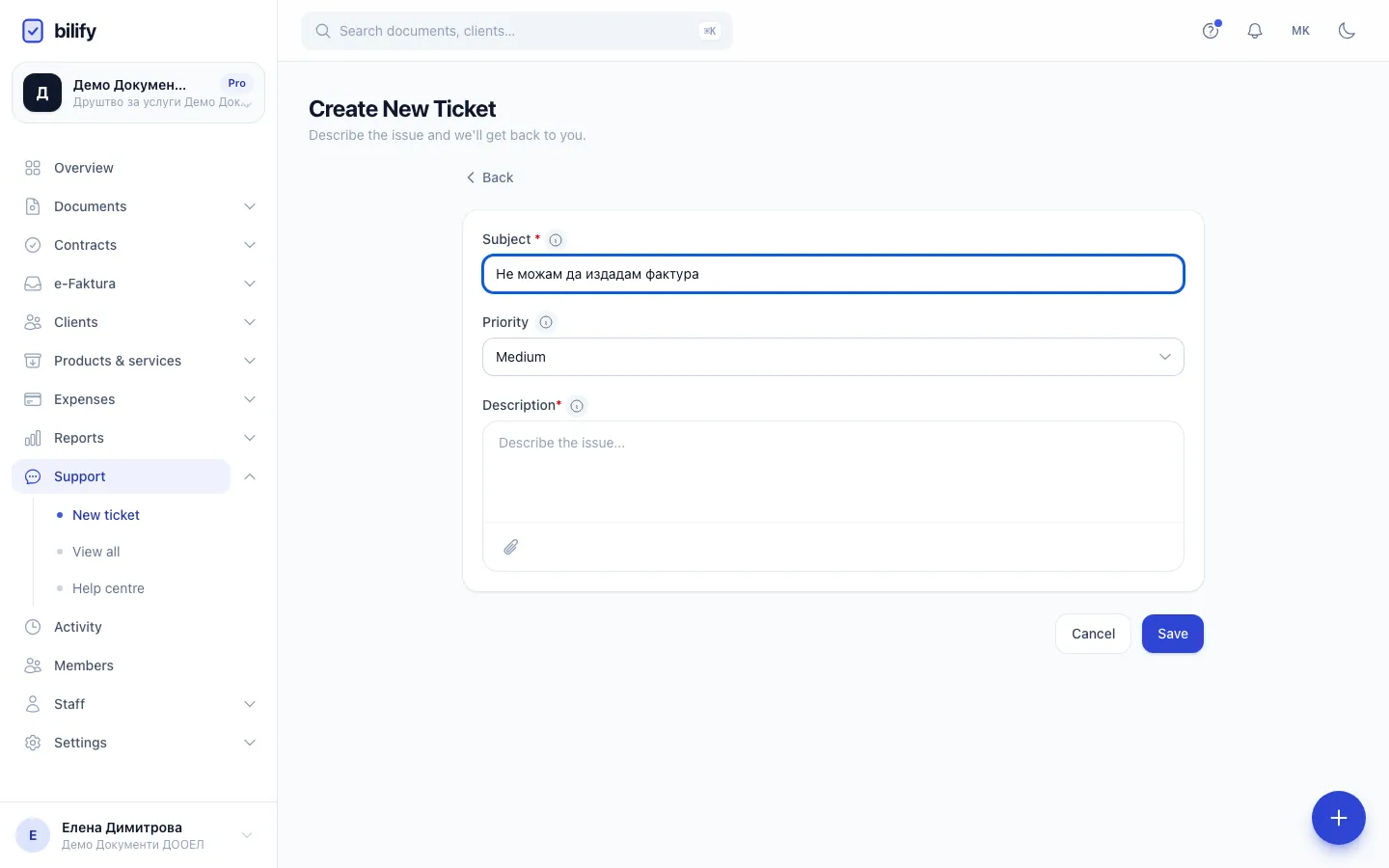
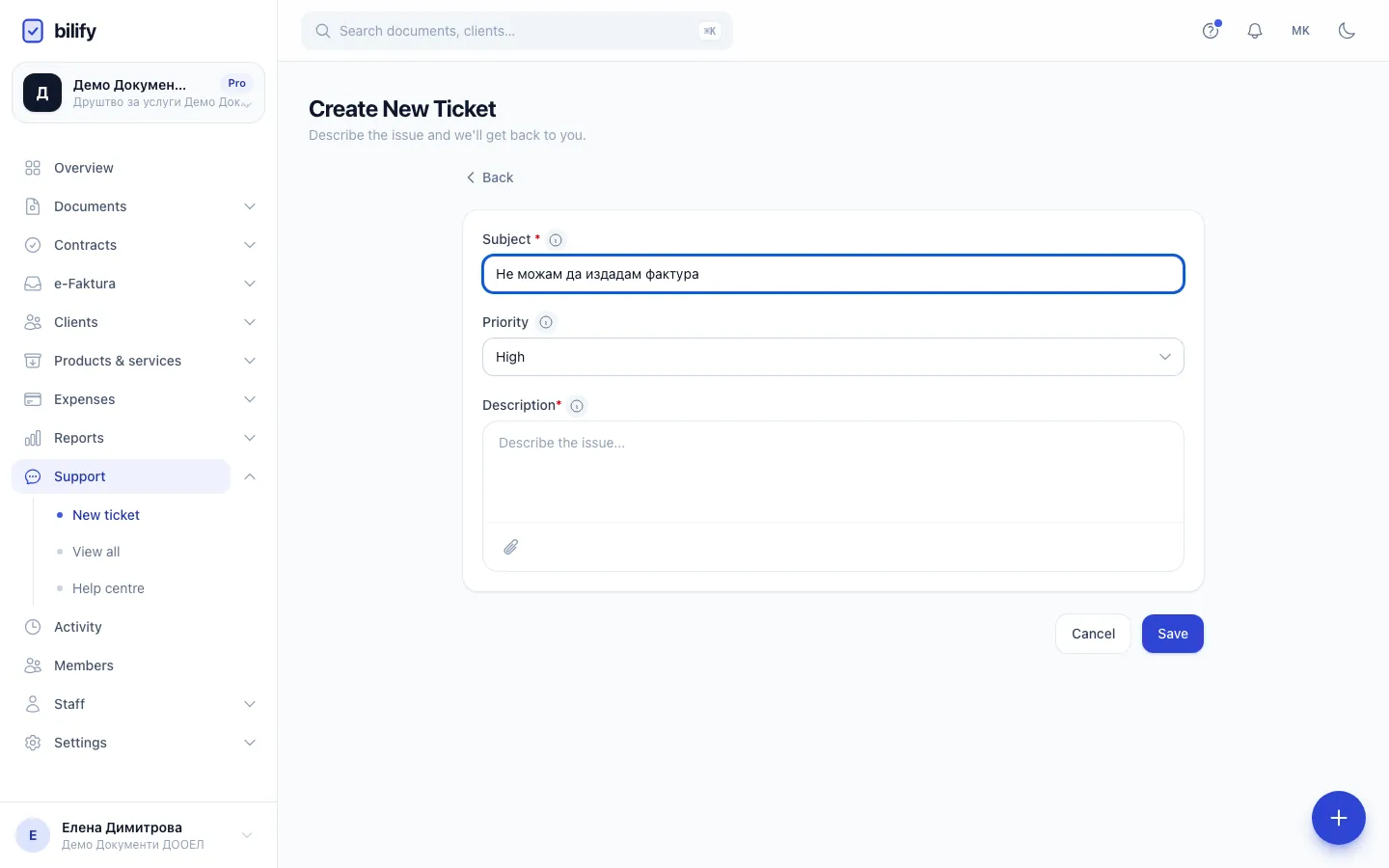
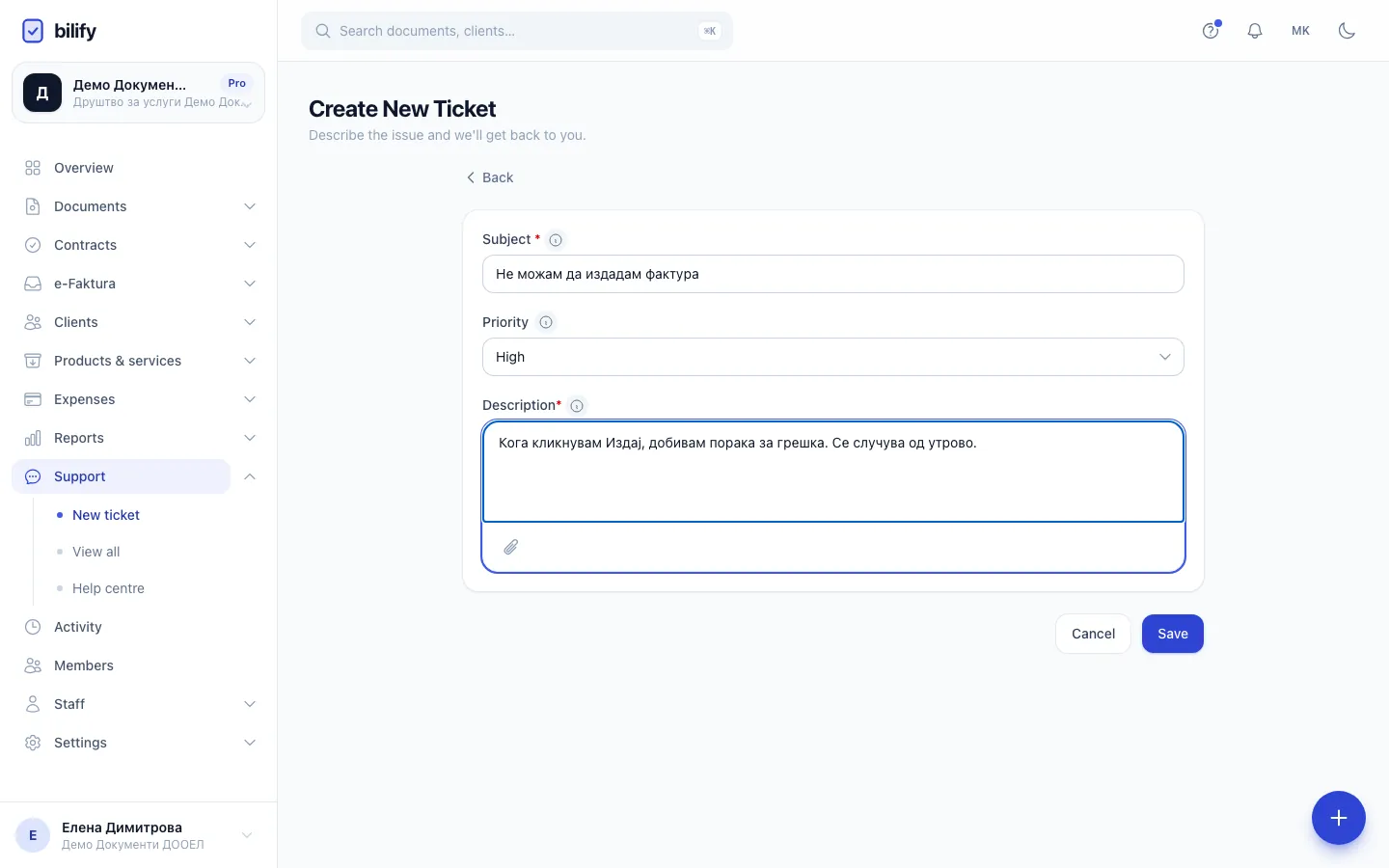
- Step 1: Click New ticket to write to the Bilify team.
- Step 2: Write a short subject that says what is wrong.
- Step 3: Pick a priority. Urgent is available on the Pro and Enterprise packages.
- Step 4: Describe the problem and the steps that lead to it. Paste or drop screenshots here.
- Step 5: Click Save to send the ticket. You can follow the replies on the ticket's page.
- In the sidebar, open Support and click New ticket.
- Write a short Subject, for example "Cannot issue invoice 2026-0042".
- Choose a Priority. Medium is preselected; see Ticket priorities.
- In Description, explain the problem.
- Attach screenshots or files if they help: paste an image straight into the box, drag files onto it, or use the file picker.
- Click Save.
You see Ticket submitted. and land on the ticket's page. The Bilify team is notified straight away.
What makes a ticket quick to solve
- What you did, step by step, and what you expected to happen.
- The exact error message, or a screenshot of it.
- The document number, client name or page where it happened.
- Whether it happens every time or only sometimes.
Never send passwords
Do not put passwords, card numbers or certificate files in a ticket. The Bilify team never asks for them.
Attachment limits
Up to 5 files per message, 10 MB each. Allowed types: JPG, PNG, GIF, WEBP, PDF, DOC, DOCX, XLS, XLSX, ZIP and TXT.
Follow the conversation
All tickets of your company are under Support > View all, with their status and last activity. You can search them and filter by status.
| Status | Meaning |
|---|---|
| Open | Received, not yet picked up |
| In progress | The Bilify team is working on it |
| Waiting on you | The team needs an answer or more information from you |
| Resolved | The issue is solved |
| Closed | The ticket is finished |
When the Bilify team replies, you get a notification in the bell and by email (depending on your company's notification settings), and a small number appears next to Support in the sidebar until you open the ticket.
To reproduce a problem, the Bilify team can open your company signed in as the person who reported it. The start and end of such a session are recorded in your company's activity log.
Reply
- Open the ticket.
- Write in Write a reply... and attach files the same way as before.
- Click Reply.
Replies cannot be edited or deleted once sent.
Mark it resolved
When your problem is solved, click Mark resolved at the top of the ticket. A resolved or closed ticket no longer accepts replies and shows This ticket is closed. If the problem comes back, open a new ticket and mention the old subject.
Was this page helpful?
Related articles
Still stuck?
Write to us and we will get back to you within one working day.