Numbering series
Create a numbering series, build its pattern with {SEQ}, {YYYY} and other tokens, choose a reset policy and a default, and learn how gaps are avoided.
A numbering series gives each document its number at the moment you issue it, for example 2026-0001. Set up at least one series before you issue your first invoice.
Before you start
- You need the Numbering permission (owners and admins have it).
- Open the page from the menu: Documents > Configure > Numbering.
- The number of series you can create depends on your package. See Usage limits.
Create a series
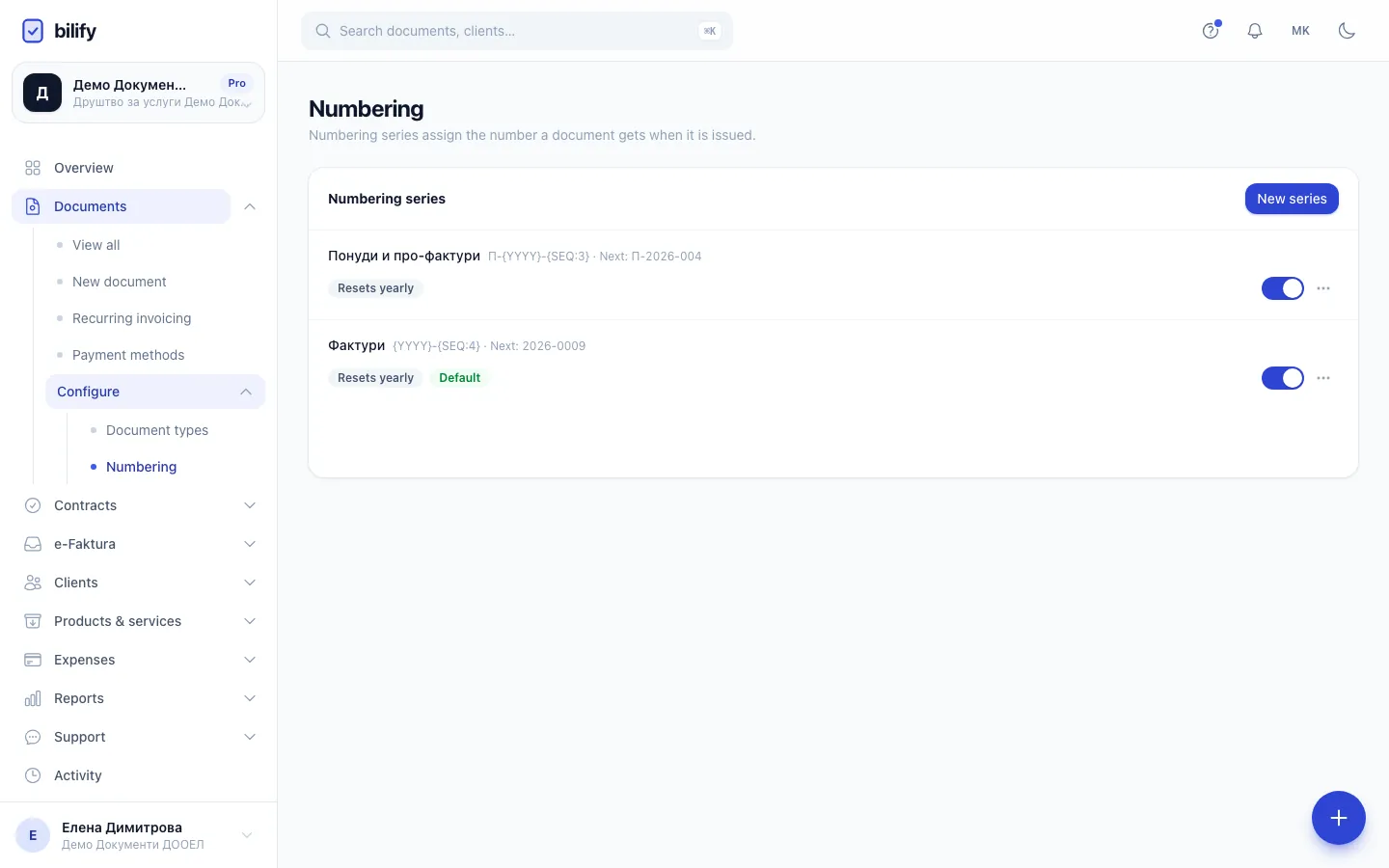
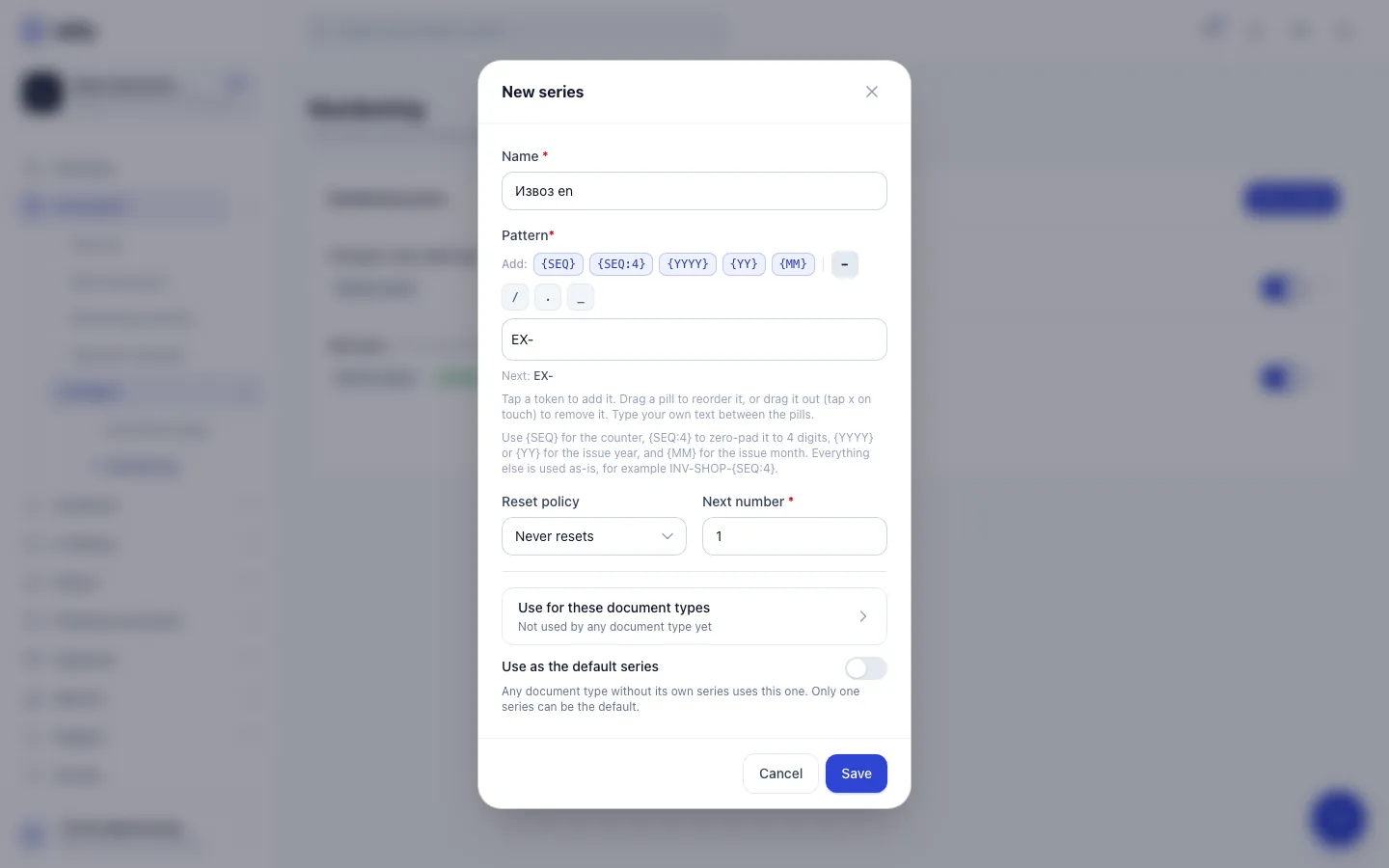
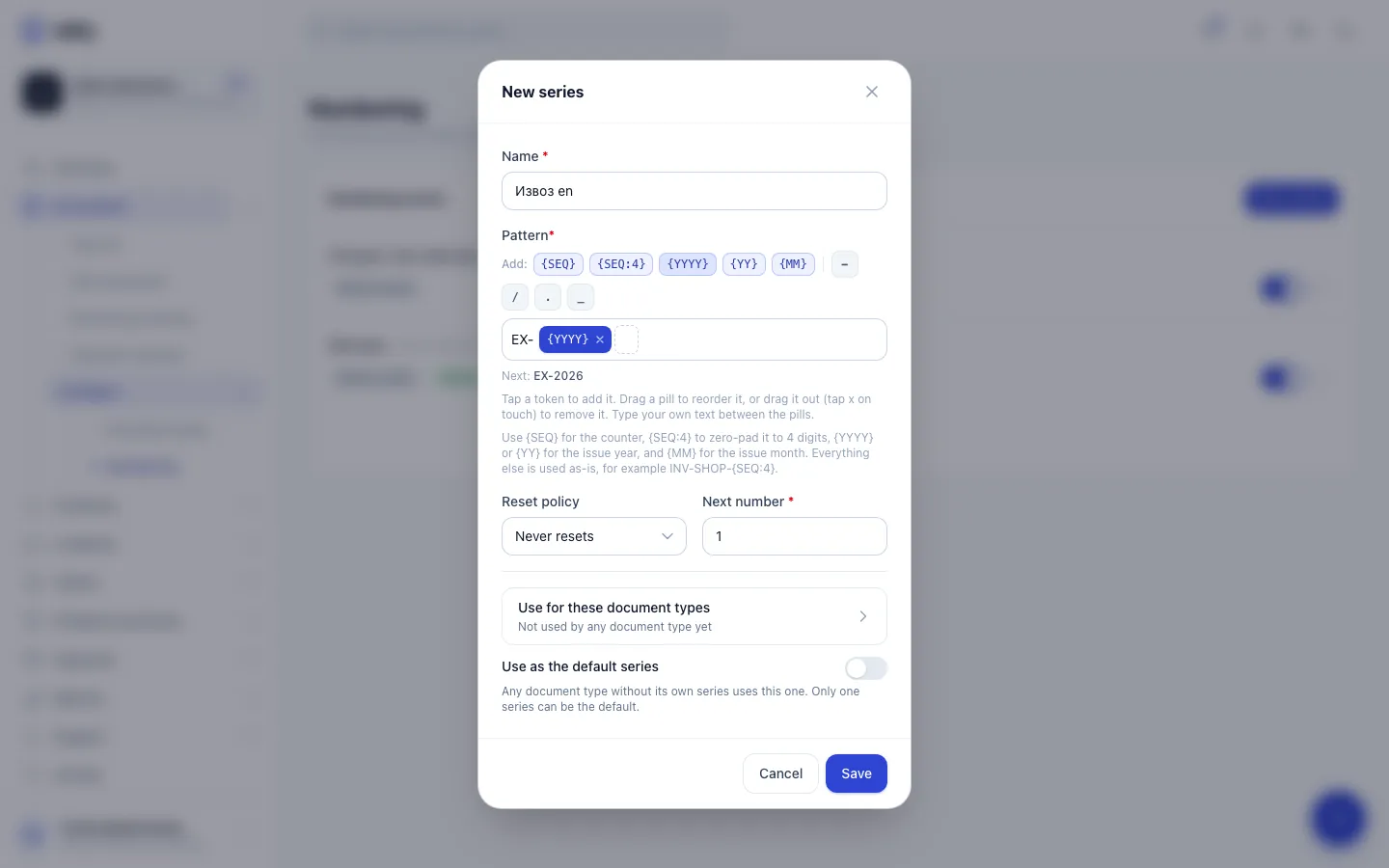
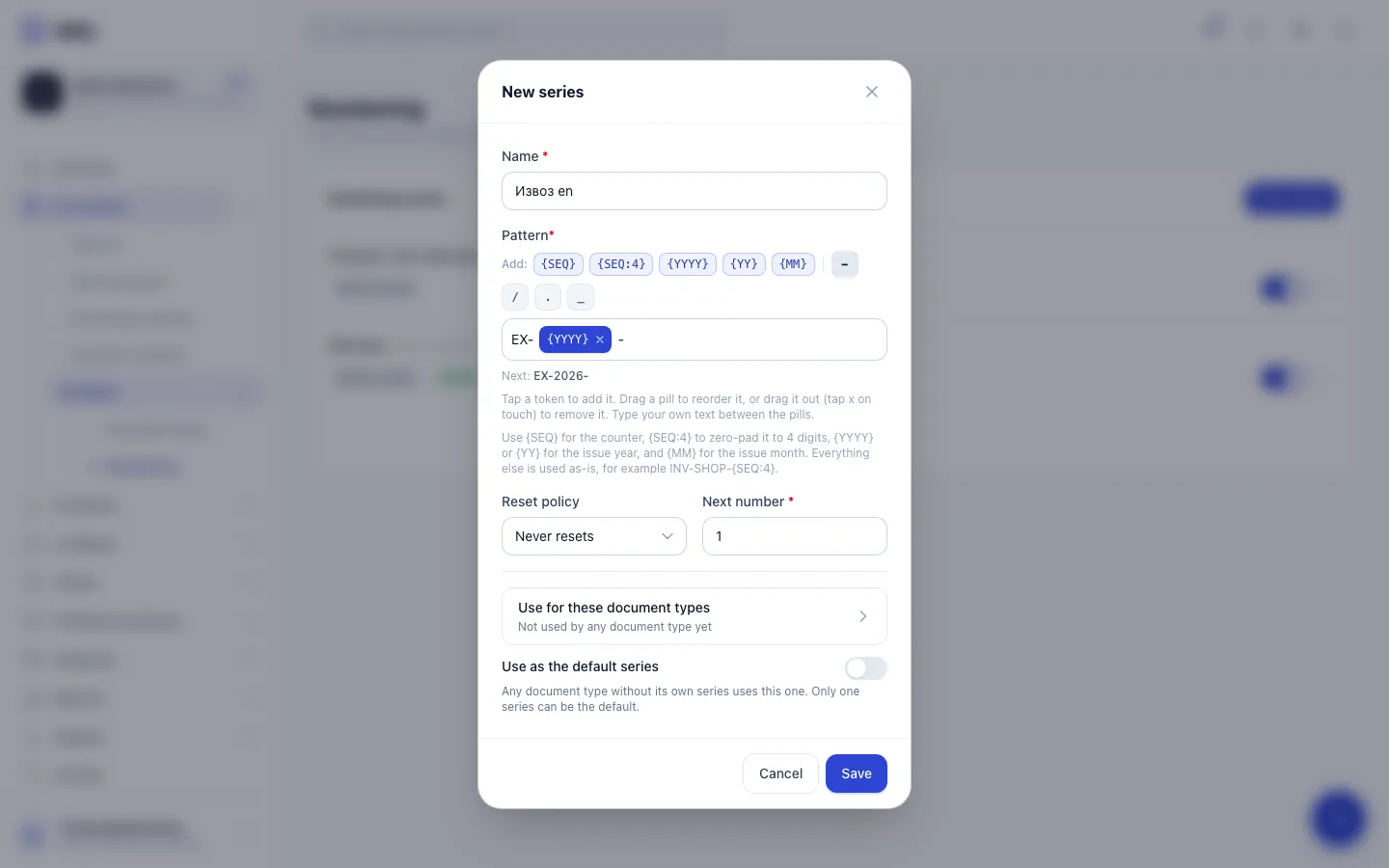
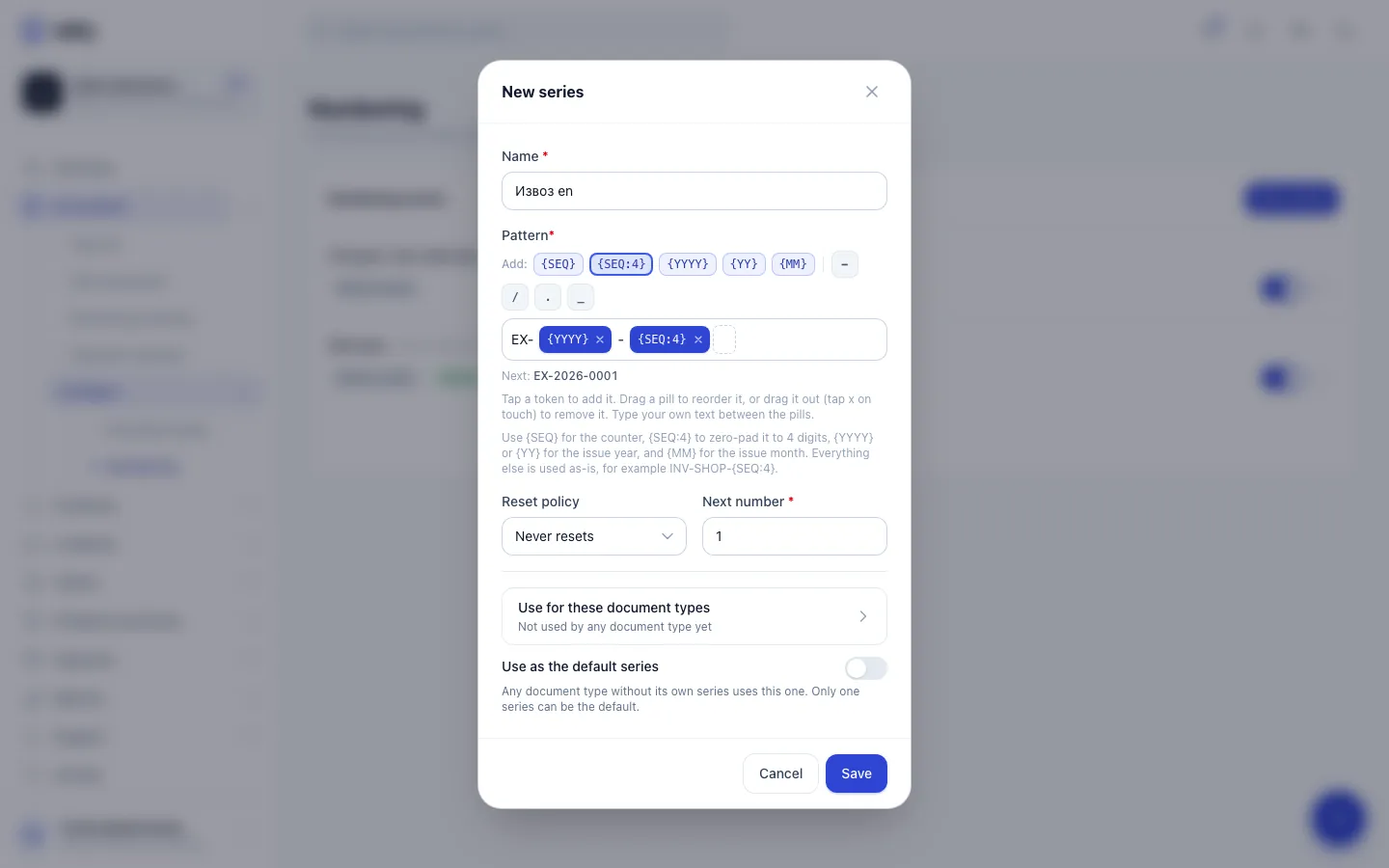
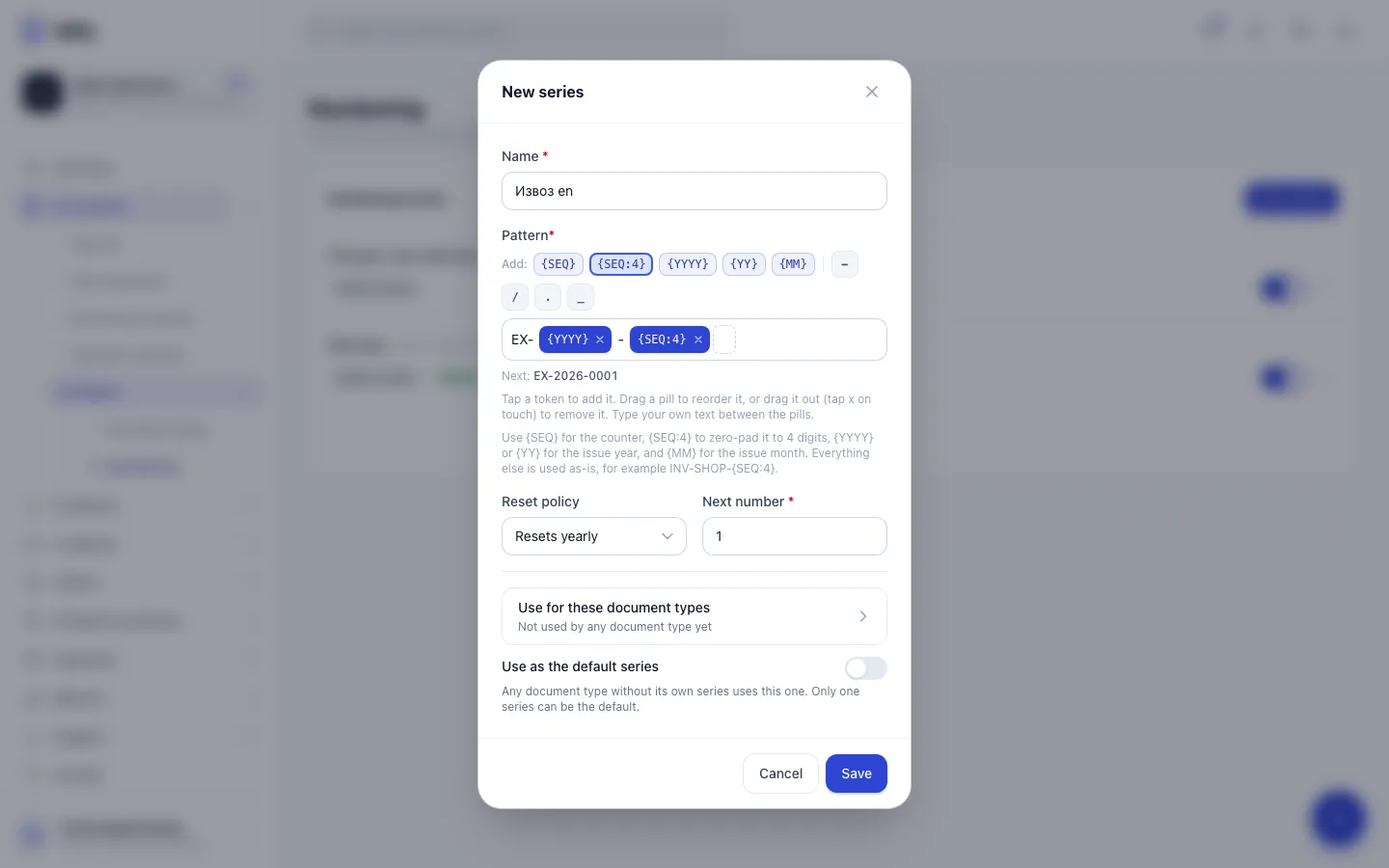
- Step 1: Click New series to open the series window.
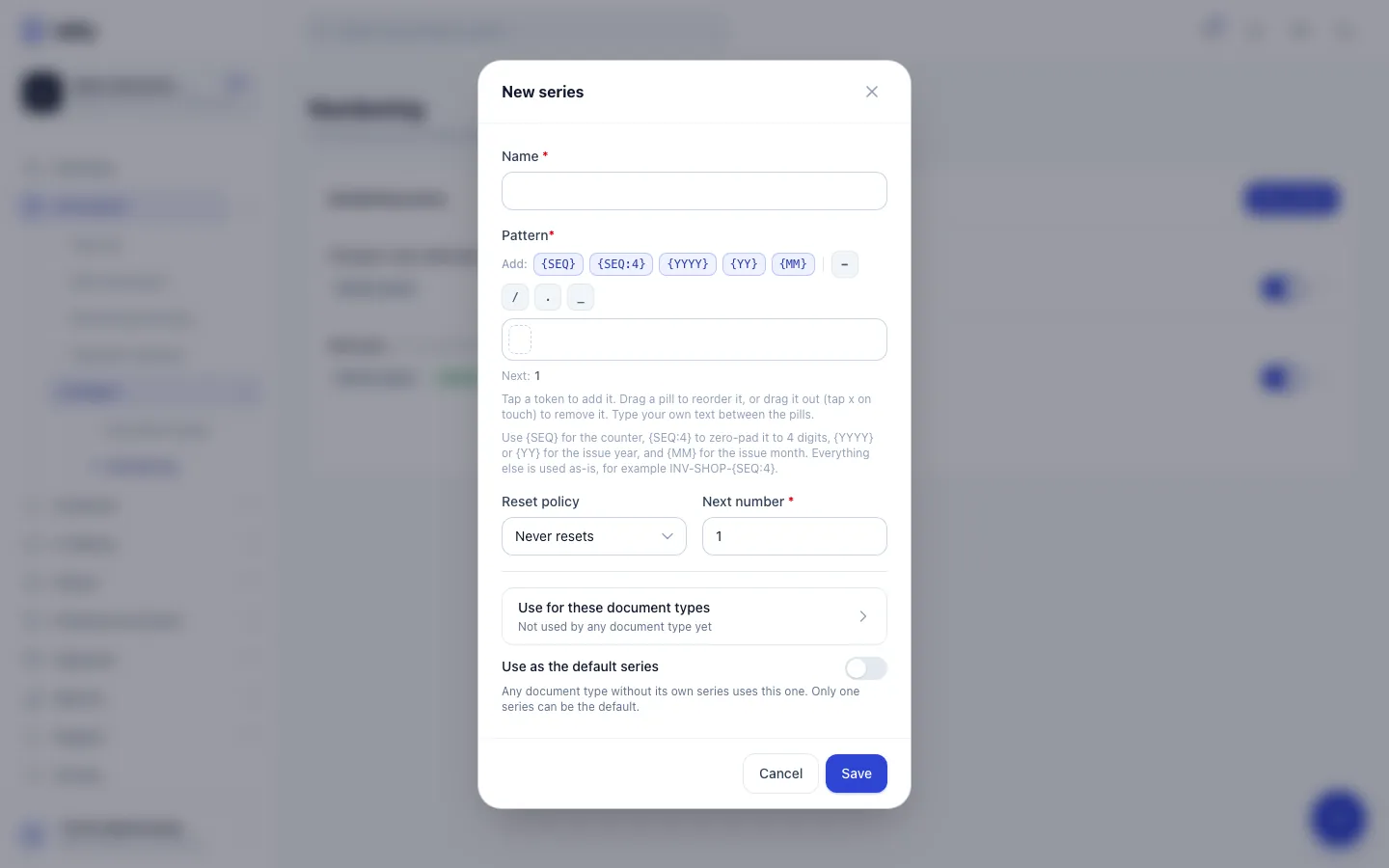
- Step 2: Give the series a name you will recognise when you bind it to document types.
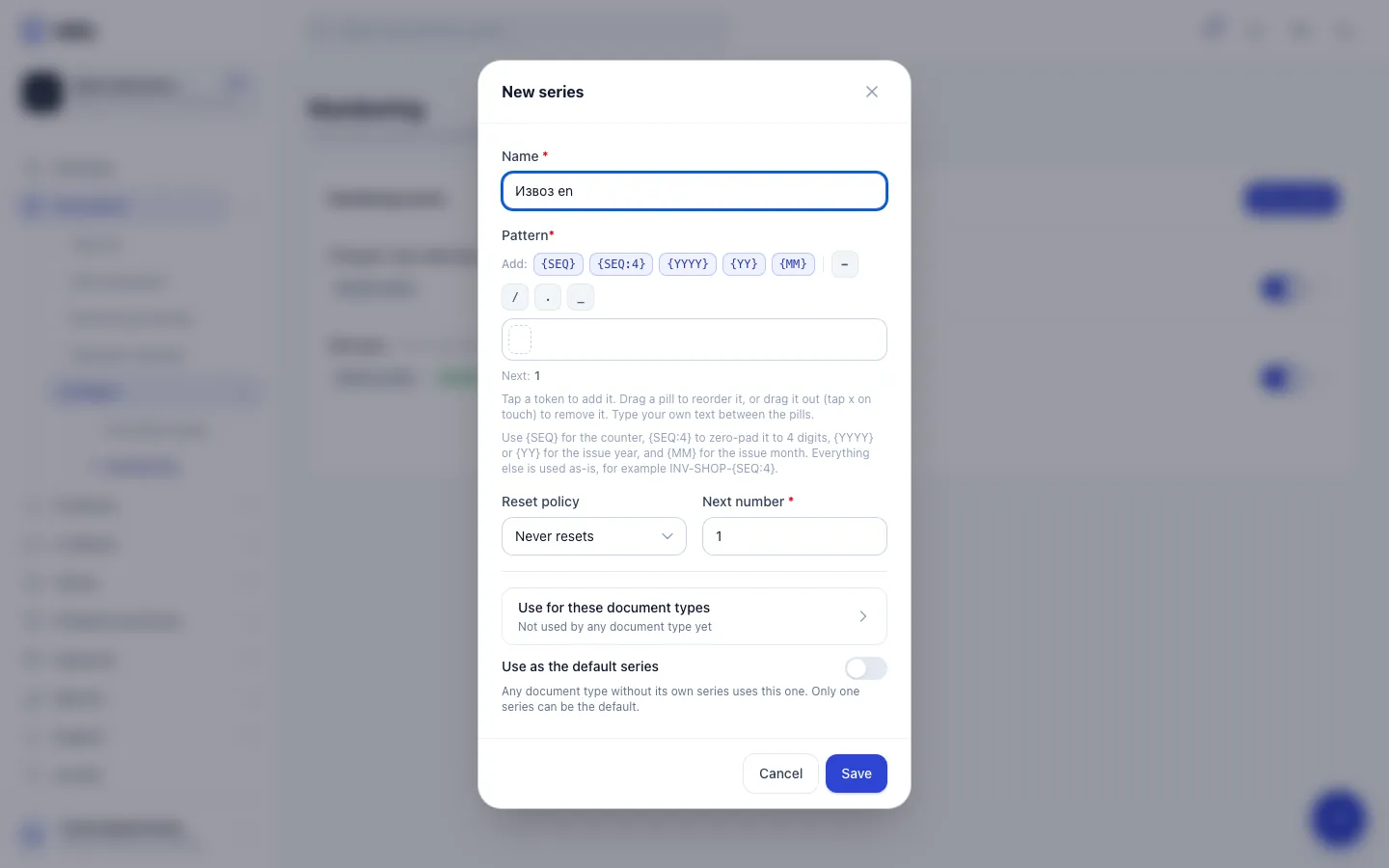
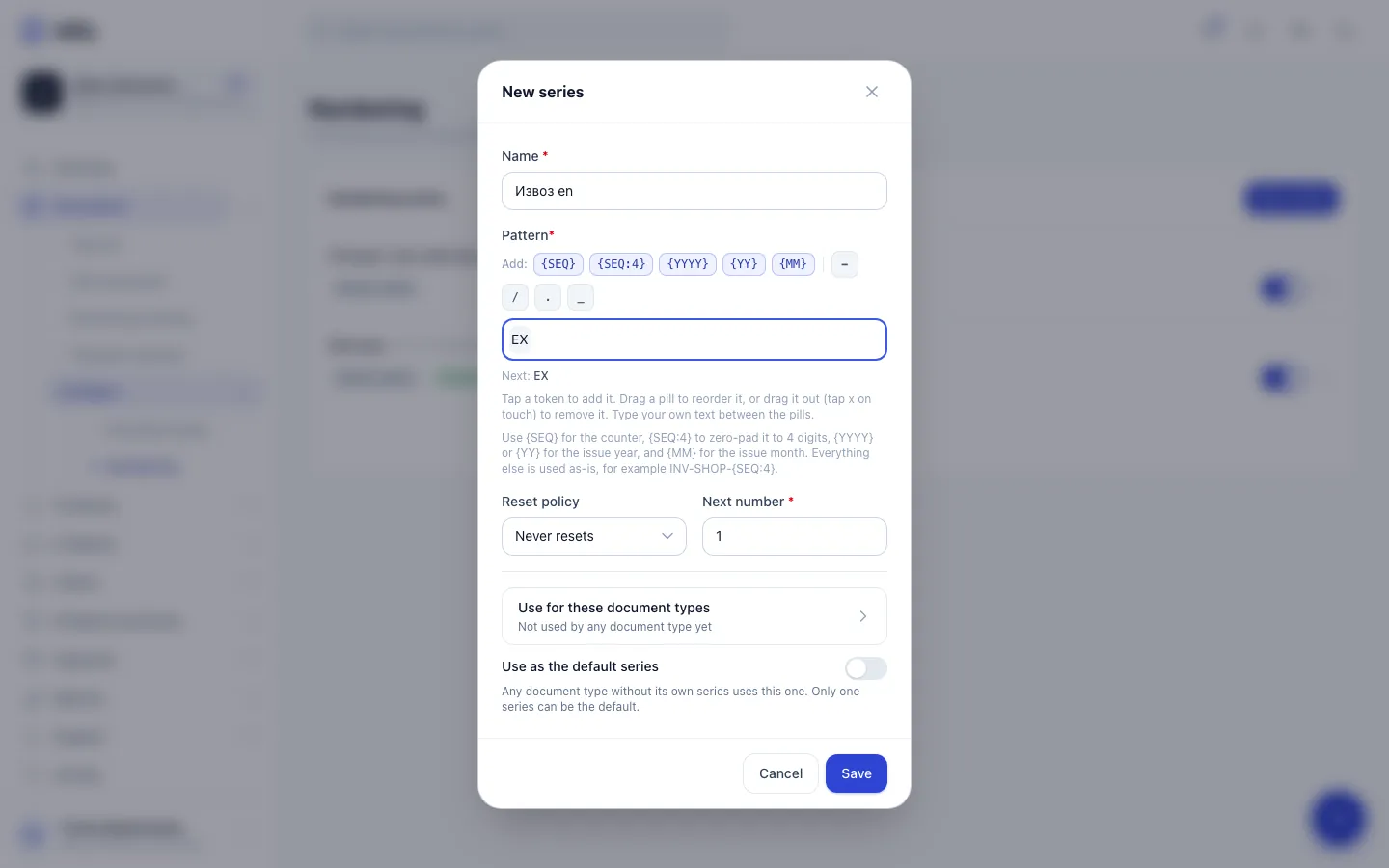
- Step 3: Type your own text, such as a prefix, in the box at the start of the pattern.
- Step 4: Add a dash as a separator after the prefix.
- Step 5: Add {YYYY}. It becomes the year of the issue date, for example 2026.
- Step 6: Add another dash before the counter.
- Step 7: Add {SEQ:4}, the counter padded to four digits. The preview below shows the next number.
- Step 8: Choose Resets yearly so the counter starts again at 1 every new year.
- Step 9: Click Save. Bind the series to document types here or on the Document types page.
- Click New series.
- Type a Name you will recognise, for example "Invoices" or "Shop".
- Build the Pattern: click the tokens and separators under Add:, and type your own text in the small boxes between the pills. The line Next: under the builder shows a live preview.
- Choose a Reset policy: Never resets or Resets yearly.
- Check Next number. It is 1 for a new series. Change it only if you are continuing a sequence from another program.
- Optional: click Use for these document types and tick the types that should use this series, then Done.
- Optional: switch on Use as the default series.
- Click Save.
Pattern tokens
| Token | Becomes | Example |
|---|---|---|
{SEQ} |
The counter, without padding | 7 |
{SEQ:4} |
The counter, padded with zeros to 4 digits (any number of digits works, for example {SEQ:6}) |
0007 |
{YYYY} |
The issue year, four digits | 2026 |
{YY} |
The issue year, two digits | 26 |
{MM} |
The issue month, two digits | 03 |
Everything else in the pattern is copied as typed. Some examples:
| Pattern | Number |
|---|---|
{YYYY}-{SEQ:4} |
2026-0001 |
INV-{YY}/{SEQ} |
INV-26/1 |
SHOP-{YYYY}{MM}-{SEQ:3} |
SHOP-202603-001 |
Rules Bilify checks when you save:
- A pattern needs exactly one counter, either
{SEQ}or{SEQ:N}. With none you get Add a counter token: {SEQ}, or {SEQ:4} to pad it with zeros., with two or more you are asked to remove the extra one. - A series that Resets yearly must contain
{YYYY}or{YY}, otherwise numbers would repeat every year. - The pattern can be at most 60 characters.
The year and month always come from the document's issue date, not from today.
Reset policy
- Never resets: the counter keeps going forever, 1, 2, 3 and so on.
- Resets yearly: the first document issued with a date in a new year gets number 1 again.
You cannot issue into a year the series has already left
In a yearly series, once a document dated in 2027 has been issued, you can no longer issue a document dated in 2026 from that series. Bilify stops with an error instead of giving out a duplicate or out-of-order number. Issue late documents for the old year before the first one of the new year, or use a separate series.
The default series
A document type uses the series it is bound to. If a type has no series of its own, it uses the series marked Use as the default series. Only one series can be the default; switching it on for one series switches it off for the previous default. The default carries the Default badge in the list.
You can bind a type to a series in two places: with Use for these document types in the series window, or with Numbering series on the Document types page. A type uses only one series. Ticking a type that already uses another series moves it, and the window warns you with Already using and the series name. A type you bind here for the first time is also switched on for your company.
When numbers are assigned
- Drafts have no number. The document form shows Next number in this series (preview), but the final number is assigned only when you click Issue.
- The counter moves forward only when issuing succeeds. If issuing fails for any reason, nothing is used up, so a failed attempt never leaves a gap.
- Invoice, Advance Invoice and Invoice (Article 32 reverse charge) are fiscal documents. They can only be numbered by a series, and Bilify refuses to issue them if no series is bound and no default exists.
- Offers and pro-forma invoices are not fiscal. Without a series they are issued without a number, and you may type a Custom number on the draft instead. Bilify rejects a custom number that another document of yours already has.
Gaps, cancellations and editing a series
Bilify keeps fiscal numbering continuous, because tax inspections look for gaps:
- A cancelled document keeps its number. The number stays used in the series and is not handed out again.
- Next number cannot be set to a number that has already been issued in the series (or in the current year, for a yearly series). The error tells you the lowest number you can use.
- Changing the pattern affects future documents only. Numbers already issued never change.
- Use the switch next to a series to deactivate it. Documents bound to an inactive series cannot be issued until you choose another series.
- Delete removes a series only if no document uses it. A series that numbered documents is deactivated instead, with the message This series is used by existing documents, so it was deactivated instead of deleted.
Moving from another program
If you already issued invoices this year in another program, create the series with the same pattern and set Next number to the next number in that sequence. Your first invoice in Bilify then continues where you left off.
Was this page helpful?
Related articles
Still stuck?
Write to us and we will get back to you within one working day.