Your account and security
Change your name, email, password and profile picture, add a passkey, choose your personal notifications and sign out safely.
Your account belongs to you, not to a company: the same name, email, password and passkeys work in every company you are a member of. Every user can open their own account page, whatever their role.
To open it, click your name at the bottom of the sidebar and choose Account. The page has four tabs: General, Password, Passkeys and Preferences, plus a Session card at the bottom.
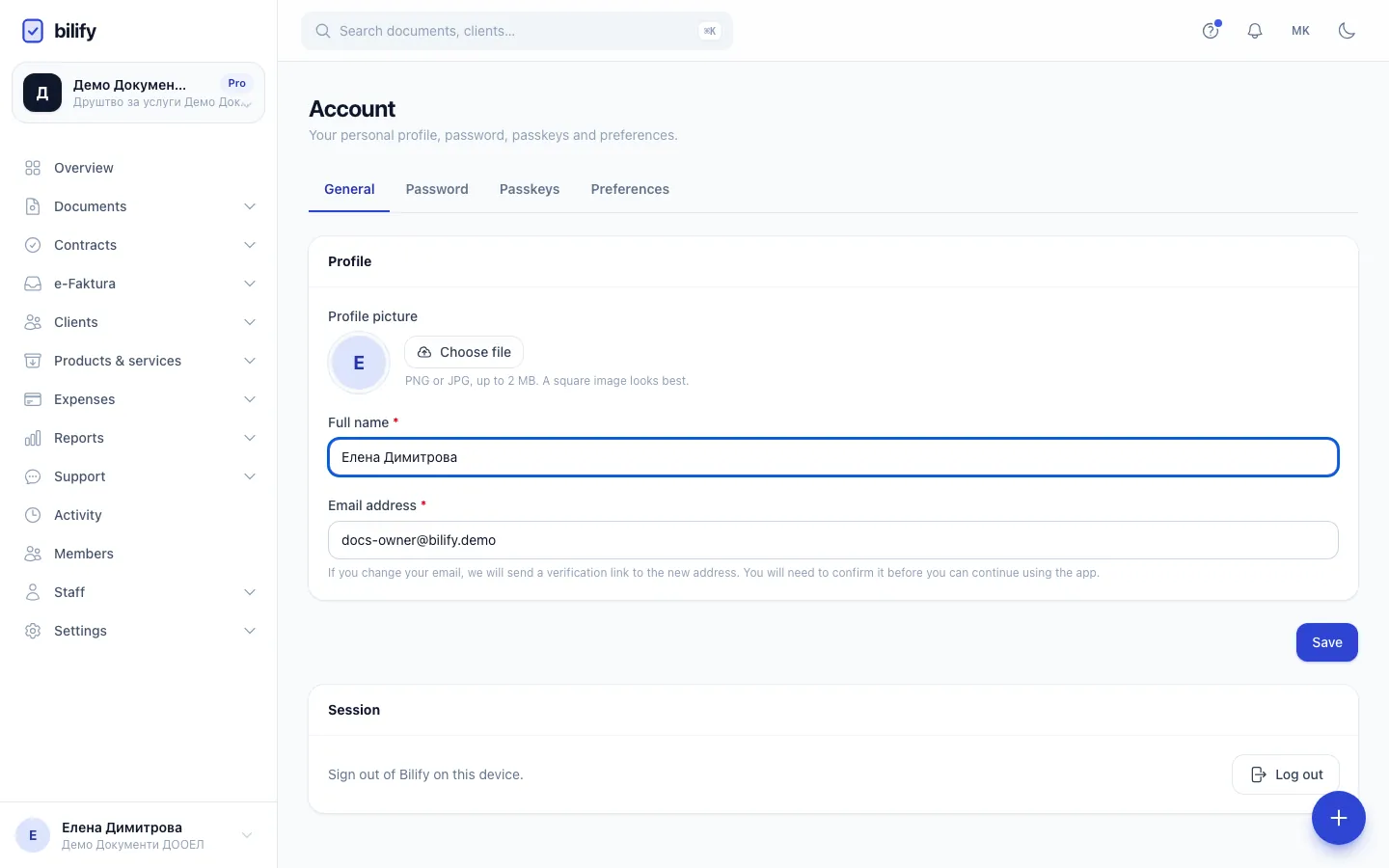
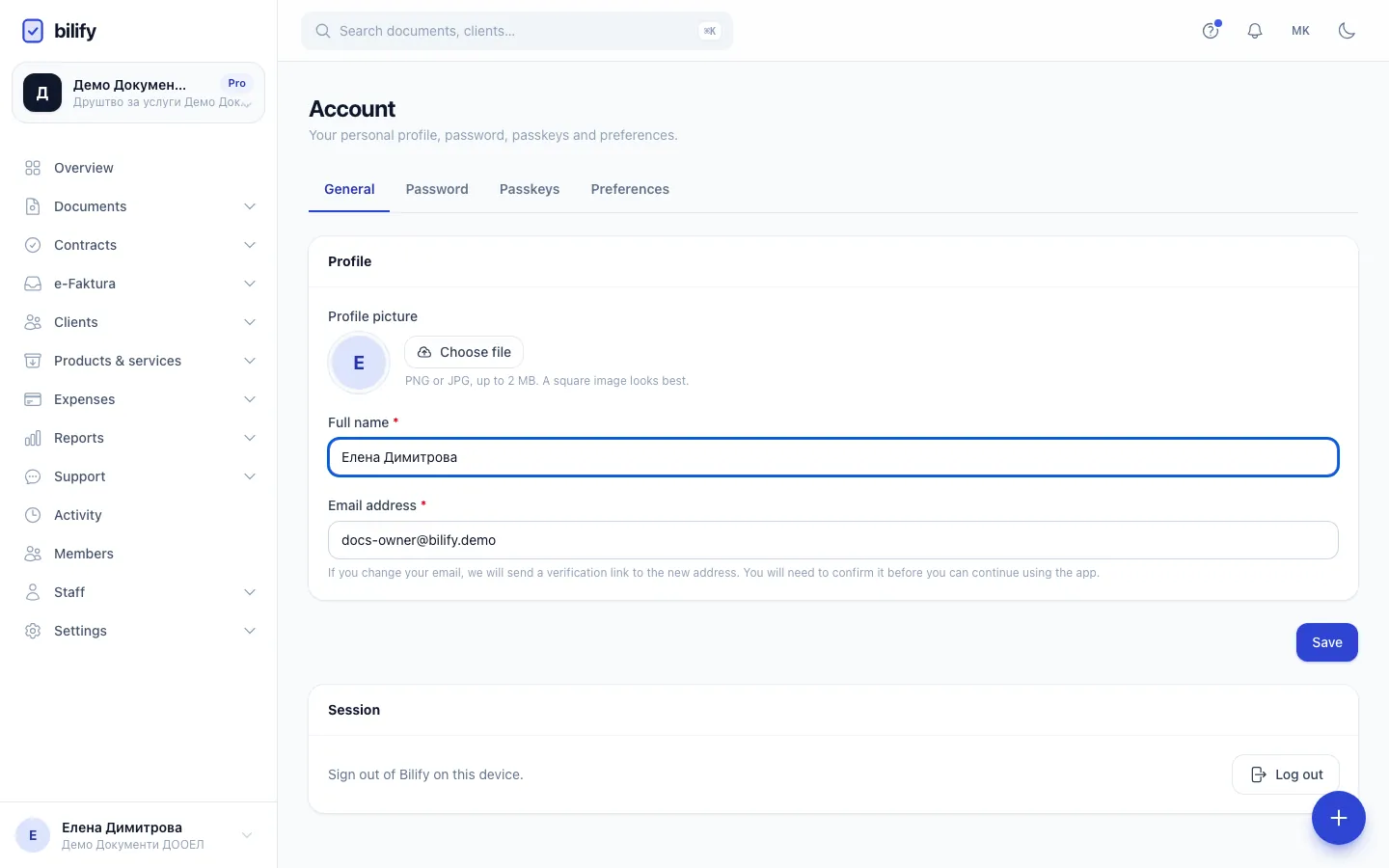
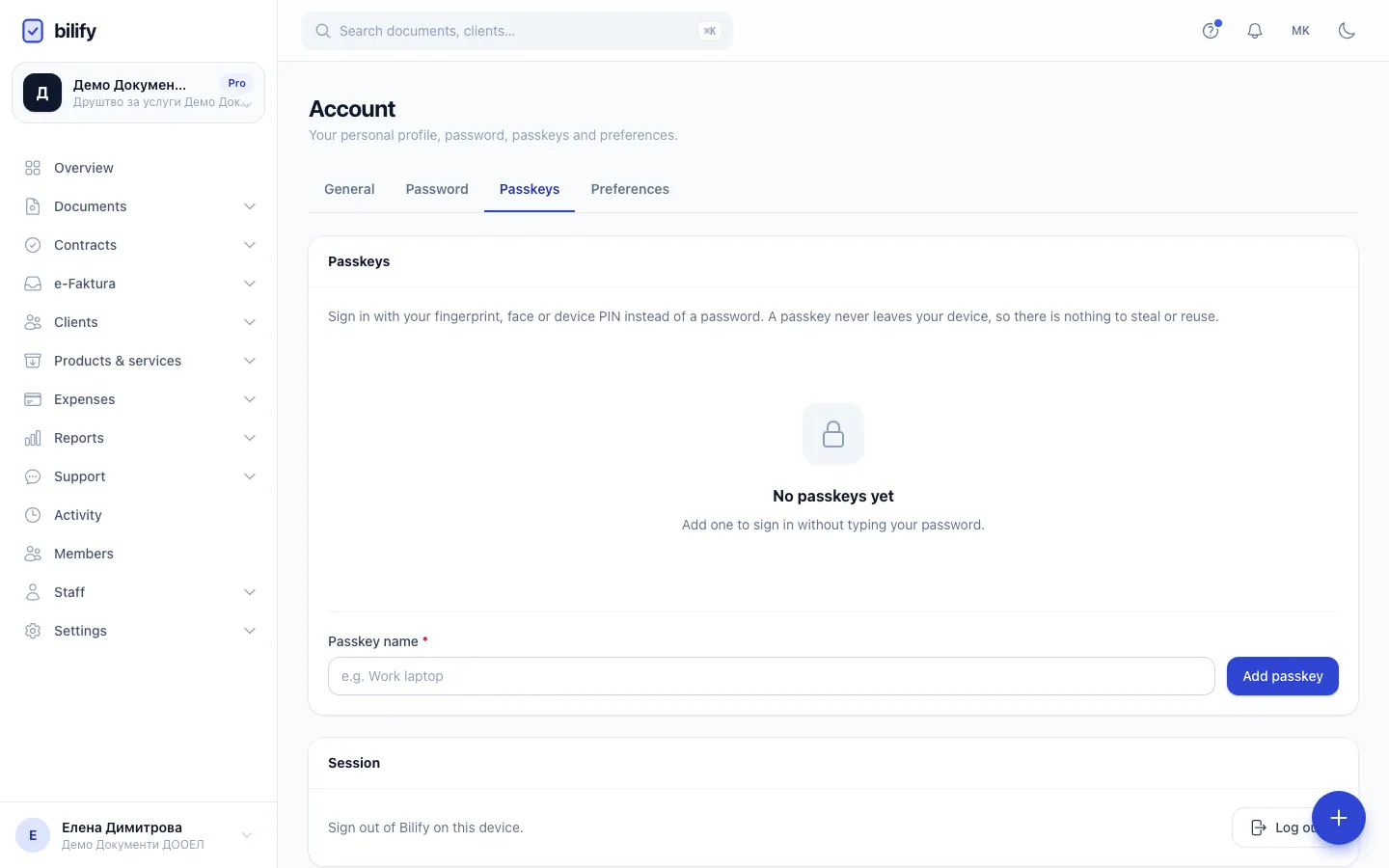
- Step 1: General holds your name, email and profile picture. A new email must be verified before you continue.
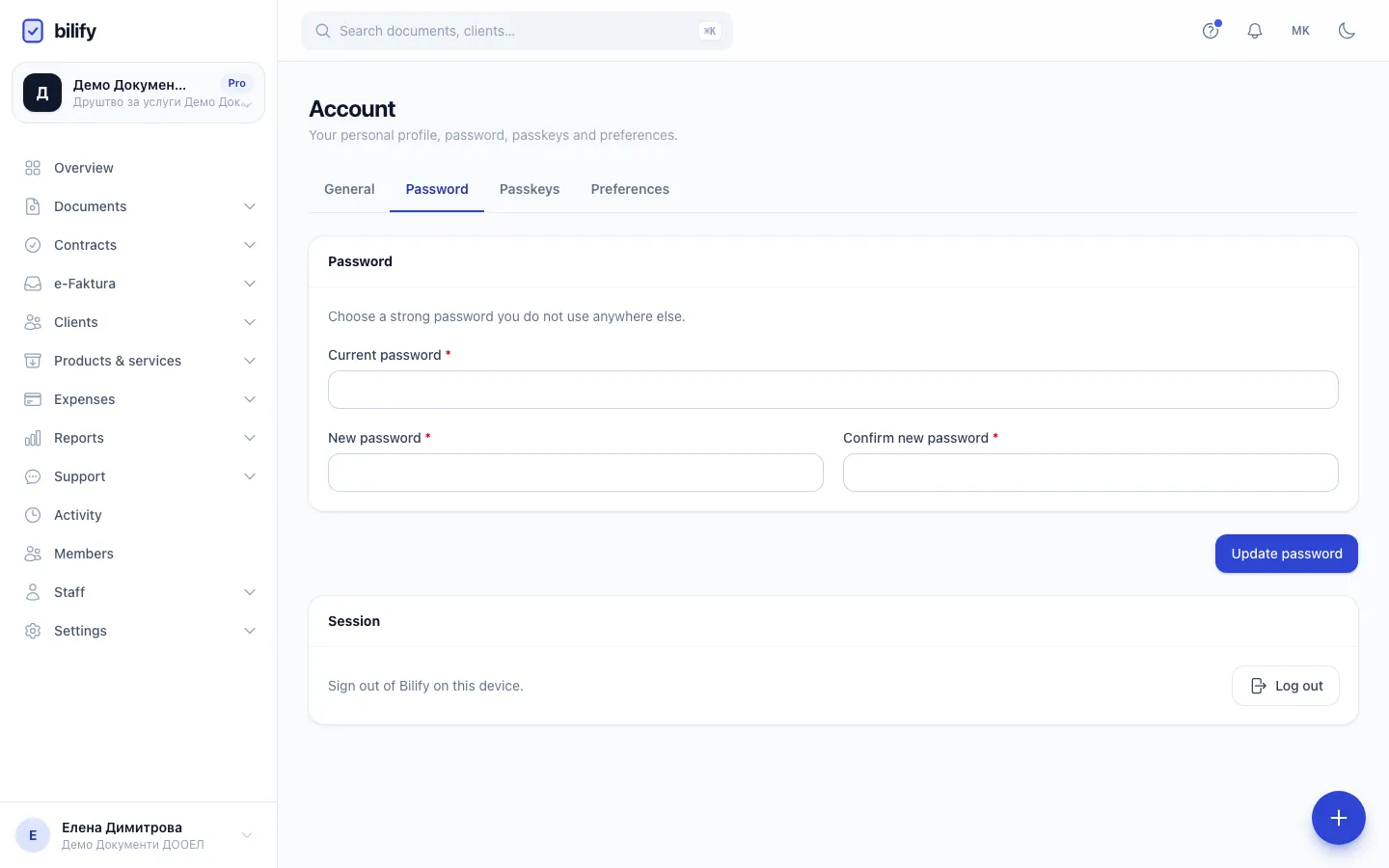
- Step 2: Open the Password tab to change your password.
- Step 3: Enter your current password, then the new one twice, and click Update password.
- Step 4: Passkeys let you sign in with your fingerprint, face or device PIN instead of a password.
- Step 5: Log out here when you are done on a shared computer.
General: name, email and picture
- Change Full name or Email address and click Save.
- To add a Profile picture, upload a PNG or JPG of up to 2 MB. It is saved straight away. Remove picture goes back to your initial.
Changing your email locks the app until you confirm it
When you save a new email address, Bilify sends a verification link to it and you cannot use the rest of the app until you click that link. Make sure you can open the new mailbox before you change it. If you mistyped it, come back to Account (it stays reachable) and correct it.
Password
- Open the Password tab.
- Enter your Current password.
- Enter a New password and repeat it in Confirm new password. It needs at least 8 characters, with letters and numbers.
- Click Update password.
If you signed up with Google or Apple you have no Bilify password yet. Set one with Forgot password? on the login page.
Other devices stay signed in
Changing your password does not currently sign you out on other browsers or devices. If you think someone else is using your account, change the password and then sign out on every device you used, or open a support ticket.
Passkeys
A passkey lets you sign in with your fingerprint, face or device PIN instead of typing a password. It never leaves your device, so there is nothing to steal or reuse.
- Open the Passkeys tab.
- Give it a Passkey name, for example "Work laptop".
- Click Add passkey. Bilify first asks you to confirm your password (once every few hours), then your device asks for your fingerprint, face or PIN.
- Next time, click Sign in with a passkey on the login page.
Each passkey shows when it was added and last used. Remove deletes one, for example when you replace a laptop. If the tab says the browser does not support passkeys, use a current version of Chrome, Edge, Safari or Firefox.
Bilify does not offer one-time codes from an authenticator app. A passkey is the stronger sign-in option.
Preferences
- My notifications: switch off emails or in-app notifications you do not want personally. You can only narrow what the company sends; you cannot switch on something the company turned off. See Notification settings.
- Display: Show field help tooltips turns the small info icons next to field labels on or off everywhere.
- Phone bottom bar: pick the four shortcuts in the bar at the bottom of the screen on a phone. Reset to default restores the standard set.
Click Save at the bottom of the tab to keep your choices.
Sign out
The Session card has Log out, which signs you out on this device. Always sign out on shared or public computers. The same option is in the menu under your name in the sidebar.
Was this page helpful?
Related articles
Still stuck?
Write to us and we will get back to you within one working day.