Run a report
Save a report once, then preview it from live data, download it as a file or email it to anyone whenever you need it.
A report in Bilify is a saved recipe: which data to include, for which period, in which format. You set it up once, and then preview it, download it or email it as often as you like. This article covers creating a report and running it by hand. To have it emailed automatically, see Schedule reports.
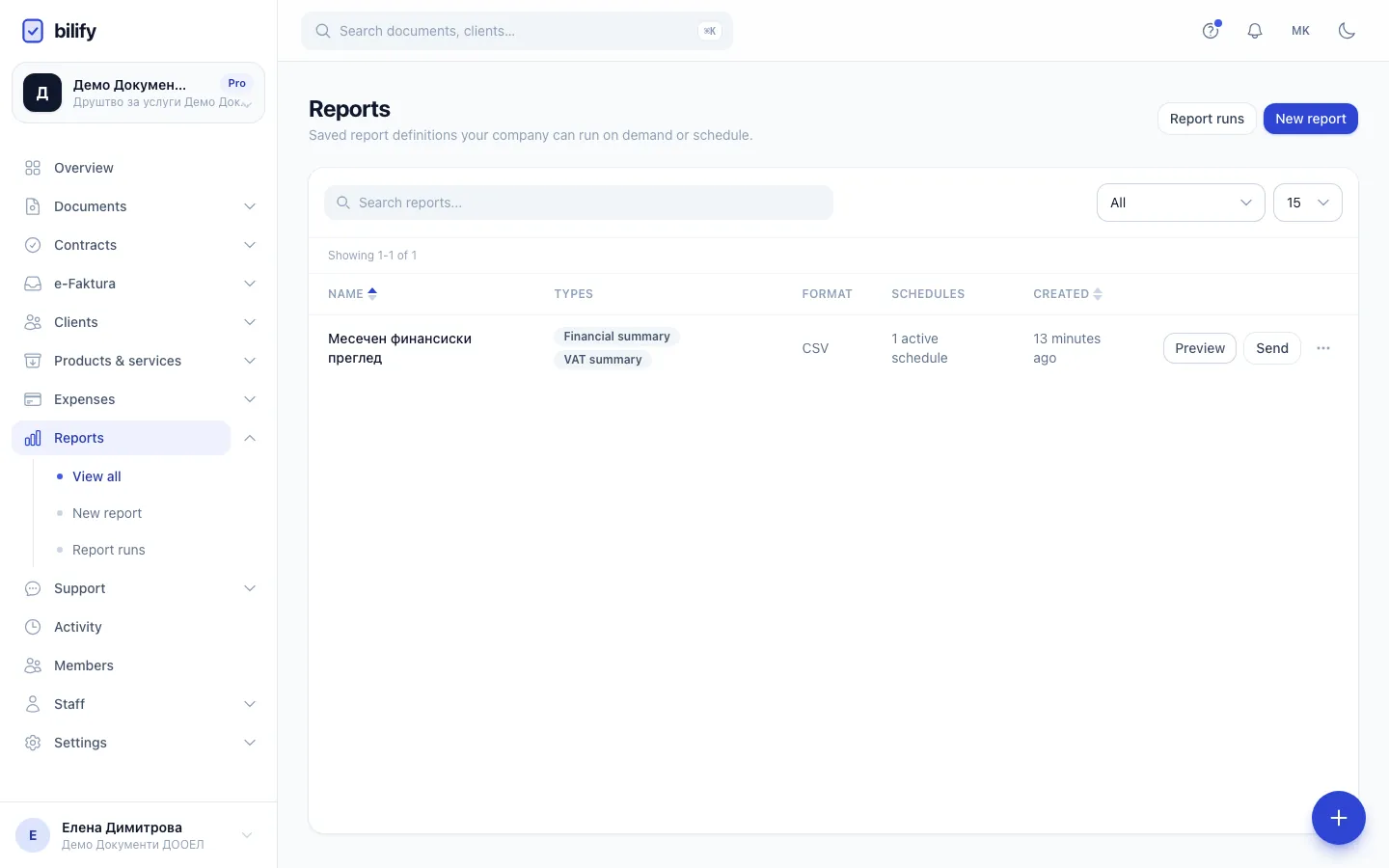
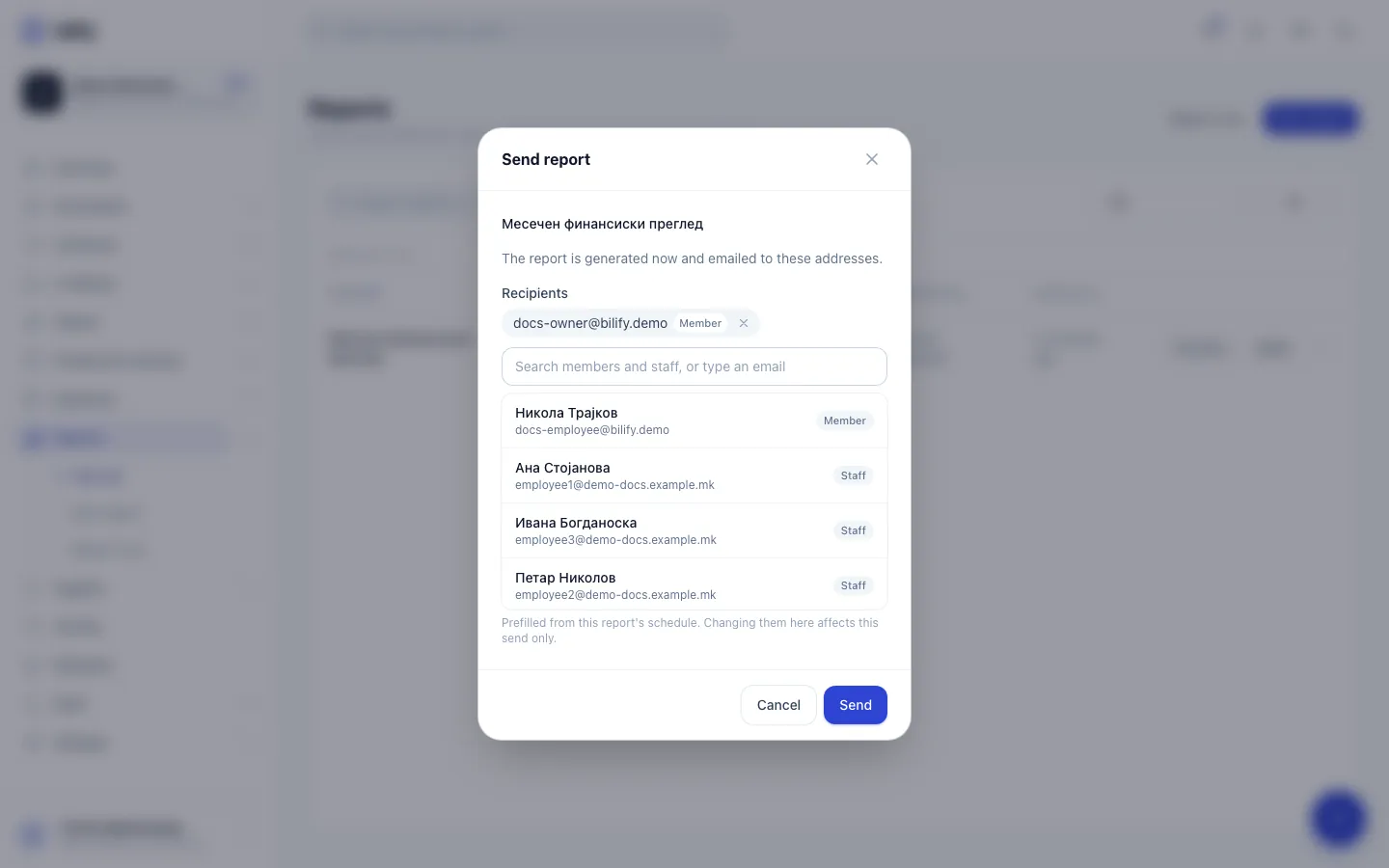
- Step 1: Preview opens the report in a new tab, built from live data. Nothing is saved to the history and nobody is emailed.
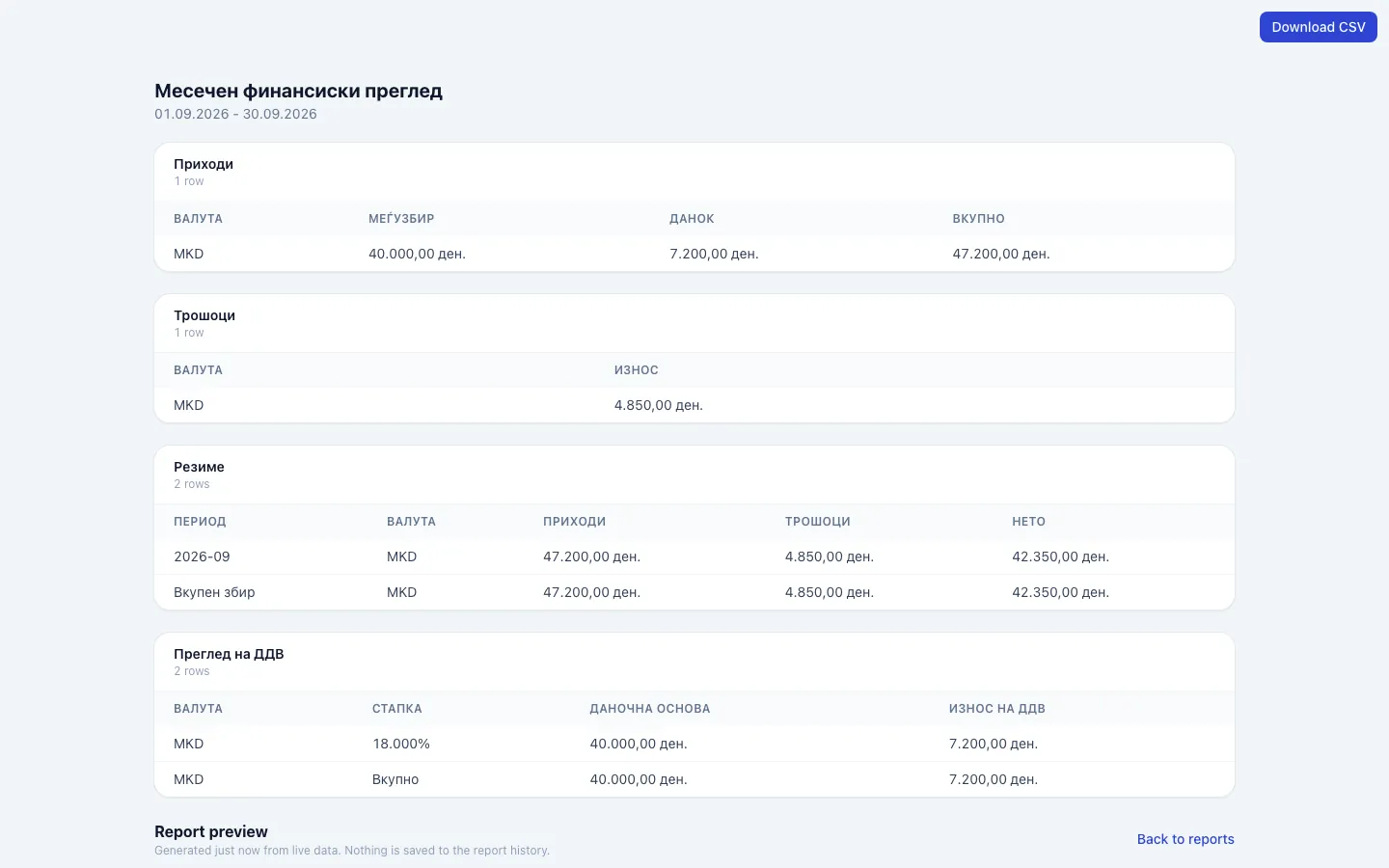
- Step 2: The preview shows the report on a page. The button at the top downloads it as a file in the report's format.
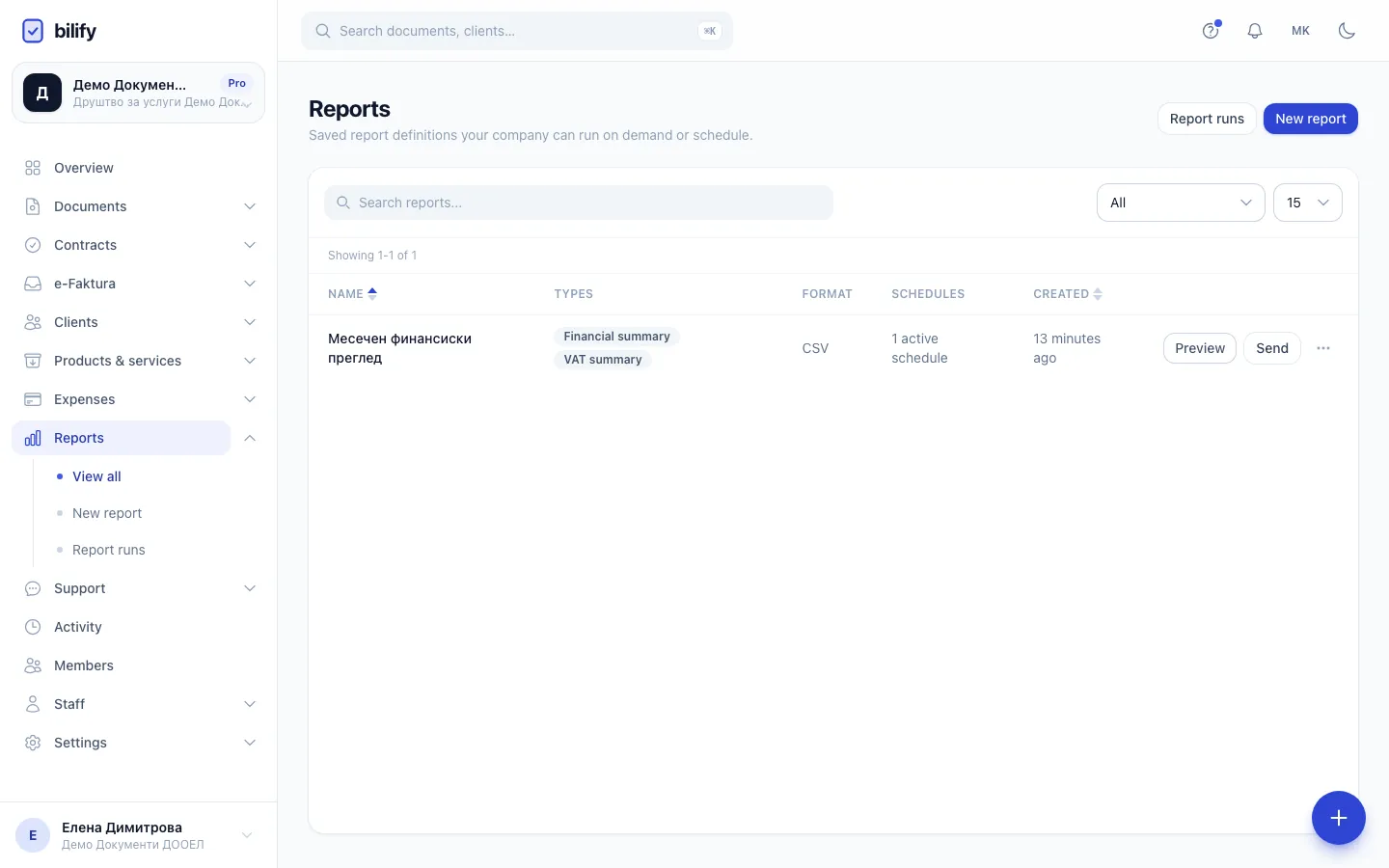
- Step 3: Send generates the report right now and emails it to the people you choose.
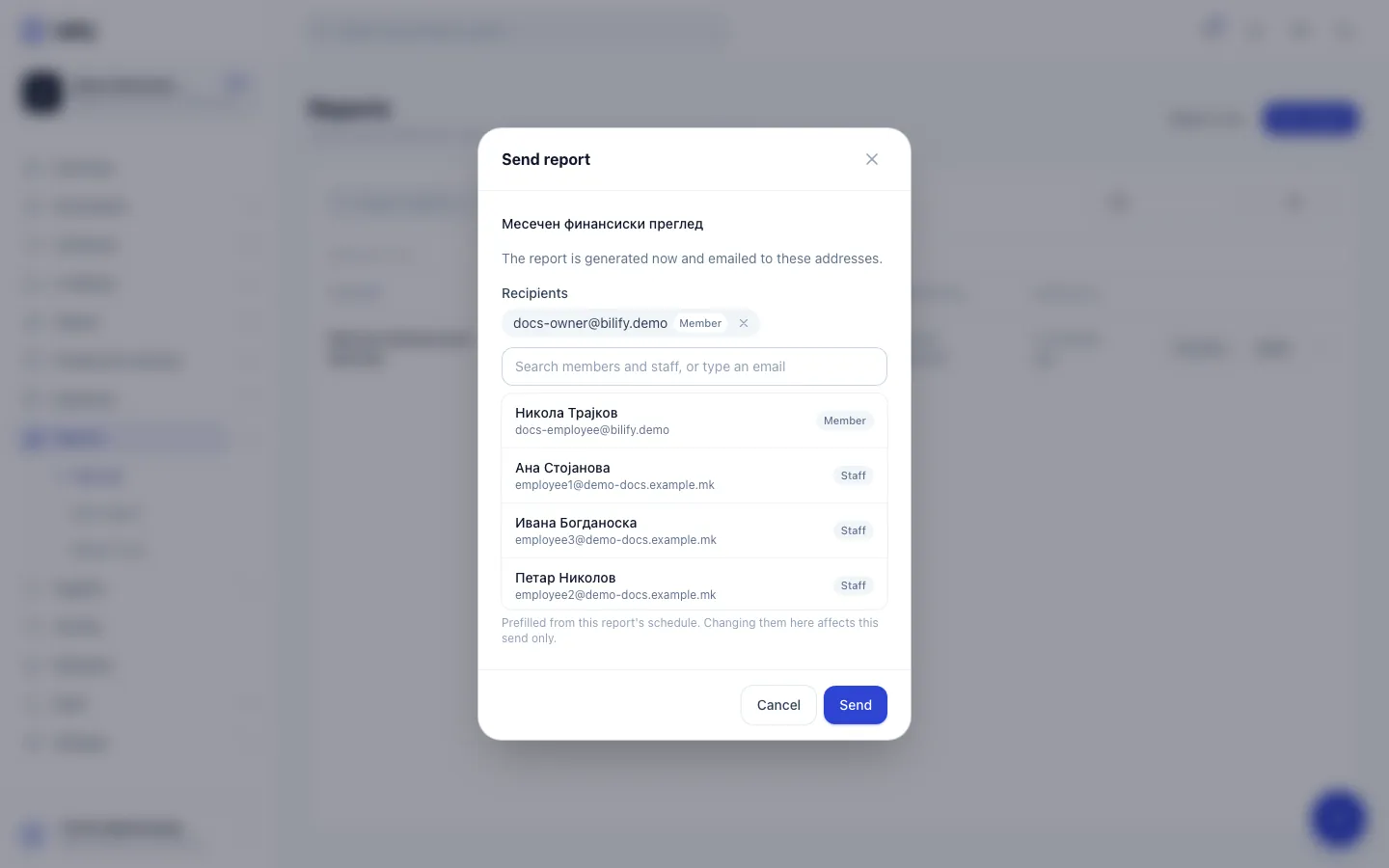
- Step 4: Pick members or staff, or type any email address. If the report has a schedule, its recipients are filled in.
- Step 5: Send queues the report. Each recipient gets a link to the report page, valid for 7 days, and the file when it is small enough.
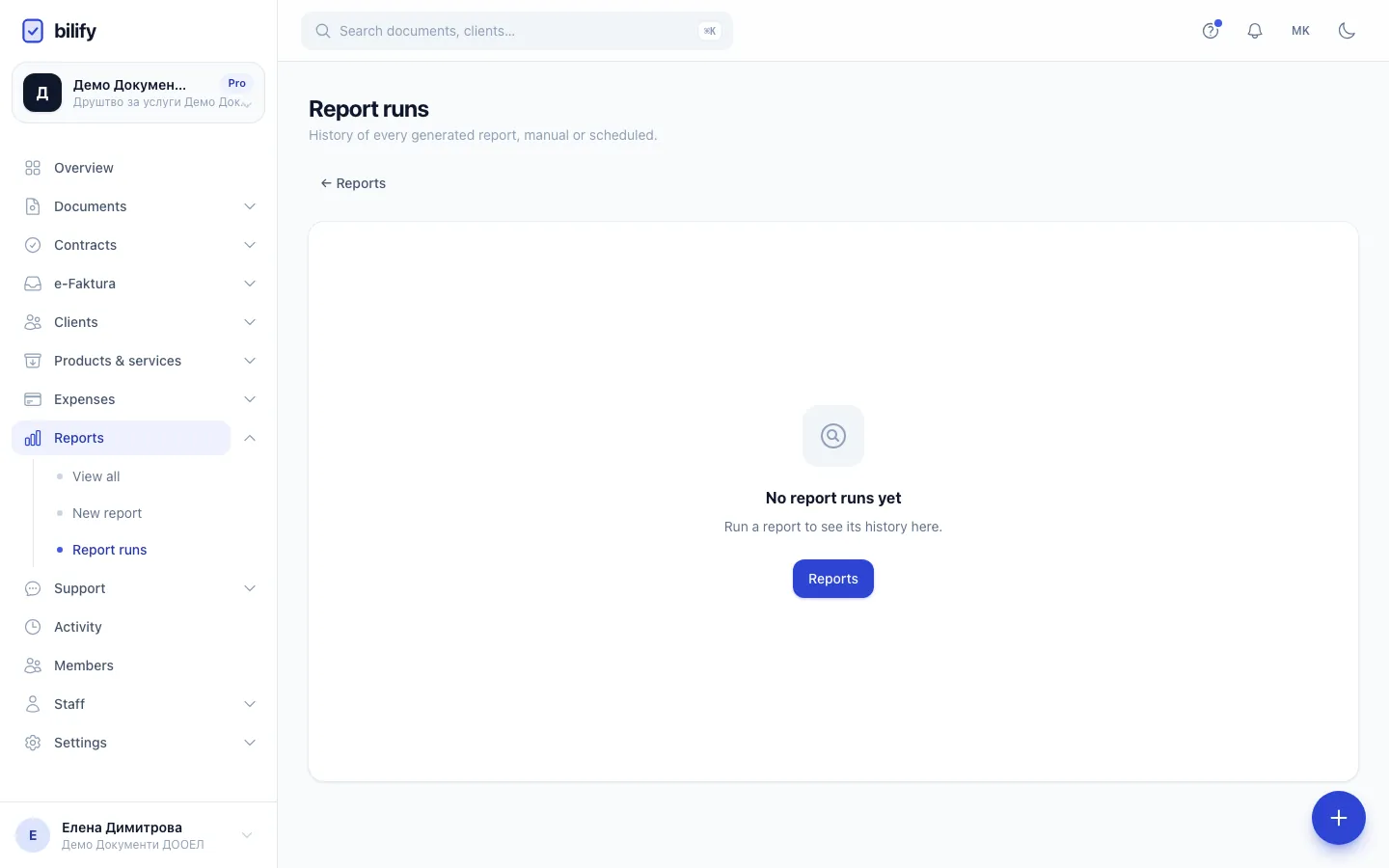
- Step 6: Every sent, scheduled or exported report is listed under Report runs with its status, so you can open it again later.
Create a report
- Open Reports and click New report.
- Enter a Name. This is what you and the recipients of the email see.
- Under Report types, tick one or more types. Each ticked type becomes its own section of a single generated report. Report types explains what each one contains.
- Choose the Format: CSV, Excel (XLSX) or PDF (see the table below).
- Choose the Language of the report (Македонски or English). Column headings and labels are written in this language, whatever language you use the app in.
- Choose Currency: Original currency keeps every amount in the currency it was issued in. Convert to company default currency converts invoice amounts in the Financial summary using each document's own exchange rate. The other report types always show each record in its own currency.
- Pick a Date range. For Custom range, also fill in From and To.
- Adjust the filter cards that appear for the types you ticked (Document filters, Expenses, Summary, Stock filters).
- Click Save. The report now appears in the list on the Reports page.
Formats
| Format | What you get |
|---|---|
| CSV | A file. Each section is a title row, a header row and the data rows. The file is saved in UTF-8, so Excel shows Cyrillic text correctly. |
| Excel (XLSX) | A file with one worksheet per table. This option only appears in the list when Excel export is available on Bilify's server. If you do not see it, use CSV, which Excel opens directly. |
| No file. The report is a page that you print or save as PDF from your browser with Download PDF. |
How the date range is worked out
The range is calculated at the moment you preview or send the report, in your company's time zone. Previous month is the whole calendar month before today, Previous week is last Monday to Sunday, Previous two weeks is the two full weeks before the current one, and Month to date runs from the 1st of this month until now.
A scheduled report does not use the Date range field. It covers the period set on its schedule instead. See Schedule reports.
Preview a report
On the Reports page, click Preview next to a report. The report opens in a new tab, laid out on a page, built from your data as it is right now.
- For a CSV or XLSX report, the button at the top downloads the file (for example Download CSV).
- For a PDF report, Download PDF opens your browser's print dialog, where you can print or save it as a PDF.
Previewing records nothing. It does not appear in Report runs and nobody is emailed, so use it freely to check your filters.
A very large report shows the first 5,000 rows of each table on the page and tells you how many it left out. The downloaded file always contains every row.
Send a report now
- On the Reports page, click Send next to the report.
- In Send report, add Recipients: search your members and staff by name or email, or type any email address and choose Add for it. If the report has a schedule, its recipients are filled in for you; changing them here affects this send only.
- Click Send. Bilify shows "Report queued and will be emailed shortly."
The report is generated in the background. Each recipient gets an email with a link to the report page, a download link for CSV and XLSX reports, and the file attached when it is 5 MB or smaller. The links work for 7 days and need no Bilify login. The run is listed under Report runs.
Anyone who has the link in that email can open the report until the link expires, so only send reports to addresses you trust.
Edit or delete a report
- Click the report's name, or open the menu at the end of its row and choose Edit. Changes apply to future previews, sends and scheduled runs. Reports already generated keep their figures.
- To delete, choose Delete in the same menu and confirm. If the report has a schedule, you must also type DELETE to confirm. Deleting a report stops its schedule. Its run history is kept.
Who can do what
| Action | Permission | Roles with it by default |
|---|---|---|
| See the list and the run history | reports.view |
Owner, Admin, Accountant, Employee |
| Preview and Send | reports.run |
Owner, Admin, Accountant |
| Create, edit, schedule and delete | reports.create |
Owner, Admin, Accountant |
See Roles and permissions to change what a role can do.
Was this page helpful?
Related articles
Still stuck?
Write to us and we will get back to you within one working day.