Send invoices to UJP
Send an issued invoice to UJP by hand or automatically, follow its status, and see the EUID and QR code on the PDF and in the portal.
Once e-Faktura is connected, every issued invoice gets an e-Faktura card on its page. From there you check it against UJP's rules, send it, and follow what UJP and the buyer do with it.
Simulator
Until the production connection is live, sending goes to Bilify's built-in simulator and nothing is registered with UJP. See What is e-Faktura.
Which documents go to UJP
Only issued fiscal invoices: Invoice, Invoice (Article 32 reverse charge) and Advance Invoice. Bilify picks the UJP document type for you: an invoice to an individual client goes as an invoice to a natural person, and an invoice to a client outside North Macedonia as an invoice to a foreign buyer. Drafts, offers and pro-forma invoices never go to UJP.
Send an invoice by hand
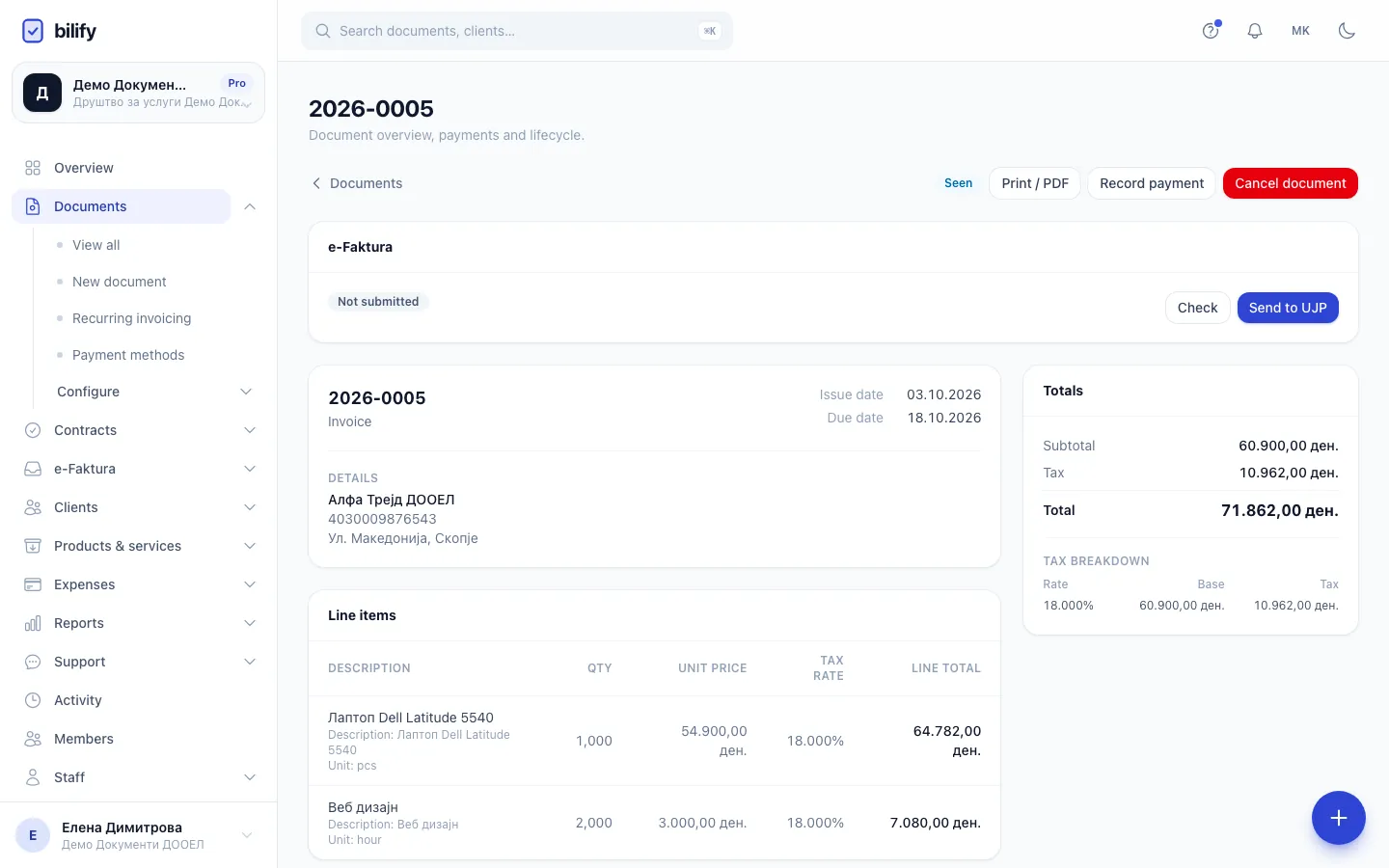
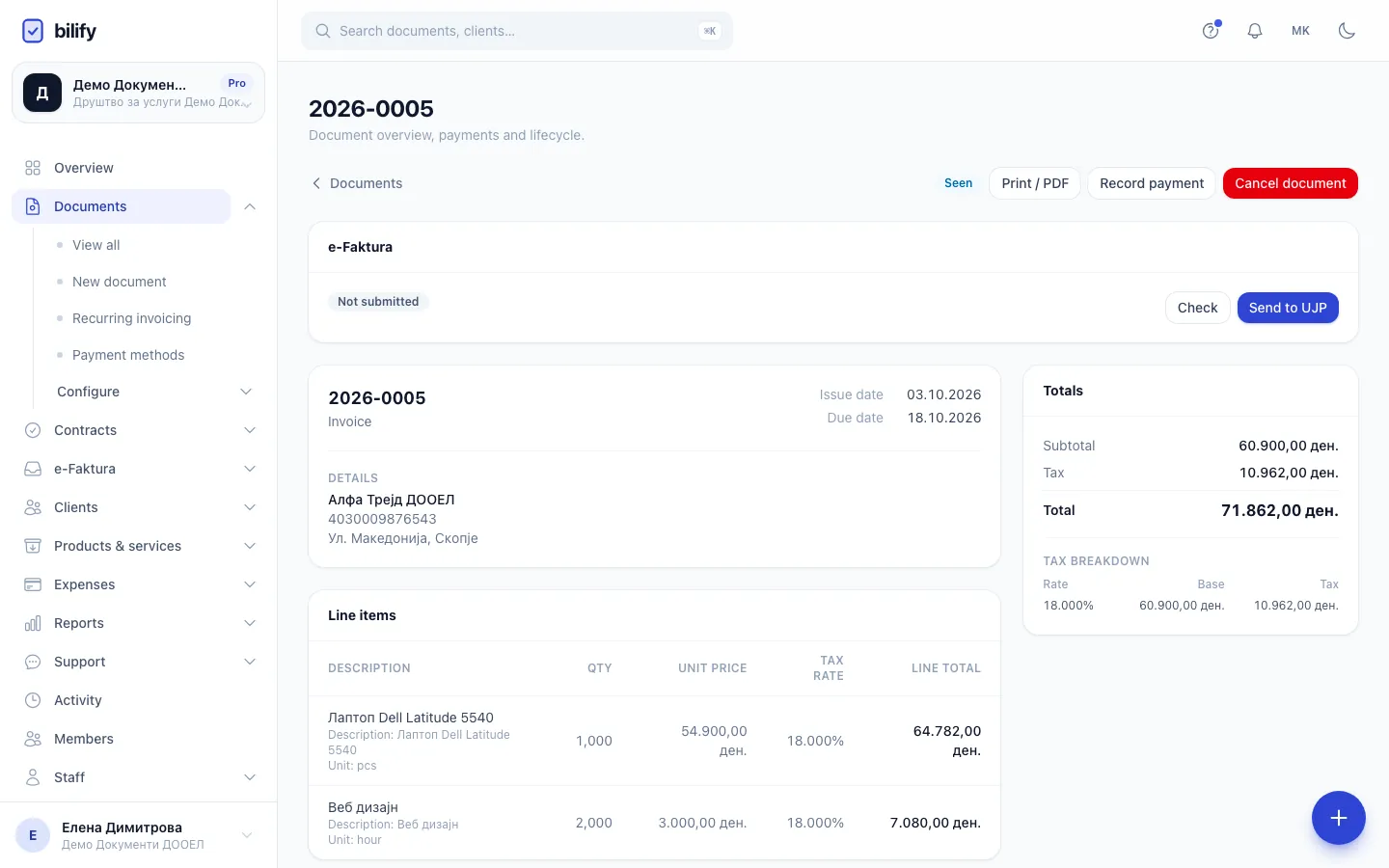
- Step 1: Every issued invoice has an e-Faktura card. This one is Not submitted yet.
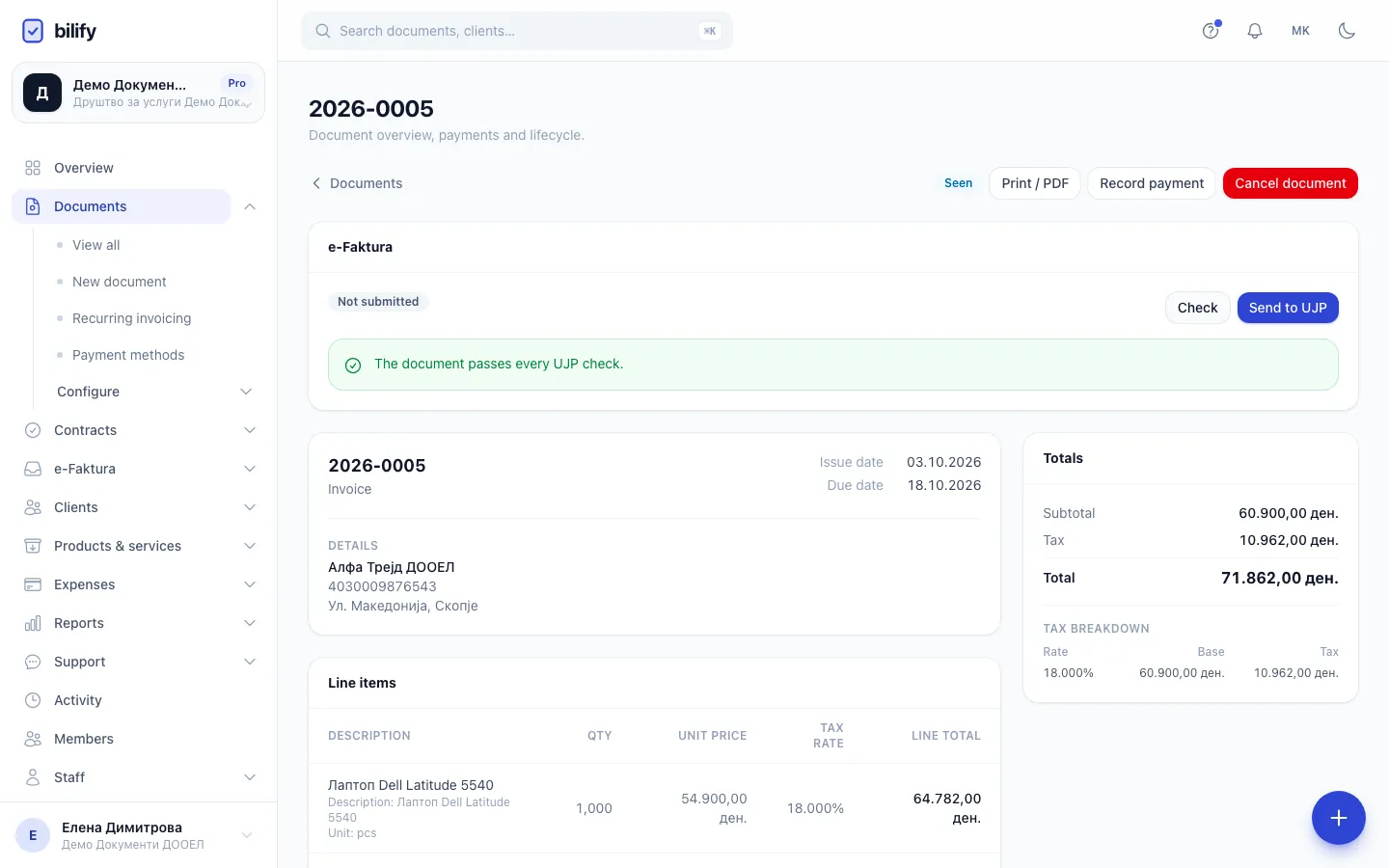
- Step 2: Check runs UJP's rules on the invoice first, so problems show up before you send.
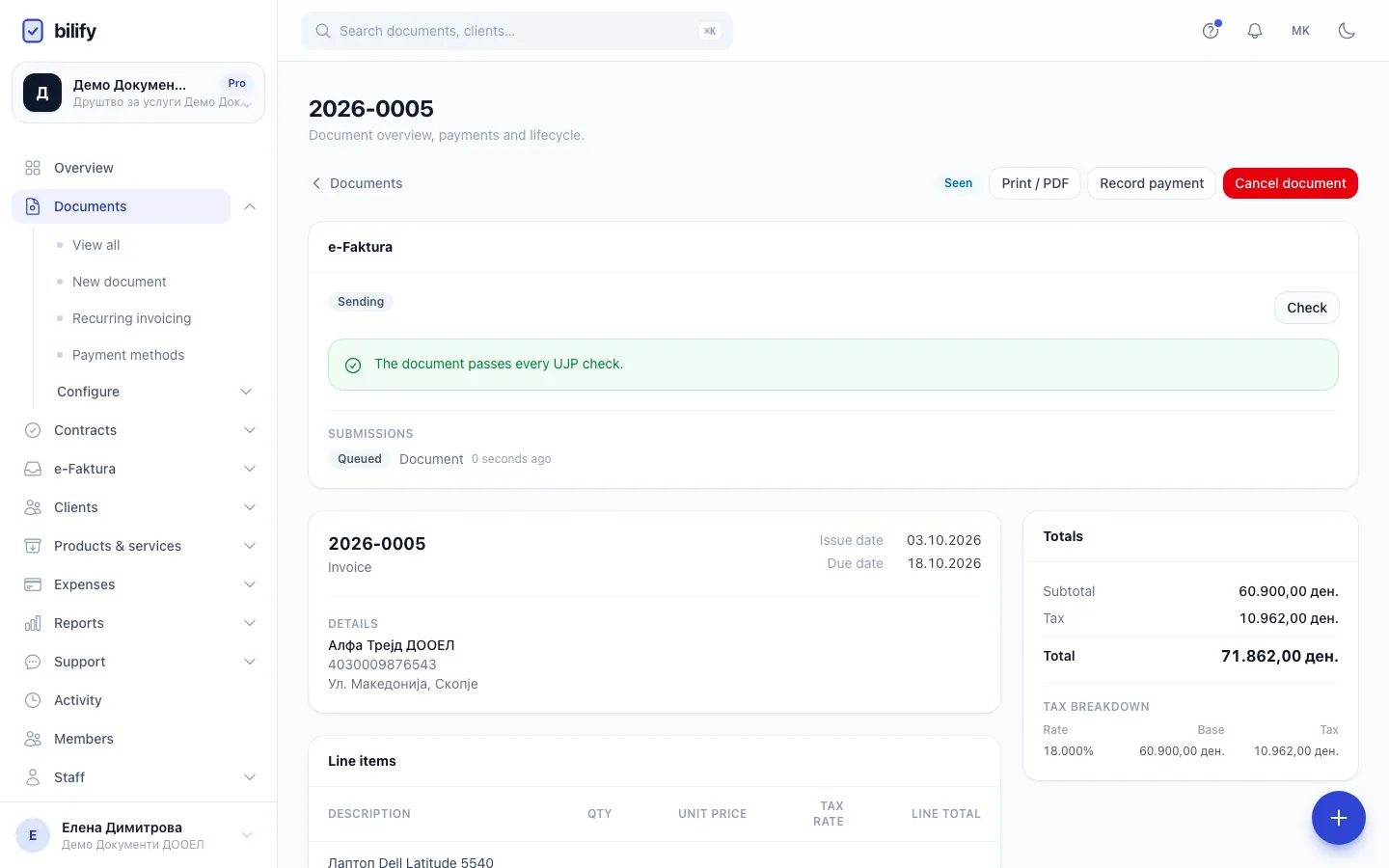
- Step 3: Send to UJP signs the invoice with your certificate and queues it for UJP.
- Step 4: Once registered, the card shows the EUID, the time and the QR verification link. It refreshes every 15 seconds.
- Issue the invoice as usual (see Issue and send) and open its page.
- In the e-Faktura card, click Check. Bilify builds the exact request UJP would receive and runs UJP's checks on it. You see either The document passes every UJP check. or UJP would reject this document: with a list of problems, each with UJP's error code.
- Click Send to UJP. You see Queued for sending to UJP. The badge changes to Sending.
- Wait a few seconds. The card refreshes itself every 15 seconds while it is on screen. When UJP accepts the invoice, the badge shows Sent to UJP and the card shows the EUID (ЕИФ), Registered time, Verification link and the QR code.
Send to UJP is greyed out when e-Faktura is not ready (switched off, identity incomplete, or no valid certificate). The card then says e-Faktura is not ready for sending. with an Open settings link for people who manage settings.
Send automatically
Switch on Send to UJP automatically when a document is issued in the e-Faktura settings and every issued invoice is queued right after you click Issue. Without it, issued invoices wait in Not submitted until someone clicks the button. See Automatic or manual.
Data is frozen at issue
UJP receives the company and client details as they were when the invoice was issued. If Check finds a missing tax number or address, fixing the client afterwards does not change this invoice. Cancel it and issue a new one after fixing the data. Run Check on a first invoice to a new client before you rely on it.
Statuses
| Status in Bilify (English / Macedonian) | What it means |
|---|---|
| Not submitted / Не е поднесена | Issued, not handed to UJP yet. |
| Sending / Се испраќа | Queued or on its way. Temporary UJP problems are retried automatically after 1, 5 and 15 minutes, 1 hour and 4 hours. |
| Sent to UJP / Испратена до УЈП | UJP accepted the invoice and gave it an EUID. The buyer has not decided yet. |
| Accepted / Прифатена | The buyer accepted it. |
| Accepted automatically / Автоматски прифатена | The decision deadline passed without an answer, so UJP accepted it. |
| Rejected / Одбиена | The buyer rejected it. The card shows the Rejection reason. |
| Voided (storno) / Сторнирана | Reversed by a storno document. |
| Corrected / Корегирана | Replaced by a correction document. |
| Submission failed / Поднесувањето не успеа | UJP (or the simulator) refused it. The red box shows why. Fix the cause and click Send to UJP again. |
| Issued offline, awaiting submission / Издадена офлајн, чека поднесување | Reserved for invoices issued while UJP is down. Bilify does not detect outages yet, so you will not normally see it. |
The Submissions list at the bottom of the card shows the last five attempts with their result (Queued, Sending, Accepted by UJP, Failed) and the error, if any.
To pull the buyer's decision, click Refresh status. You see Status updated from UJP. or No change at UJP. With Refresh statuses automatically on, Bilify does this every 15 minutes.
When the buyer is not an e-Faktura user, the card says The buyer is not an e-Faktura user; deliver the invoice another way as well. Email it or share it through the portal as usual.
EUID and QR on the PDF and in the portal
As soon as an invoice is registered (sent, accepted, rejected, voided or corrected), the print view, the PDF and the client portal show a footer Registered in the e-Faktura system with the EUID, the UJP Timestamp, the QR code and the verification link. Invoices that UJP has not registered never show it, so a draft or an unsent invoice never looks validated.
A registered invoice cannot be cancelled
While an invoice is Sent to UJP, Accepted or Accepted automatically, Cancel document is blocked with: This document is already registered with UJP (EUID ...). It cannot be cancelled in place; issue a storno or a correction instead. Use Storno and correction.
Who can do what
| Permission | Allows |
|---|---|
| View e-invoice status | See the card, Check, Refresh status. |
| Send, storno and correct | Send to UJP, Storno, Correct. |
Owners, admins and accountants have both. Employees have neither.
Was this page helpful?
Related articles
Still stuck?
Write to us and we will get back to you within one working day.