Contract templates
Save reusable contract texts with merge fields, start from the ready-made service agreement and NDA, and see every merge field you can use.
A template is a contract text you write once and reuse. When you pick it on a new contract, its body, language and default signing deadline are filled in, and the merge fields in it are replaced with the client's and your company's details when the contract is sent.
Templates are under Contracts > Contract templates. You need the contract templates permission, which owners, admins and accountants have.
Start from a ready-made template
Below your own templates, Starter templates offers ready-made texts for your country in the language you are browsing in. For Macedonian workspaces these are a service agreement (Договор за услуги / Service agreement) and a mutual non-disclosure agreement (Договор за доверливост (NDA) / Non-disclosure agreement (NDA)). Switch the app language to see the other set.
- Click Use this template next to a starter.
- A copy is added to your own templates. Open it to adapt the text to your business.
Have the text checked
Starter templates are a starting point, not legal advice. Have a lawyer review any contract text before you rely on it.
Create your own template
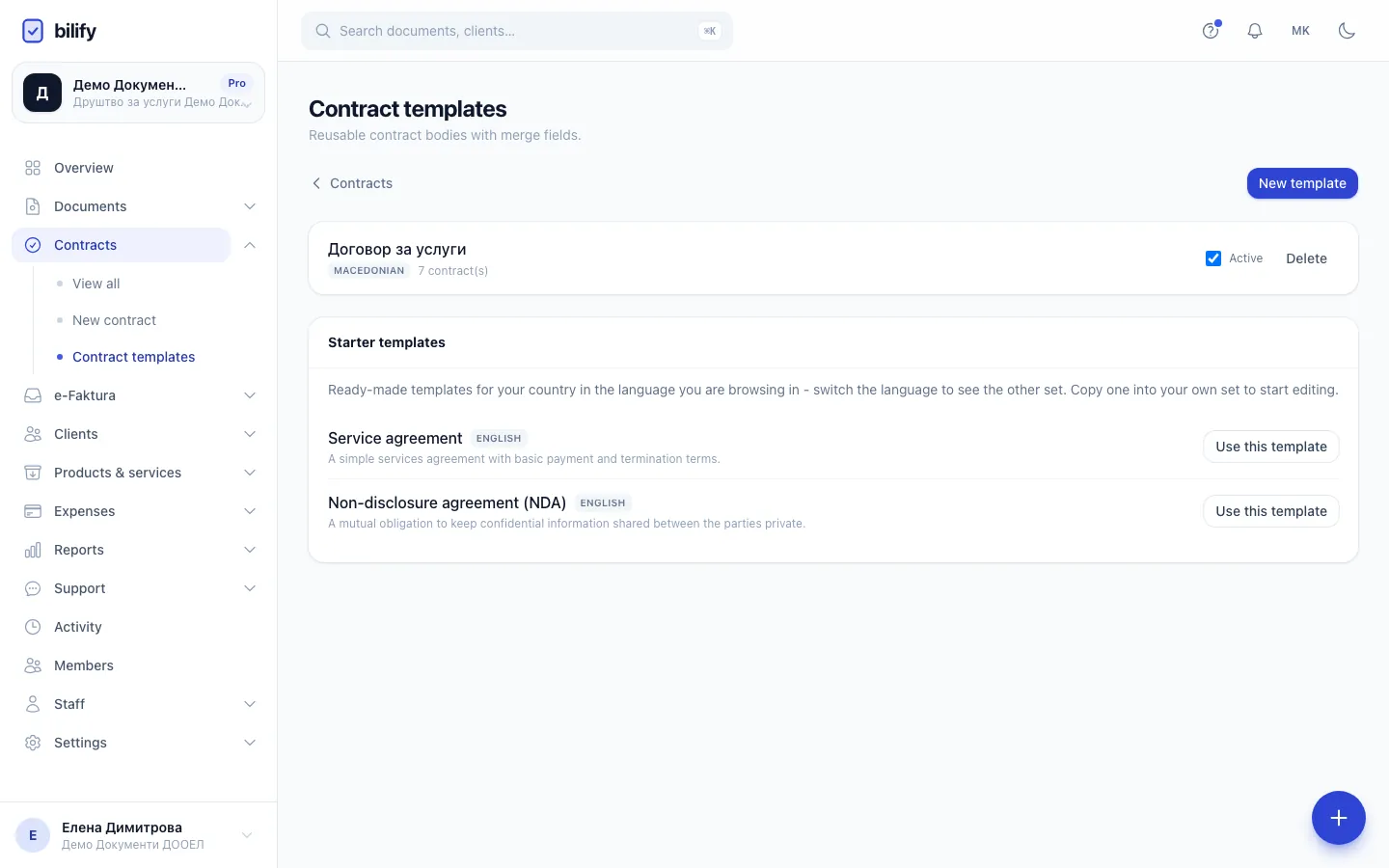
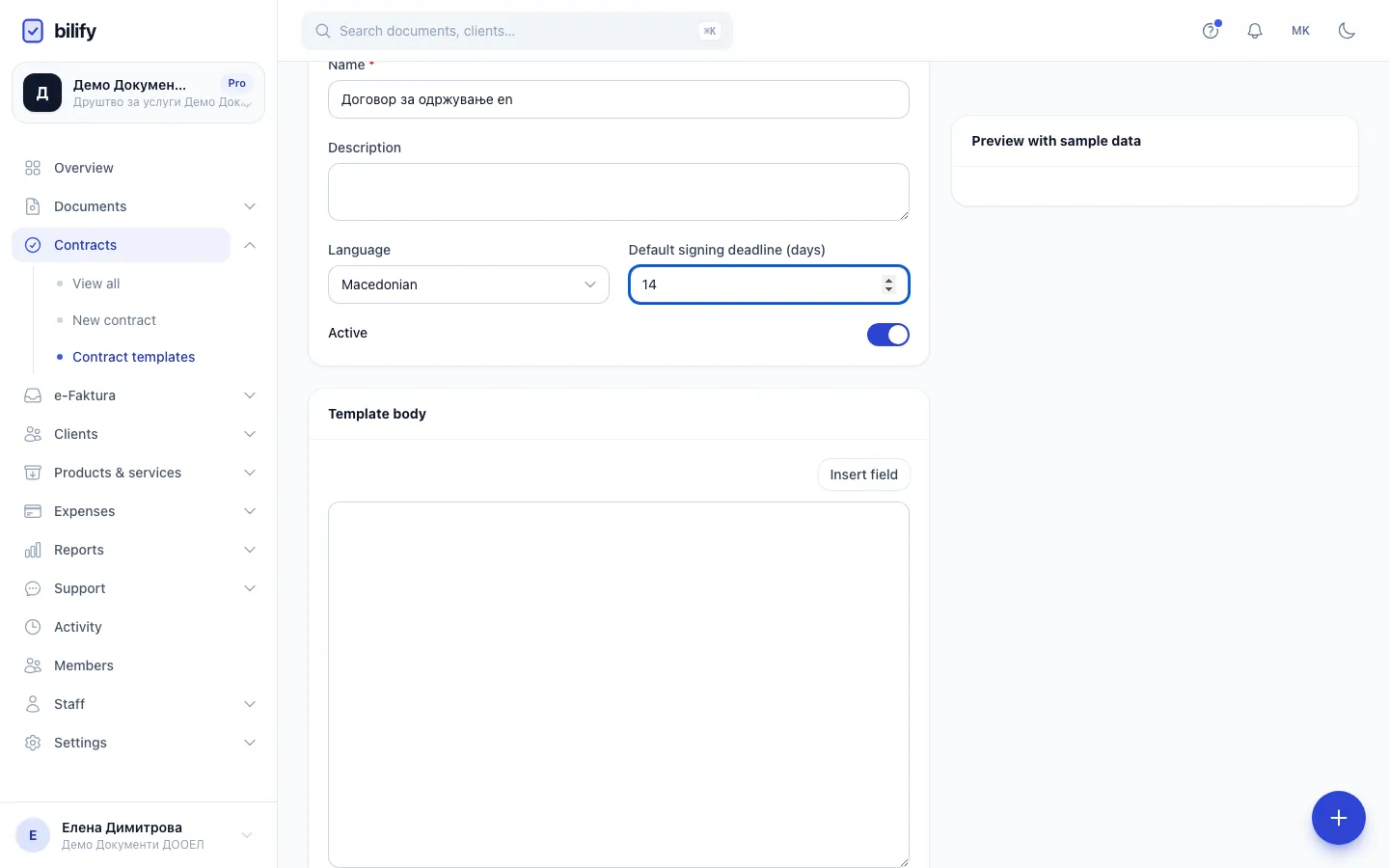
- Step 1: New template opens an empty template.
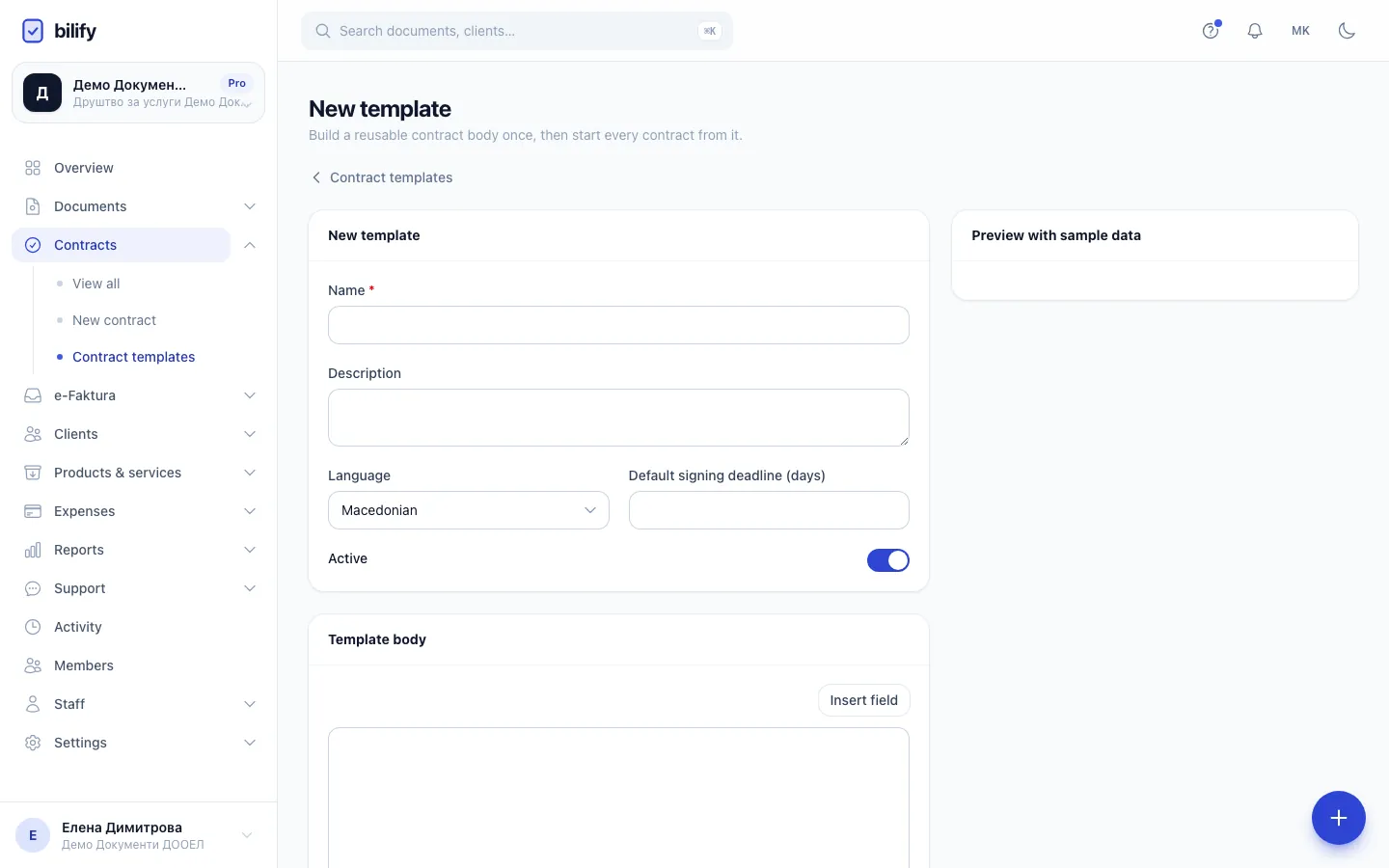
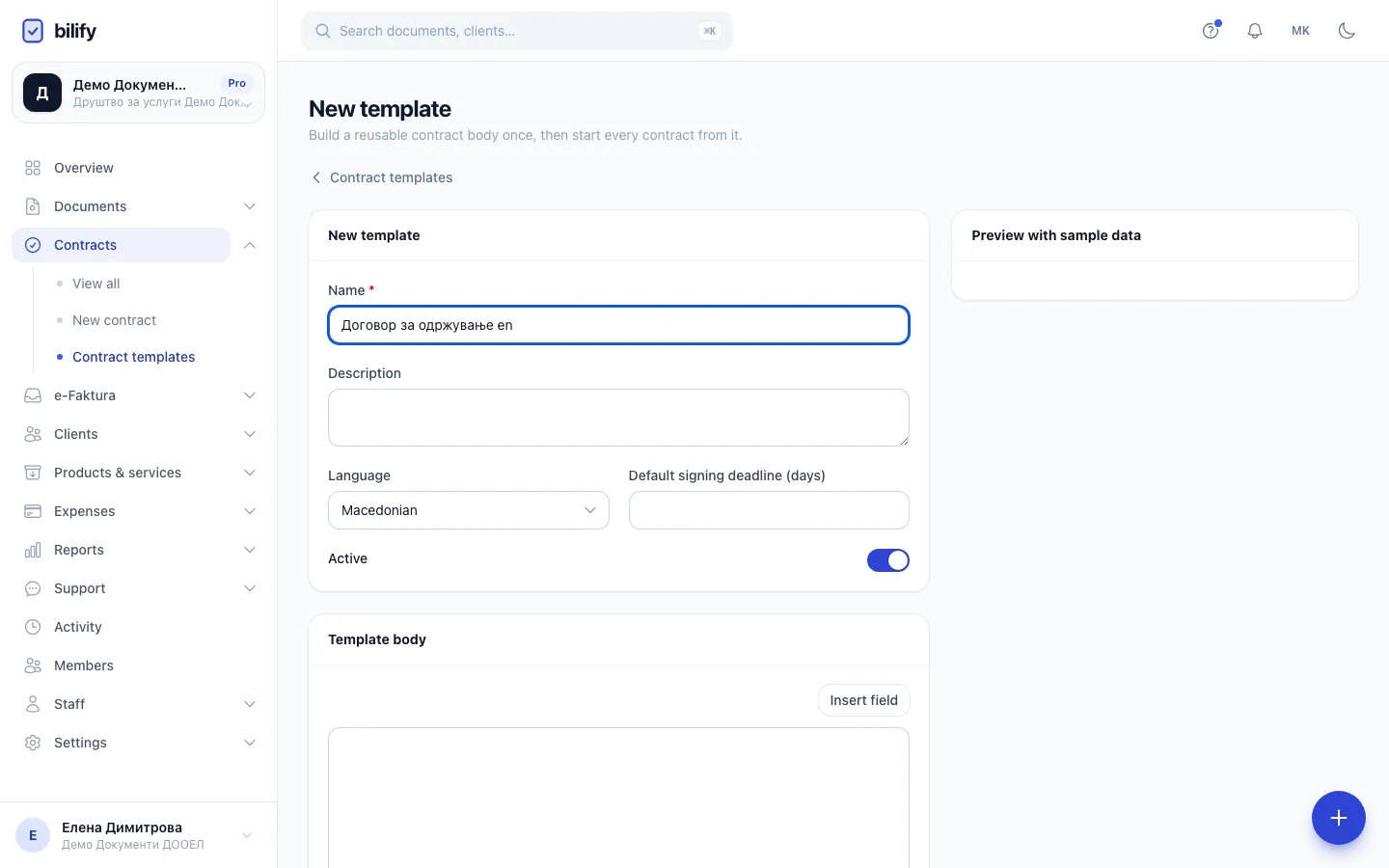
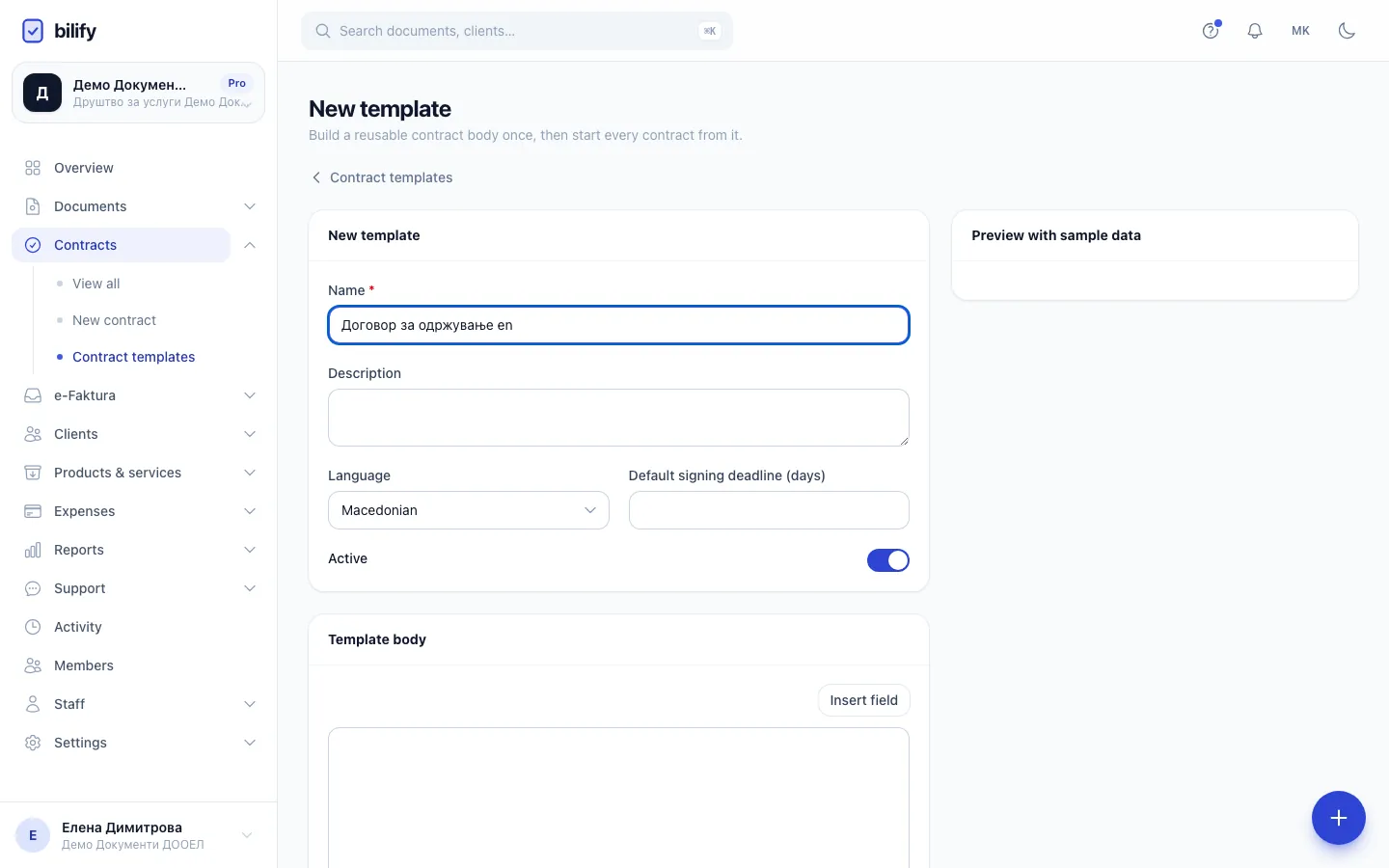
- Step 2: The name is for your team. Signers never see it.
- Step 3: The language of the text. Contracts from this template use it for the signing page and emails.
- Step 4: A default signing deadline, in days, saves you setting one on every contract.
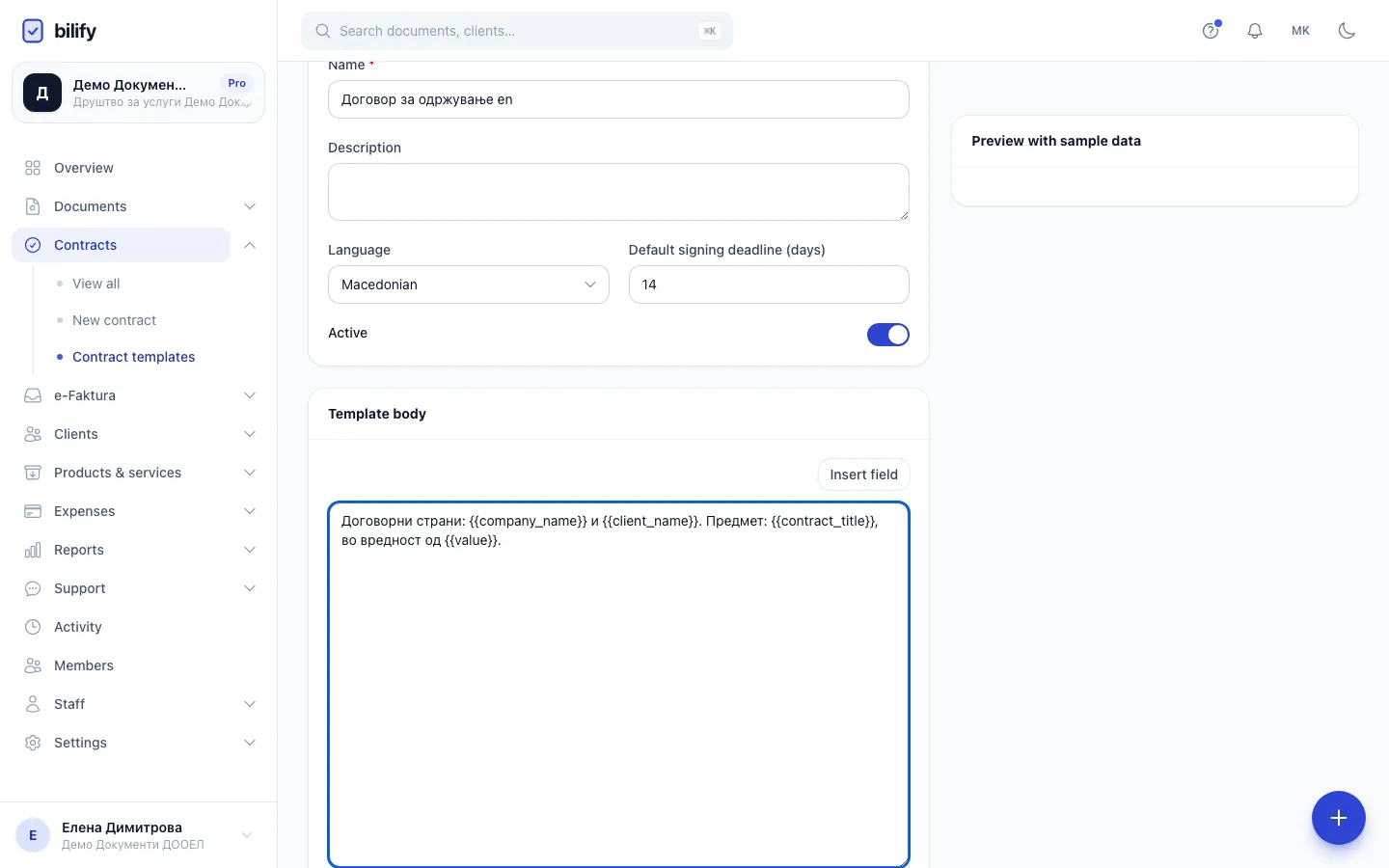
- Step 5: Write the text. Merge fields in double curly braces are filled in when a contract is sent.
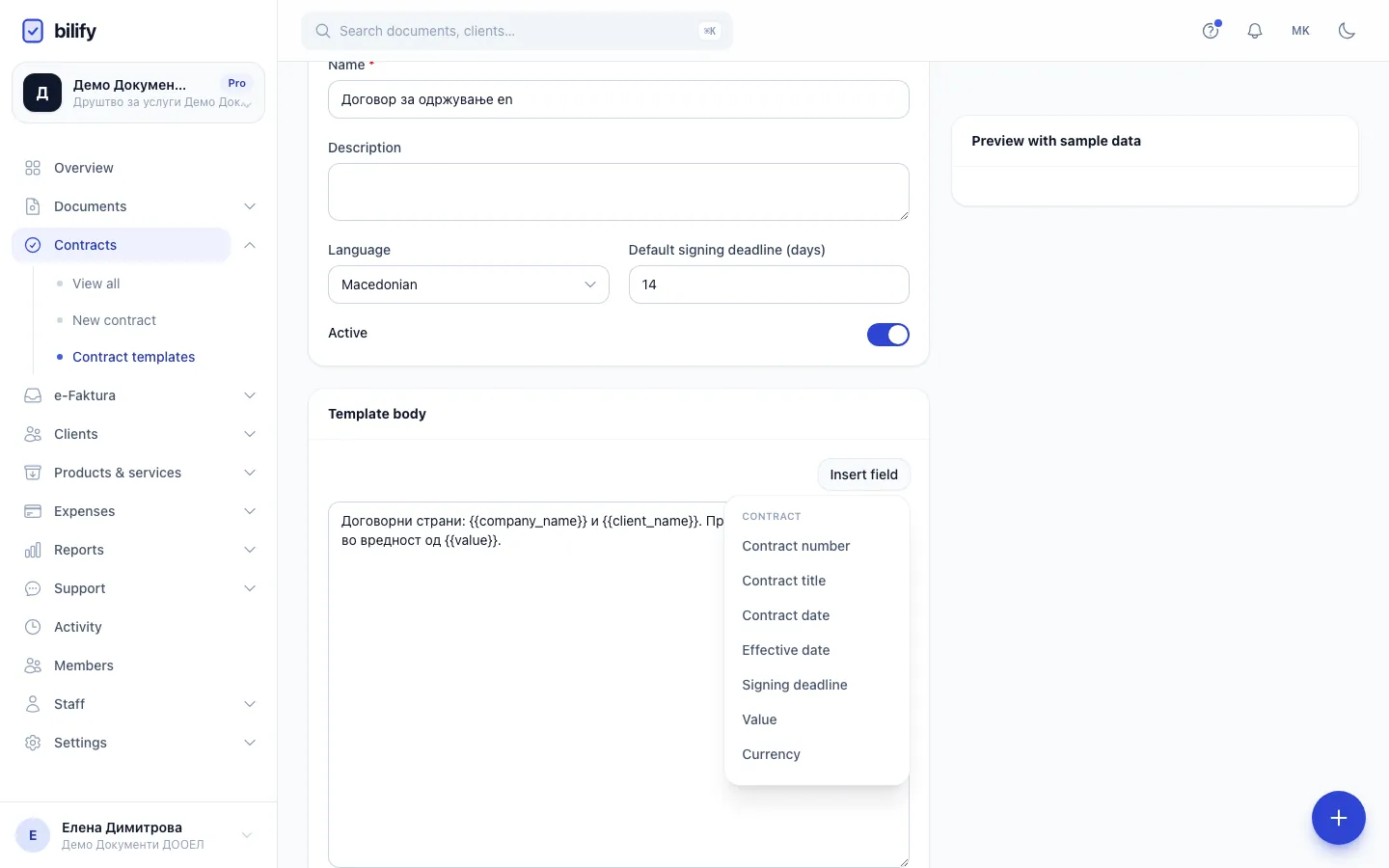
- Step 6: Insert field lists every merge field by group and puts the one you pick at the cursor.
- Step 7: Close the list when you are done.
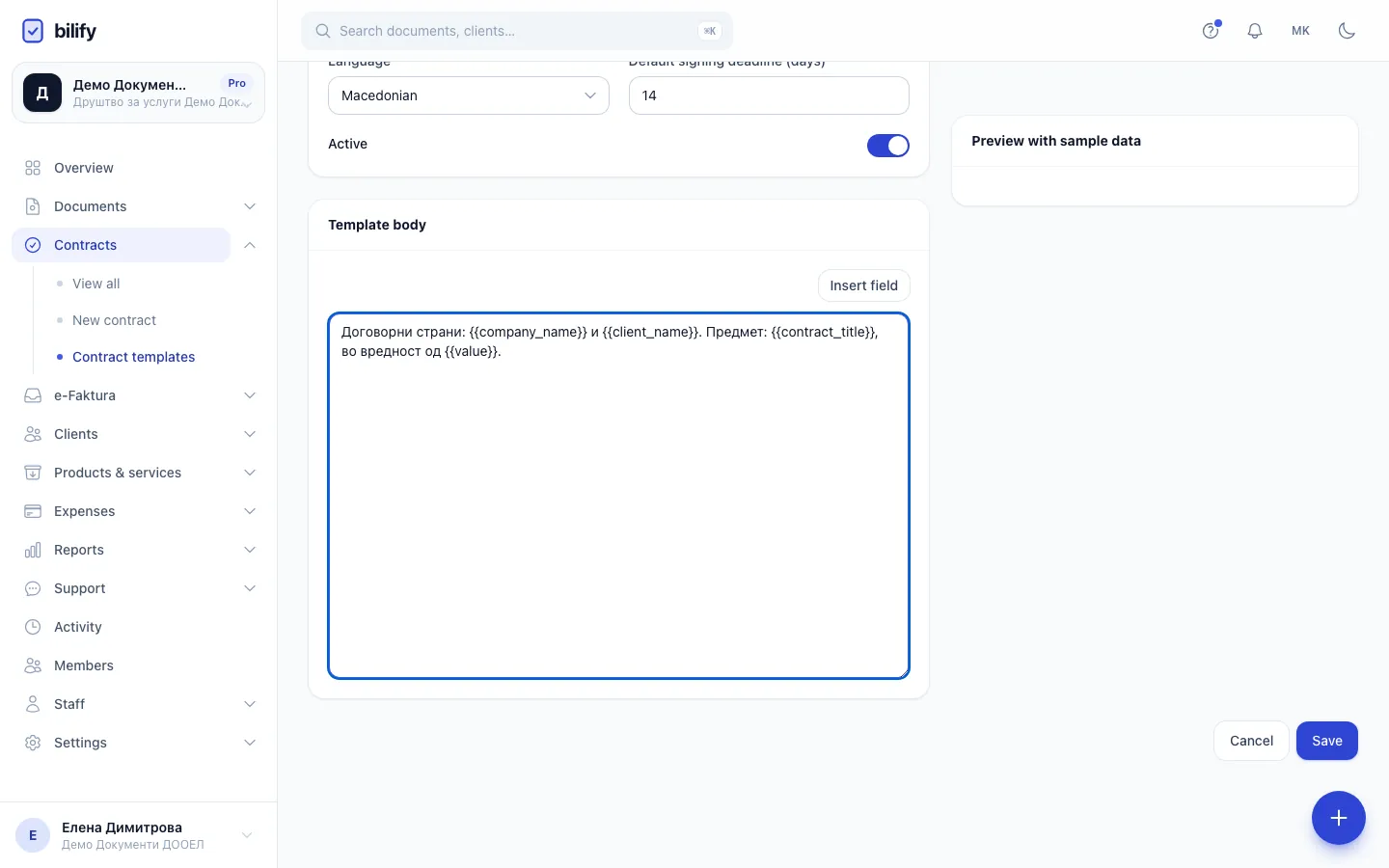
- Step 8: Save adds the template. It is now available when you create a contract.
- Open Contracts and click Contract templates.
- Click New template.
- Enter a Name (only you and your team see it) and, optionally, a Description.
- Choose the Language of the text, Macedonian or English. Contracts created from the template take this language, which also decides the language of the signing page and the signer emails.
- Optionally set Default signing deadline (days), between 1 and 365. A contract started from this template gets a deadline that many days ahead. If the contract still has no deadline when it is sent, the deadline is set that many days after sending.
- Leave Active ticked.
- Write the Template body. Use Insert field to put merge fields at the cursor.
- Click Save.
The Preview with sample data card shows the body filled with example values, so you can check the layout. It shows the body as it was when the page opened; it does not refresh while you type. Save and reopen the template to preview your changes.
If the body contains a field Bilify does not know, a warning under the body lists it. Unknown fields are printed literally in the contract, braces included, so fix them before using the template.
Manage templates
In the template list you see each template's language and how many contracts use it.
- Click a template's name to edit it. Changes apply to contracts you create afterwards. Contracts already created keep their own copy of the text, and sent contracts are frozen.
- The Active checkbox marks whether a template is in use. Note that the template picker on the contract form currently lists inactive templates as well.
- Delete removes the template from use. It stays in the list, dimmed, with a Restore button.
Merge fields
Write a field as {{field_name}}. Values are filled in when the contract is sent; an empty value (for example no linked document) leaves the place blank.
Contract
| Field | Value |
|---|---|
{{contract_number}} |
Contract number, for example CON-2026-0001 |
{{contract_title}} |
Contract title |
{{contract_date}} |
Date the contract was created |
{{effective_date}} |
Effective date |
{{expires_at}} |
Signing deadline |
{{value}} |
Value with currency |
{{currency}} |
Currency code |
Client
| Field | Value |
|---|---|
{{client_name}} |
Client name |
{{client_tax_id}} |
Client tax number |
{{client_vat_number}} |
Client VAT number |
{{client_address}} |
Client address |
{{client_city}} |
Client city |
{{client_country}} |
Client country (two-letter code) |
{{client_email}} |
Client email |
{{client_contact_name}} |
The client's primary contact person |
Company
| Field | Value |
|---|---|
{{company_name}} |
Your company name |
{{company_legal_name}} |
Your legal name |
{{company_tax_id}} |
Your tax number |
{{company_vat_number}} |
Your VAT number |
{{company_registration_number}} |
Your registration number |
{{company_address}} |
Your address |
{{company_city}} |
Your city |
{{company_country}} |
Your country (two-letter code) |
{{company_email}} |
Your company email |
{{company_iban}} |
The IBAN of your default bank transfer payment method (or the first one that has an IBAN) |
Linked document
| Field | Value |
|---|---|
{{document_number}} |
Number of the linked document |
{{document_total}} |
Its total with currency |
{{document_currency}} |
Its currency |
{{document_due_date}} |
Its due date |
{{recurring_invoice_name}} |
Name of a linked recurring invoice |
Signers
| Field | Value |
|---|---|
{{client_signer_name}} |
Name of the first client signer |
{{client_signer_title}} |
Title of the first client signer |
{{company_signer_name}} |
Name of the first company signer |
{{company_signer_title}} |
Title of the first company signer |
{{signing_date}} |
Date the contract was fully signed |
About signing_date
The contract text is frozen at the moment of sending, before anyone has signed, so {{signing_date}} stays empty in the text. The signing dates of every signer appear on the signature page that Bilify adds to the signed PDF.
When a contract is linked to an issued document, the client and company fields use the details frozen on that document, so the contract matches the invoice exactly.
Was this page helpful?
Related articles
Still stuck?
Write to us and we will get back to you within one working day.