Received invoices
Review the e-invoices suppliers issued to you through UJP, accept or reject them before the deadline, book them as expenses and declare deductible VAT.
Invoices that other taxpayers issue to your company through e-Faktura land in e-Faktura > Received invoices. For each one you decide whether to accept or reject it, and after accepting you can book it as an expense and declare the VAT you deduct.
Simulator
Until the production connection is live, the inbox only shows invoices produced inside Bilify's simulator, for example ones another Bilify workspace "sent" to your tax number. Invoices your suppliers really send through UJP do not arrive yet, and decisions you make here are not recorded by UJP. See What is e-Faktura.
The deadline
Under the Law on e-Invoice you accept or reject a received invoice by the 10th of the month after the month of the transaction. If you do nothing, UJP accepts it automatically. Bilify shows the date in the Decide by column, counted from the date of supply (or the invoice date when there is none). It turns red when fewer than three days are left. Bilify does not send deadline reminders yet; the menu badge shows how many invoices await a decision.
Get received invoices
- Open e-Faktura > Received invoices.
- Click Fetch received invoices. You see Fetched from UJP: X new, Y updated.
The line under the filters shows when the last fetch ran and whether automatic fetching is on (Automatic fetching every 15 minutes is on. or Automatic fetching is off; use the button.). To fetch on a schedule, see Automatic or manual. Each new invoice also creates a bell notification e-Faktura: new invoice from ... for owners, admins and accountants.
Find an invoice
Use the filters at the top: Awaiting decision (the default), Accepted, Rejected, Accepted, not booked and All. The search box finds a seller name or tax number, an invoice number or an EUID. Click a row to open the invoice.
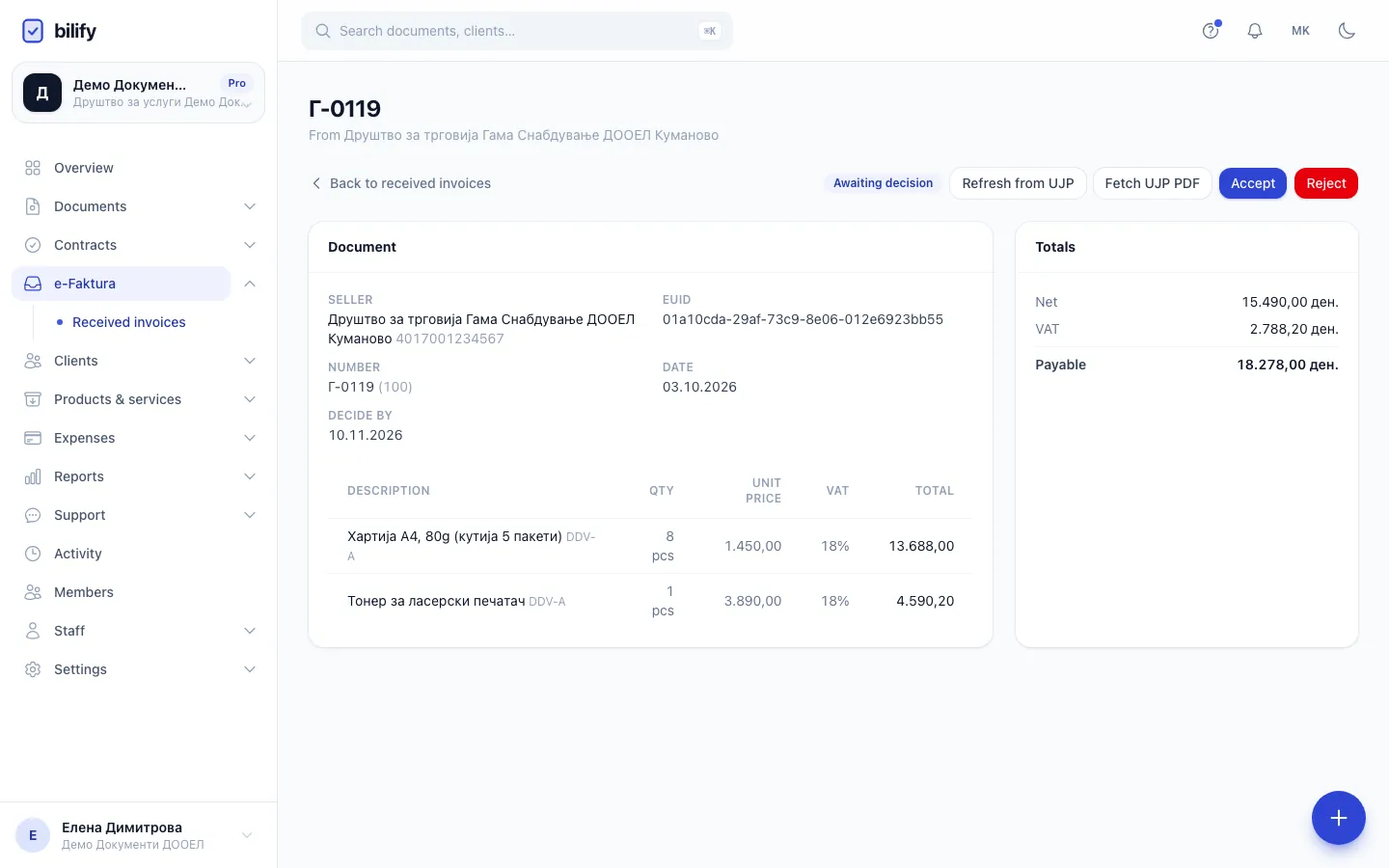
The invoice page shows the seller, the EUID (ЕИФ), number, date, Decide by, the lines as UJP sent them, and the Net, VAT and Payable totals. If the lines are missing you see Line details were not fetched from UJP yet.; click Refresh from UJP. You see Document refreshed from UJP. only when the fetch worked; otherwise The e-invoice could not be fetched from UJP. See the message on the page.
To keep UJP's own PDF of the invoice, click Fetch UJP PDF; once stored, the button becomes Download UJP PDF.
Accept an invoice
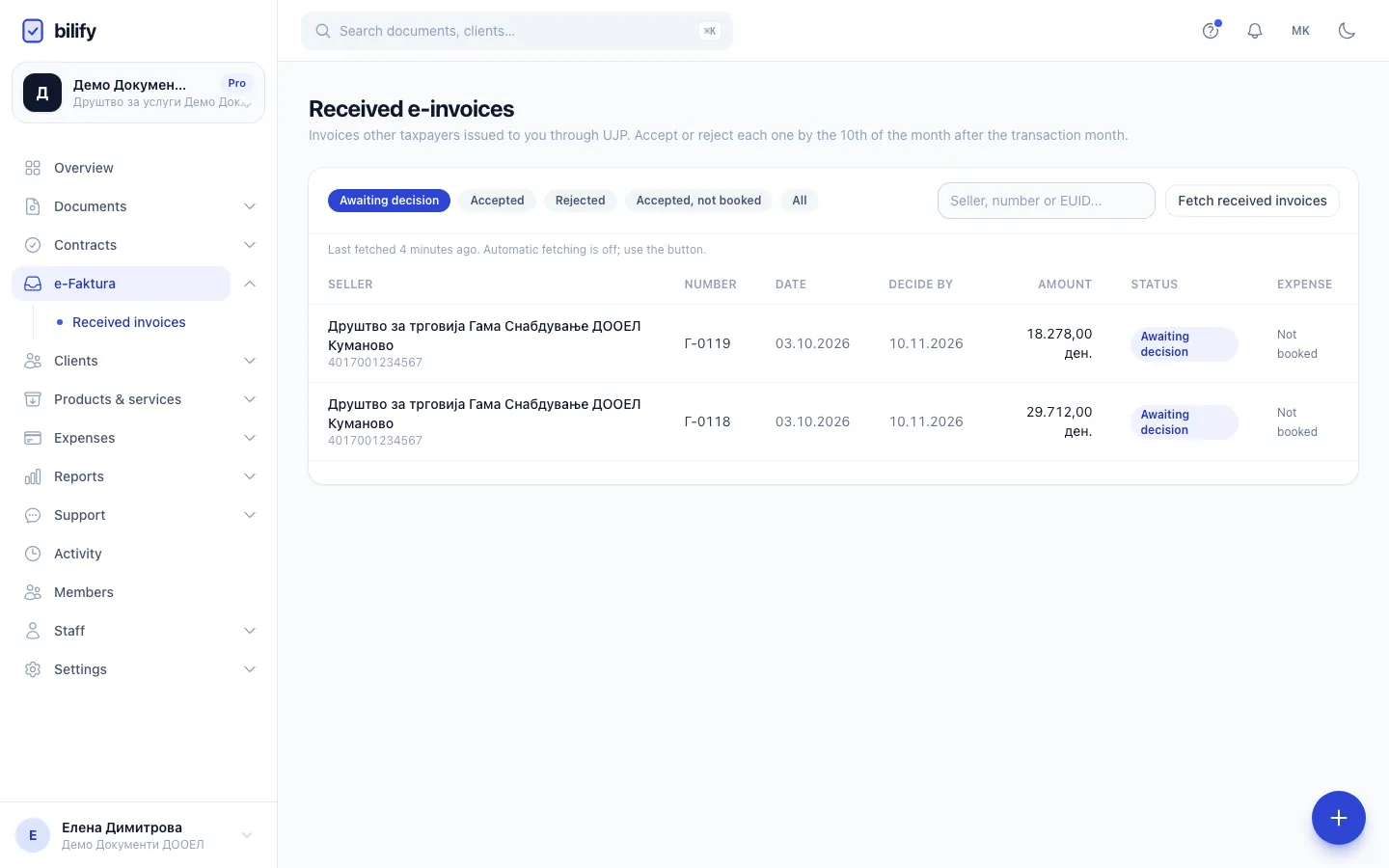
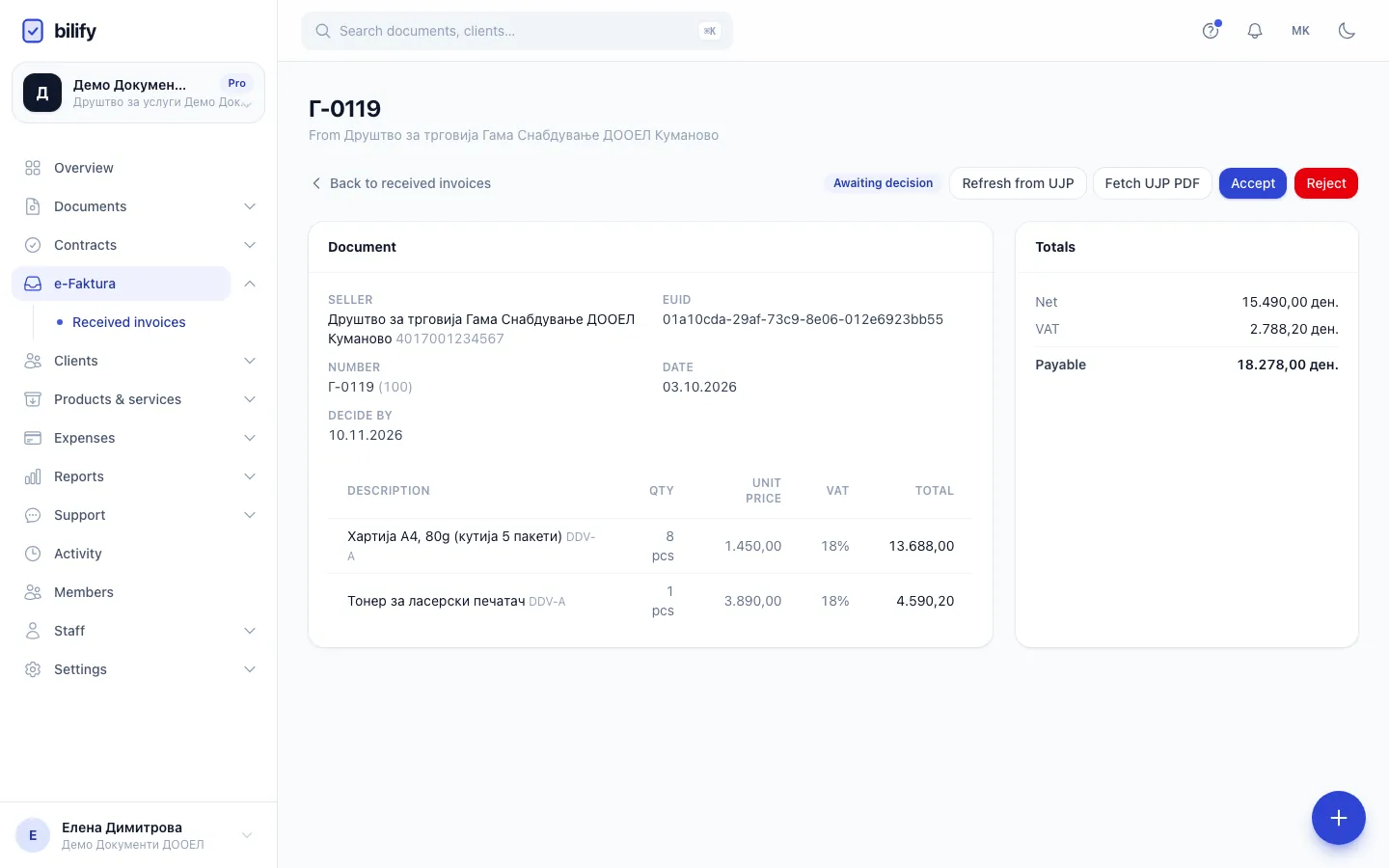
- Step 1: Received invoices opens on those awaiting your decision, with the Decide by date for each.
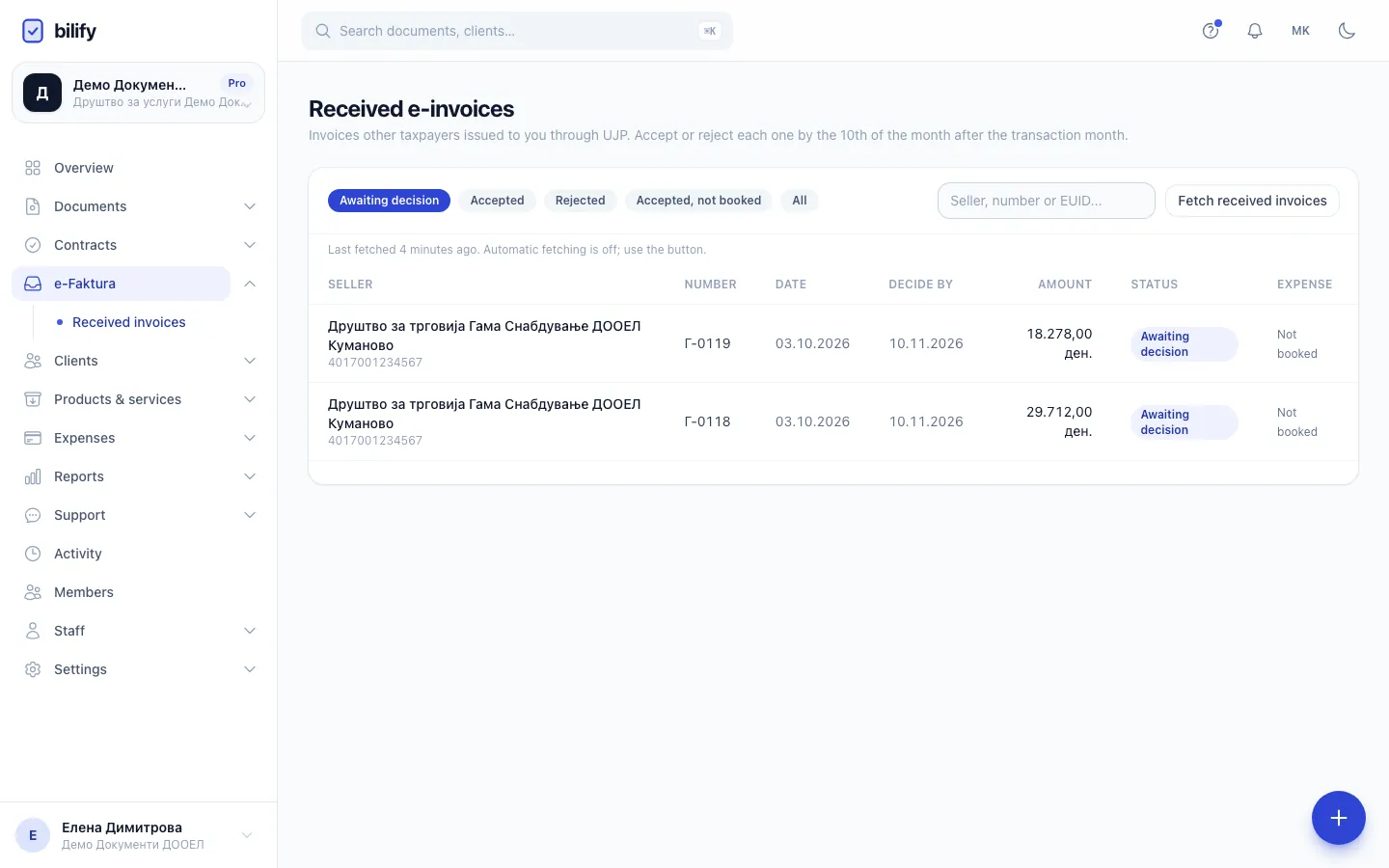
- Step 2: Fetch received invoices pulls new ones from UJP, unless automatic fetching does it for you.
- Step 3: Open an invoice to check the seller, EUID, dates and the lines exactly as UJP holds them.
- Step 4: Compare the net, VAT and payable totals with what you ordered.
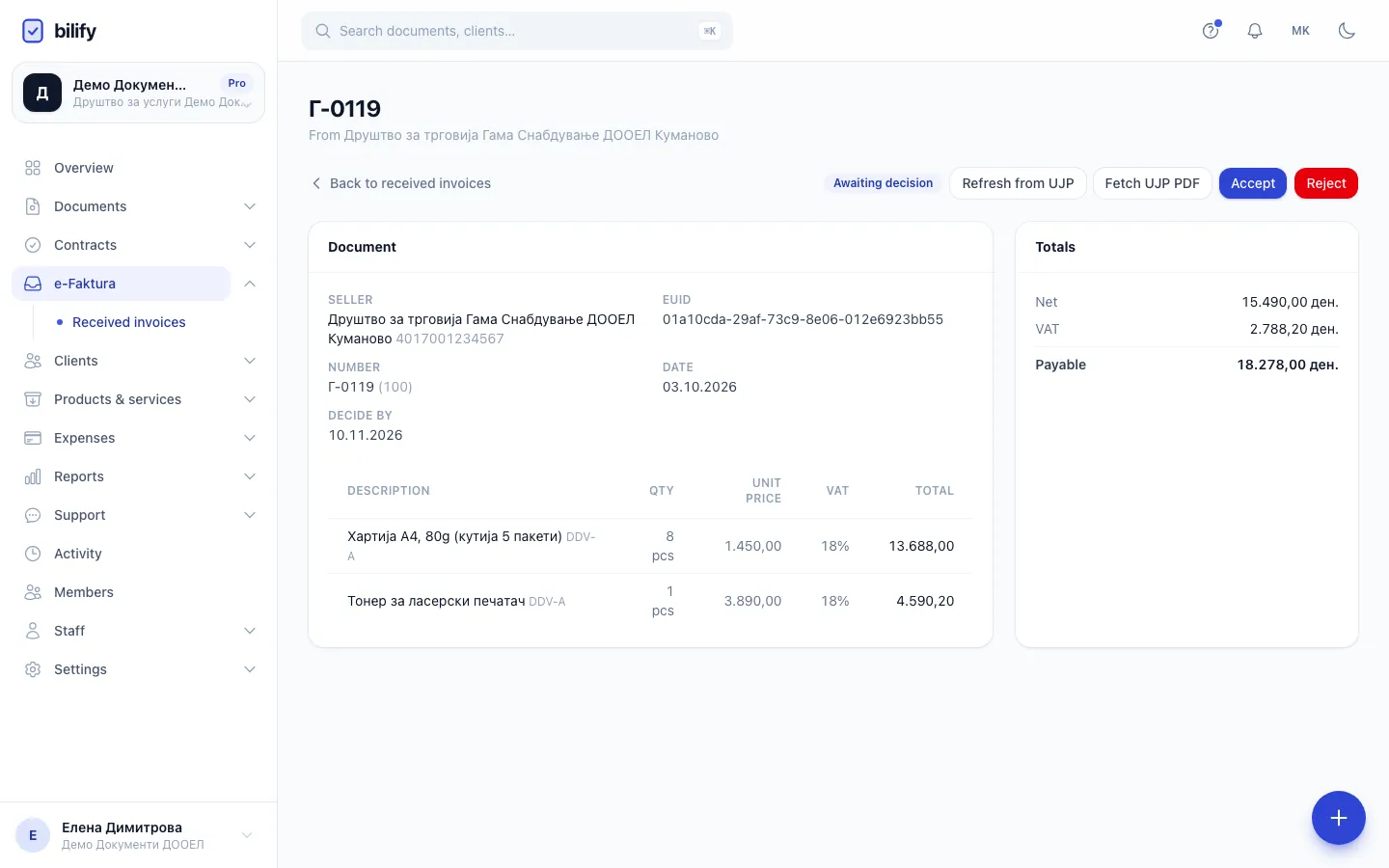
- Step 5: Accept signs your decision with the company certificate. Use Reject with a UJP reason if something is wrong.
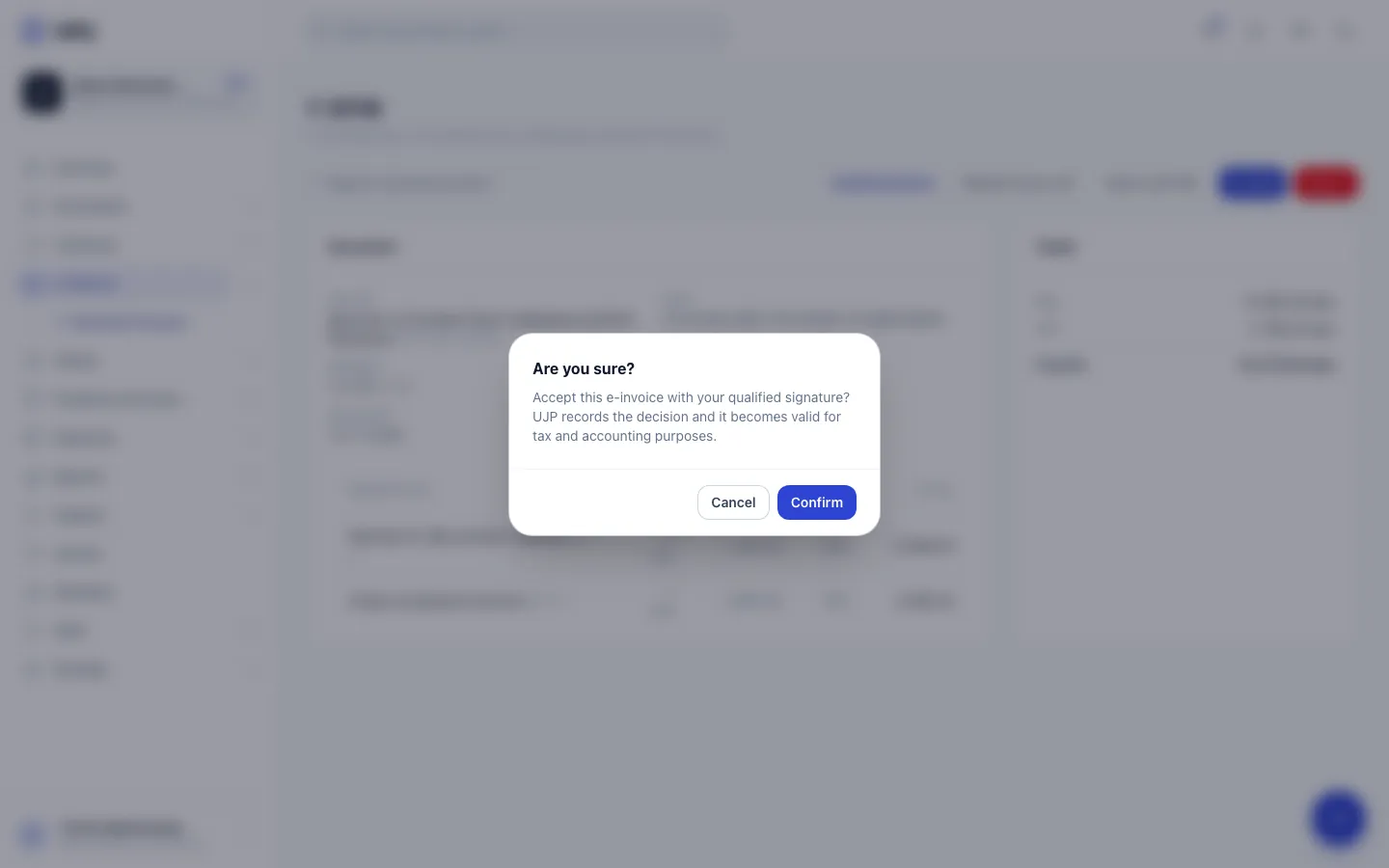
- Step 6: Confirm the acceptance. UJP records it and the invoice counts for tax and accounting.
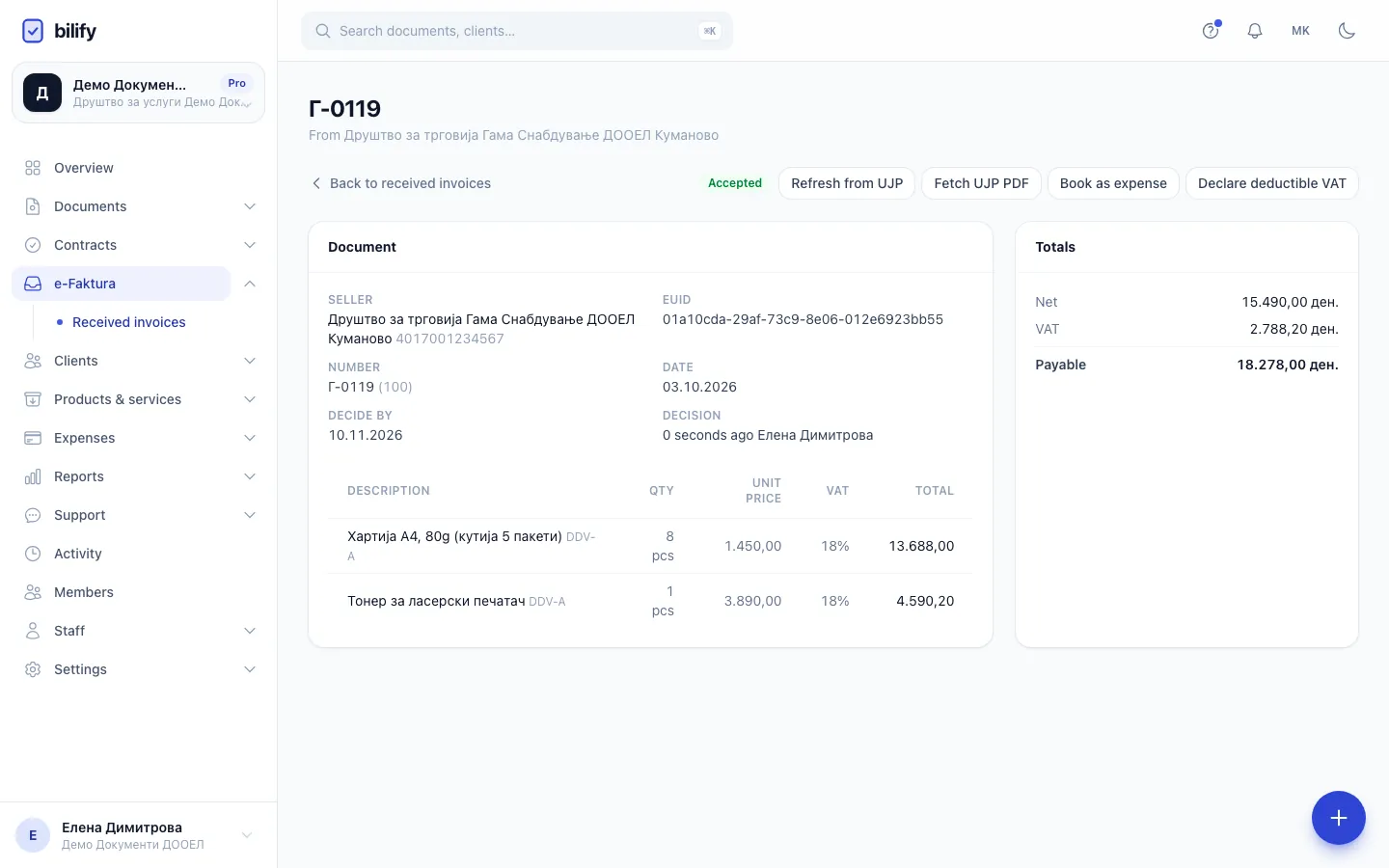
- Step 7: Now you can book it as an expense and declare the deductible VAT.
- Open the invoice and check it.
- Click Accept.
- Confirm: Accept this e-invoice with your qualified signature? UJP records the decision and it becomes valid for tax and accounting purposes.
You see e-invoice accepted. The status becomes Accepted and the page shows who decided and when.
Reject an invoice
- Open the invoice and click Reject.
- In Reject the e-invoice, choose a Reason (UJP catalogue), for example O-1 (wrong VAT calculation) or O-5 (duplicate invoice). A reason is required.
- Add a Comment for the seller if useful.
- Click Reject.
You see e-invoice rejected. The seller has to issue a correction or a storno.
A decision is final
Once accepted or rejected, Accept and Reject disappear. Trying again returns This e-invoice was already accepted or rejected. Both actions are signed with your company's certificate, so e-Faktura must be connected and ready.
Book it as an expense
After accepting, click Book as expense, pick a Category if you like and confirm. Bilify creates an expense with the seller as vendor, the payable amount, the date of supply, the description "e-invoice [number] from [seller]" and the EUID in the notes, then opens it so you can adjust it. The inbox row now shows Open expense, and the same invoice cannot be booked twice (This e-invoice is already booked as an expense.).
Only accepted invoices
Book as expense and Declare deductible VAT appear only for accepted invoices: ones you accepted in Bilify, or ones UJP shows as accepted (accepted in the UJP portal or automatically after the deadline). For an invoice awaiting a decision or rejected, Bilify answers Accept the e-invoice first.
Declare deductible VAT
After accepting, click Declare deductible VAT. The window lists one row per VAT rate, prefilled from the invoice as fully deductible:
- Purchase indicator: UJP's purchase tax indicator for the row.
- Rate: the UJP tax group (DDV-A 18%, DDV-V 10%, DDV-B 5%, DDV-G 0%).
- %, Taxable and VAT: the amounts you deduct.
Change the amounts if you deduct only part, use Add a row or remove rows, then click Declare deductible VAT. You see Deductible VAT declared to UJP. and the totals card shows when it was declared. The VAT of an invoice can be declared only once; a second attempt returns The deductible VAT of this e-invoice has already been declared. Ask your accountant which purchase indicator applies if you are unsure.
Who can do what
View e-invoice status lets you open the inbox and invoices. Accept and reject received invoices is needed to fetch new invoices, use Refresh from UJP and Fetch UJP PDF, accept, reject, book expenses and declare VAT. Owners, admins and accountants have both.
Was this page helpful?
Related articles
Still stuck?
Write to us and we will get back to you within one working day.