Convert documents
Turn an issued Понуда, Про-Фактура or Авансна Фактура into the next document with one click, and what is copied to the new draft.
Converting creates the next document in a chain, for example an invoice from an accepted offer, without retyping the lines. The original stays exactly as it was.
Which conversions are available
For Macedonian companies:
| From | To |
|---|---|
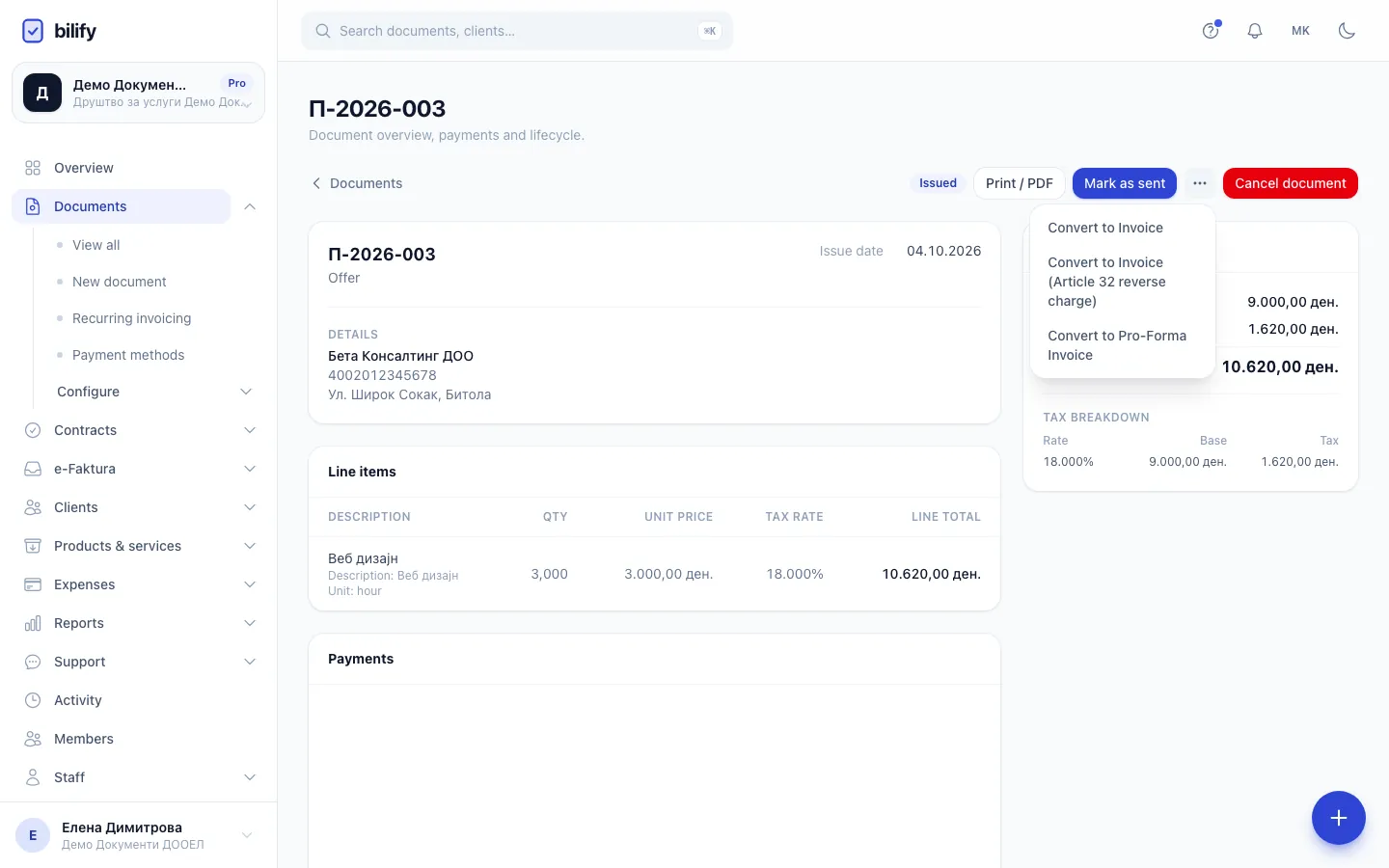
| Offer | Pro-Forma Invoice, Invoice or Invoice (Article 32 reverse charge) |
| Pro-Forma Invoice | Invoice, Advance Invoice or Invoice (Article 32 reverse charge) |
| Advance Invoice | Invoice |
Conversion is offered on issued documents; a draft cannot be converted. Invoice and Invoice (Article 32 reverse charge) cannot be converted into anything today.
Only document types your company has switched on under Settings > Document types are offered as targets. If a type is missing from the menu, switch it on there first.
An Advance Invoice converts into an Invoice only once it is issued, and that conversion settles the advance: the lines come across net of VAT and the advance is deducted on the new invoice for what it has left. See Advance invoices.
Convert a document
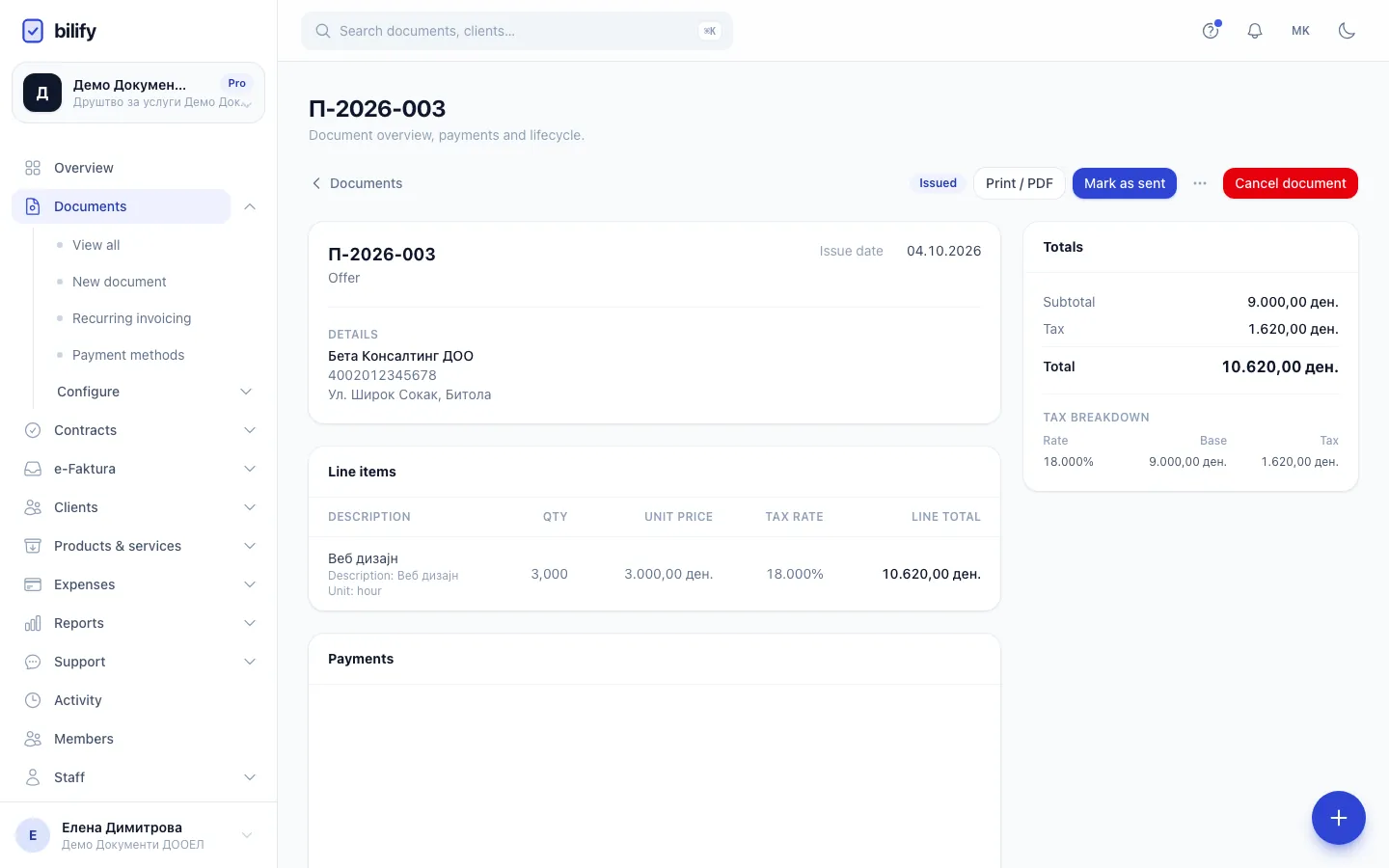
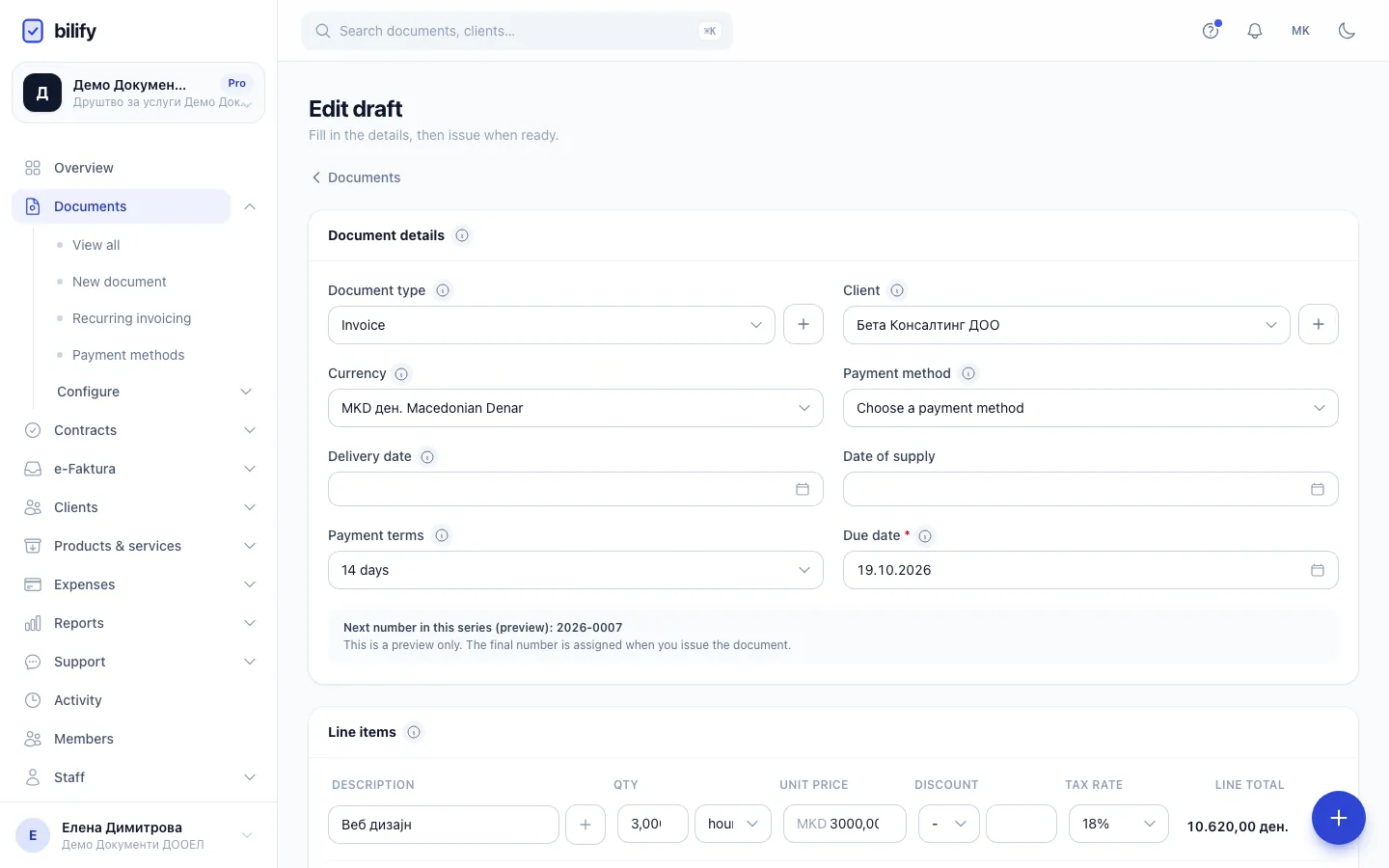
- Step 1: Open the issued offer and click the actions menu next to the buttons at the top.
- Step 2: Choose Convert to Invoice. Only the conversions allowed for this type are listed.
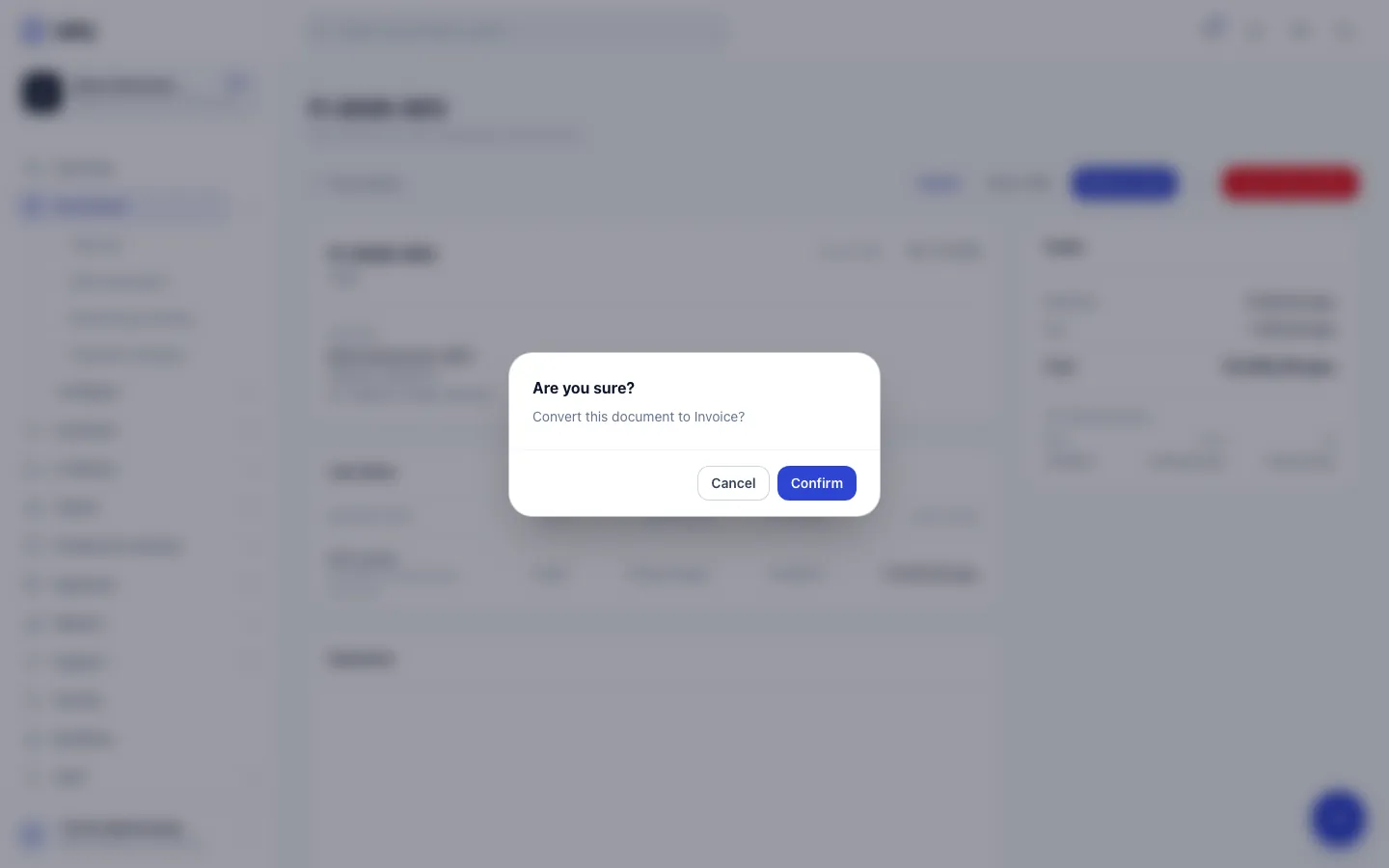
- Step 3: Confirm. Bilify creates a new draft and leaves the offer unchanged.
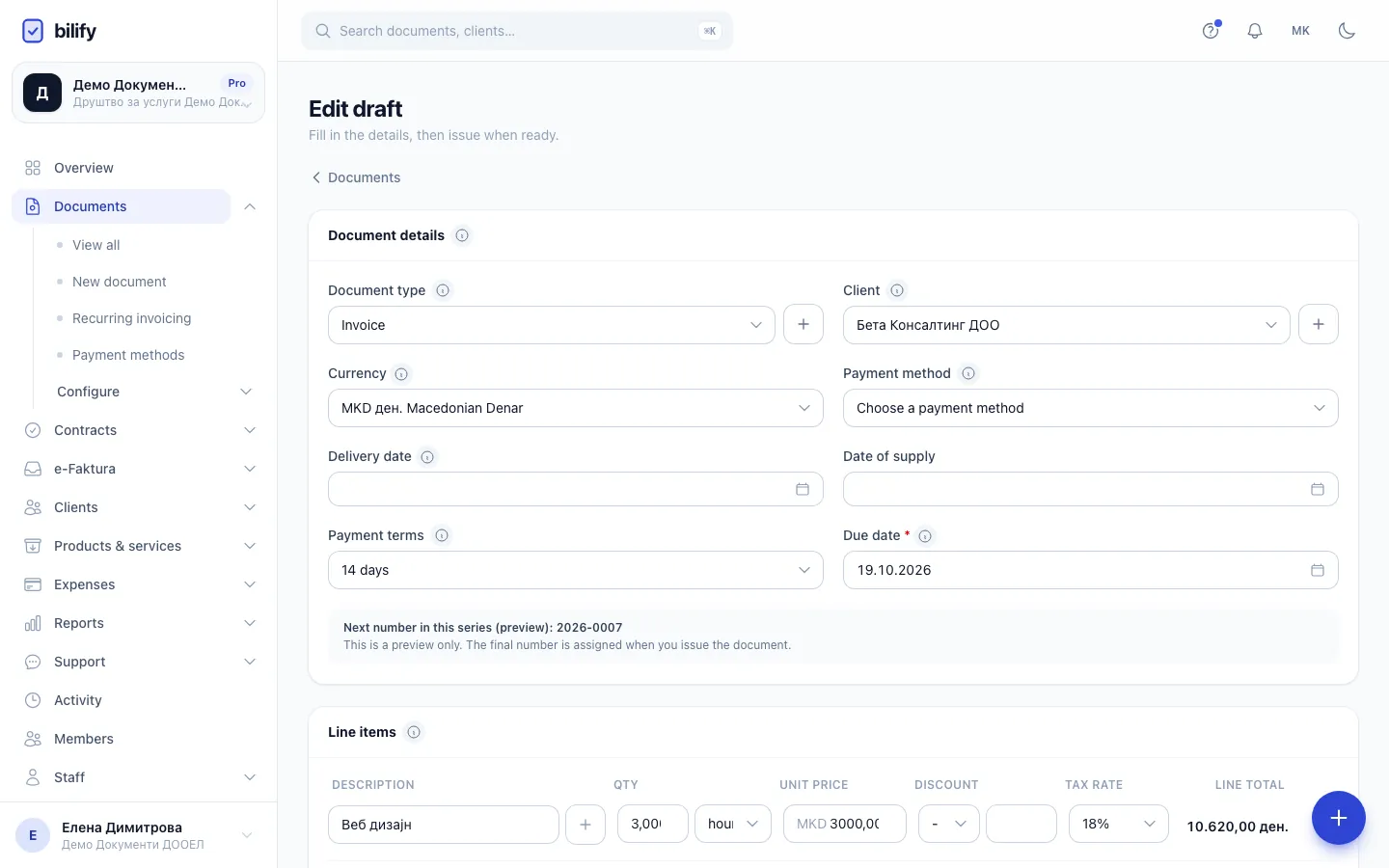
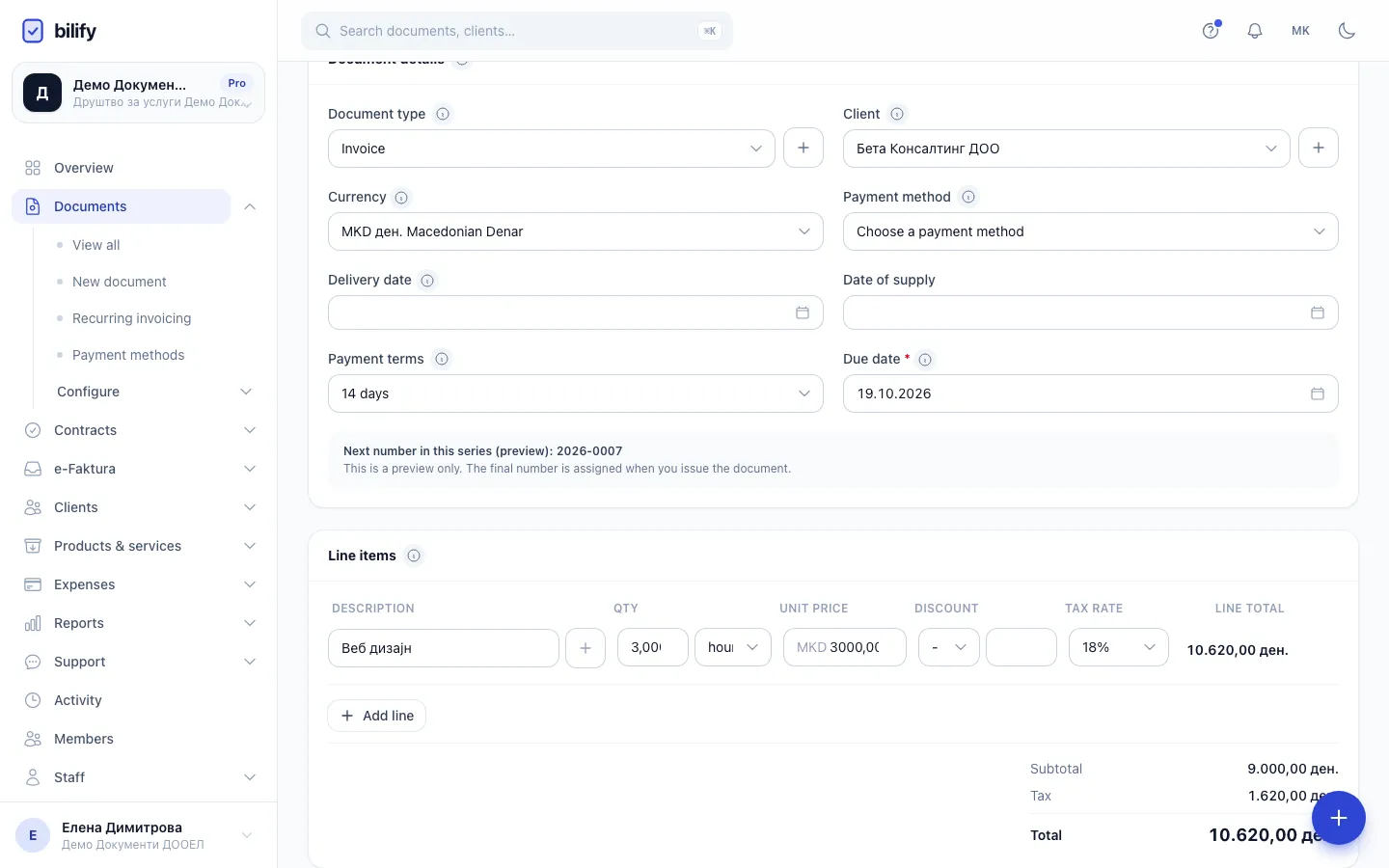
- Step 4: The client and currency are copied from the offer.
- Step 5: The payment method is not copied. Choose the account the client should pay to.
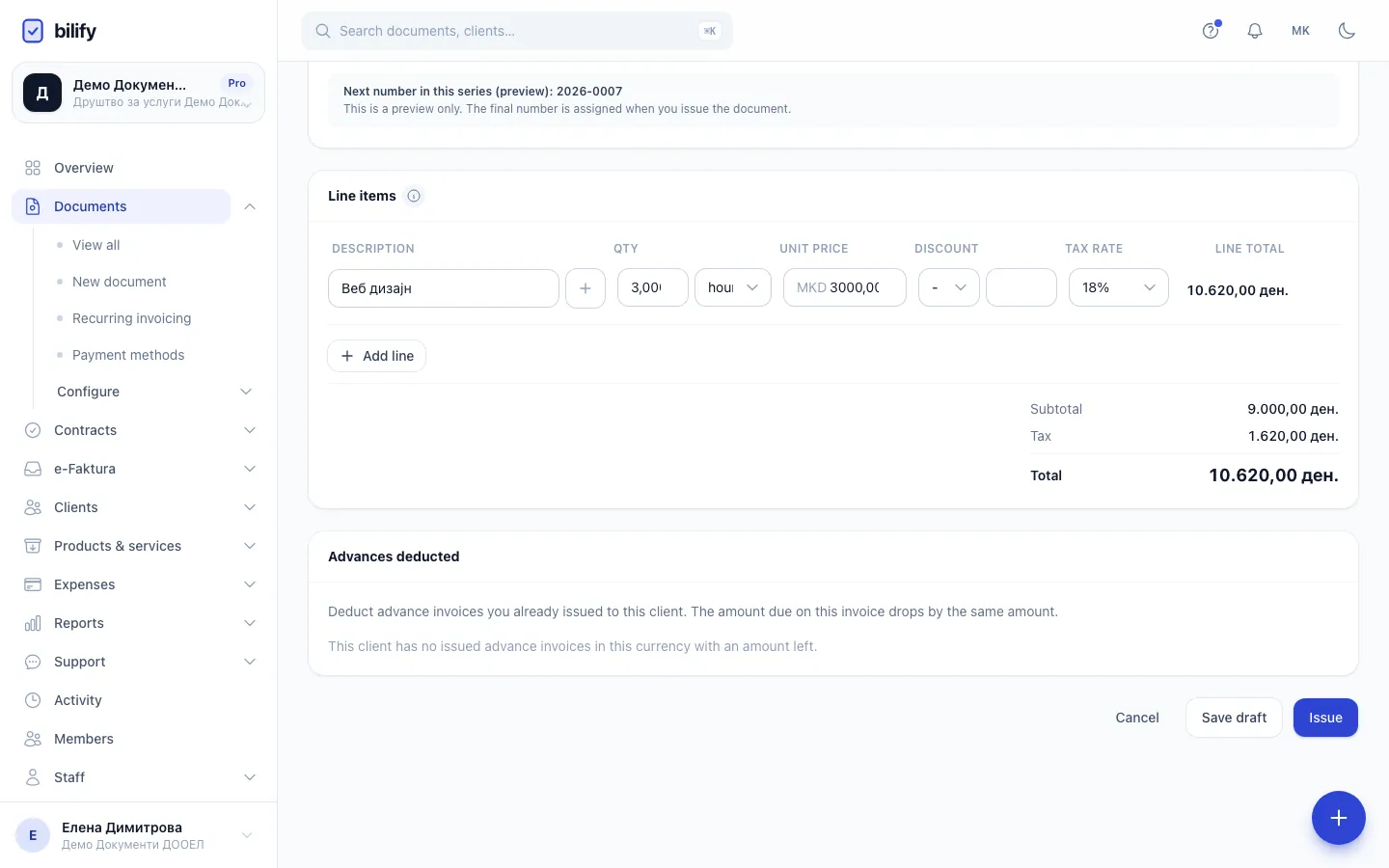
- Step 6: All lines are copied. Adjust anything that changed since the offer.
- Step 7: Issue the invoice when it is ready. Until then it is an ordinary draft.
- Open the issued document from Documents.
- Click the actions menu (...) next to the buttons at the top.
- Choose Convert to followed by the target type, for example Convert to Invoice.
- Confirm. Bilify opens the new draft and shows "Draft created from conversion".
- Review the draft, adjust anything that changed, and click Issue.
The same Convert to entries are in the row menu on the Documents list.
What is copied
The new draft gets:
- the same client and currency;
- all lines: descriptions, quantities, units, prices, discounts and tax rates, including a Custom tax percentage on a line;
- the delivery date, when converting between different types;
- the notes;
- a due date: the original's, or 14 days from today if the original had none and the new type needs one;
- a link back to the original, shown as Converted from on the new document.
Not copied:
- the payment method. Choose it again on the draft before issuing;
- payments recorded on the original;
- the number, including a number you typed by hand. The draft gets its own number when you issue it;
- the client's acceptance of an offer, and a cancellation reason;
- the chosen design and the payment link amount. These belong to the original alone.
Check before issuing
The draft is a normal draft: it is not issued until you click Issue, and you can change anything first. Check especially:
- the Payment method, which starts empty;
- after converting an Advance Invoice, the lines: change them to the real delivery and check the advance deducted. See Advance invoices.
The original document
Converting never changes the original. It keeps its number, status and totals, and you can convert it again if you need to (for example, a second invoice from the same offer). Cancel the original separately if it should no longer count. See Cancel a document.
You need the permission to convert documents. Owners, admins and accountants have it by default.
Was this page helpful?
Related articles
Still stuck?
Write to us and we will get back to you within one working day.