Employees
Add the staff who work shifts, keep their details and PIN codes, and deactivate or delete them when they leave.
Employees are the people who work shifts in your business: shop staff, warehouse workers, drivers. They do not sign in to Bilify and do not count as team members. You add them here so you can put them on the shift calendar.
You find them under Staff > Employees. Owners and Admins can add, edit and delete employees; Accountants can only look.
Add an employee
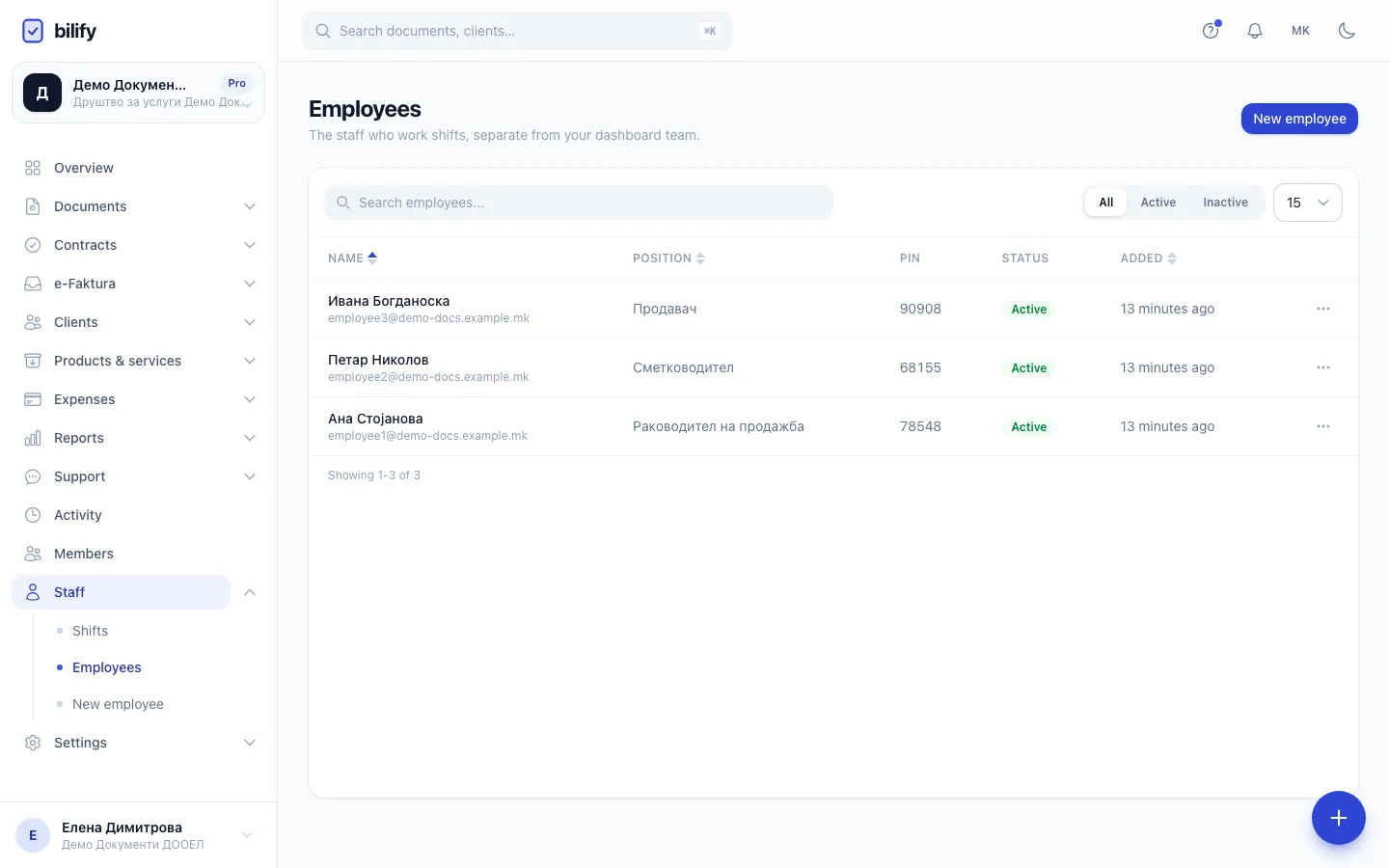
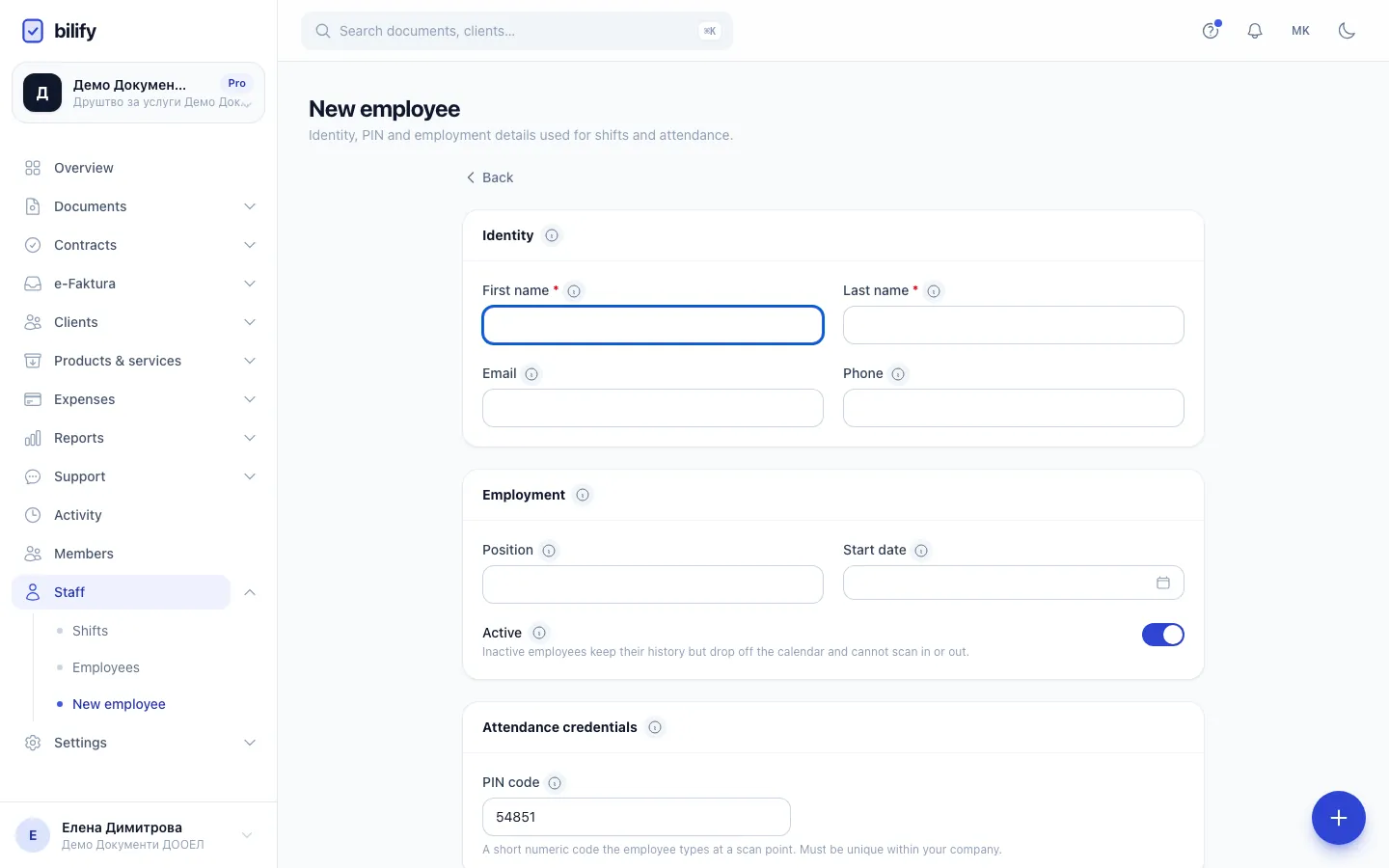
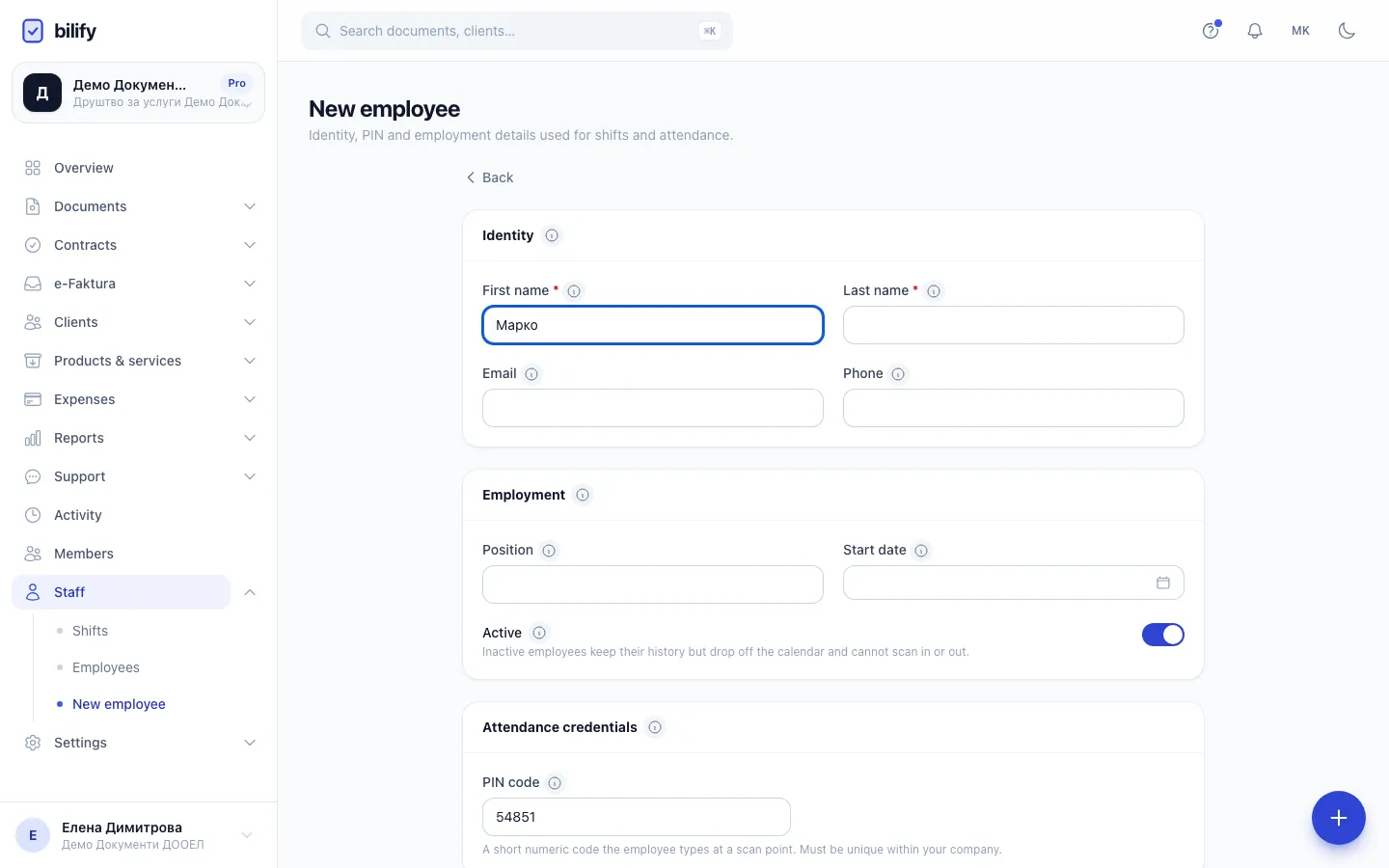
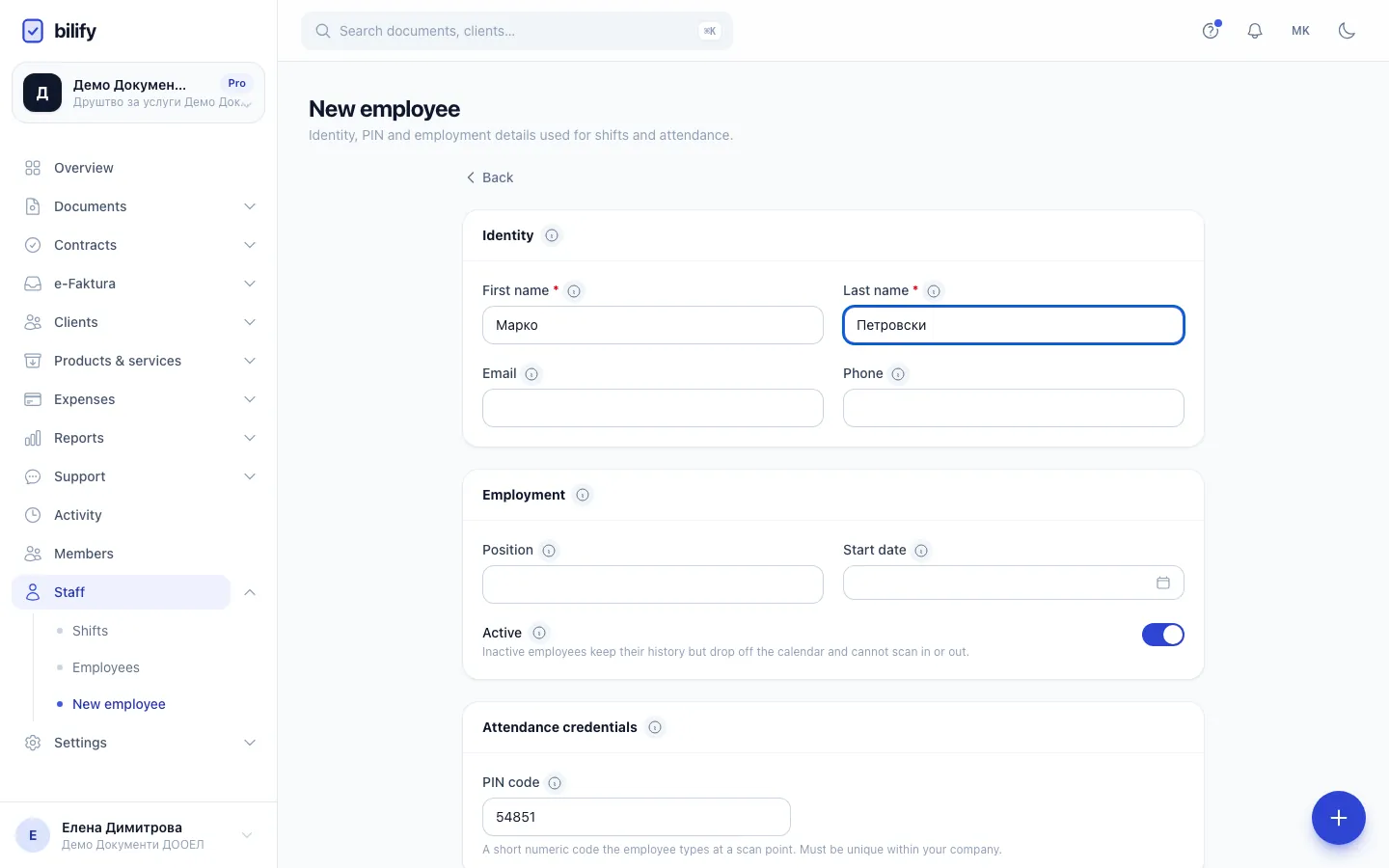
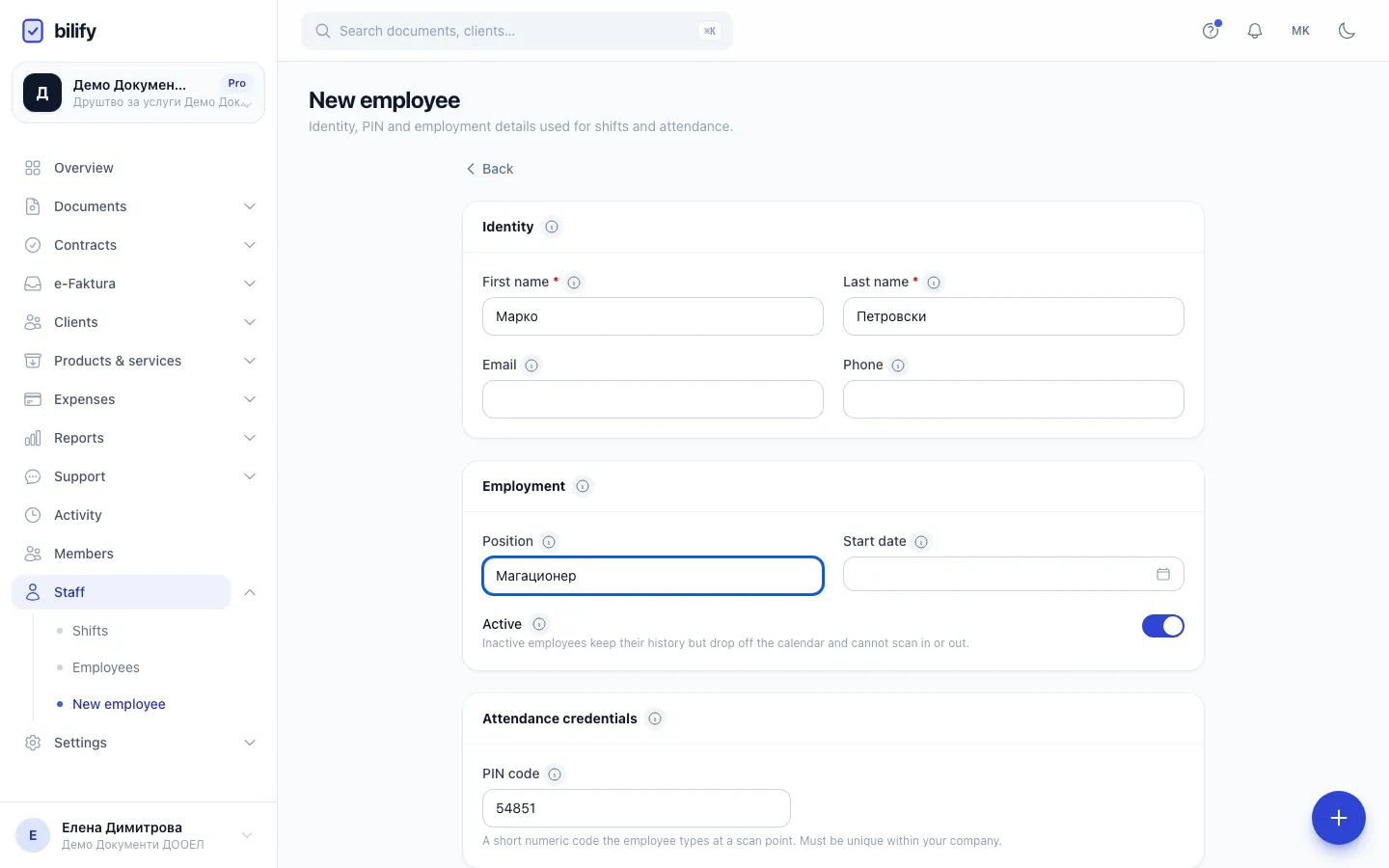
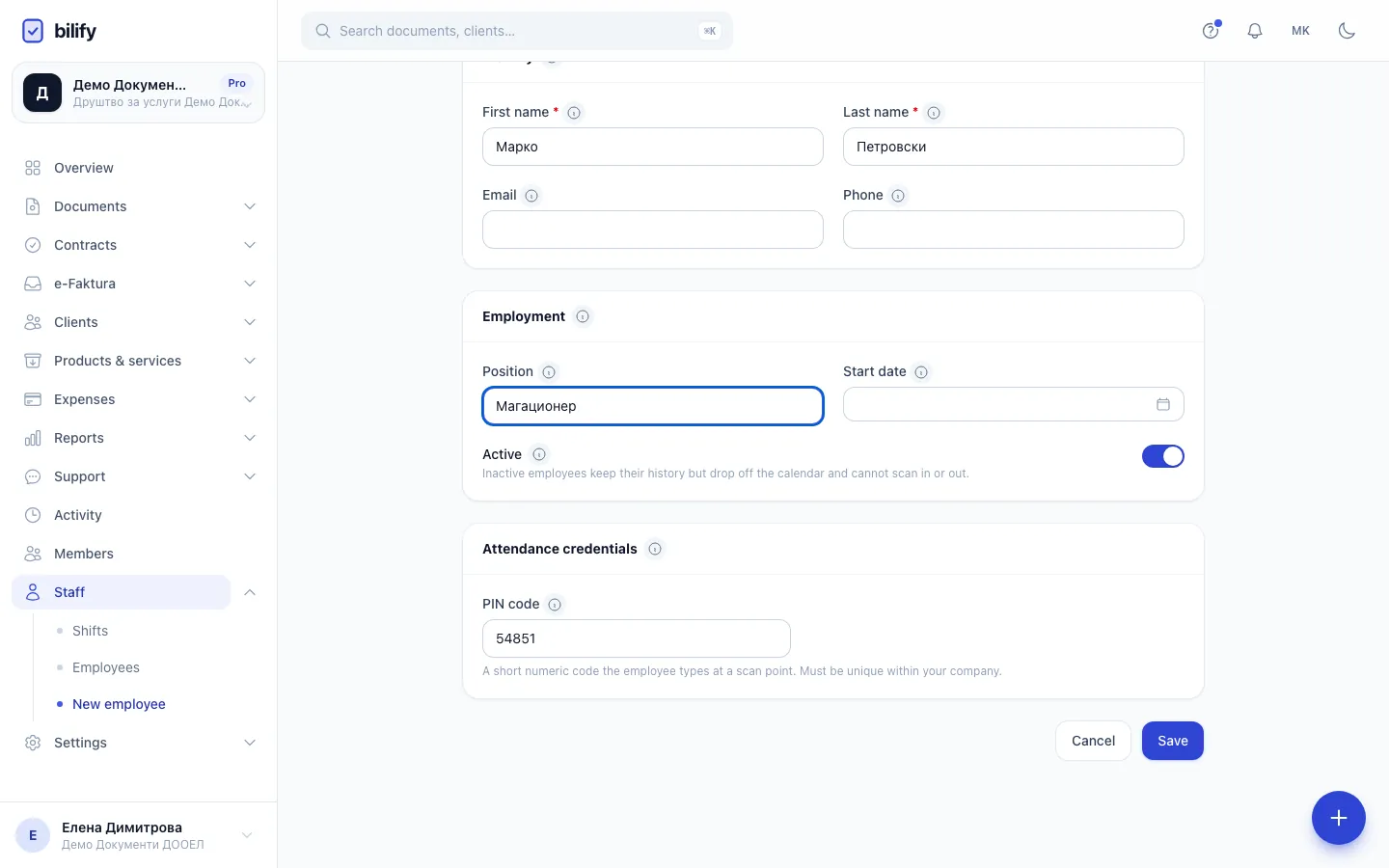
- Step 1: Click New employee. Employees work shifts but do not sign in to Bilify.
- Step 2: Enter the first name.
- Step 3: Enter the last name. Email and phone are optional.
- Step 4: Add a position and start date if you want them on the employee's profile.
- Step 5: A unique PIN is suggested for you. Keep it or type your own with 4 to 6 digits.
- Step 6: Click Save. The employee can now be scheduled on the shift calendar.
- Go to Staff > Employees and click New employee (or use Staff > New employee).
- Under Identity, enter First name and Last name. Email and Phone are optional.
- Under Employment, add a Position and Start date if you want them on the profile. Leave Active on.
- Under Attendance credentials, keep the suggested PIN code or type your own: 4 to 6 digits, unique within your company. If you clear the field, Bilify generates one when you save.
- Click Save.
You land on the employee's page with Employee created.
Your package sets how many employees you can add
Every employee counts toward the employee limit, active or not. When the limit is reached you see "You have reached your plan's employee limit". Deleted employees free up a place. See Usage limits.
The employee page
- Details: name, status, email, phone, position and start date. Edit changes them.
- Activity: recent changes to this employee, if your role can see the activity log.
- PIN code: the employee's numeric code.
- QR scan code: a QR code tied to the employee. Regenerate code replaces it; the old code stops working immediately.
Attendance is not available yet
The PIN code and QR scan code are prepared for clocking in and out at a scan point, but Bilify does not record attendance or working hours yet. Today they are only stored on the employee's profile.
Find employees
The list on Staff > Employees can be searched by name or email and filtered by Active or Inactive. Click a column heading (Name, Position, Added) to sort. On a phone, use Filters & sorting.
When someone leaves
You have two options:
- Deactivate (recommended): open the employee, click Edit, switch off Active and save. Inactive employees keep their history and can no longer be picked for new assignments. Their existing recurring assignments still show on the calendar, so also give those an end date (see The shift calendar).
- Delete: in the list, open the row menu and choose Delete, then confirm Delete this employee?. The employee disappears from the list and the calendar. There is no way to restore a deleted employee from the app, so prefer deactivating.
Was this page helpful?
Related articles
Still stuck?
Write to us and we will get back to you within one working day.