Email log
Look up every email Bilify sent on your company's behalf, see whether it was delivered, opened or bounced, and what suppressed means.
The email log lists every email Bilify sent on your company's behalf: invoices, payment reminders, portal sign-in links, reports, contract emails, team invitations and more. Use it to answer "did the client actually get it?".
The log is available on every package. You need the settings.email.view permission (Owner, Admin and Accountant by default).
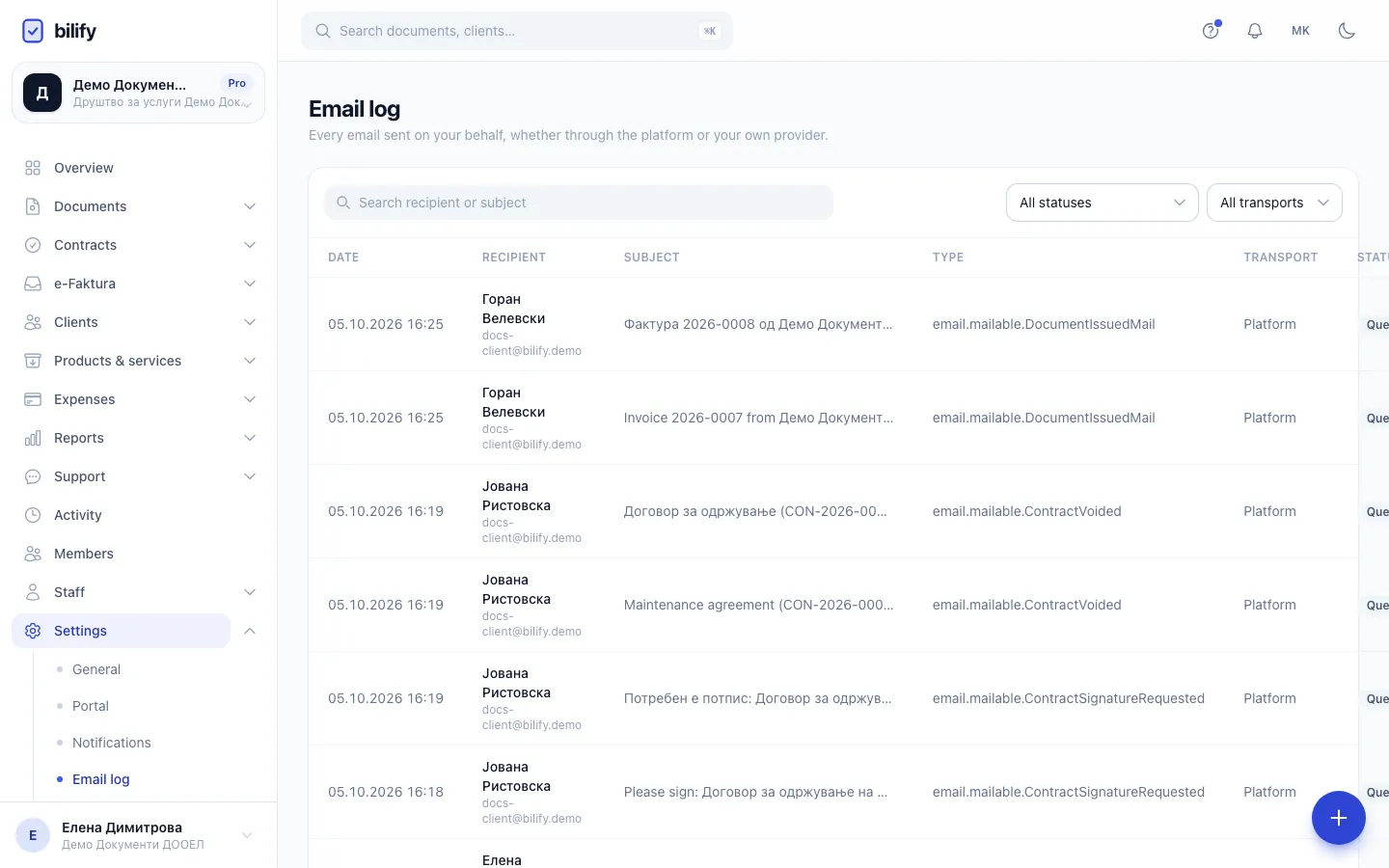
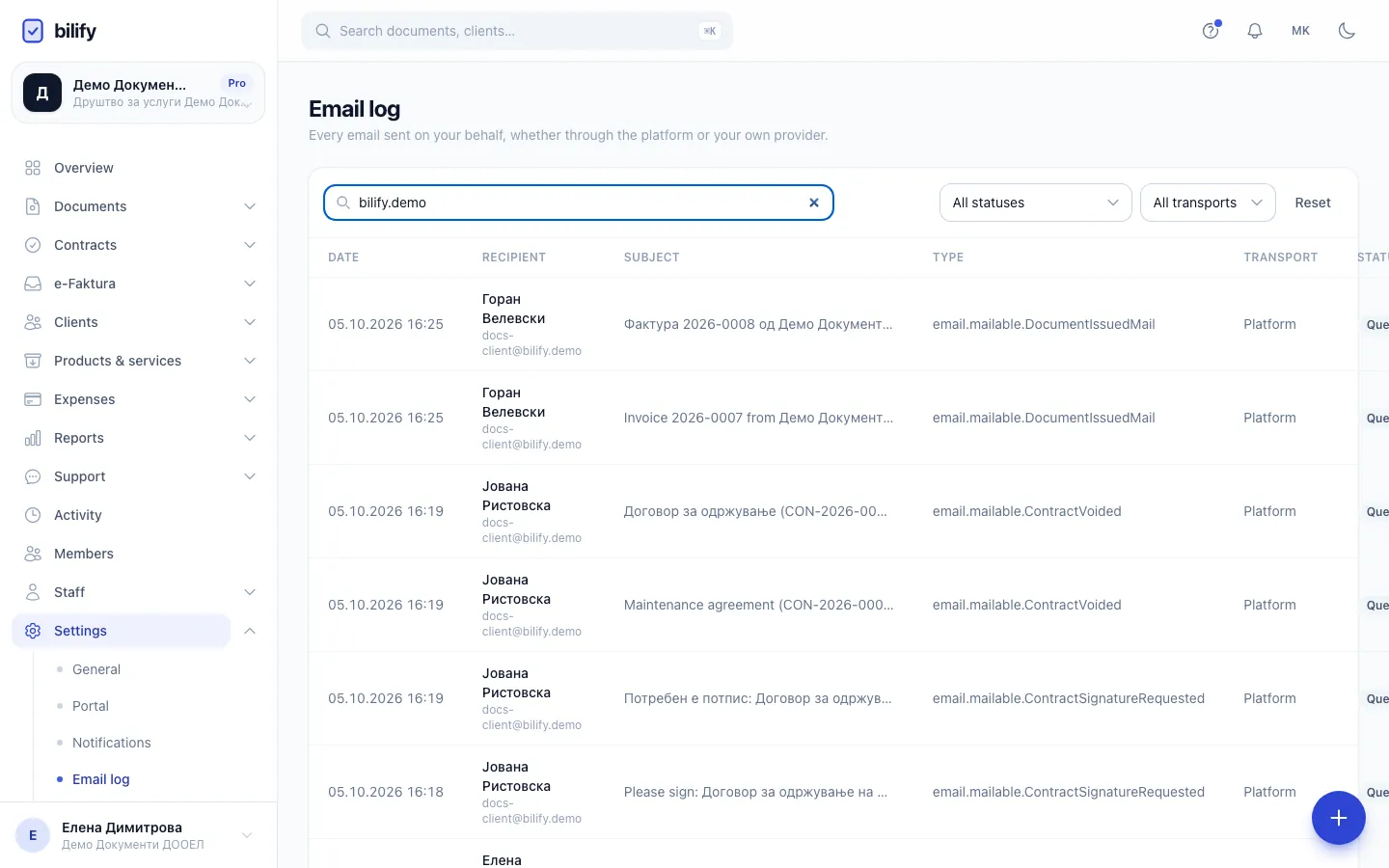
- Step 1: Search by the recipient's name or address, or by the subject.
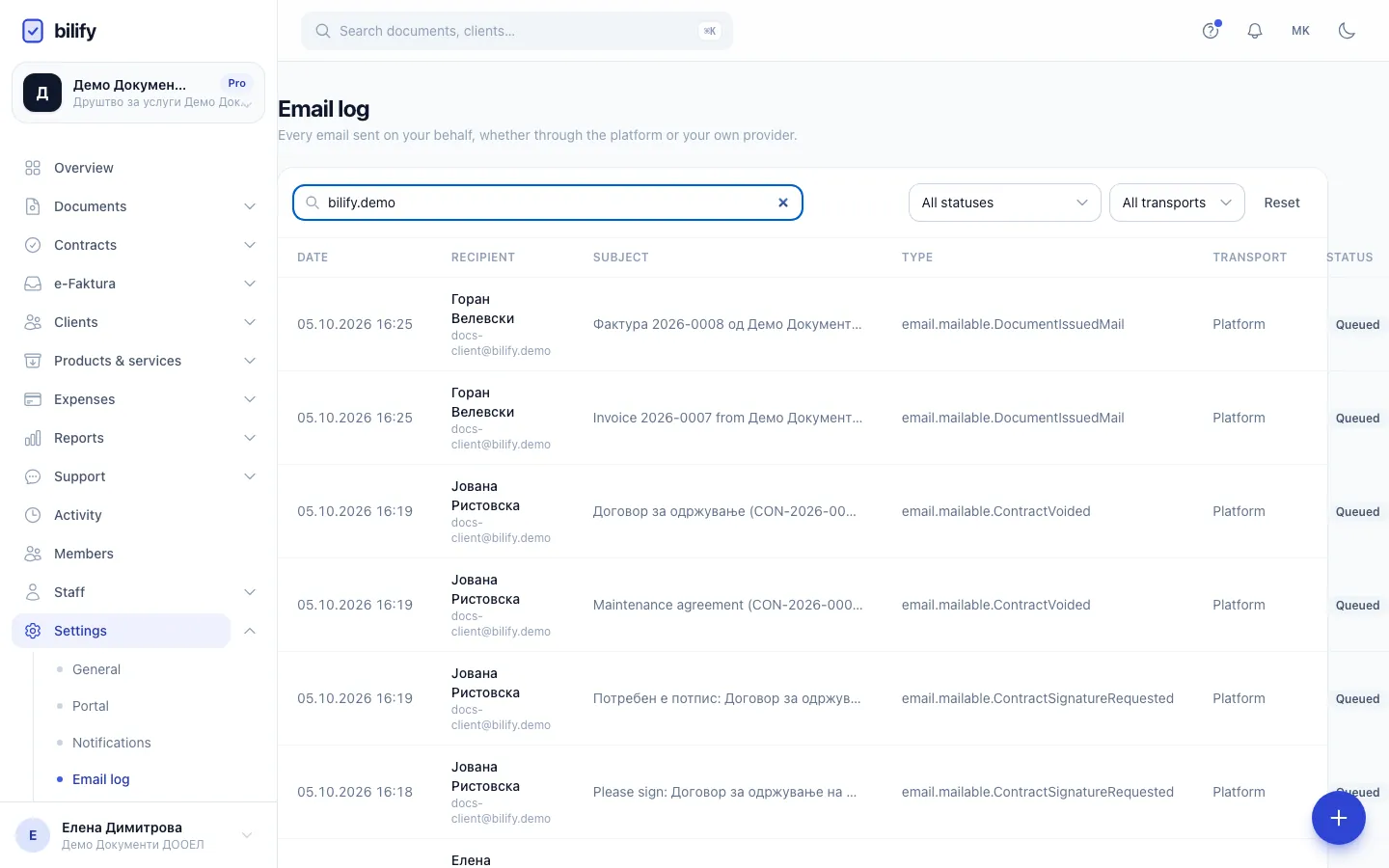
- Step 2: Filter by status, for example to list every hard bounce, or by transport to separate Bilify mail from your own Brevo.
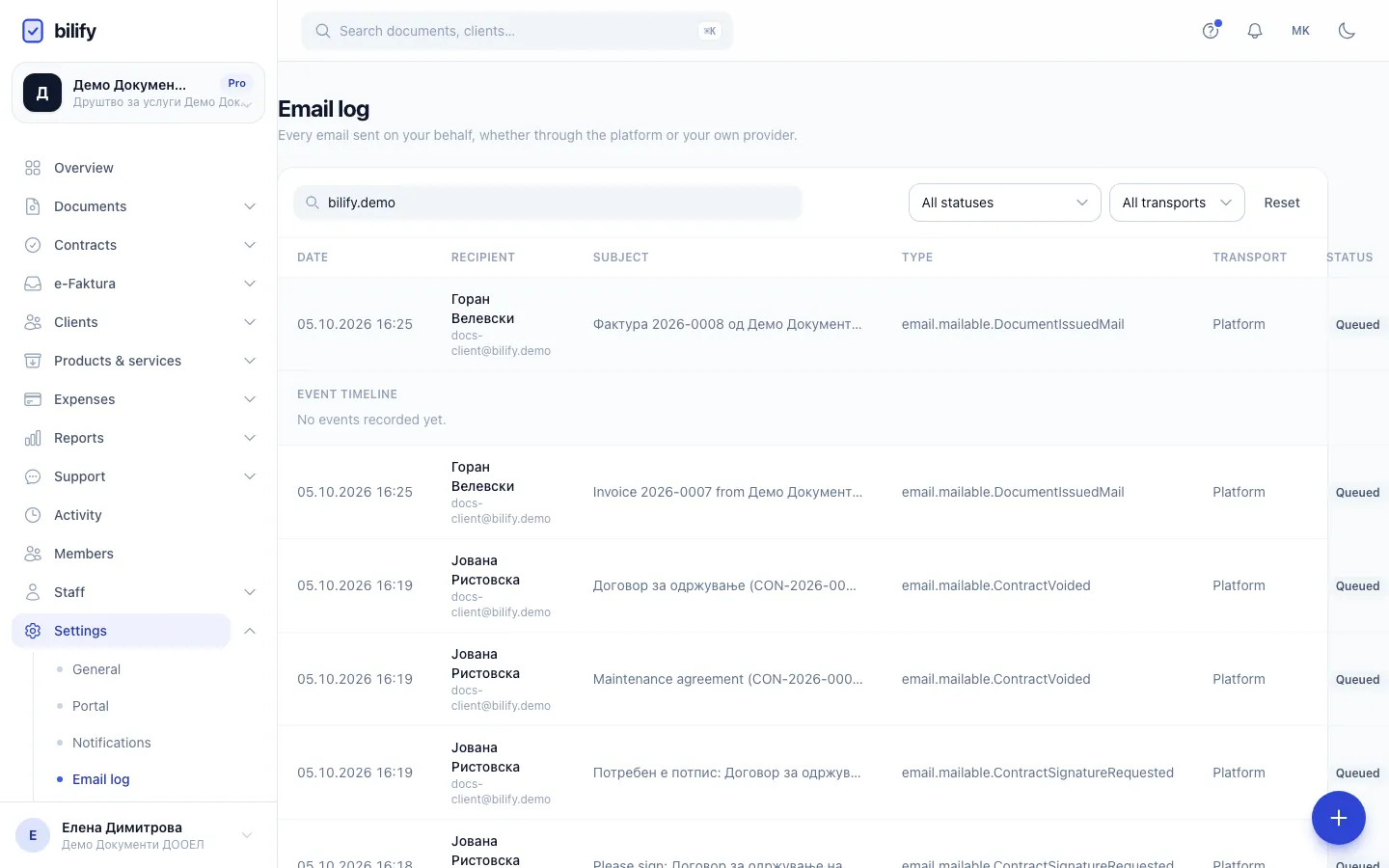
- Step 3: Click a row to open its event timeline.
- Step 4: The timeline lists delivery events reported by Brevo. Emails sent through Bilify's own mail system have none.
Find an email
- Open Settings > Email log. The newest emails are at the top, 20 per page.
- Type in the search box to find an email by recipient name, recipient address or subject.
- Narrow the list with the status filter (All statuses or one status) and the transport filter (All transports, Platform or Brevo).
- Click a row to open its Event timeline. Click it again to close it.
| Column | What it shows |
|---|---|
| Date | When Bilify created the email. |
| Recipient | The recipient's name and address. |
| Subject | The email's subject, or No subject. |
| Type | What kind of email it is, for example Invoice reminder, Payment received, Team invitation, Portal login link, Report ready or Report schedule paused. Some types do not have a readable name yet and show a technical name instead. |
| Transport | Platform (Bilify's own mail system) or Brevo (your own Brevo account). |
| Status | The latest known state (see below). |
Statuses
| Status | Meaning |
|---|---|
| Queued | Created and waiting to be handed to the mail system. |
| Sent | Handed over to the mail system. For Platform emails this is the last status you will see. |
| Delivered | The recipient's mail server accepted it. |
| Opened | The recipient opened it. |
| Clicked | The recipient clicked a link in it. |
| Soft bounce | Temporarily refused, for example a full mailbox. It may still arrive later. |
| Hard bounce | Permanently refused, usually because the address does not exist. Check the address. |
| Marked as spam | The recipient reported it as spam. |
| Blocked | Brevo did not send it, for example because the address is on its block list. |
| Failed | Sending failed. If your Brevo connection failed, Bilify sends the email again through its own system and that attempt appears as a second row. |
| Suppressed (sandbox) | Not sent at all, on purpose (see below). |
Delivered, Opened, Clicked, the bounces, Marked as spam and Blocked come from Brevo's delivery events, so you only see them for emails sent through your own Brevo account. A status only ever moves forward: a late "delivered" report never turns an Opened email back into Delivered.
The Event timeline lists each delivery event Brevo reported, with its time. For Platform emails it says "No events recorded yet."
Opens are counted by your recipient's email program loading a tiny image. Some programs block or preload images, so Opened is a strong hint, not proof.
What suppressed means
A sandbox workspace is for testing, so it never sends real email. Every email it would have sent is still written to the log, with the status Suppressed (sandbox), so you can check what would have gone out, to whom and with which subject, without anyone receiving it.
Tips
- A client says they never got an invoice: search for their address. Hard bounce means the address is wrong; fix it on the client and send again. Delivered or Opened means it arrived; ask them to check their spam folder.
- Rows in the log cannot be edited or deleted.
- The log shows company emails only. Your own account emails (password resets, sign-in verification) are not listed.
Was this page helpful?
Related articles
Still stuck?
Write to us and we will get back to you within one working day.