Download invoices as PDF
Save one invoice or several at once as a PDF file, or print them, straight from the portal.
Every document in the portal can be saved as a PDF or printed, one at a time or several together. The portal opens a print-ready copy, and your browser turns it into a PDF file.
Download one document
- Open My invoices (or Offers).
- Click PDF next to the document, or open the document and click Download PDF at the top.
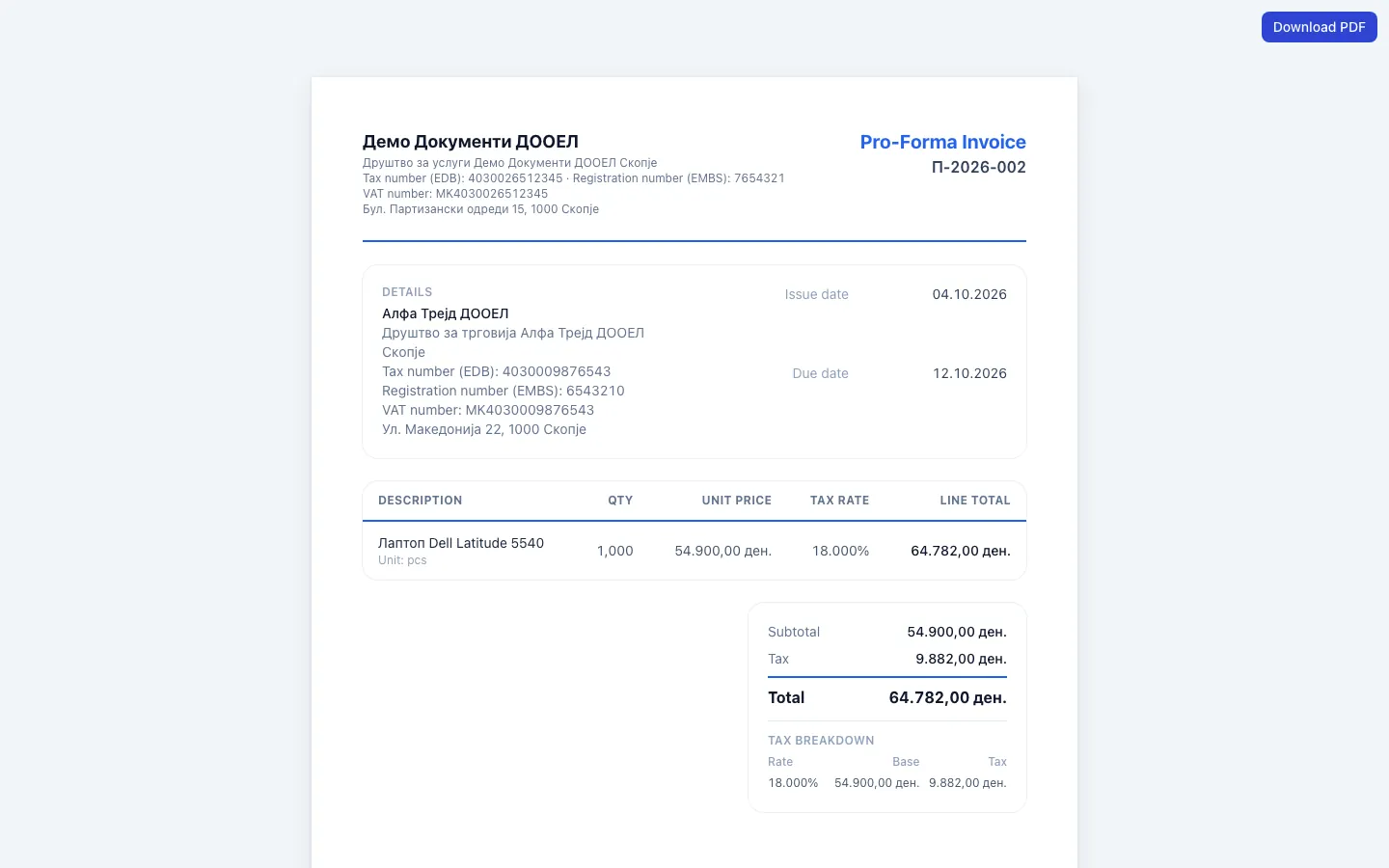
- A print-ready copy opens in a new tab. Click Download PDF in its top corner.
- Your browser's print window opens. As the printer (destination), choose Save as PDF (in some browsers "Microsoft Print to PDF" or "PDF").
- Click Save and choose where to store the file.
To print on paper instead, choose your printer in step 4.
The print window looks different in every browser
Chrome, Edge, Firefox and Safari all have a "Save as PDF" option, but it sits in a different place. Look for the printer or destination list. On a phone, use the share or print option of the browser and choose to save as PDF.
If you opened the invoice from an email without signing in, the portal asks you to sign in before showing the print-ready copy.
Download several documents at once
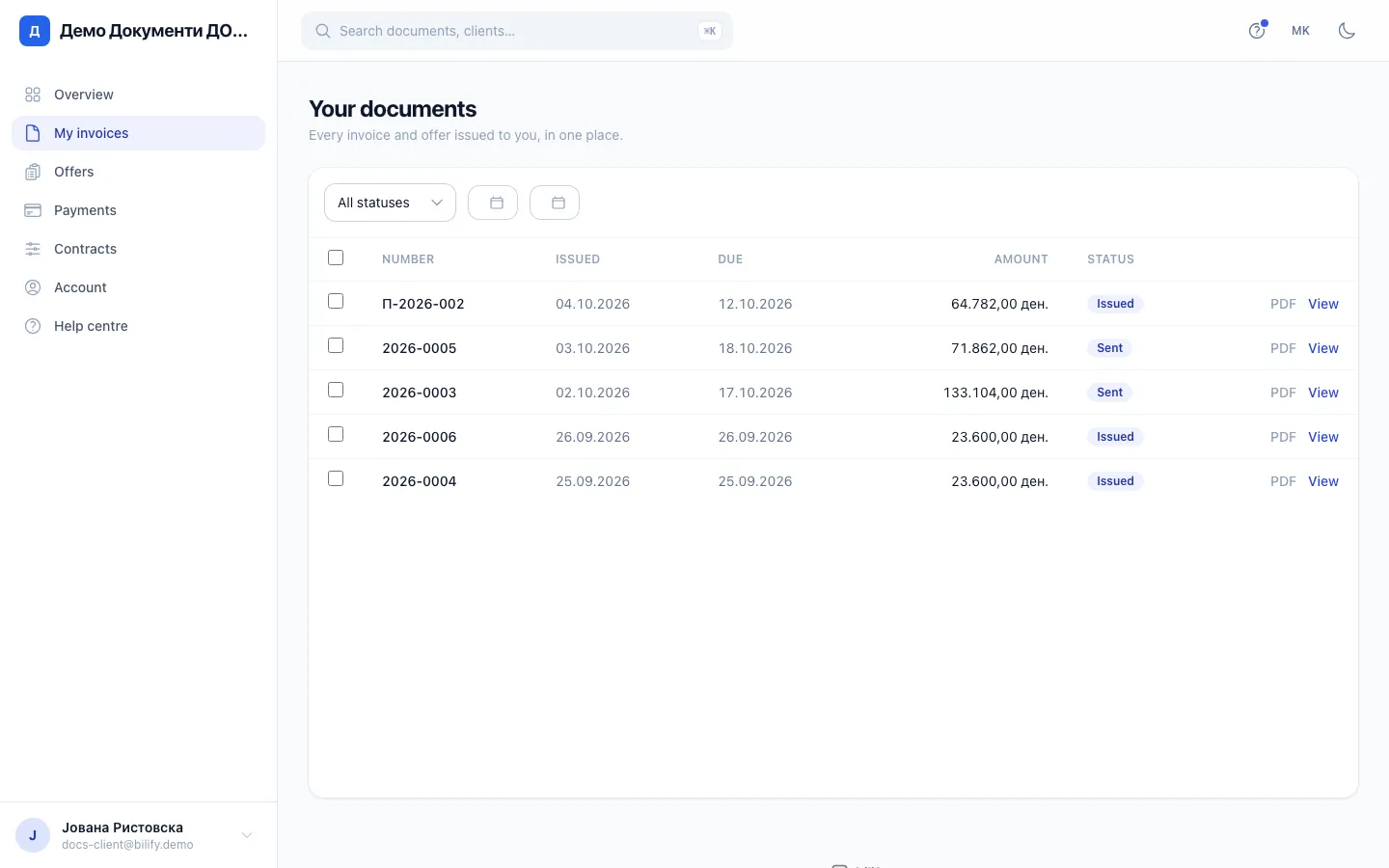
- Open My invoices (or Offers).
- Use the filters if you want, for example the From and To dates for one month or one year.
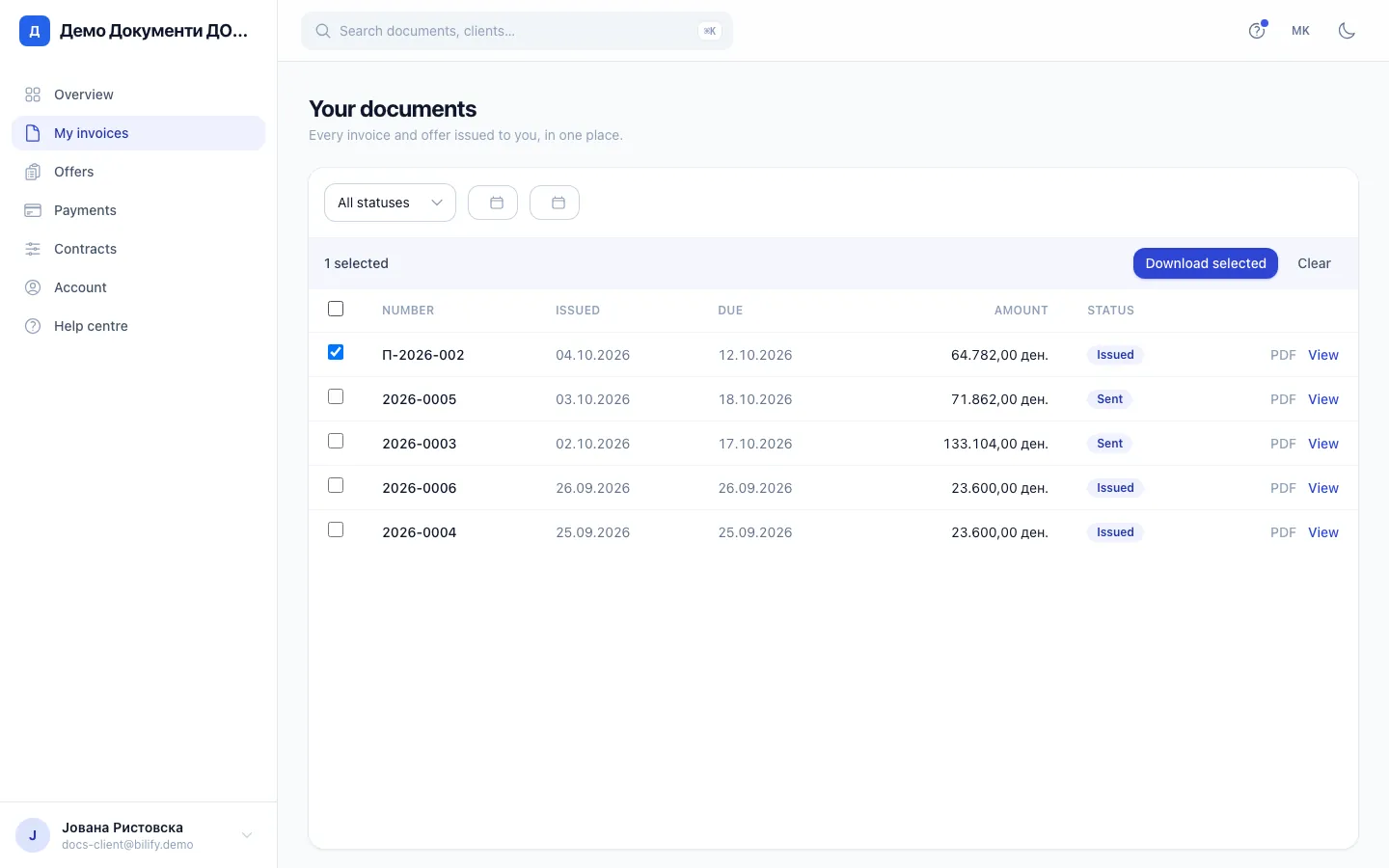
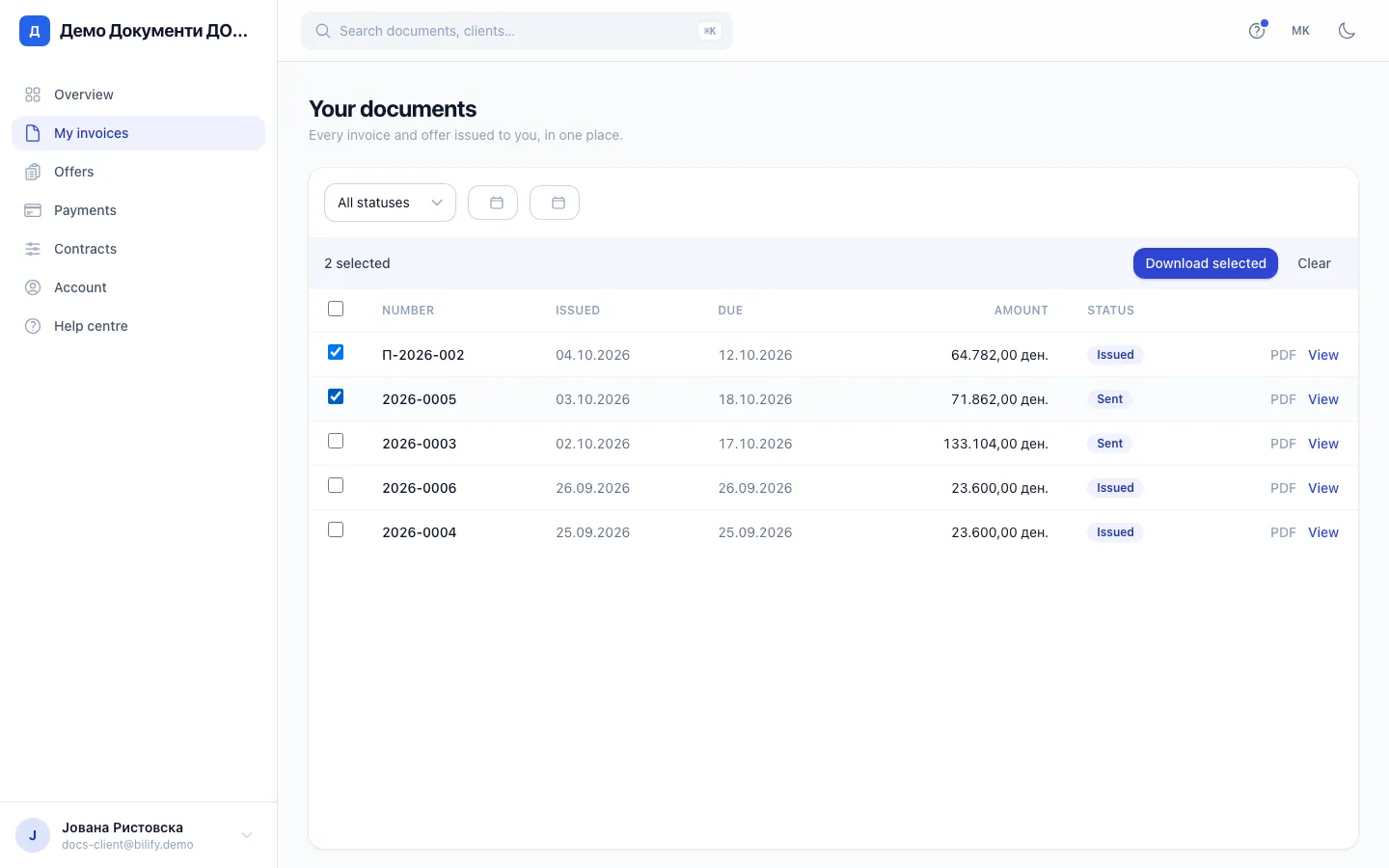
- Tick the box in front of each document you want. The box in the header row selects every document on the current page.
- Click Download selected in the bar that appears.
- All selected documents open together, one per page, with a summary at the bottom ("Ready to print" with the number of documents) so you can check the selection. The summary is not part of the PDF.
- Click Download PDF at the top and choose Save as PDF in the print window.
You get one PDF file with all the documents, each starting on a new page. You can select up to 50 documents in one go.
Changing a filter clears your selection
If you change the status or date filter after ticking documents, the ticks are removed. Set the filters first, then tick.
What the PDF contains
The PDF is the document exactly as the company issued it, in their design: their logo and details, your details, the lines, taxes, totals, due date and payment details. It is the same document the company keeps on its side.
Was this page helpful?
Related articles
Still stuck?
Write to us and we will get back to you within one working day.