View your invoices and offers
Find any invoice or offer the company sent you, filter by status or date, see what each status means and accept an offer online.
Every invoice and offer the company has issued to you is in the portal, in one place. You can open each one exactly as it was issued, download it and, for offers, accept it online.
Find an invoice
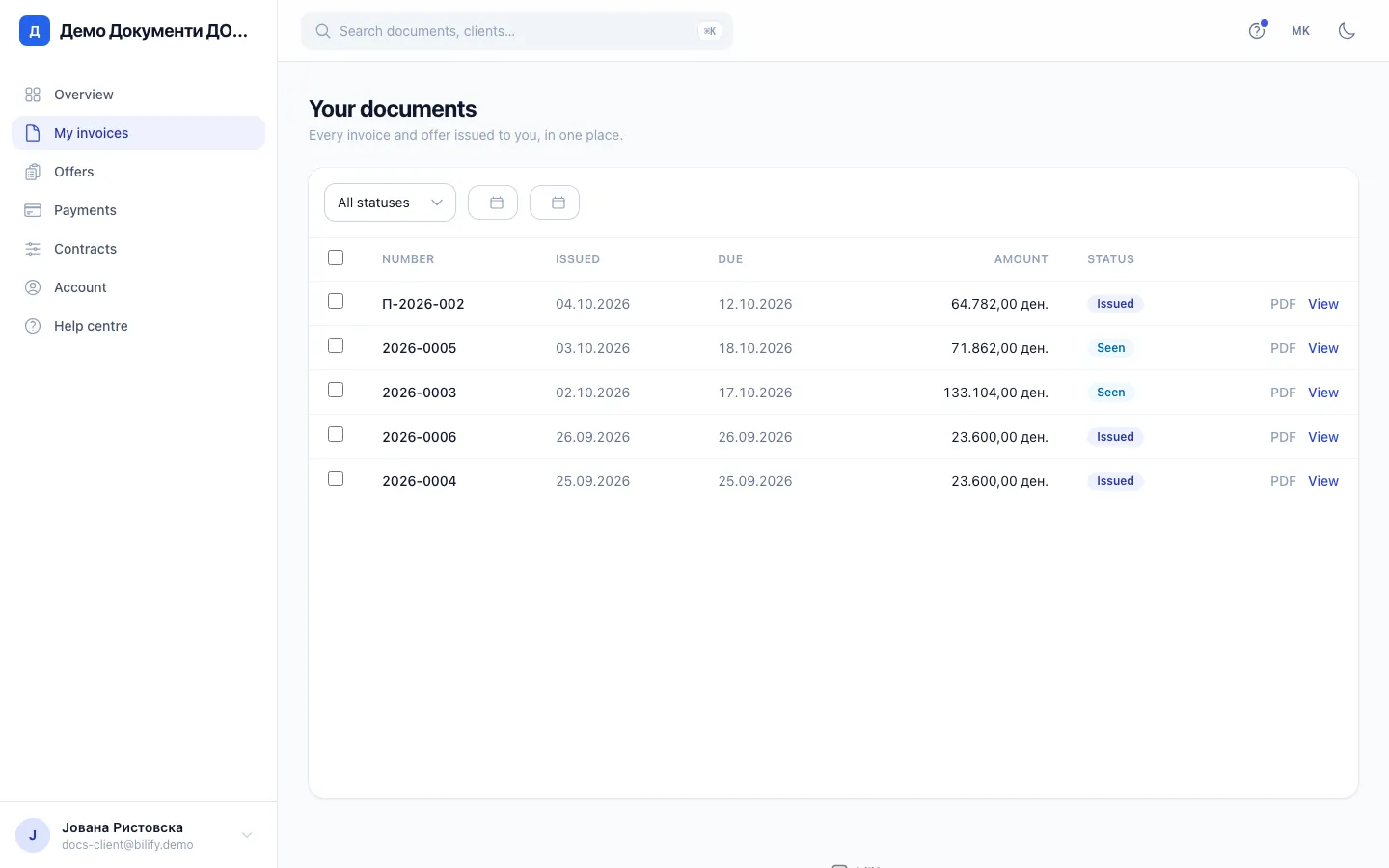
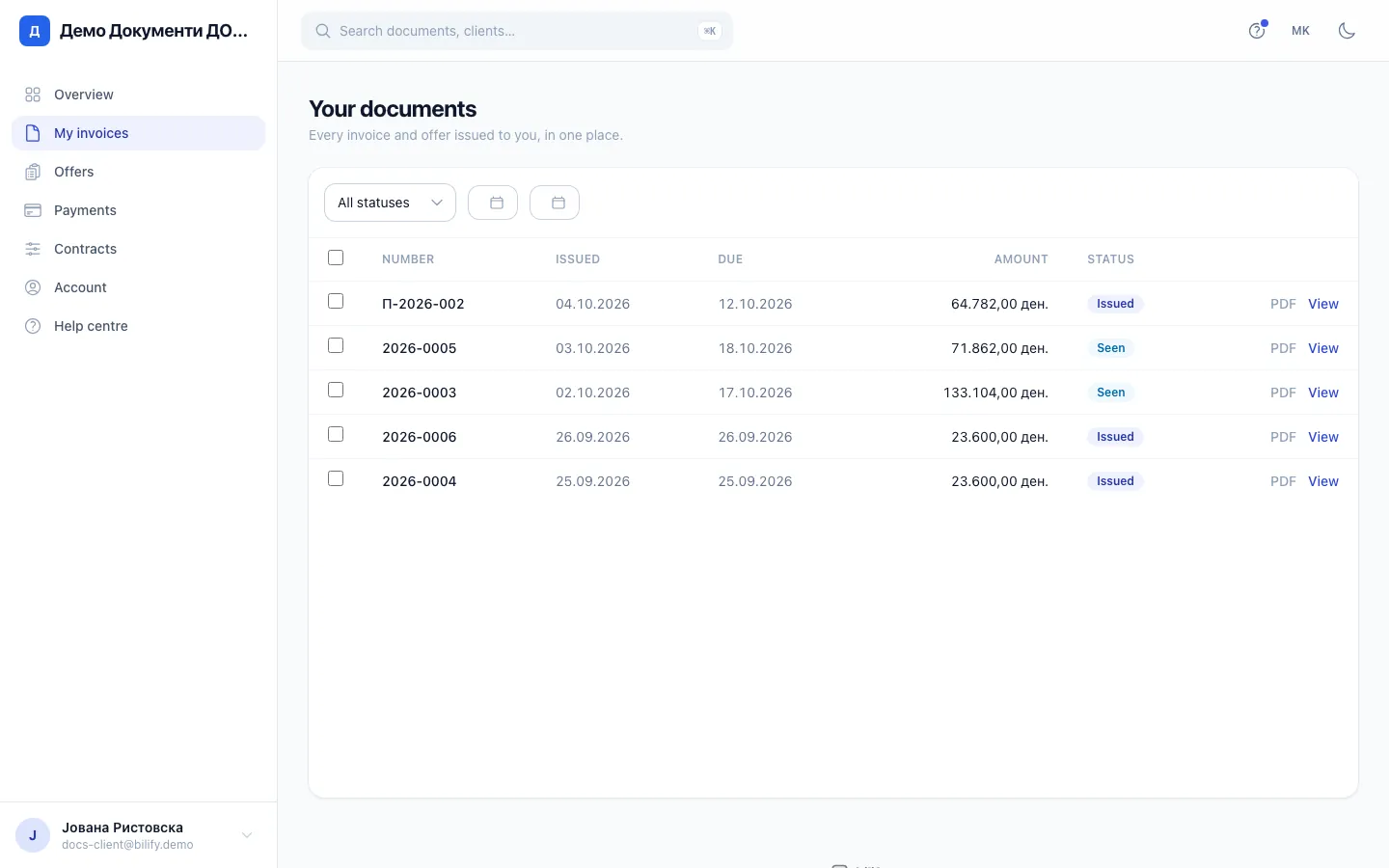
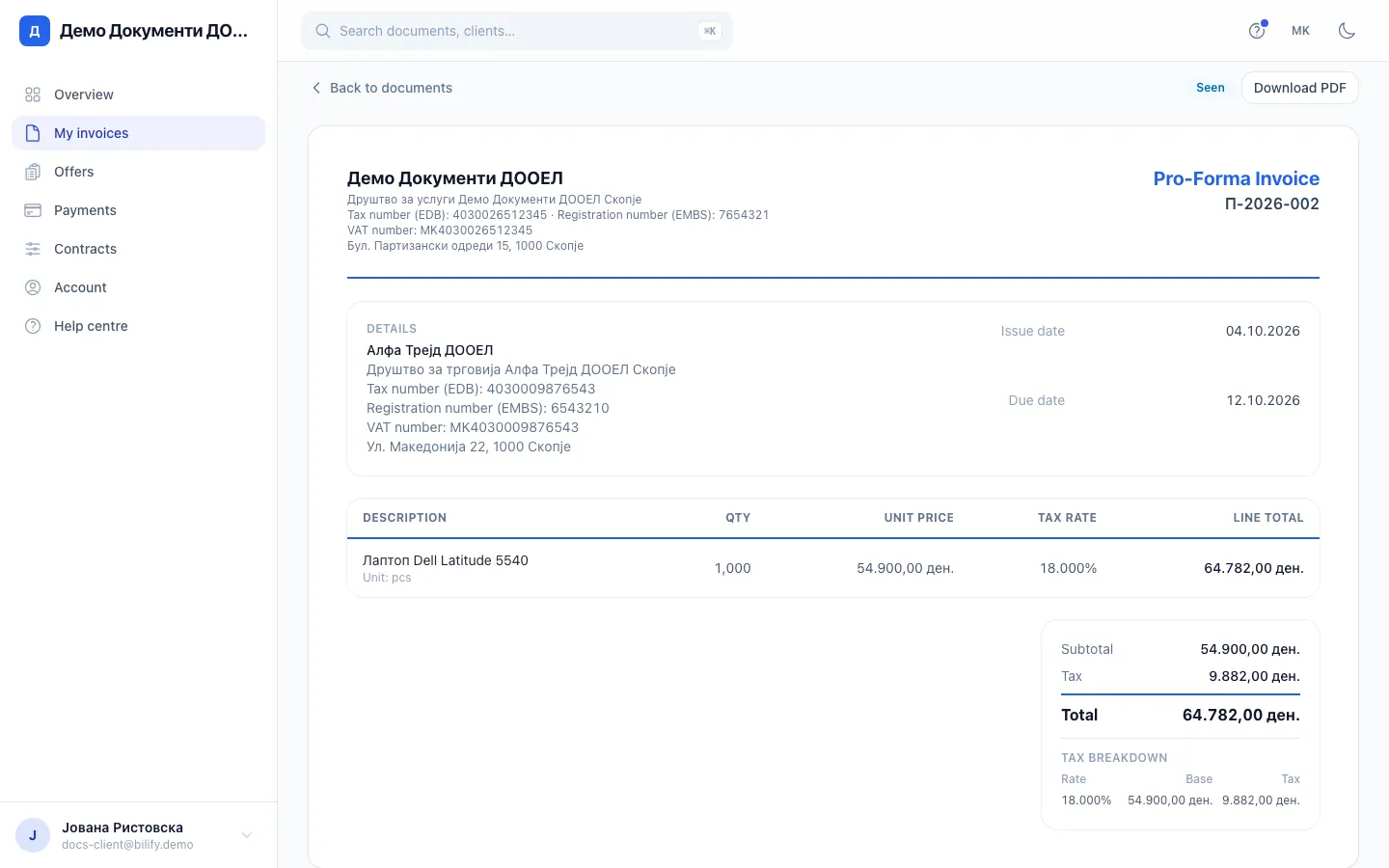
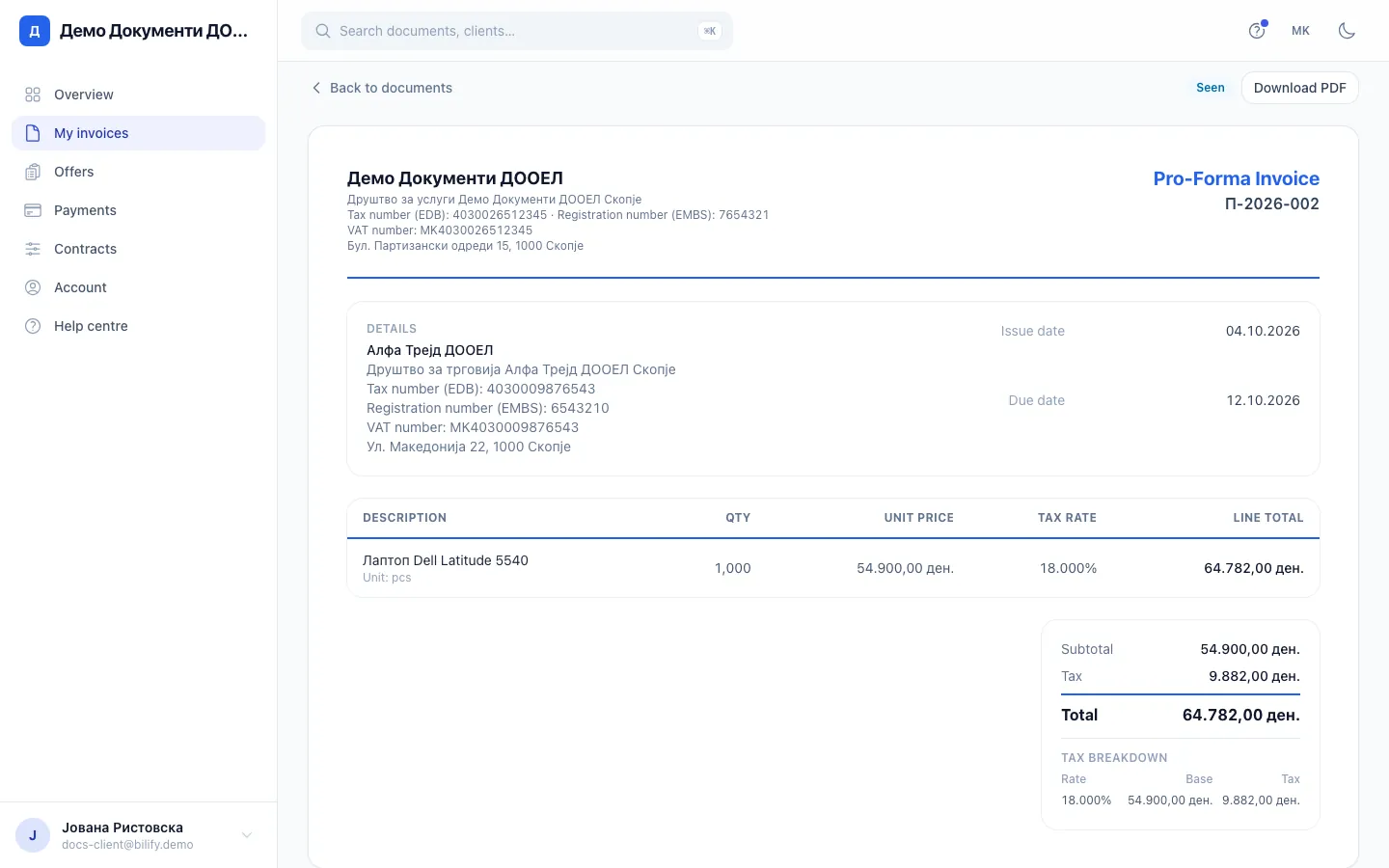
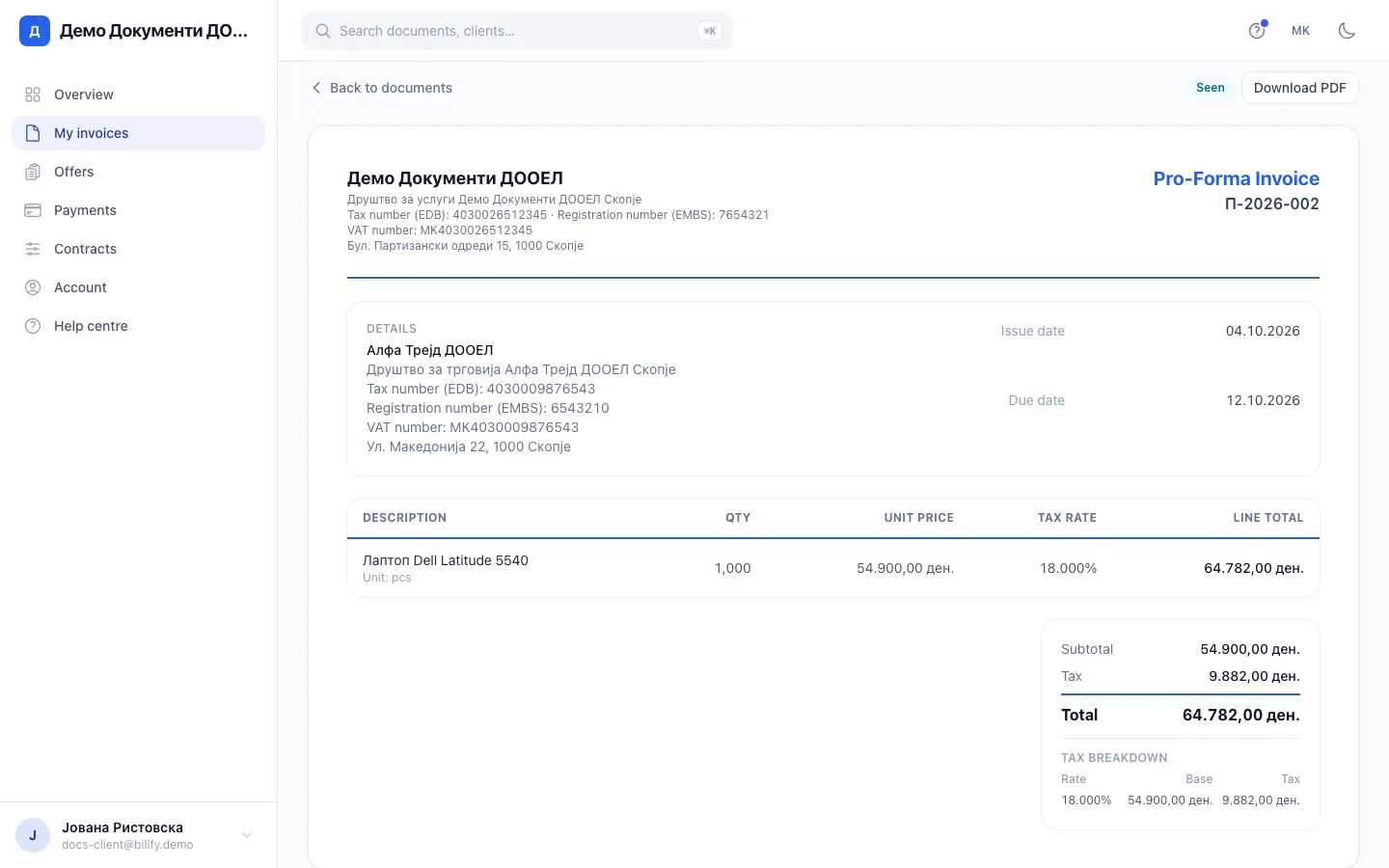
- Step 1: Every invoice the company issued to you is listed here. Filter by status or by issue date.
- Step 2: Click a number to open the document.
- Step 3: The document looks exactly like the copy the company issued, including the payment details.
- Step 4: Download PDF opens a print view in a new tab where you can save the PDF.
- Step 5: Offers have their own list. Open one to accept it online.
- Sign in to the portal.
- The Overview page shows your five most recent documents and three totals: Open invoices, Due soon (due within 7 days) and Paid this year.
- For the full list, open My invoices in the menu.
- Narrow the list with the status filter (All statuses by default) or with the From and To dates, which filter by issue date. Reset clears the filters.
- Click a document number, or View, to open it.
My invoices holds every document except offers: invoices, pro-forma invoices, advance invoices and any other type the company issues. The list shows 15 documents per page.
What the statuses mean
| Status | Meaning |
|---|---|
| Issued | The document is final. |
| Sent | The company emailed it to you. |
| Seen | You have opened it in the portal. |
| Partially paid | Part of the amount has been received. |
| Paid | The full amount has been received. |
| Overdue | The due date has passed and it is not fully paid. |
A payment you made by bank transfer shows up once the company records it, so there can be a short delay. See Pay an invoice.
Read a document
The document page shows the invoice in the company's own design, as it was issued: your details, the lines, taxes, totals, the due date and the payment details at the bottom. At the top you find:
- Download PDF, which opens a print-ready copy in a new tab. See Download PDFs.
- Pay now, on invoices that still have an amount to pay (not on pro-forma invoices or offers). See Pay an invoice.
- A link back to the list.
Issued documents do not change
What you see is the document as it was issued. If something on it is wrong, for example your address, the company has to correct it with a new document. Send them a message from Account > Message us.
Offers
Offers are kept separately so they do not mix with invoices you have to pay.
- Open Offers in the menu.
- Click an offer to open it.
- If you agree, click Accept offer and confirm.
You then see "Offer accepted. Thank you." and, from then on, "You accepted this offer on" followed by the date. The company is informed through its records and prepares the next step, for example an invoice, on its side. Accepting an offer is not a payment.
Do not want to accept yet?
There is no decline button. Simply leave the offer as it is, or reply to the company using Message us on the Account page.
Cannot find a document?
- Drafts are not shown until the company issues them.
- A document the company cancelled is removed from the portal.
- You only see documents issued to the client account your email belongs to.
Ask the company if a document you expect is missing.
Was this page helpful?
Related articles
Still stuck?
Write to us and we will get back to you within one working day.