Payment methods
Add the bank accounts your clients pay into, per currency, choose a default, and see where the details appear on your invoices.
A payment method tells your client where to pay: usually a bank account in a given currency. Every invoice shows the details of the payment method you choose on it, so add at least one before you start invoicing.
Open the page
Go to Documents > Payment methods. Everyone with access to the page can see the list; adding and changing payment methods is for owners and admins.
Add a bank account
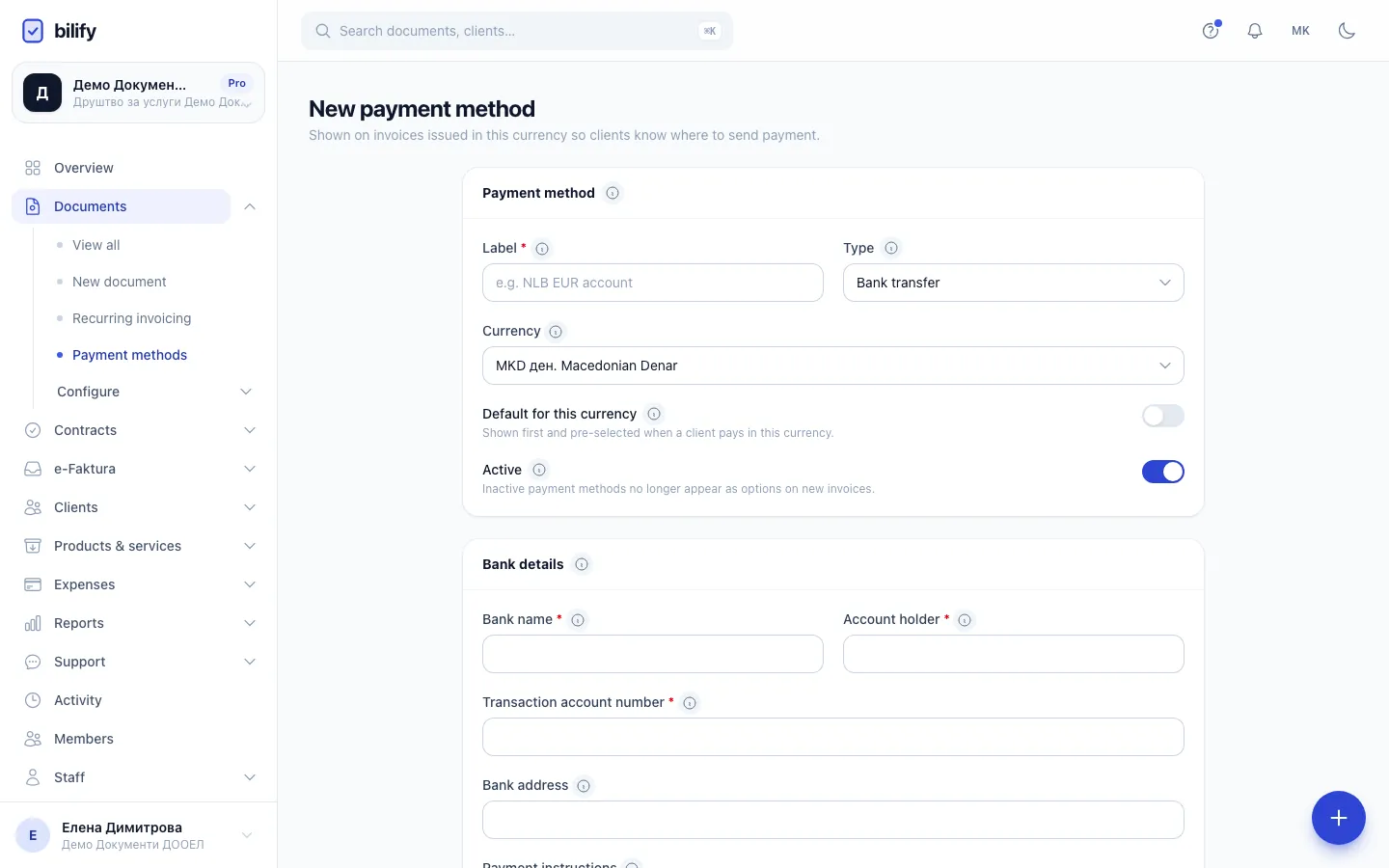
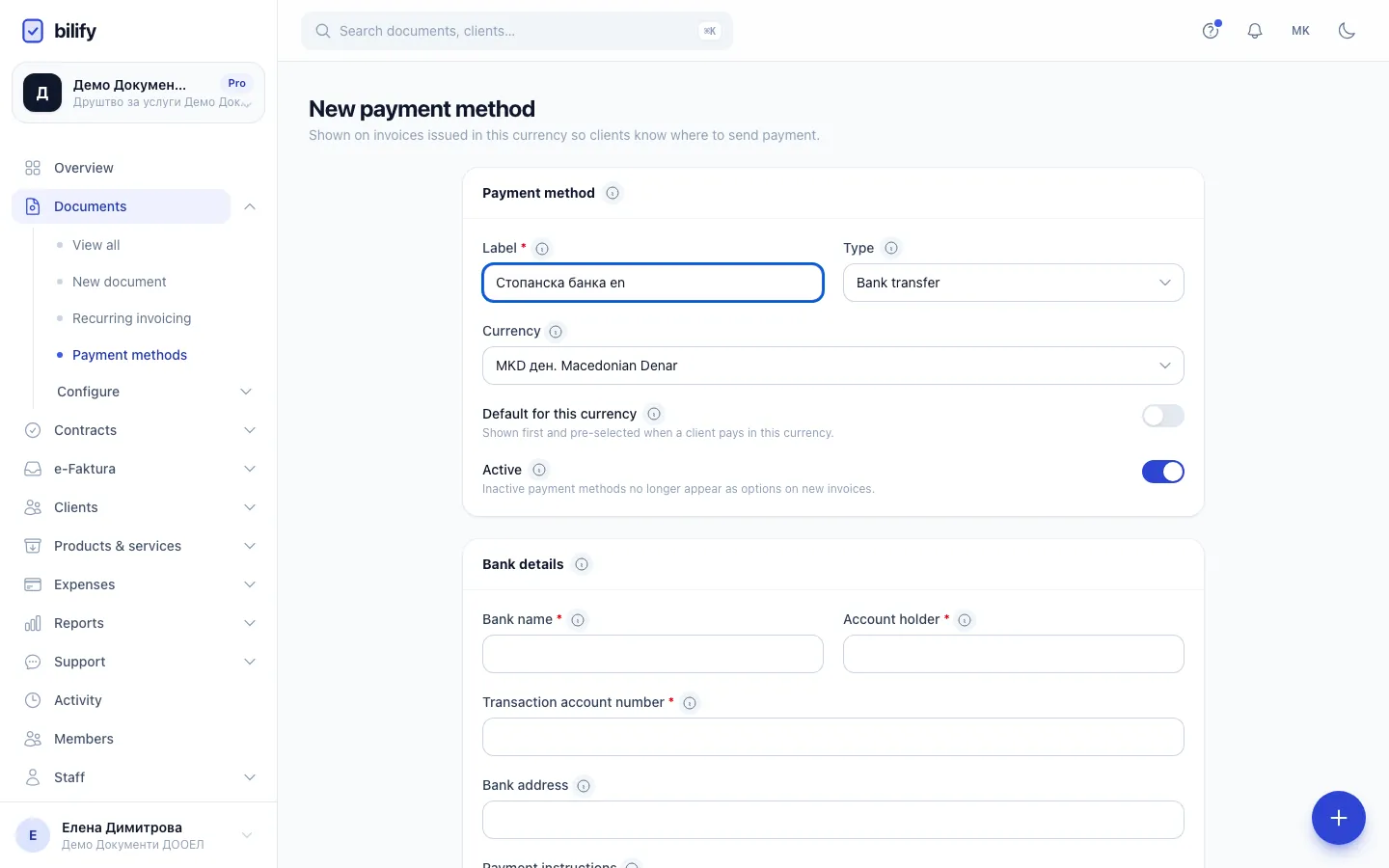
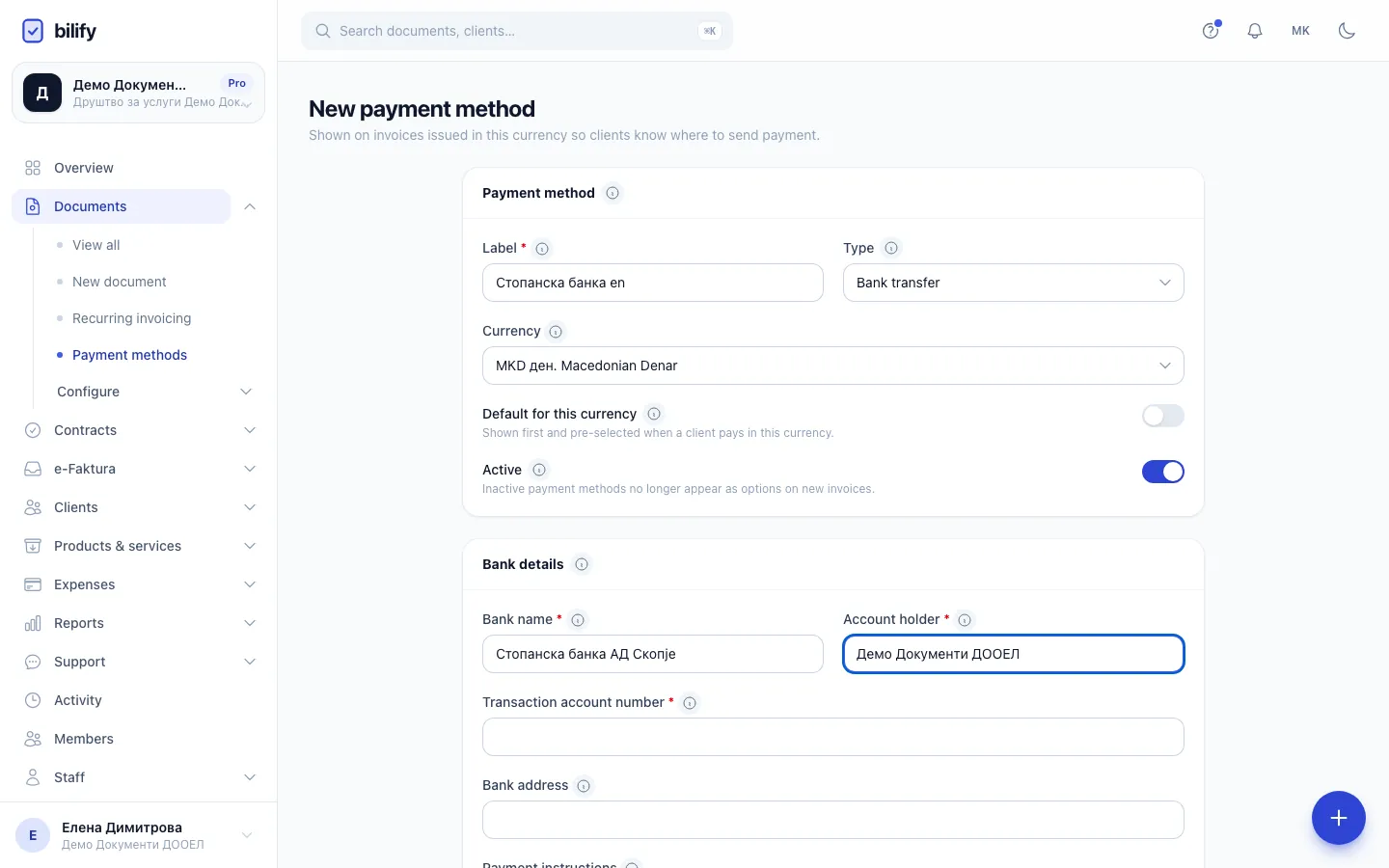
- Step 1: Enter a label. You pick the payment method by this name on invoices.
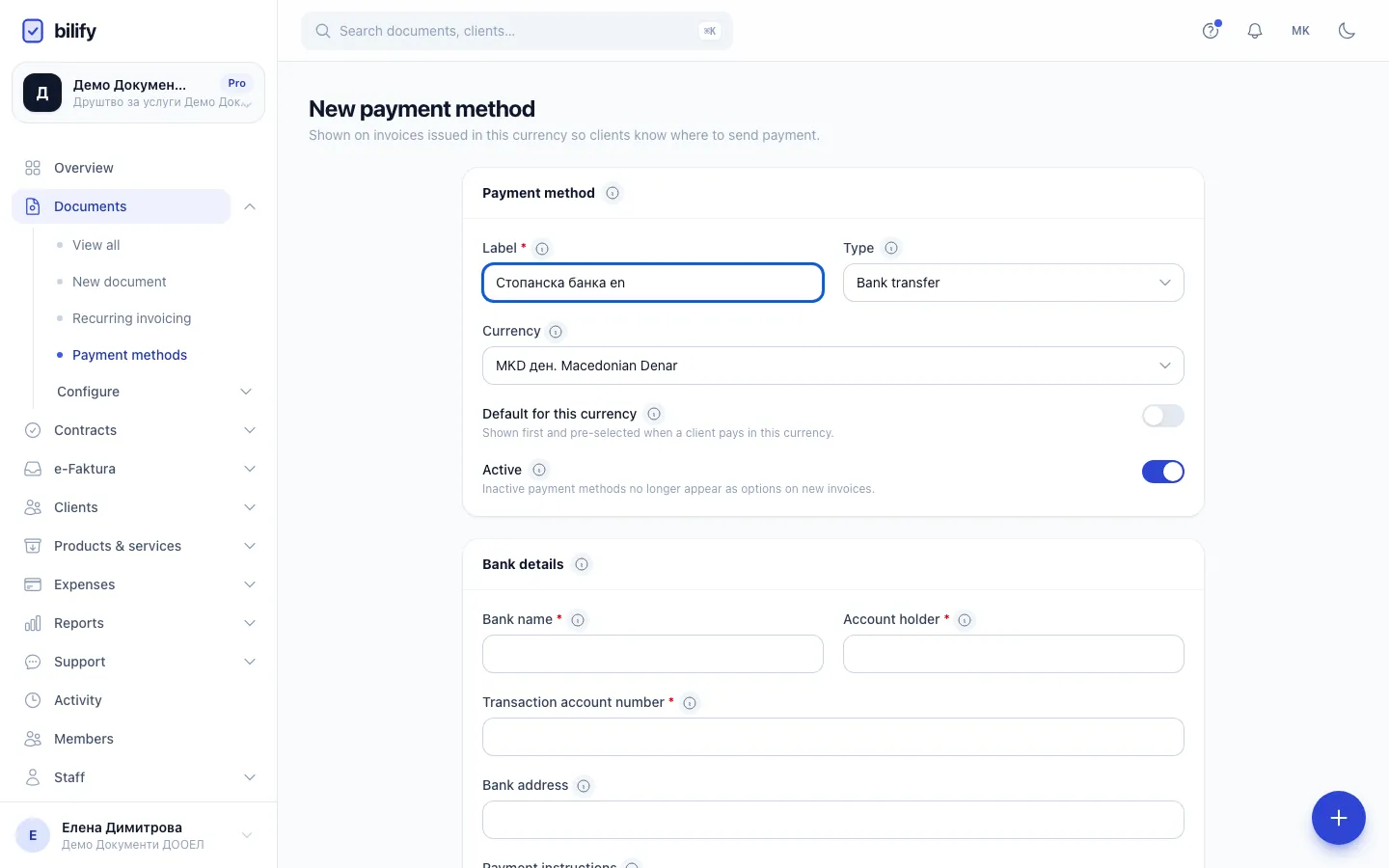
- Step 2: Keep Bank transfer as the type. The currency starts as your company currency.
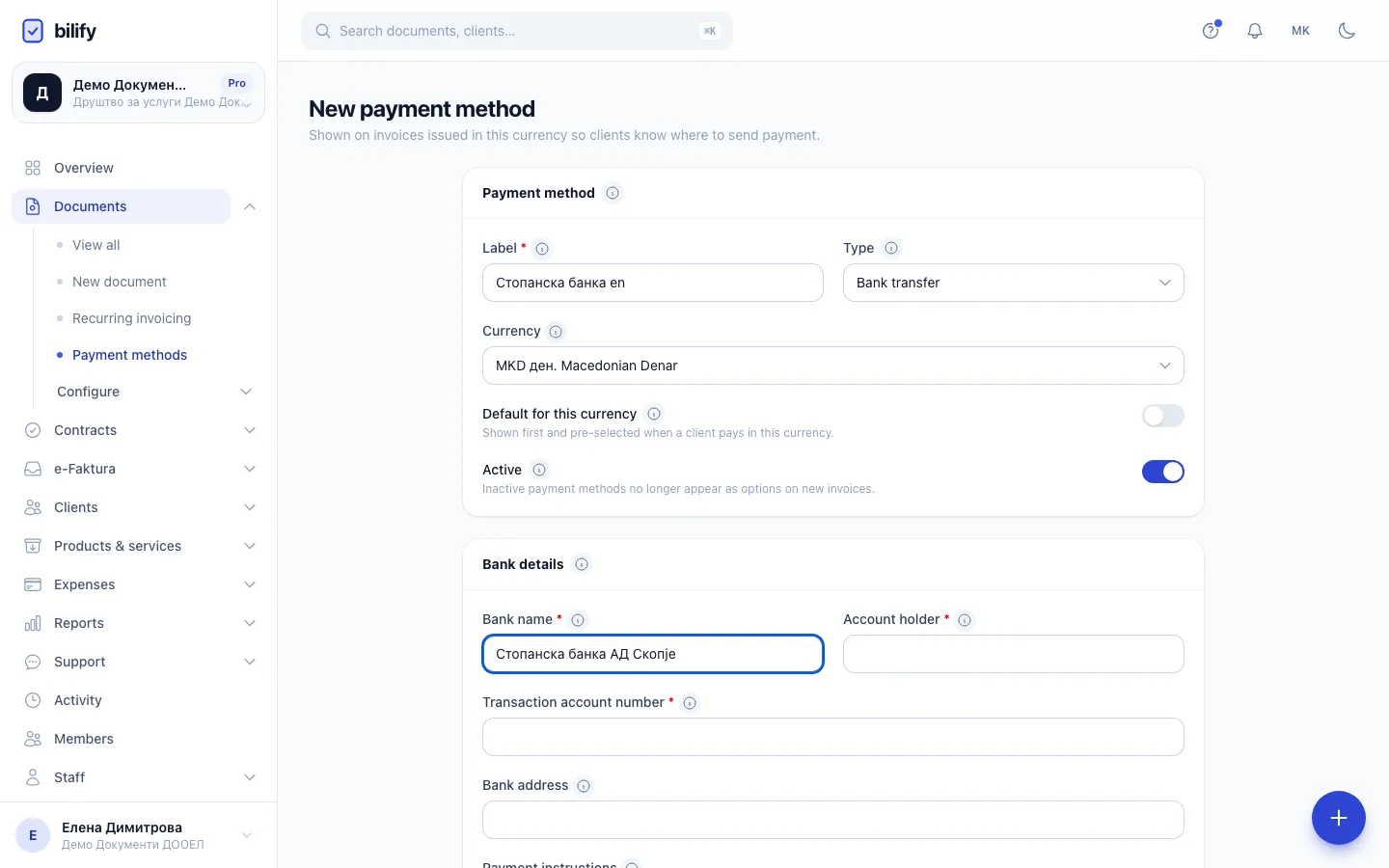
- Step 3: Enter the bank name.
- Step 4: Enter the account holder, usually your company's legal name.
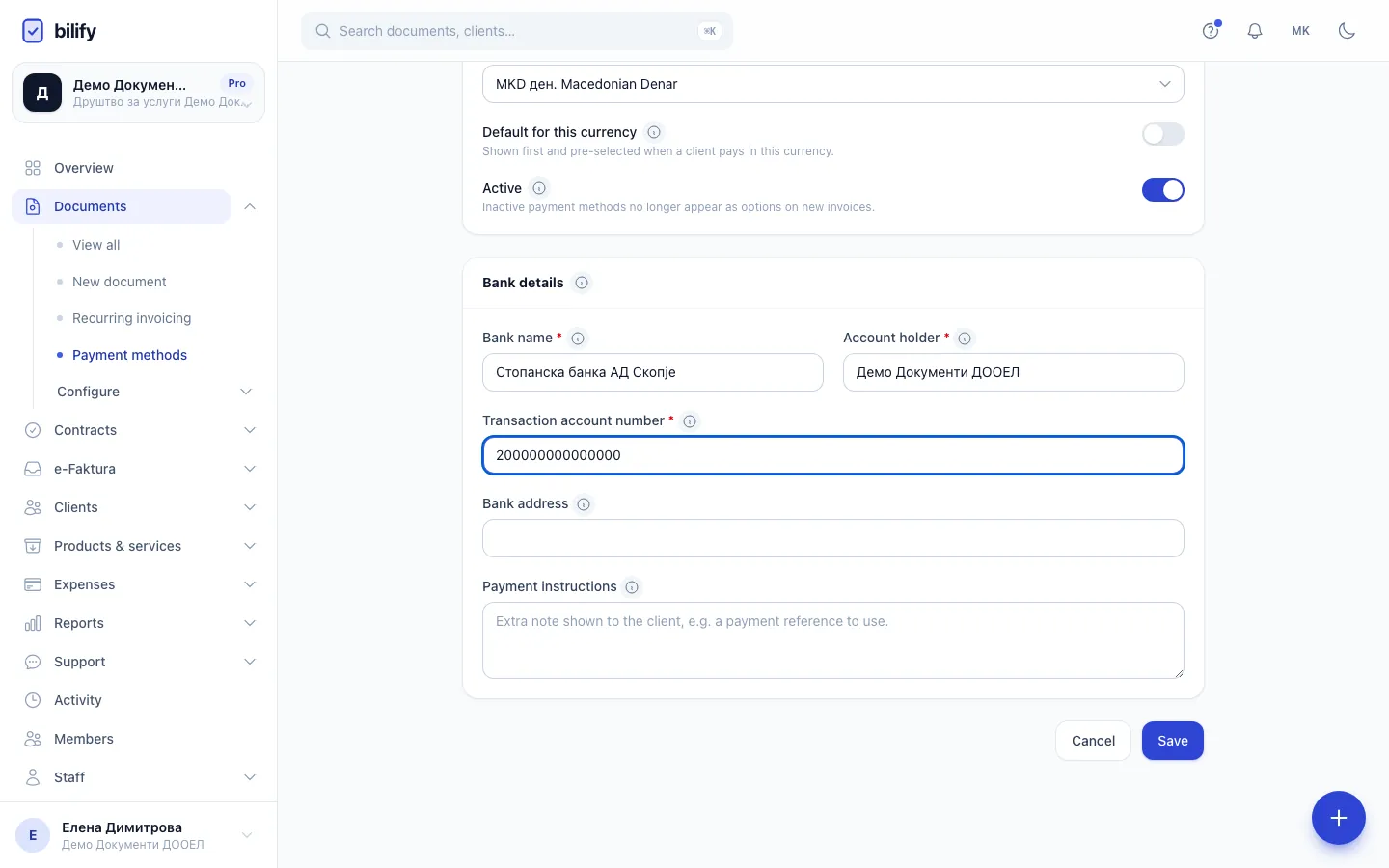
- Step 5: Enter the account number. Accounts in other currencies also need IBAN and SWIFT.
- Step 6: Click Save. The account is now offered on invoices in this currency.
- Click New payment method.
- Type a Label, for example "NLB EUR account". This is the name you pick on invoices.
- Keep Type on Bank transfer.
- Choose the Currency of the account.
- Optional: switch on Default for this currency so it is pre-selected on new invoices in that currency.
- Fill in Bank details:
- Bank name and Account holder,
- for an MKD account, the Transaction account number,
- for any other currency, the Account number plus IBAN and SWIFT / BIC, which foreign banks need,
- optional: Bank address and Payment instructions, for example the reference the client should quote.
- Click Save. You see Payment method created.
Accounts in other currencies
Adding a bank account in a currency other than your company's default needs a package with multi-currency invoicing (Business and up). Otherwise you see Your plan only supports payment methods in your default currency. The number of payment methods you can have also depends on your package. See Usage limits.
How payment methods are used on invoices
- On a new document, Payment method lists the active methods in the document's currency. The default for that currency is pre-selected.
- You can only invoice in currencies for which you have an active payment method. If a currency is missing from the document's currency list, add a payment method in it. Once Stripe online payments are connected, every currency becomes available.
- When you issue the document, the method's details are copied onto it and shown under Payment details on the invoice, the PDF, the email and the client portal.
Editing never changes issued invoices
Issued documents keep their own copy of the payment details. Changing a bank account, deactivating it or deleting it only affects documents you create from now on.
Default, active and delete
- Default for this currency: only one method per currency can be the default. Switching it on for one switches it off for the previous default. The default shows a Default badge in the list.
- Active: inactive payment methods no longer appear as options on new invoices. Use the row menu to Deactivate or Activate a method.
- Delete removes the method after a confirmation. Invoices that already used it keep their own copy of the details.
Online payments
The second type, Online payments (Stripe), lets clients pay by card through Stripe. It is not tied to a currency and appears in the list with All currencies. A company can have only one. Setting it up is explained in Stripe online payments.
Was this page helpful?
Related articles
Still stuck?
Write to us and we will get back to you within one working day.