Record a payment
Mark an invoice as paid or partially paid by recording the payments you receive, and see how online payments are recorded for you.
When a client pays, record the payment on the invoice. Bilify updates the invoice status to Partially paid or Paid, and the amount moves from outstanding to paid on your dashboard.
Where payments live
Payments do not have a page of their own in the company app. Each payment is recorded on, and listed in, the document it pays. Open the document from Documents to record or review its payments.
Record a payment
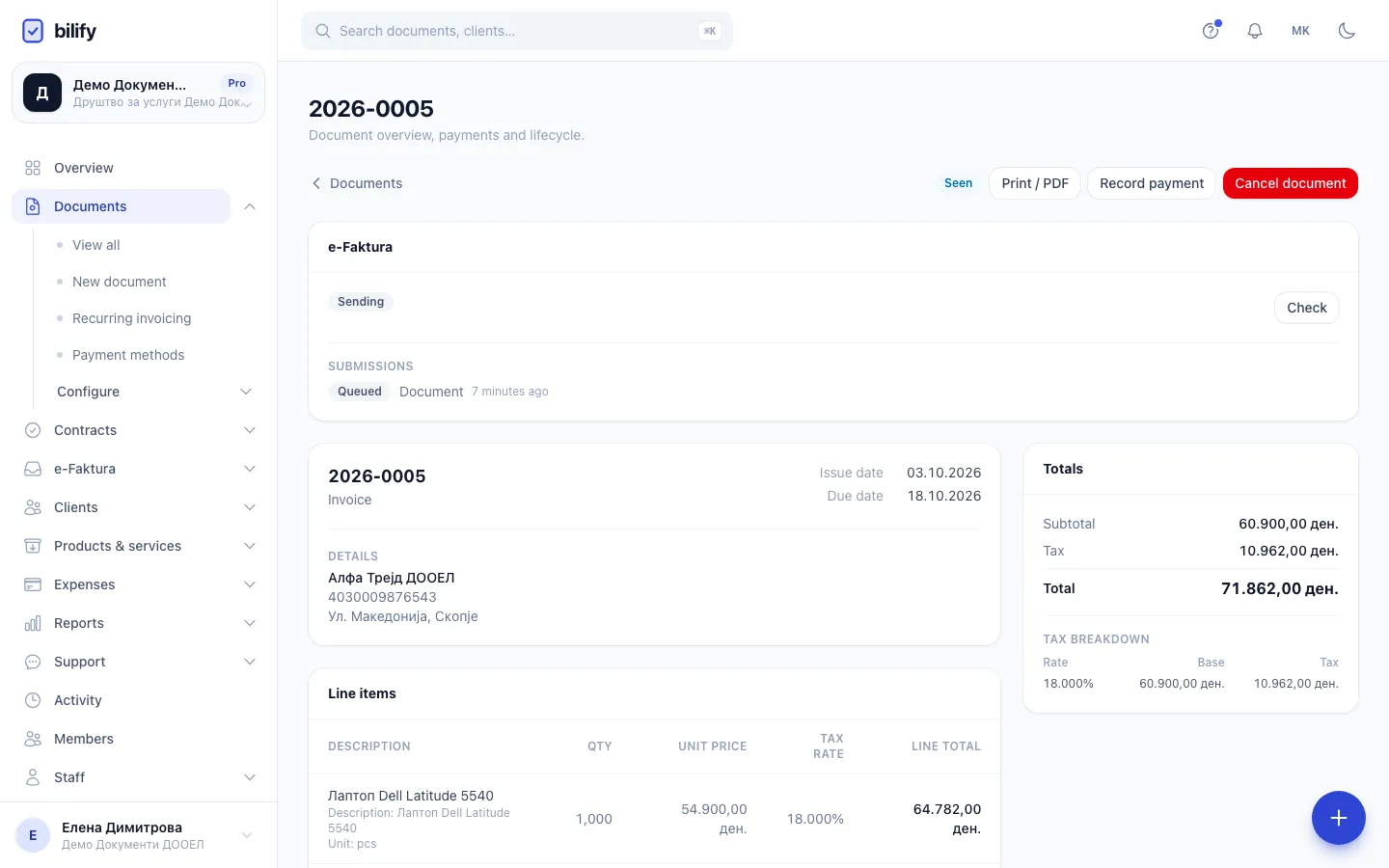
- Step 1: On the issued invoice, click Record payment.
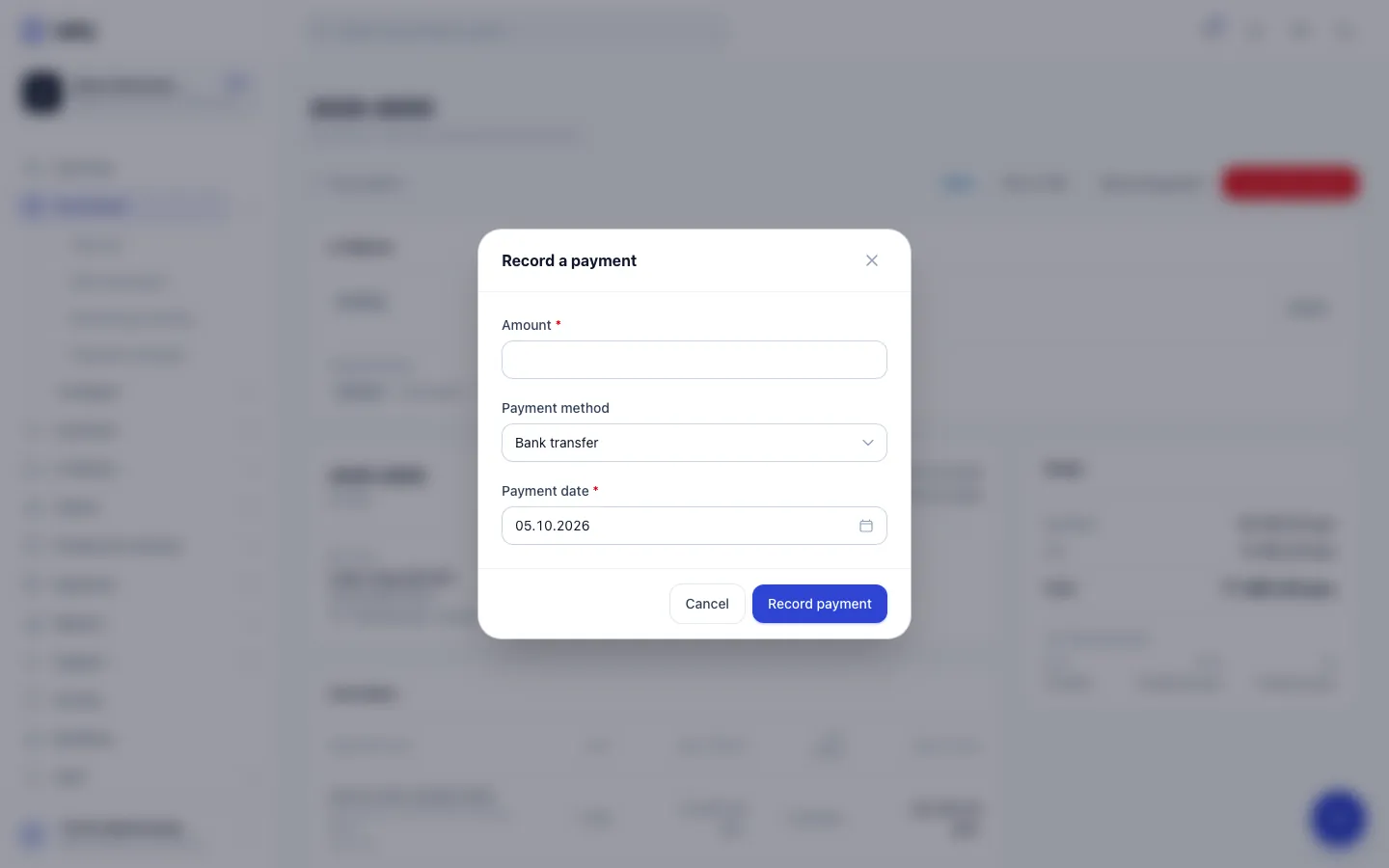
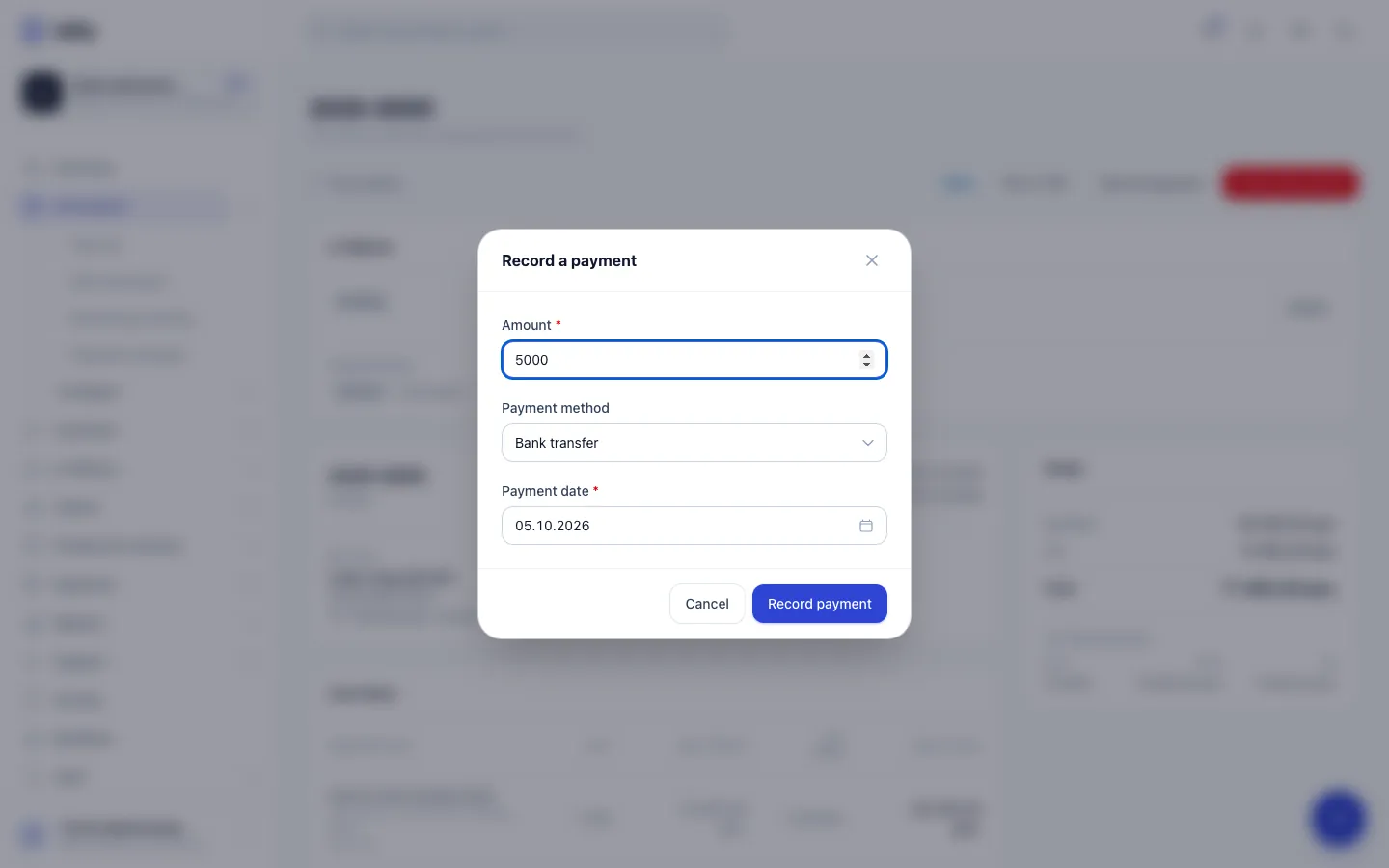
- Step 2: Enter the amount you received. Less than the total makes the invoice Partially paid.
- Step 3: Choose how the money arrived and check the payment date.
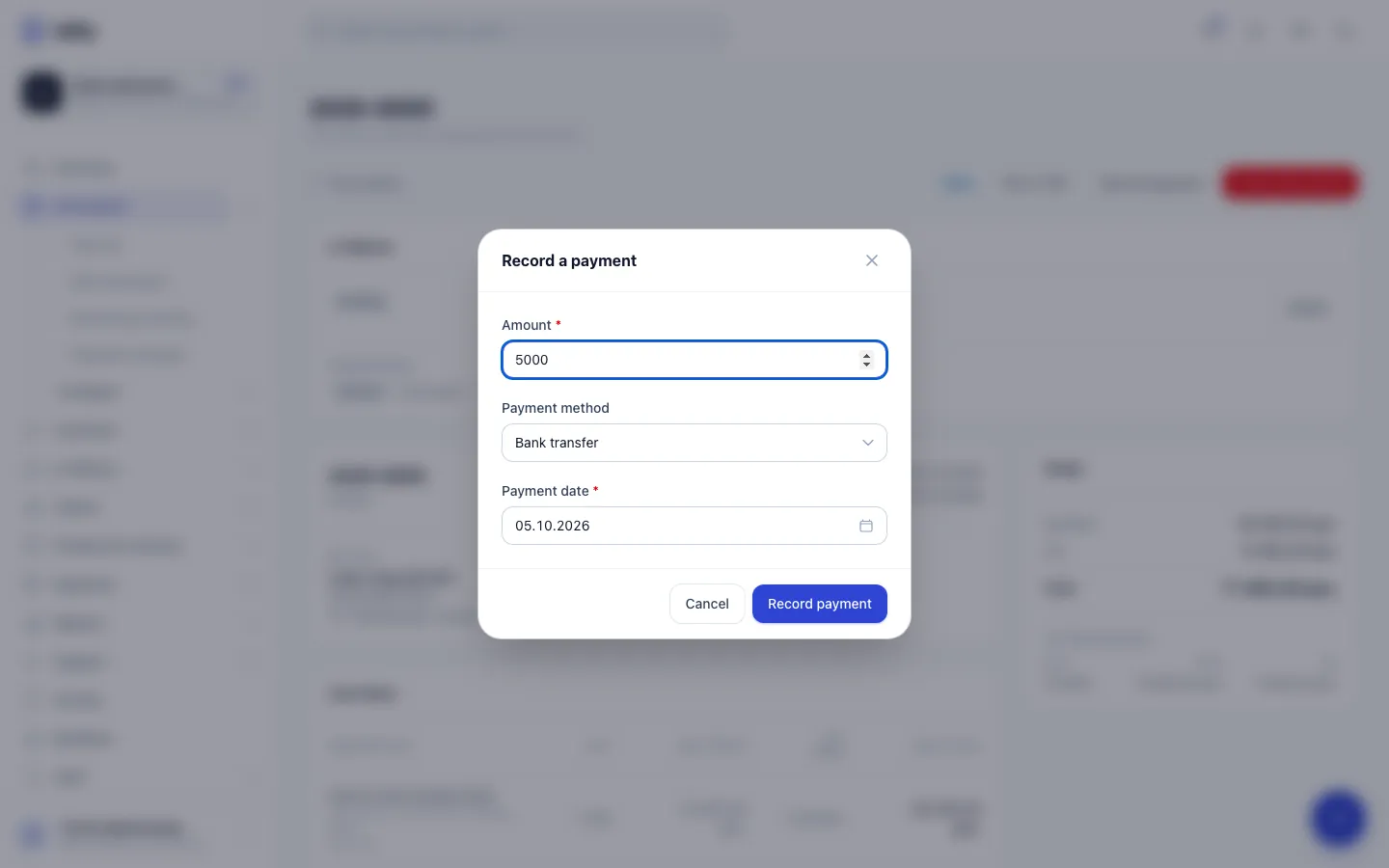
- Step 4: Click Record payment. It appears under Payments and the status updates. Payments cannot be edited later.
- Open the issued invoice from Documents.
- Click Record payment at the top.
- Enter the Amount you received.
- Choose the Payment method: Bank transfer, Cash, Card or Payment gateway.
- Check the Payment date. It starts as today.
- Click Record payment. You see Payment recorded.
The payment appears in the Payments card of the document with its amount, method and date, and the totals show how much has been paid in the Paid row.
How the status changes
| Payments so far | Status |
|---|---|
| Less than the total | Partially paid |
| Equal to or more than the total | Paid |
Record one payment per transfer you receive; several partial payments add up. Bilify does not stop you from entering more than the remaining balance, so check the amount before you save.
Payments cannot be edited or deleted
Once recorded, a payment stays on the document. There is no button to change or remove it, so double check the amount and date. If a payment was recorded by mistake, contact support.
When you can record a payment
- The Record payment button appears on invoices with the status Issued, Sent, Seen, Partially paid or Overdue.
- Offers and pro-formas never take payments, so they have no Record payment button. Record the payment on the invoice you issue for them. The API refuses payments on them too.
- Drafts and cancelled documents cannot take payments. A paid document no longer shows the button.
- You need permission to edit documents. Owners, admins, accountants and employees have it with the default roles.
Online payments are recorded automatically
When a client pays an invoice online through Stripe, you do not need to do anything. As soon as Stripe confirms the payment, Bilify records it with the method Payment gateway and the Stripe payment reference, and the status changes as above. The same real payment is never recorded twice. See Stripe online payments.
Who is told about a payment
Every recorded payment, manual or online, can send a Payment received notification to your team. By default it goes to the owner and accountants. Change who receives it, or switch it off, in Settings > Notifications. See Notification settings.
Payments are also visible to your client: the client portal shows what has been paid on each invoice and has a Payments page.
Payment method on the invoice versus how it was paid
The Payment method on an invoice is the bank account or Stripe account you want to be paid into, set up in Payment methods. The Payment method in the Record a payment window only describes how this particular payment arrived.
Was this page helpful?
Related articles
Still stuck?
Write to us and we will get back to you within one working day.